How to install Klipper with KIAUH and connect it to Printer Tools
Klipper installation with KIAUH
The short answer
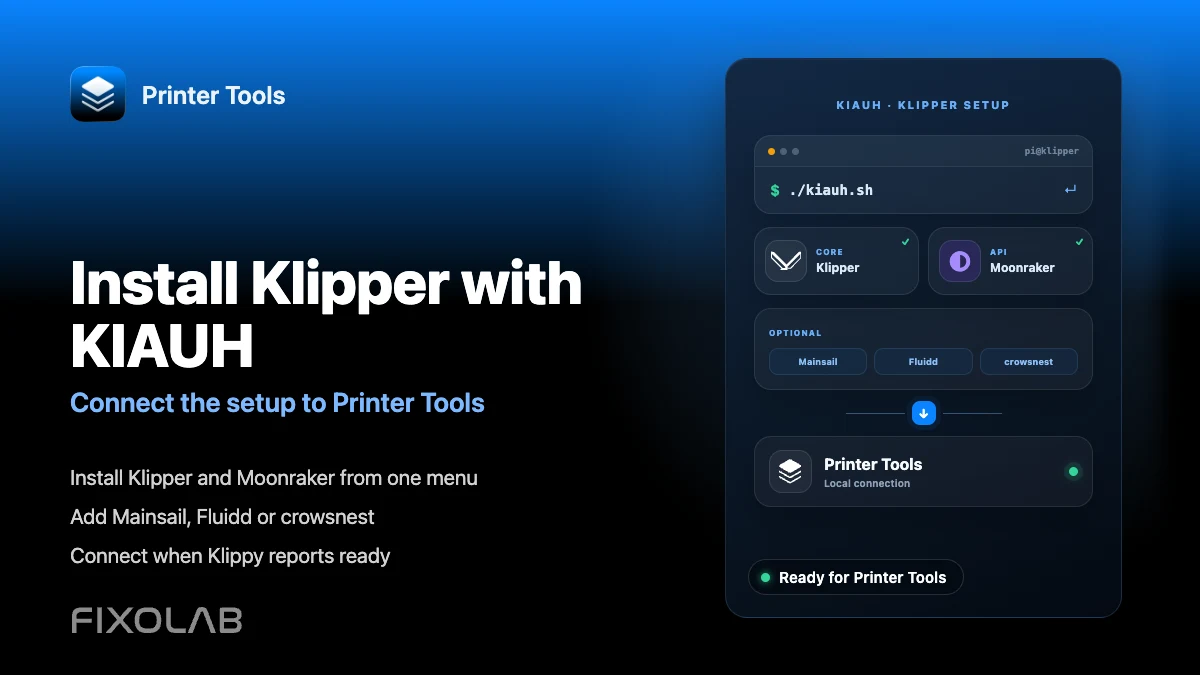
KIAUH (Klipper Install And Update Helper) is the community script most Klipper users run on a Raspberry Pi or similar host to install Klipper, Moonraker and optional extras like Mainsail, Fluidd or crowsnest from one menu. Once Klipper and Moonraker are installed and Klippy reports ready, add the printer to Printer Tools the same way as any other Moonraker setup, using the host's local address.
What you need
- A Raspberry Pi or similar Linux host with Raspberry Pi OS Lite or a compatible distribution
- SSH access to that host from a computer
- A 3D printer controller board supported by Klipper, connected to the host
- Basic familiarity with your printer.cfg, since KIAUH installs the software but does not write your printer configuration for you
- Printer Tools installed on Android, iPhone, iPad or Mac for the final connection step
Install Klipper with KIAUH
- 1
Prepare the host
Flash Raspberry Pi OS Lite to an SD card, enable SSH, connect to your network and confirm you can reach the host over SSH before installing anything.
- 2
Download KIAUH
Clone the official KIAUH repository on the host and make its main script executable, then run it to open the interactive menu described in KIAUH's own documentation.
- 3
Install Klipper and Moonraker
From the KIAUH menu, install Klipper first, then Moonraker. Moonraker is the service Printer Tools actually talks to, so it must be installed even if you do not plan to use a web interface.
- 4
Add optional components
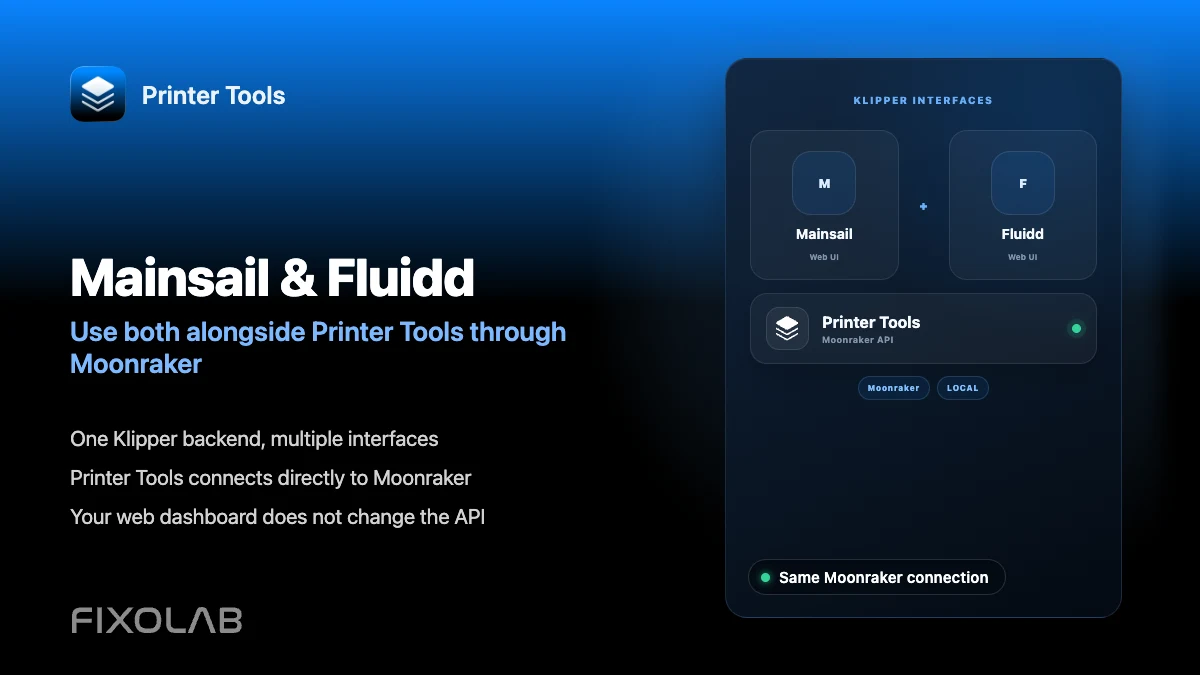
Still inside KIAUH, you can install Mainsail or Fluidd for a web dashboard and crowsnest for an MJPEG webcam feed. Neither is required for Printer Tools, but crowsnest is what makes a camera appear in the app later.
- 5
Flash or configure your controller board
Use KIAUH's firmware menu if your board is supported, or follow your board's documented flashing process, then create or adapt a printer.cfg for your specific hardware before starting Klipper.
- 6
Connect the printer in Printer Tools
Once Klippy reports ready, open Printer Tools, add a Klipper printer and enter the host's local address. Follow the full connection guide if this is your first time adding a Klipper printer.
Klipper inside Printer Tools after installation
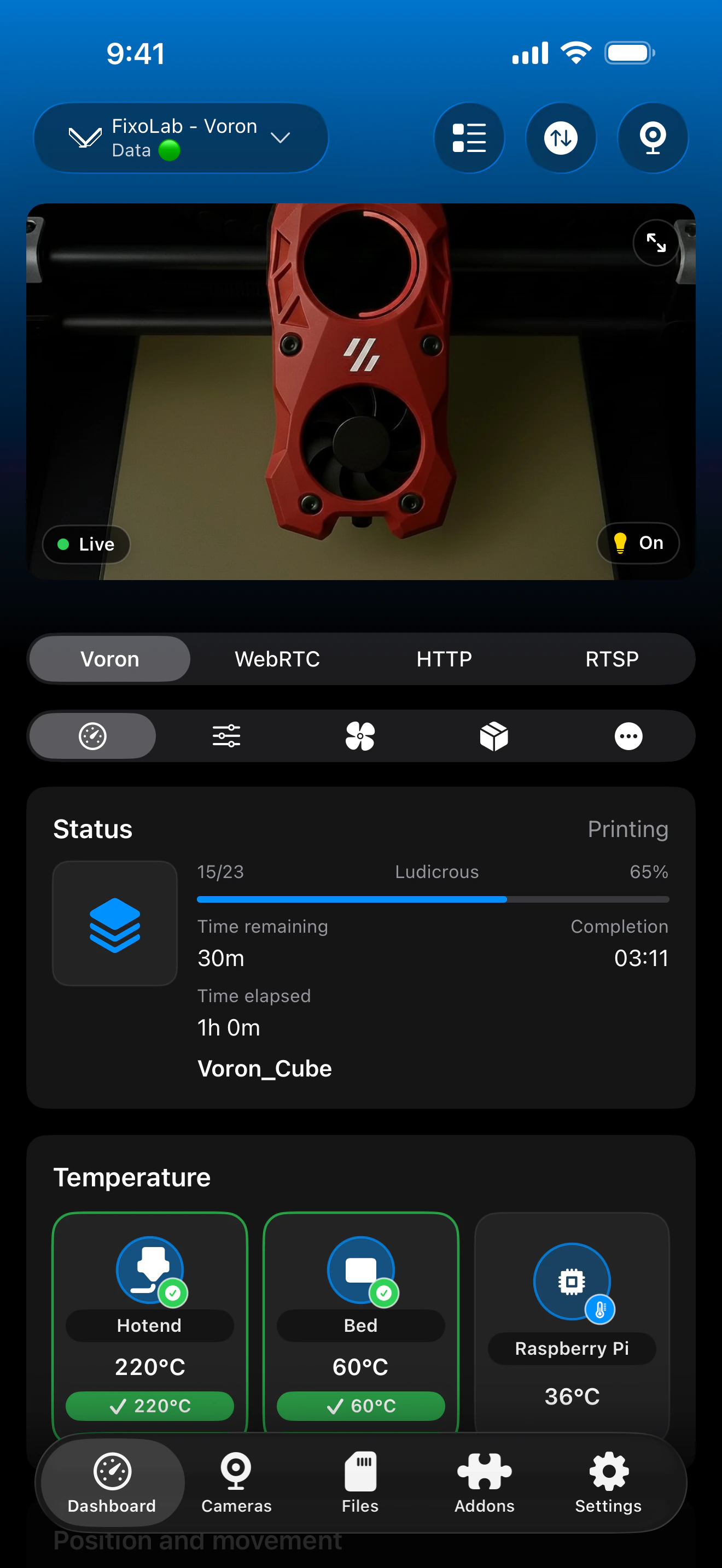
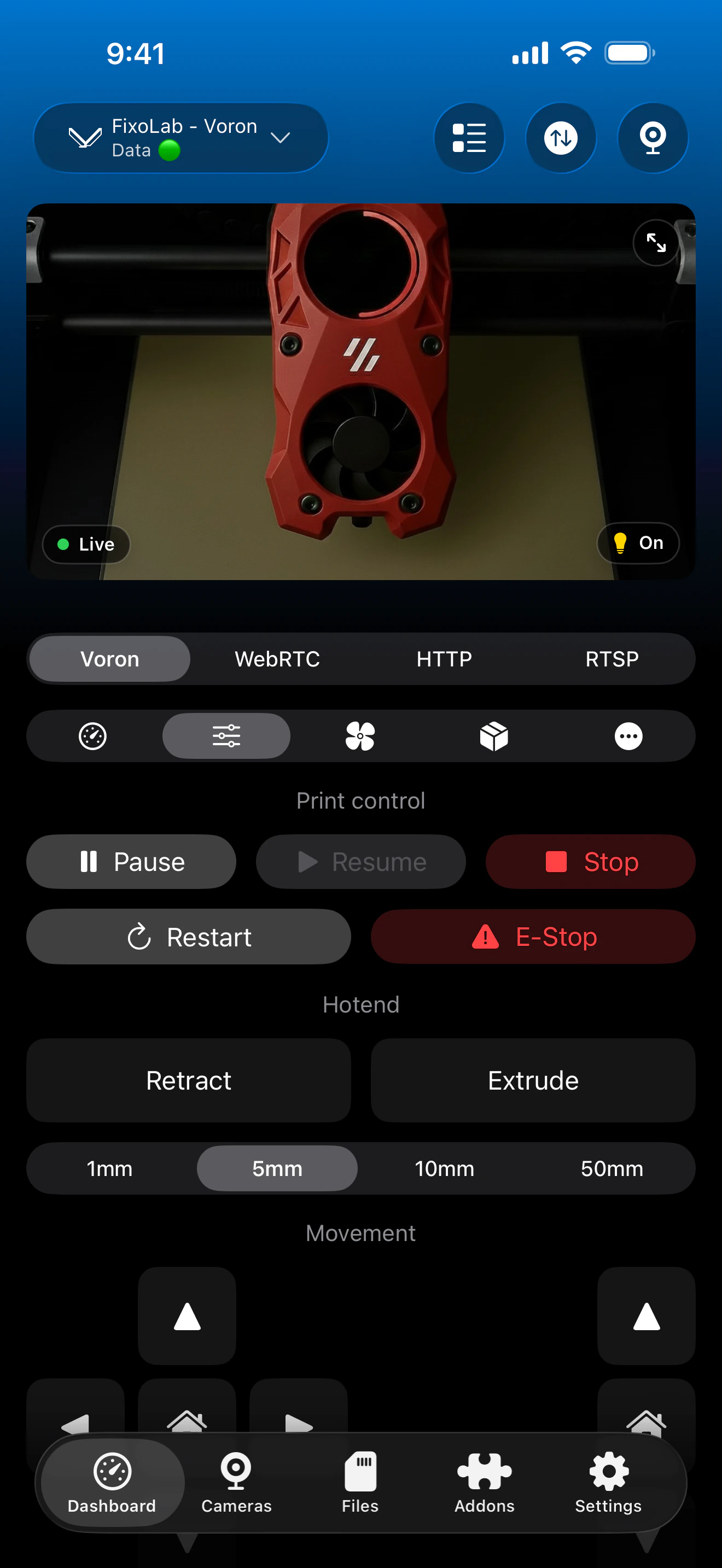
Once Moonraker answers, Printer Tools shows the same dashboard regardless of whether Klipper was installed with KIAUH or another method.
What KIAUH sets up for you
- Klipper itself, including the Klippy process that talks to your controller board
- Moonraker, the service Printer Tools connects to for status, control and files
- Optional Mainsail or Fluidd web interfaces, useful for configuration but not required by Printer Tools
- Optional crowsnest, the MJPEG webcam service Printer Tools looks for automatically
- Menu-driven updates for every component it installed, run again from the same script
What KIAUH does not do
- It does not write your printer.cfg or tune your specific printer's motion and thermal settings
- It is not affiliated with Printer Tools and has no direct integration with the app
- Firmware flashing support depends on your specific controller board being covered by its firmware menu
- It manages the host software only, not your local network or router configuration
Common installation issues
Klippy fails to start after installation
Check the Klipper log on the host for the specific configuration error. This almost always points to a missing or mismatched section in printer.cfg rather than a problem with KIAUH itself.
Moonraker installed but Printer Tools cannot reach it
Confirm Moonraker is actually running and note the host's local IP address. A firewall on the host or a network that isolates client devices can block the connection even when Moonraker itself works.
No webcam appears in Printer Tools after installing crowsnest
Confirm crowsnest is running and exposes its stream at the standard webcam route on the same host. Printer Tools looks for that default path automatically and does not scan for custom camera configurations.
KIAUH menu does not list my controller board for firmware flashing
Follow your board manufacturer's own flashing instructions instead. KIAUH's firmware menu covers common boards, but Klipper itself supports many more boards than the menu automates.
Using this printer away from home
After installation, the same Klipper printer can be reached remotely through a VPN back to your network, or through the OctoEverywhere or Obico options in Printer Tools. Do not forward Moonraker's port directly on your router.
Frequently asked questions
Does Printer Tools require KIAUH specifically?
No. Printer Tools only needs a reachable Moonraker instance. KIAUH is simply the most common way the community installs Klipper and Moonraker, so this guide follows that path.
Do I need Mainsail or Fluidd installed?
No. They are convenient for configuration and firmware work, but Printer Tools talks directly to Moonraker and does not require either interface to be installed.
Will updating Klipper through KIAUH break my Printer Tools connection?
No, as long as the host's address and port stay the same. Restart the printer connection in Printer Tools if it does not reconnect automatically right after an update.
Can I install a camera at the same time?
Yes. Installing crowsnest through KIAUH during the same setup is the simplest way to get a working MJPEG camera that Printer Tools can detect automatically.
Does KIAUH configure my specific printer for me?
No. KIAUH installs the software. You still need a printer.cfg suited to your specific controller board, kinematics and hardware, following Klipper's own configuration documentation.
Related guides
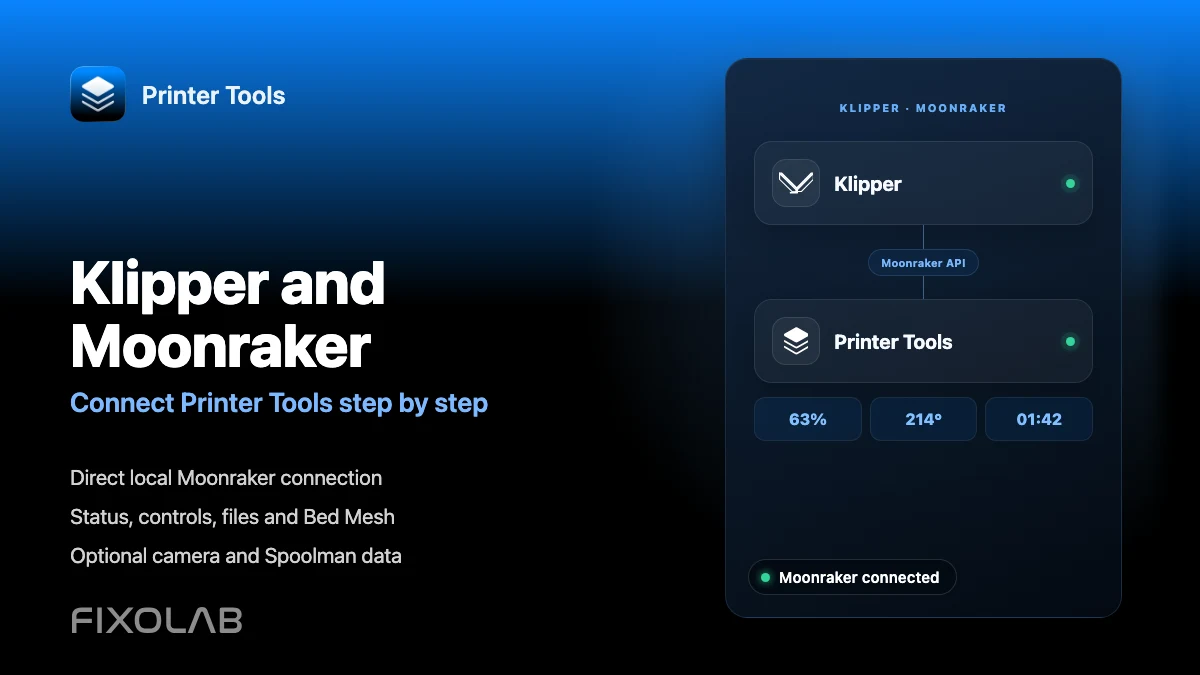
See full Klipper and Moonraker compatibility
Review the supported Moonraker features, optional camera and Spoolman requirements, remote access choices and current limitations.
All your 3D printers in one dashboard
Monitor Bambu Lab, Klipper, OctoPrint, Creality, Snapmaker, Anycubic, Flashforge, Elegoo, and Prusa printers from one app
Available on Android, iPhone, iPad and Mac, with Apple Watch and Wear OS companion apps plus optional remote access through VPN, OctoEverywhere or Obico
