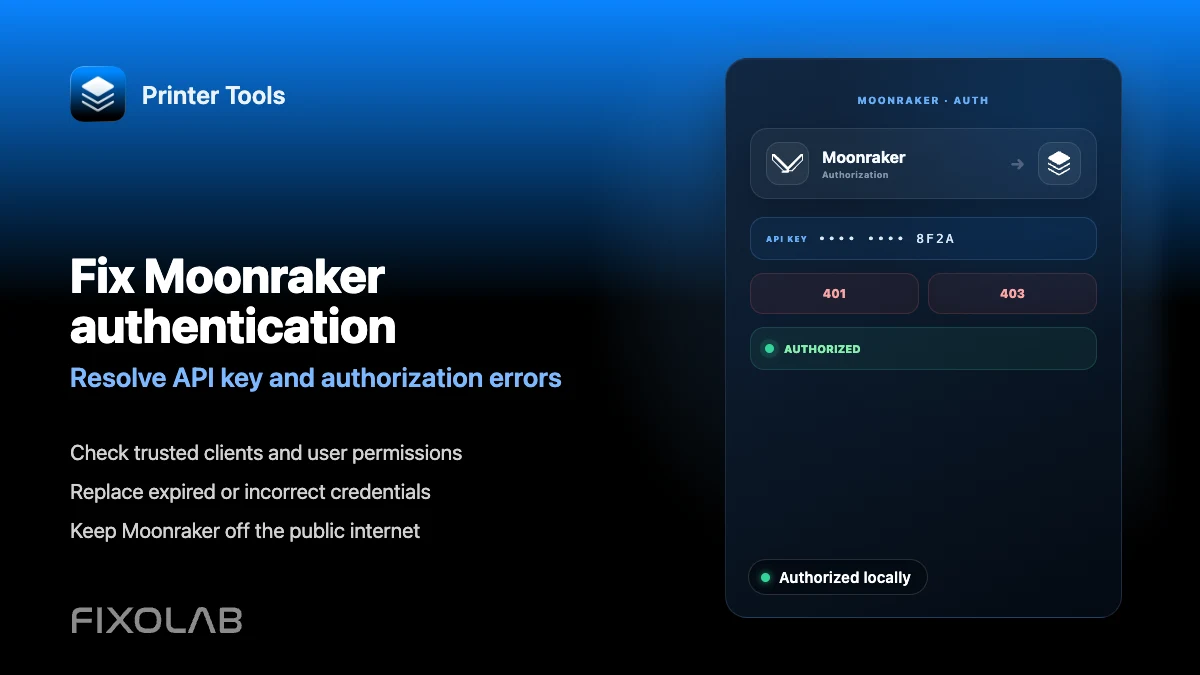
How to fix Moonraker authentication and API key errors in Printer Tools
Moonraker authentication troubleshooting
The short answer
Most Moonraker installations on a trusted local network do not require any credentials at all. If yours does, because of trusted_clients or force_logins settings in moonraker.conf, Printer Tools can send an API key, a Bearer token or Basic Auth credentials with the connection, but they need to match exactly what Moonraker expects, or every request is rejected.
What you need
- Access to your moonraker.conf, or to Mainsail or Fluidd's settings, to check the current authentication setup
- The current API key, Bearer token or Basic Auth username and password, whichever your Moonraker installation uses
- A Klipper printer already added in Printer Tools
- Confirmation of whether your device's IP falls inside any trusted_clients range configured in moonraker.conf
Fix an authentication error
- 1
Check whether authentication is actually required
Look at trusted_clients and force_logins in moonraker.conf. If your device's network already falls inside a trusted range, no credentials should be necessary and an authentication error points to a network or IP range mismatch instead.
- 2
Retrieve the current credential
Generate or copy the API key from Moonraker's own tools, commonly available through Mainsail or Fluidd's settings page, or confirm the Bearer token or Basic Auth username and password configured on the server.
- 3
Enter it exactly in Printer Tools
Open the printer's settings in Printer Tools and enter the credential without leading or trailing spaces. A single extra character is enough to cause a rejection that looks identical to a missing key.
- 4
Reconnect and check the result
Reconnect the printer and confirm the dashboard loads. If it still fails, test the same credential directly against Moonraker's API with a basic request to confirm the key itself is valid.
- 5
Regenerate the key if it was lost or rotated
If the key was regenerated on the server after you copied it, generate a new one and update it everywhere it is used, including Printer Tools and any other Moonraker client.
Connection status inside Printer Tools
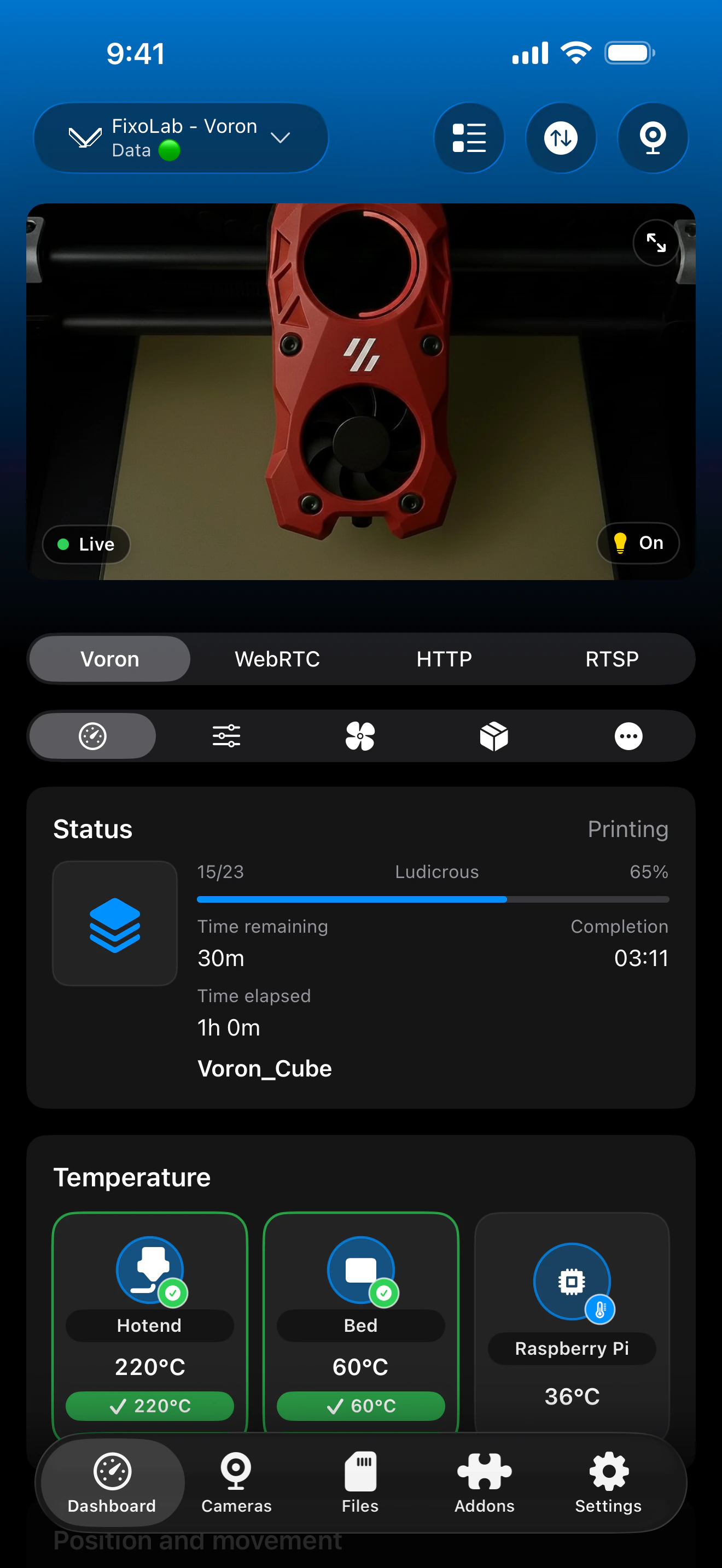
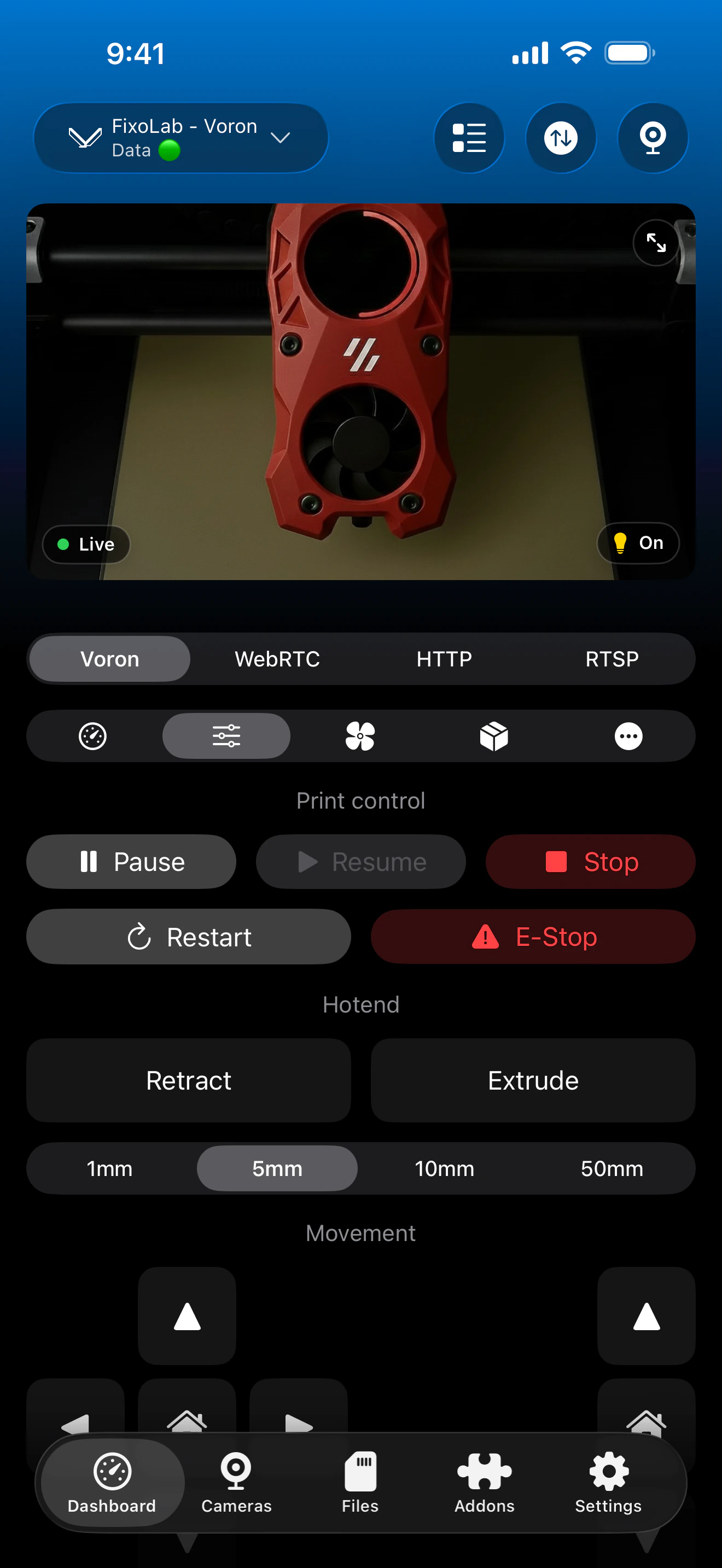
Authentication fields appear alongside the host address when adding or editing a Klipper printer in Printer Tools.
What Printer Tools supports
- An optional API key sent as a standard header with every Moonraker request
- Optional Bearer token authentication for setups configured that way
- Optional Basic Auth username and password for setups configured that way
- No credential required at all when your network is already inside Moonraker's trusted_clients range
What is not supported
- Printer Tools does not implement Moonraker's oneshot token or browser session login flow
- It cannot discover or generate a Moonraker API key on its own; the key has to already exist on the server
- A credential that is valid but does not match Moonraker's currently configured method will still be rejected
Common authentication errors
Unauthorized even though a key was entered
Confirm the key was not regenerated on the server after you copied it, and check for extra spaces or hidden characters when it was entered in Printer Tools.
It worked before and suddenly stopped
A Moonraker restart can rotate the key if it is not persisted correctly, or your device's IP may have changed and no longer falls inside a trusted_clients range. Recheck both.
Basic Auth is rejected
Confirm moonraker.conf actually defines Basic Auth for your setup rather than an API key. Sending the wrong credential type produces the same rejected result as sending nothing.
Authentication works in Mainsail or Fluidd but not Printer Tools
Browser clients often rely on a session created after a login step. Printer Tools needs the underlying static API key, Bearer token or Basic Auth credential instead of that session.
Authentication for remote access
The same credentials apply whether you connect directly on your local network or through a VPN back to it. OctoEverywhere and Obico handle their own authorization layer separately from Moonraker's API key.
Frequently asked questions
Is an API key always required?
No. Many local Moonraker setups do not require one at all. It only becomes necessary if your moonraker.conf enforces authentication for clients outside trusted_clients.
Where do I find my Moonraker API key?
It is typically available from Mainsail or Fluidd's settings page, or directly from Moonraker's own database if you manage the server without a web interface.
Does Printer Tools support Moonraker's login and session tokens?
No. Printer Tools uses static credentials, either an API key, a Bearer token or Basic Auth, rather than the interactive session flow browser clients use.
Can I remove authentication entirely?
That depends on your own moonraker.conf and network security choices. Printer Tools simply follows whatever authentication your Moonraker instance currently requires.
Does changing the API key affect my print in progress?
No. A running print continues on the printer itself. Only the app's ability to fetch live updates is affected until the correct credential is entered again.
Related guides
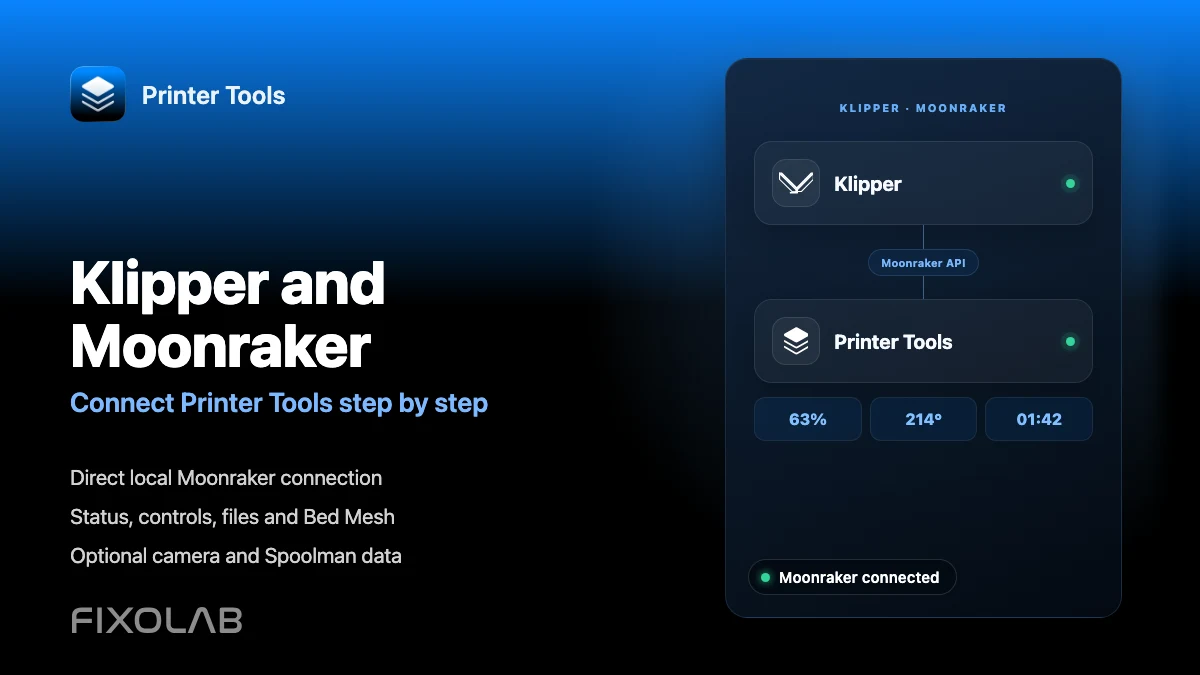
See full Klipper and Moonraker compatibility
Review the supported Moonraker features, optional camera and Spoolman requirements, remote access choices and current limitations.
All your 3D printers in one dashboard
Monitor Bambu Lab, Klipper, OctoPrint, Creality, Snapmaker, Anycubic, Flashforge, Elegoo, and Prusa printers from one app
Available on Android, iPhone, iPad and Mac, with Apple Watch and Wear OS companion apps plus optional remote access through VPN, OctoEverywhere or Obico
