How to fix Moonraker WebSocket connection errors in Printer Tools
Moonraker WebSocket troubleshooting
The short answer
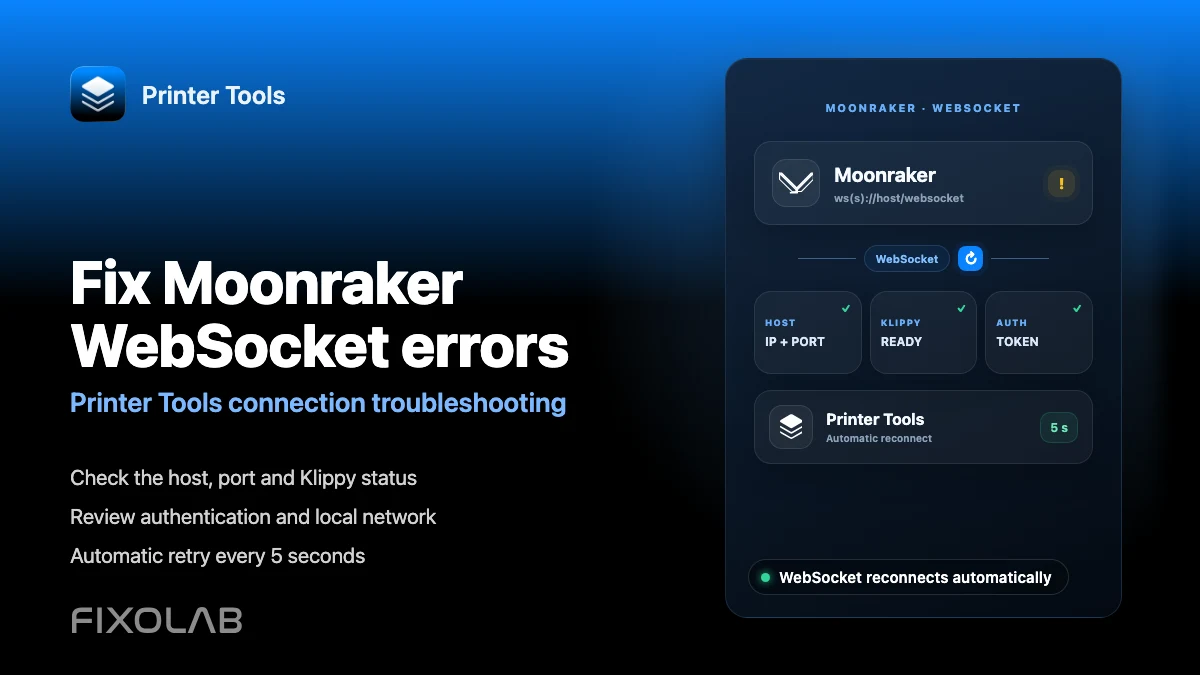
Printer Tools keeps a live WebSocket connection open to Moonraker at ws(s)://<host>/websocket and reconnects automatically every 5 seconds if it drops. Most connection errors come from an unreachable host, a changed IP address or Klippy not being ready yet, not from the app itself. Checking those three things first solves the majority of cases.
What you need
- The exact local IP address or hostname currently used by the printer running Moonraker
- Confirmation that Klippy reports Ready, not Error or Shutdown
- The same network reachable from both the phone or computer and the printer host
- The complete address, including scheme and port, if your setup uses HTTPS or a reverse proxy
- Any Moonraker API key, bearer token or Basic Auth credentials your installation requires
Diagnose a Moonraker WebSocket error
- 1
Confirm Klippy is actually ready
Open the same host in a browser or in Mainsail or Fluidd if you have them installed. If Klippy shows Error or Shutdown there too, the problem is in Klipper or your printer.cfg, not in Printer Tools, and reconnecting the app will not help until Klippy itself recovers.
- 2
Recheck the host address
Routers commonly hand out a new local IP address after a restart. Confirm the current address of the machine running Moonraker and update it in Printer Tools if it changed. Reserving a static address for that device in your router prevents this from recurring.
- 3
Enter the complete address for custom setups
If Moonraker sits behind HTTPS, a non-default port or a reverse proxy, enter the full address exactly as you would type it in a browser. Printer Tools builds the WebSocket URL from what you provide, so a partial or incorrect address fails before Moonraker is ever reached.
- 4
Match any authentication your installation requires
If Moonraker enforces an API key, Bearer token or Basic Auth, the same credentials must be entered in Printer Tools. A mismatch closes the WebSocket immediately after it opens rather than blocking the initial connection attempt.
- 5
Force a clean reconnect
Remove and re-add the printer, or toggle the connection off and on, to reset the socket from scratch instead of waiting on the automatic retry. This also clears any pending requests left over from the previous connection attempt.
- 6
Rule out the network path
Guest Wi-Fi, client isolation, VLAN firewall rules or an active VPN profile can block the phone from reaching the printer host even when both devices show internet access. Test from the same network segment before assuming Moonraker itself is at fault.
Moonraker status inside Printer Tools
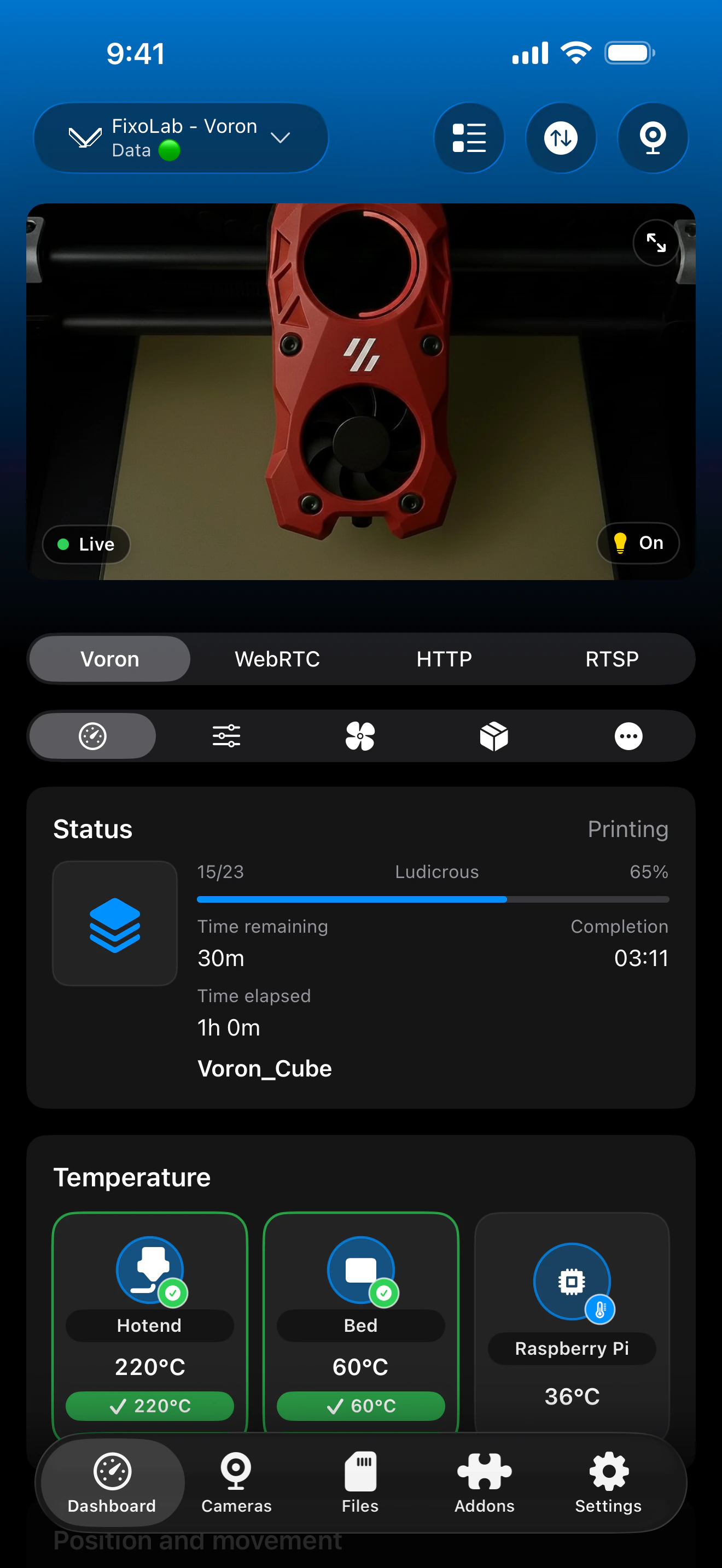
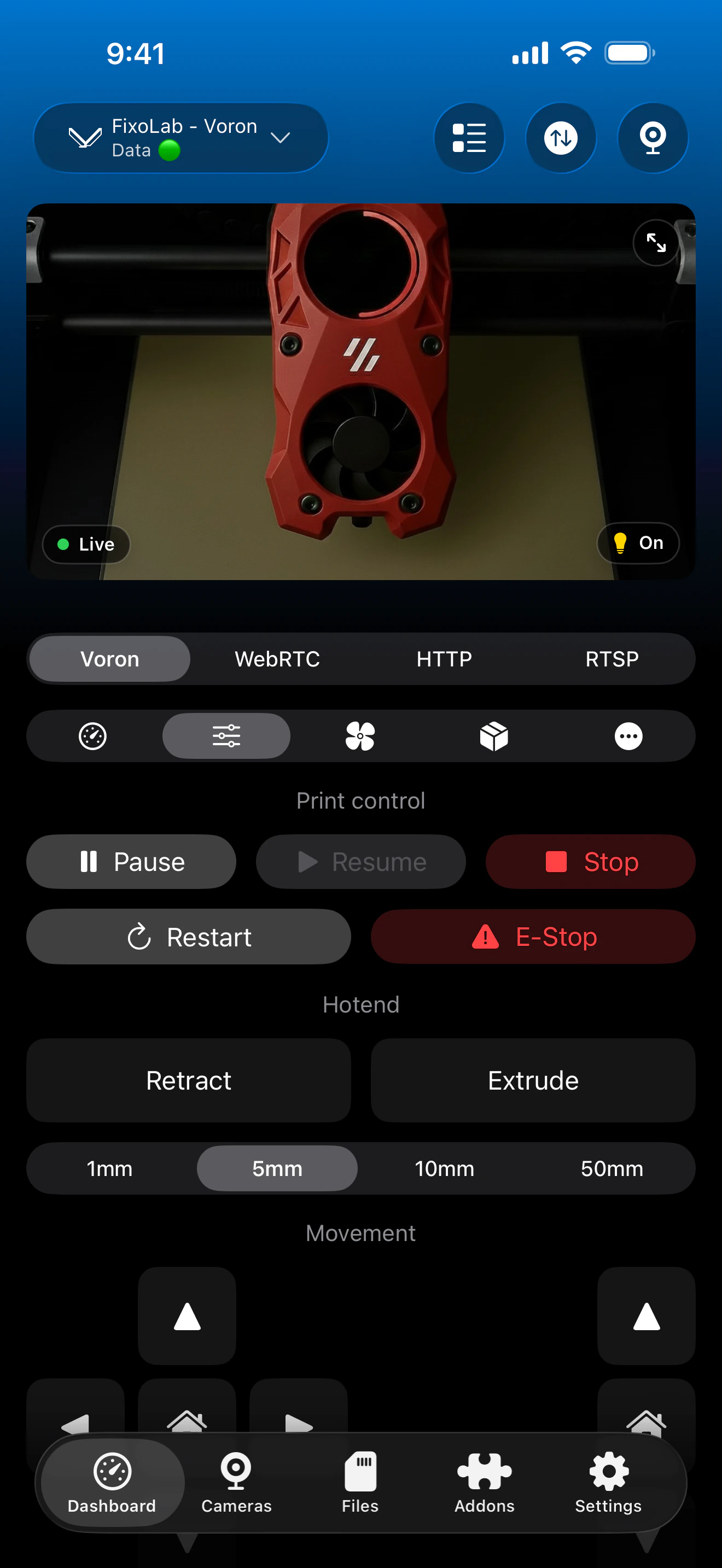
The Klipper dashboard reflects the live WebSocket state and updates automatically once Moonraker becomes reachable again.
What the WebSocket connection powers
- Live print state, progress, temperatures and standard Klipper objects pushed in real time
- Automatic reconnection every 5 seconds without needing to reopen the app
- A heartbeat that keeps the connection alive during normal background use
- A Klippy status check performed immediately after every successful connection
- Support for API key, Bearer token or Basic Auth when your Moonraker setup requires one
What this cannot fix
- A Klippy error or shutdown state must be resolved in Klipper itself, not from Printer Tools
- Printer Tools cannot reach a host that changed address without updating the printer's saved IP
- Network isolation between the phone and the printer host blocks the WebSocket regardless of app settings
- A print already running continues on the printer even while the app shows disconnected
Common WebSocket errors
Printer Tools stays on connecting indefinitely
Confirm the host address is current and reachable, and that Moonraker itself is running. If the same address fails in a browser too, the issue is on the printer host, not in the app.
The connection opens and then drops repeatedly
Check for a network that disconnects idle clients, such as some routers' Wi-Fi power saving features, or a Moonraker restart loop caused by a configuration error. Review the Moonraker log on the printer host for repeated disconnect entries.
Mainsail or Fluidd connects but Printer Tools does not
Use the exact same address, including scheme and port, that works in the browser. A reverse proxy or HTTPS certificate that a browser accepts silently can still require the complete address to be entered manually in Printer Tools.
Klippy shows an error immediately after connecting
This means the WebSocket itself succeeded and the problem is inside Klipper's own configuration. Fix the reported error in printer.cfg and restart Klipper from Moonraker before expecting Printer Tools to show a normal dashboard.
Connection works at home but fails away from the local network
A direct Moonraker WebSocket only works on the same local network. Use a VPN back to your home network or add the printer through the OctoEverywhere or Obico remote access options in Printer Tools instead of exposing Moonraker directly.
Reconnecting from outside your network
The direct WebSocket only works while the phone and the printer host share a reachable network. For remote access, use a VPN back to that network or connect the same Klipper printer through OctoEverywhere or Obico in Printer Tools. Do not forward the Moonraker port directly on your router.
Frequently asked questions
Does Printer Tools use Moonraker's WebSocket or its REST API?
Printer Tools connects through Moonraker's WebSocket JSON-RPC API at /websocket for live telemetry and control, which is why a stable network path to that endpoint matters more than any single REST request succeeding.
How often does the app retry a failed connection?
Every 5 seconds, automatically, until the WebSocket accepts the connection again. There is no manual retry limit to hit.
Does losing the connection stop my print?
No. Klipper keeps printing on the printer itself. Printer Tools losing its WebSocket only means the app stops receiving live updates until it reconnects.
Do I need Mainsail or Fluidd running for this to work?
No. Printer Tools talks to Moonraker directly. Mainsail and Fluidd are useful for comparing behavior while troubleshooting, but neither is required.
Why does the connection work on Wi-Fi but not through my VPN?
A VPN that does not route traffic to your home network's local IP range cannot reach Moonraker directly. Use a VPN configured to reach that network, or use OctoEverywhere or Obico instead.
Related guides
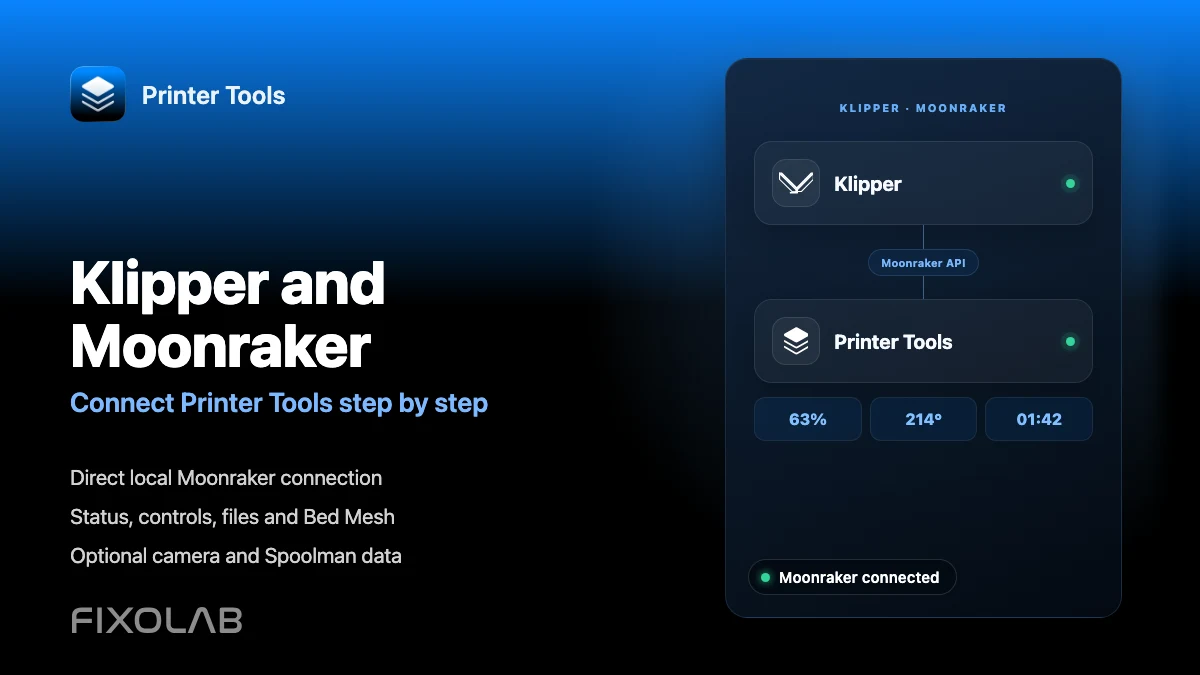
See full Klipper and Moonraker compatibility
Review the supported Moonraker features, optional camera and Spoolman requirements, remote access choices and current limitations.
All your 3D printers in one dashboard
Monitor Bambu Lab, Klipper, OctoPrint, Creality, Snapmaker, Anycubic, Flashforge, Elegoo, and Prusa printers from one app
Available on Android, iPhone, iPad and Mac, with Apple Watch and Wear OS companion apps plus optional remote access through VPN, OctoEverywhere or Obico
