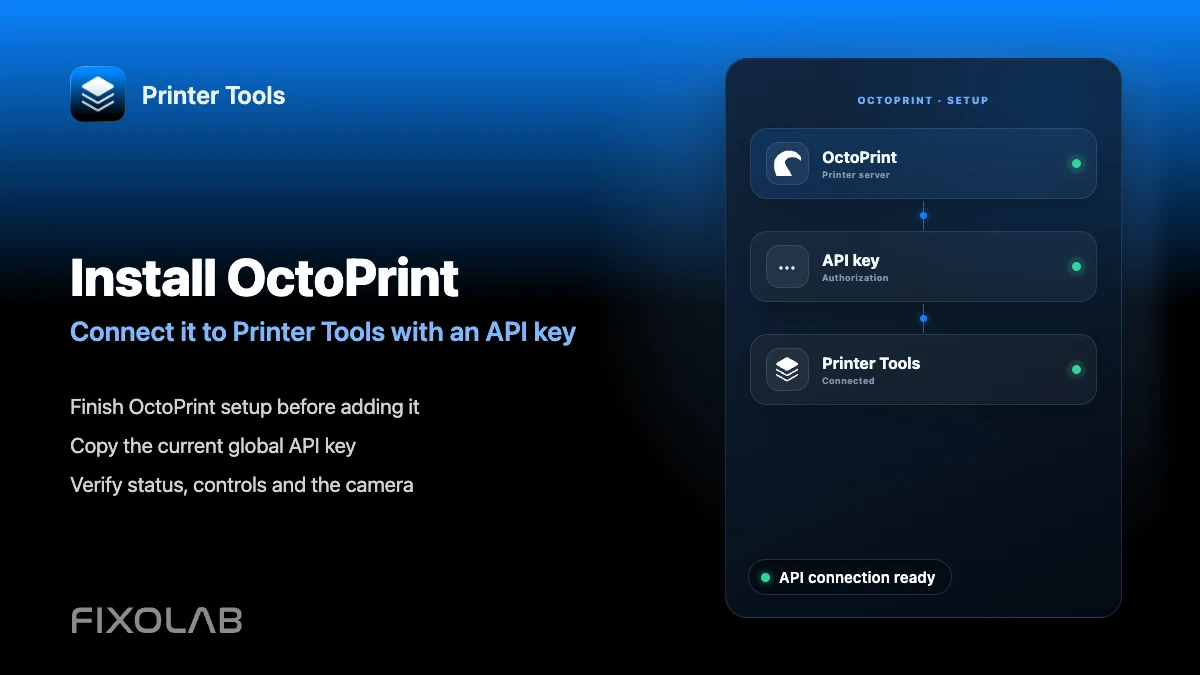
How to install OctoPrint and connect it to Printer Tools with an API key
OctoPrint installation and API key
The short answer
Install OctoPrint, connect it to your printer over serial or USB, then copy the global API key from OctoPrint's own settings and enter it in Printer Tools along with the server's local address. Printer Tools uses that same API key that the official OctoPrint web interface relies on, so no separate account or plugin is required.
What you need
- OctoPrint installed and running, for example through the OctoPi image on a Raspberry Pi
- The printer connected to the OctoPrint host over serial or USB and recognized in OctoPrint's own interface
- The local IP address or hostname of the machine running OctoPrint
- The global API key from OctoPrint's Settings, under the API section
Connect OctoPrint to Printer Tools
- 1
Finish OctoPrint's own setup first
Complete OctoPrint's setup wizard and confirm the printer connects successfully over serial from OctoPrint's own web interface before adding it to Printer Tools.
- 2
Copy the API key
Open OctoPrint's Settings, go to the API section and copy the global API key shown there.
- 3
Add OctoPrint in Printer Tools
Open Printer Tools, choose to add an OctoPrint printer and enter the server's local address together with the API key you copied.
- 4
Confirm the dashboard loads
Save the printer and open it from the Dashboard. Status, progress and temperatures should appear if OctoPrint is already reporting them in its own interface.
- 5
Check the camera separately
If OctoPrint has a webcam configured, it should appear automatically at its standard stream route. A missing camera does not affect status or job control.
OctoPrint inside Printer Tools
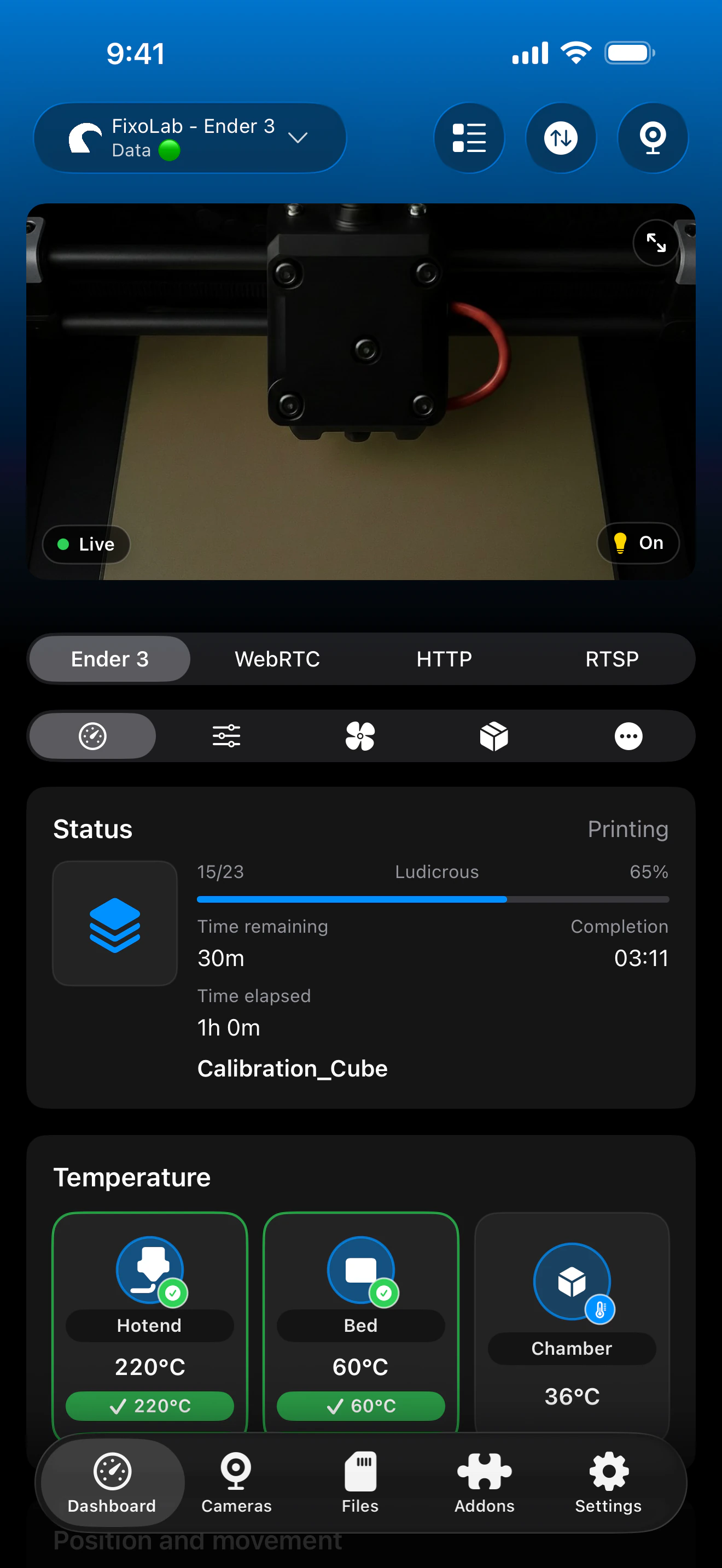
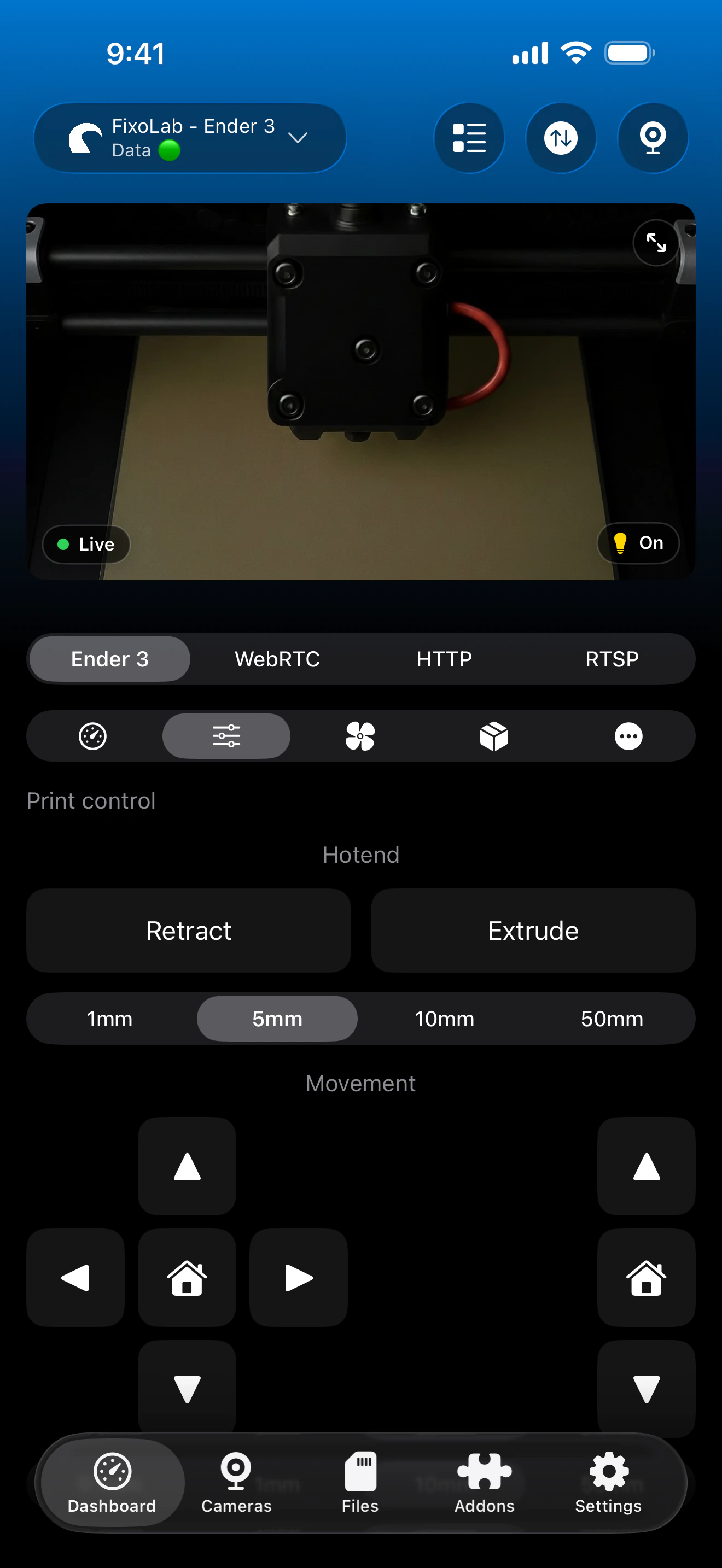
The same API key used by the official OctoPrint web interface is what Printer Tools needs to connect.
What works once connected
- Live print status, progress and temperatures reported by OctoPrint
- Pause, resume and stop for the job currently running
- Read-only browsing of files already stored on the OctoPrint server
- MJPEG camera viewing when a webcam is configured in OctoPrint
- Managing several OctoPrint instances from the same Printer Tools dashboard
What is not included
- Uploading a new G-code file or starting a fresh print job is not currently supported from Printer Tools
- Community plugins in OctoPrint are not exposed as individual controls in the app
- Serial connection issues between OctoPrint and the printer must be resolved in OctoPrint itself
- Printer Tools does not manage filament or spool data for OctoPrint, since OctoPrint does not expose this natively
Common setup issues
Printer Tools cannot reach the OctoPrint server
Confirm the local address is correct and reachable from the same network, and that OctoPrint's own web interface loads at that same address in a browser.
The API key is rejected
Recopy the key directly from OctoPrint's Settings, without extra spaces, and confirm it has not been regenerated since you last copied it.
Status loads but the printer shows as disconnected from OctoPrint
This usually means the serial connection between OctoPrint and the printer itself dropped. Reconnect it from OctoPrint's own connection panel, which Printer Tools can also surface directly.
Connecting away from home
For remote access, use a VPN back to your network or add the same OctoPrint instance through OctoEverywhere in Printer Tools. Avoid forwarding OctoPrint's port directly on your router.
Frequently asked questions
Which printers work through OctoPrint?
Any printer that OctoPrint itself supports over a serial connection works the same way in Printer Tools, since the app talks to OctoPrint, not to the printer directly.
Do I need a specific OctoPrint plugin for this to work?
No. The core OctoPrint API is enough for status, job control and file browsing. Individual community plugins are not exposed as separate controls.
Is a per-user API key supported?
No. Printer Tools uses OctoPrint's global API key, the same one shared by the official web interface.
Can I access OctoPrint remotely with this setup?
Yes, by adding OctoEverywhere in Printer Tools or by using a VPN back to your local network.
Do I need a webcam plugin for the camera to work?
You need a webcam stream reachable at OctoPrint's standard MJPEG route. Printer Tools does not require a specific plugin beyond that stream being available.
Related guides
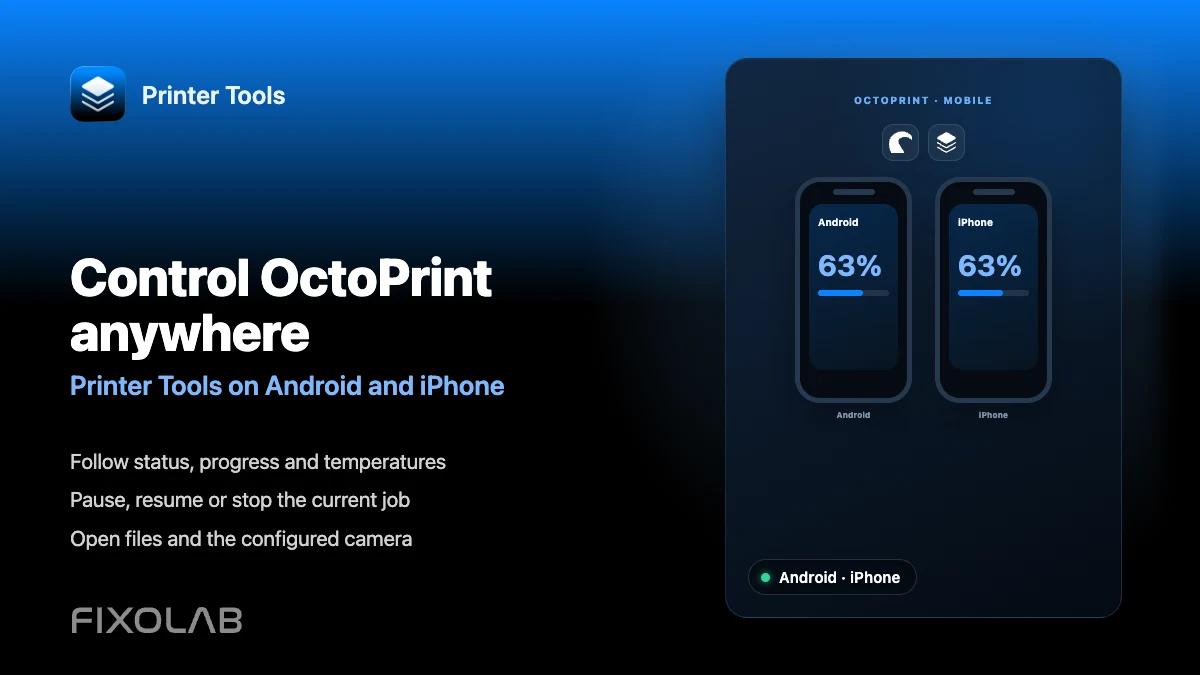
See full OctoPrint compatibility
Review the supported OctoPrint features, camera setup, authentication and current limitations in Printer Tools.
All your 3D printers in one dashboard
Monitor Bambu Lab, Klipper, OctoPrint, Creality, Snapmaker, Anycubic, Flashforge, Elegoo, and Prusa printers from one app
Available on Android, iPhone, iPad and Mac, with Apple Watch and Wear OS companion apps plus optional remote access through VPN, OctoEverywhere or Obico
