How to fix the Creality K2 camera with WebRTC on your local network
Creality K2 WebRTC troubleshooting
The fastest checks
Printer Tools uses the Creality K2 family's local WebRTC camera automatically. Make sure the printer was added as Creality, its saved name includes K2 and the device can reach the printer directly on the local network. Do not enter a camera address or reuse the K1 MJPEG settings. If telemetry works but video does not, focus on the K2 camera service and WebRTC traffic between the two devices.
What you need
- A Creality K2, K2 Pro or K2 Plus with compatible Creality OS firmware
- The printer connected to the same reachable local network as Printer Tools
- A Creality printer entry whose name includes K2
- Live Creality telemetry visible in the Printer Tools Dashboard
- The built-in K2 camera enabled and working in the printer interface
- No guest network isolation or firewall rule blocking direct local video traffic
Fix the Creality K2 camera in Printer Tools
- 1
Confirm that the printer connection is live
Open the K2 Dashboard and verify current status, temperatures and progress. If all telemetry is offline, update the printer IP and fix local network access before testing WebRTC.
- 2
Check the saved printer name
Edit the Creality printer and make sure its name includes K2, such as Creality K2, Creality K2 Pro or Creality K2 Plus. Save it and reopen the Dashboard so Printer Tools rebuilds the camera selection.
- 3
Verify the built-in camera on the printer
Open the camera from the printer's own local or official interface. If it is unavailable there too, restart or re-enable the camera service before changing Printer Tools.
- 4
Close competing camera sessions
Close other live viewers temporarily and open the Printer Tools camera again. This removes an existing session or overloaded camera service from the test.
- 5
Check local WebRTC reachability
Keep both devices on a network that permits direct client communication. Guest Wi-Fi, VLAN rules and some VPN profiles can allow the Creality status connection while still blocking the separate K2 WebRTC service.
- 6
Restart in a controlled order
Close Printer Tools, restart the K2 and wait until the printer is fully ready, then reopen the app and camera. If the problem began after a firmware change, verify the camera again on the current Creality OS version.
Creality K2 camera and controls in Printer Tools
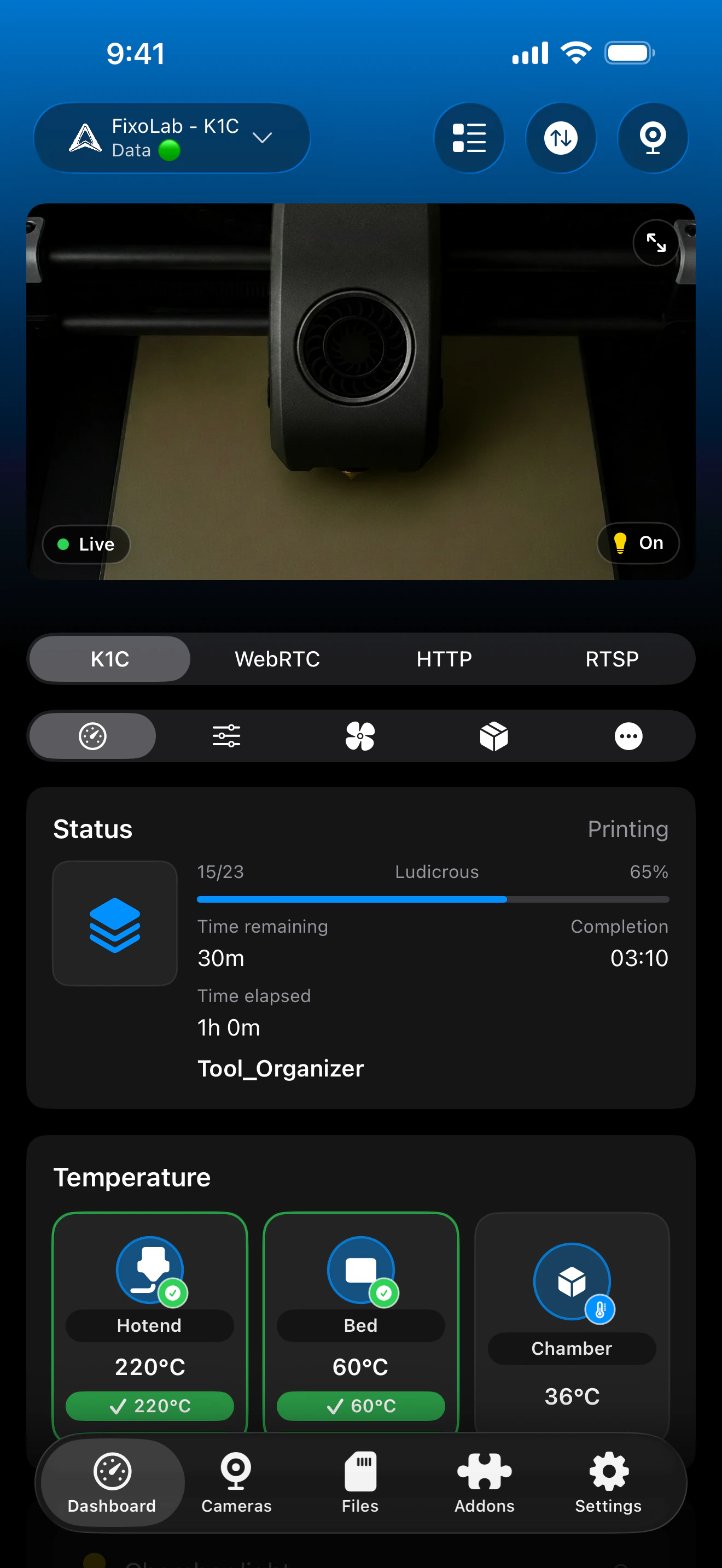
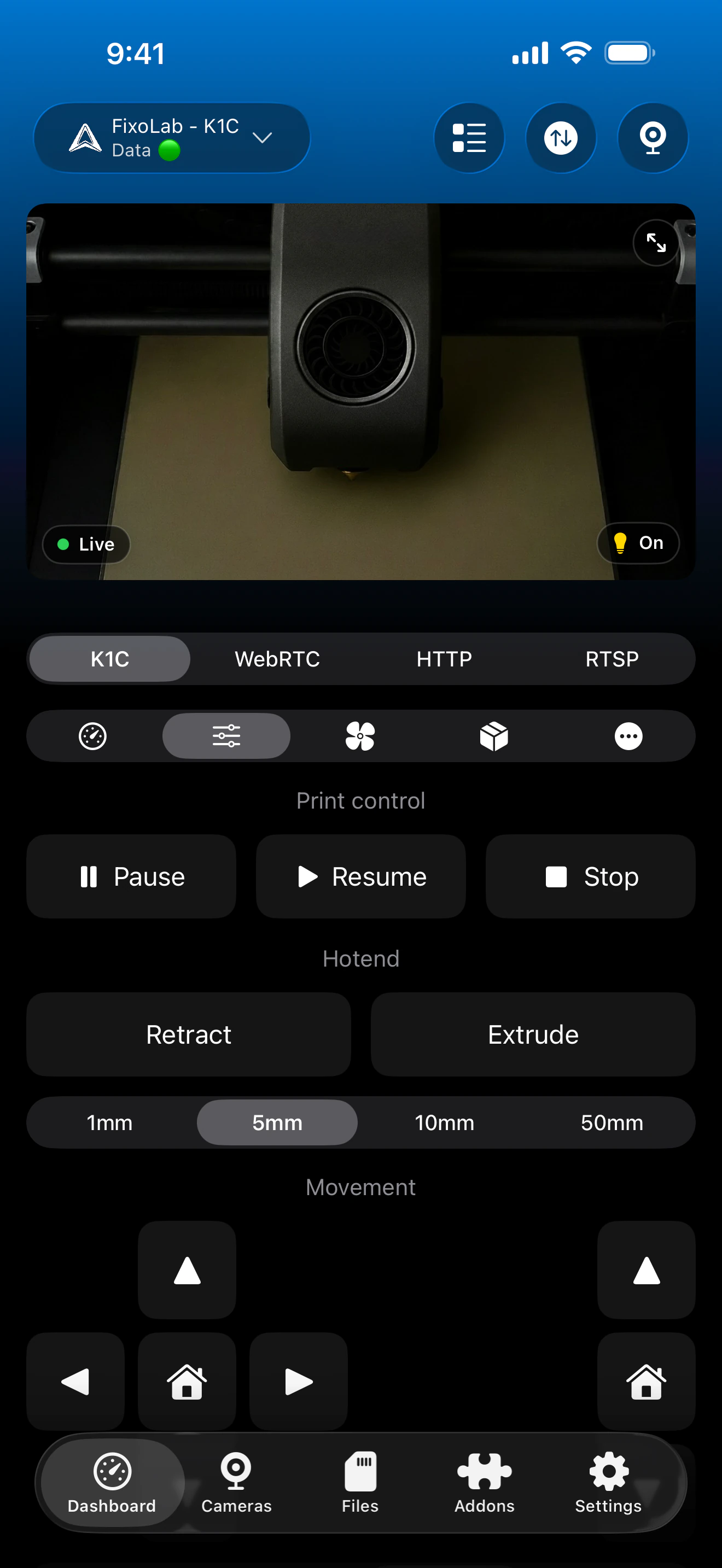
The K2 camera belongs to the same Creality printer entry as telemetry, controls and files. Printer Tools selects WebRTC automatically when the saved model name identifies the K2 family.
What should work on a connected K2
- Automatic local WebRTC playback from the built-in K2 camera
- Live print state, progress, temperatures and layer information
- Pause, resume, stop, fan, light and compatible printer controls
- Local files, print records and timelapses when the firmware reports them
- CFS materials and trays when the connected printer exposes that data
- The same camera flow on Android, iPhone, iPad and Mac
Important differences from K1
- K2 camera troubleshooting should not use the K1 MJPEG address or player
- The saved printer name must identify K2 so Printer Tools selects WebRTC
- A working telemetry connection does not guarantee that the separate camera service is reachable
- Printer Tools cannot restore a camera service that is disabled or failing inside Creality OS
- The native Creality connection is local and should not be exposed directly through router port forwarding
Troubleshoot by symptom
The camera panel uses the wrong player
Rename the printer so the saved name includes K2, save it and reopen the Dashboard. Names that do not identify K2 are treated as the K1 family and select MJPEG.
Telemetry works but the camera stays connecting
Check the built-in camera in Creality OS, close other viewers and verify that local firewall or VLAN rules allow the K2 video service as well as printer telemetry.
The camera works on Wi-Fi but not through a VPN
Make sure the VPN routes the printer subnet and permits the direct traffic required by WebRTC. A route that only reaches the Creality control service may still leave video unavailable.
The camera stopped after a firmware update
Restart the printer completely, verify video in the current Creality interface and then reopen Printer Tools. If Creality OS itself cannot show the camera, resolve that service first.
The K2 was added as an external camera
Remove the duplicate external entry and use the main camera attached to the Creality printer. Printer Tools constructs the K2 WebRTC session automatically from the printer IP and model name.
View the K2 camera away from home
Use a VPN that routes the complete printer network when remote access is required. OctoEverywhere and Obico are not connection options for the native Creality integration in Printer Tools today. Never forward the Creality control or WebRTC services directly to the internet.
Frequently asked questions
Do I enter the K2 camera address manually?
No. Add the printer as Creality, include K2 in its name and Printer Tools builds the local WebRTC camera session automatically.
Why does the printer name matter?
The current camera selection uses the saved model name to distinguish K2 WebRTC from the K1 family's MJPEG camera.
Does this guide apply to K1, K1C or K1 Max?
No. Those models use MJPEG in Printer Tools. This guide is specifically for the K2, K2 Pro and K2 Plus WebRTC camera flow.
Can status work while WebRTC is blocked?
Yes. Creality telemetry and the K2 camera use separate local services, so network rules can allow status while blocking video.
Does the K2 camera work on Android and Apple devices?
Yes. Printer Tools supports the K2 WebRTC flow on Android, iPhone, iPad and Mac.
Related guides
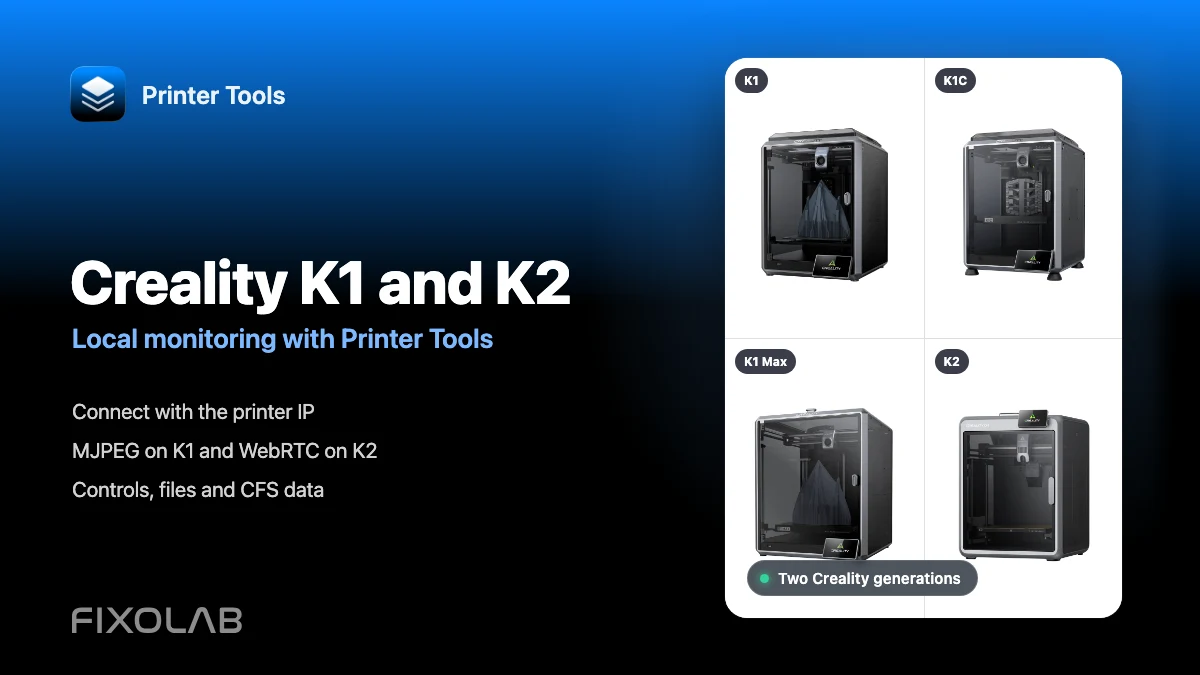
See full Creality compatibility
Review K1 and K2 camera transports, local monitoring, controls, file access and current CFS support.
All your 3D printers in one dashboard
Monitor Bambu Lab, Klipper, OctoPrint, Creality, Snapmaker, Anycubic, Flashforge, Elegoo, and Prusa printers from one app
Available on Android, iPhone, iPad and Mac, with Apple Watch and Wear OS companion apps plus optional remote access through VPN, OctoEverywhere or Obico
