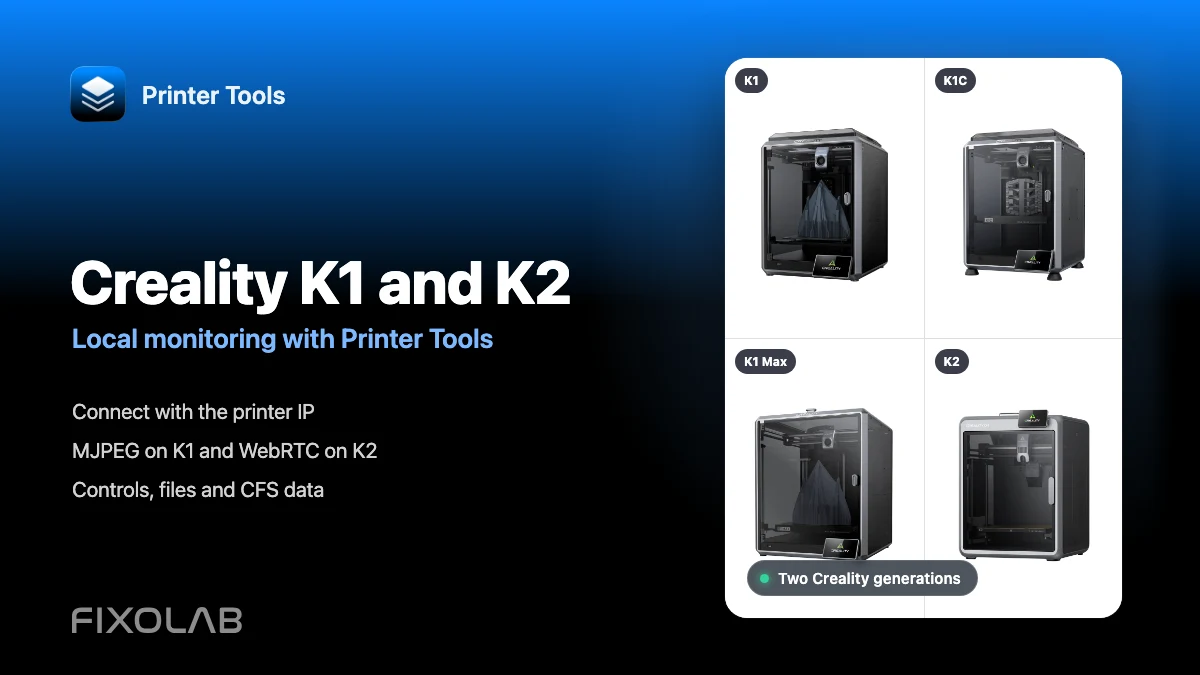
How to connect Creality K1, K1C, K1 Max and K2 to Printer Tools over LAN
Creality K1 and K2 local connection
The short answer
Printer Tools connects directly to Creality K1, K1C, K1 Max and K2 printers over the local network using their Creality OS interface. Add the printer with its IP address and a model name, then Printer Tools loads monitoring, compatible controls, files and the matching camera automatically. K1 models use MJPEG camera playback while K2 models use WebRTC.
What you need
- Printer Tools installed on Android, iPhone, iPad or Mac
- A supported K1 or K2 series printer running compatible Creality OS firmware
- The printer and your device on the same reachable local network
- The current local IP address shown by the printer
- Camera hardware installed if your K1 configuration did not include it
Connect a Creality K1 or K2 printer
- 1
Connect the printer to your network
Join the K1 or K2 to the same reachable network as your phone, tablet or computer. Ethernet and Wi-Fi are both suitable when local devices can communicate.
- 2
Find the local IP address
Open the network information on the Creality touchscreen and note the current IP address. Reserving it in the router can keep the connection stable after restarts.
- 3
Add a Creality printer
Open Printer Tools, go to Settings, choose Printers and select Add Creality. Enter the local IP and use the full model name, such as Creality K1C or Creality K2.
- 4
Open the Dashboard
Printer Tools connects to the local Creality OS interface and requests the complete printer state. No Creality Cloud account, API key or access code is required.
- 5
Check the camera
Open the camera panel. Printer Tools chooses MJPEG for K1, K1C and K1 Max, or WebRTC for K2 models whose name includes K2.
- 6
Verify controls and files
Confirm live status, temperatures and print actions, then open Files to check local jobs, history and timelapses exposed by your firmware.
K1 and K2 differences inside Printer Tools
Core monitoring and control are shared. The main user-visible difference is the camera transport selected for each generation.
| Feature | K1, K1C and K1 Max | K2 family |
|---|---|---|
| Local connection | Creality OS local WebSocket | Creality OS local WebSocket |
| Camera transport | MJPEG from the local camera service | WebRTC for lower-latency local video |
| Camera hardware | Optional on some K1 configurations and included on K1C and K1 Max | Included on current K2 models covered by the family |
| Monitoring and controls | Status, temperatures, progress, fans, light and print actions | Status, temperatures, progress, fans, light and print actions |
| Files and history | Local files, print records and timelapses when reported | Local files, print records and timelapses when reported |
| Filament system | CFS information on compatible upgraded hardware and firmware | CFS information when the printer reports a connected unit |
Creality inside Printer Tools
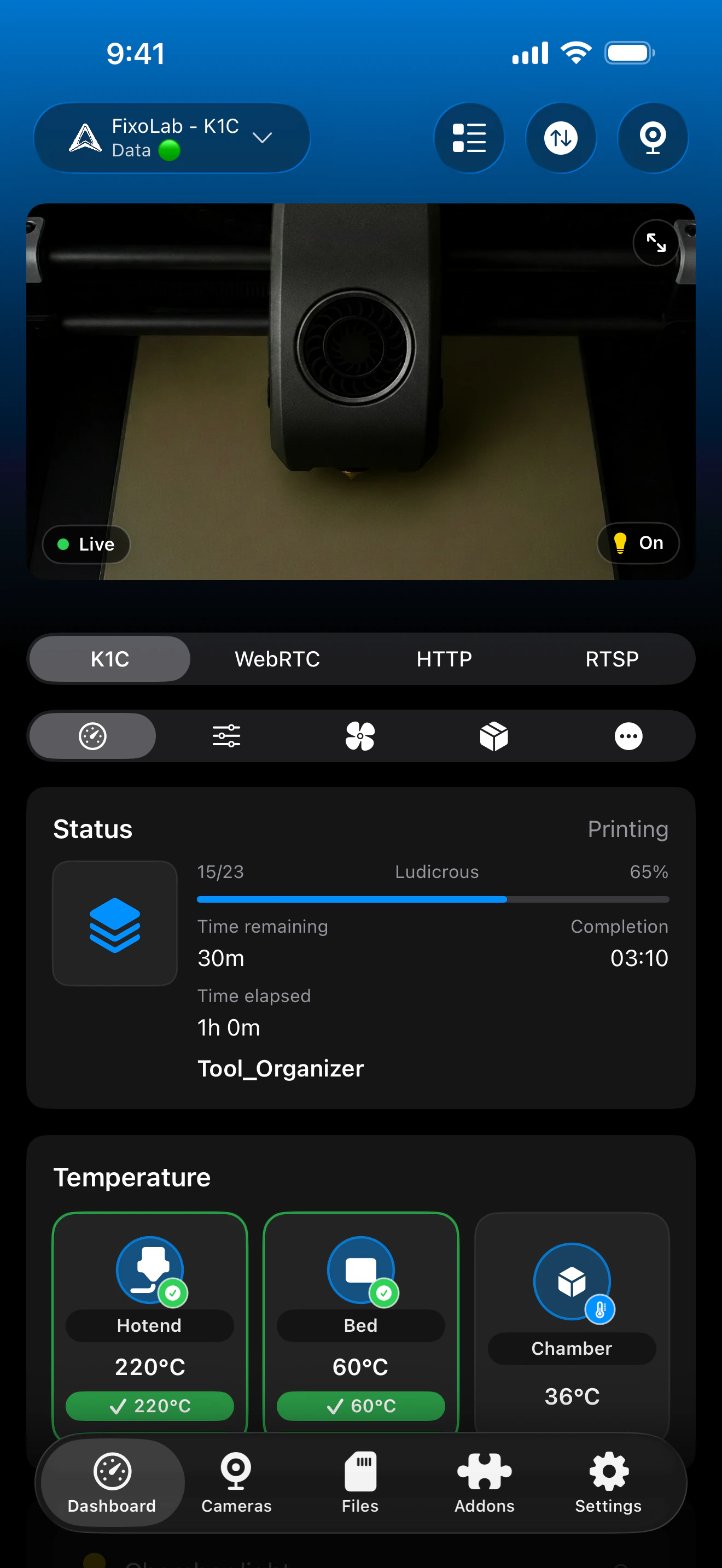
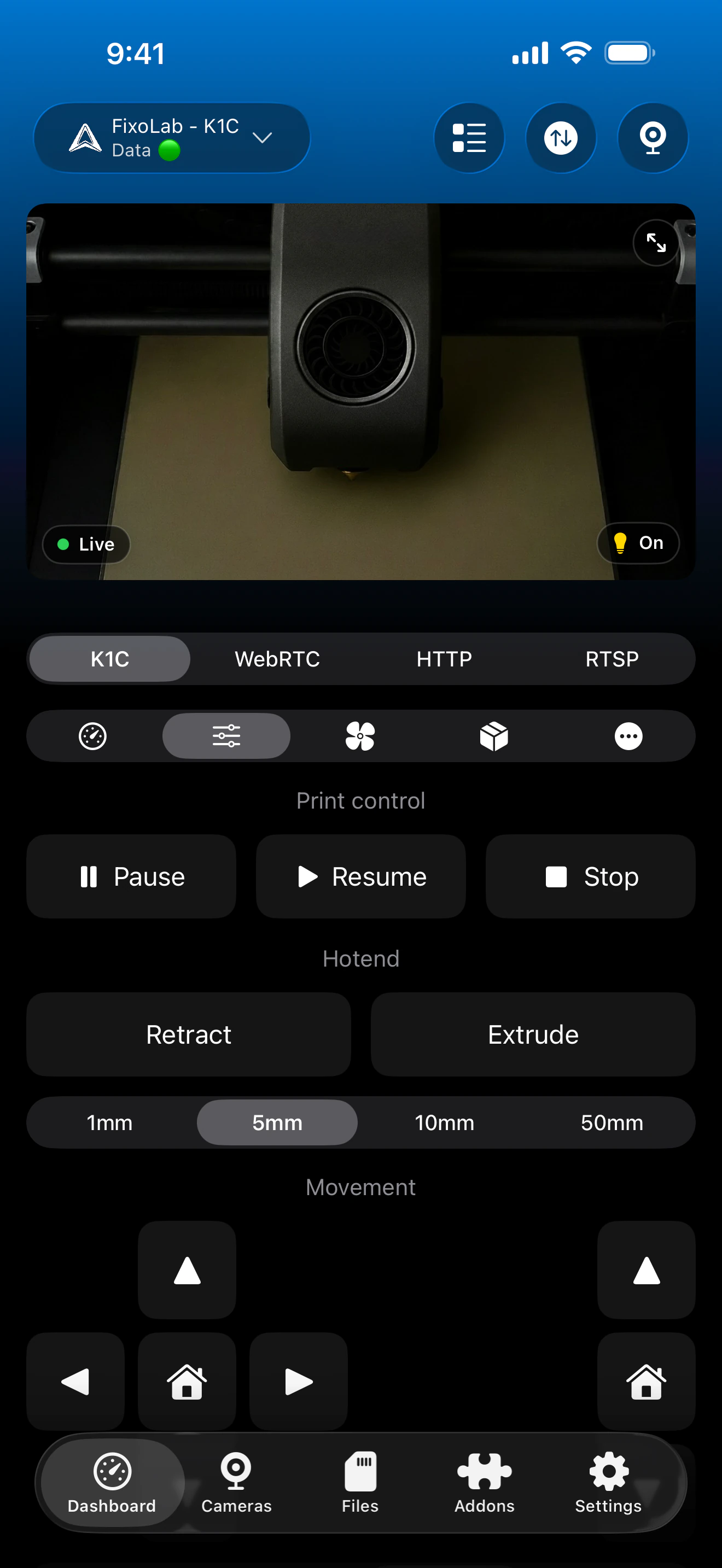
The same Creality dashboard is used for K1 and K2 telemetry. Camera playback changes automatically between MJPEG and WebRTC, while CFS and extra sensors appear only when the printer reports them.
What works on supported K1 and K2 models
- Live print state, progress, file name, layers, elapsed time and remaining time
- Nozzle, bed and available chamber temperatures
- Automatic MJPEG camera on K1 models and WebRTC camera on K2 models
- Pause, resume, stop, light and compatible fan controls
- Local files, print history, thumbnails and timelapse videos when reported
- CFS trays and material information on compatible hardware and firmware
Current limitations
- A K2 printer name must include K2 so Printer Tools selects its WebRTC camera transport
- The original K1 may need an optional camera accessory before a preview can appear
- CFS detail depends on the connected hardware and fields exposed by the installed firmware
- Third-party firmware is not covered by this Creality OS setup and should use its matching integration instead
Connection and camera troubleshooting
Printer Tools cannot connect to the IP address
Confirm the current printer IP and make sure both devices can communicate locally. Guest Wi-Fi, client isolation and VLAN firewall rules commonly block the Creality OS connection.
A K2 camera does not load
Edit the printer name so it includes K2, save it and reopen the camera. Printer Tools uses that model name to choose WebRTC instead of the K1 MJPEG player.
The original K1 has no camera panel
Check whether camera hardware is installed and enabled. Some K1 configurations use an optional camera, while K1C and K1 Max include camera hardware.
Files or timelapses are empty
Wait for the printer to finish starting and refresh the section. Printer Tools can only list the local files, records and videos returned by the active firmware.
CFS trays do not appear
Verify the CFS connection and current firmware support. The panel appears only after Creality OS reports a connected filament system and its tray data.
Monitor Creality away from home
Use a VPN back to the printer network to keep this local Creality OS connection available away from home. OctoEverywhere and Obico are not connection options for the native Creality integration in Printer Tools today. Never forward the printer WebSocket, file or camera services directly through your router.
Frequently asked questions
Do I need a Creality Cloud account?
No. Printer Tools connects directly to the local Creality OS interface with the printer IP address.
Why do K1 and K2 use different cameras?
The K1 family exposes a local MJPEG stream, while the K2 family uses a WebRTC camera service. Printer Tools selects the matching player from the model name.
Does the original Creality K1 include a camera?
Not every K1 configuration includes one. A compatible optional camera must be installed for video, while K1C and K1 Max include camera hardware.
Can Printer Tools browse Creality files and timelapses?
Yes. It can load local files, print records and timelapse videos when the installed Creality OS firmware exposes them.
Does CFS work with Printer Tools?
Printer Tools displays CFS status and materials when the connected printer and firmware report that data. Availability can vary between models and upgrade configurations.
Related guides
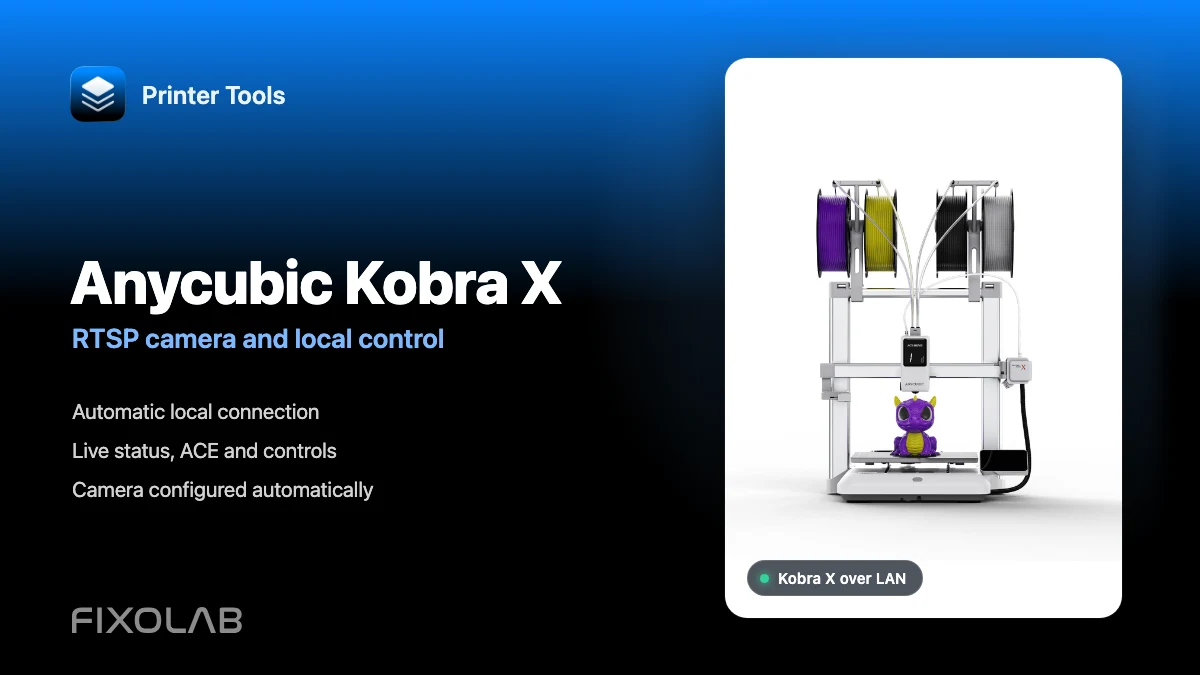
See full Creality compatibility
Review supported K1 and K2 models, camera transports, local controls, file access and current CFS limitations.
All your 3D printers in one dashboard
Monitor Bambu Lab, Klipper, OctoPrint, Creality, Snapmaker, Anycubic, Flashforge, Elegoo, and Prusa printers from one app
Available on Android, iPhone, iPad and Mac, with Apple Watch and Wear OS companion apps plus optional remote access through VPN, OctoEverywhere or Obico
