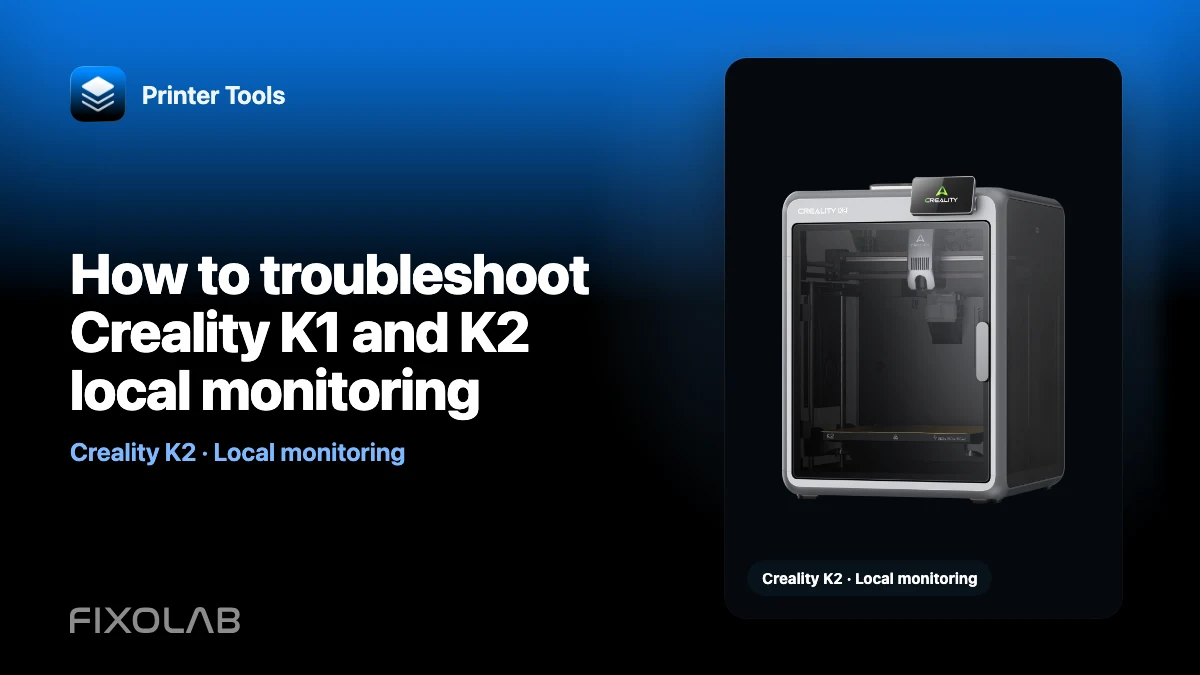
How to troubleshoot Creality K1 and K2 local monitoring
Printer Tools connects to supported Creality K1 and K2 printers through the local WebSocket API on port 9999. Core status, controls and file information share that printer API, but camera transport differs: K1 uses MJPEG and K2 uses WebRTC.
Treat data and video as related but separate tests. Forcing the K1 camera method onto K2, or the reverse, hides the real symptom.
All your 3D printers in one dashboard
Monitor Bambu Lab, Klipper, OctoPrint, Creality, Snapmaker, Anycubic, Flashforge, Elegoo, and Prusa printers from one app
Available on Android, iPhone, iPad and Mac, with Apple Watch and Wear OS companion apps plus optional remote access through VPN, OctoEverywhere or Obico

Confirm the printer family and firmware
The Creality integration covers K1, K1C, K1 Max, K2, K2 Pro, K2 Plus and supported Ender printers running Creality OS. An Ender flashed with Klipper belongs under the Klipper and Moonraker connection instead.
Check the Creality compatibility page and update Printer Tools before testing a newly released firmware or model variant.
Test the WebSocket API on port 9999
Add the current local address and open the dashboard. If status, temperatures and progress remain stale, check whether the phone can reach the printer across the LAN and whether a firewall blocks port 9999.
No Creality Cloud account is required. A successful cloud app connection does not prove that direct local traffic is allowed between the two devices.
Diagnose K1 camera as MJPEG
K1-series camera preview uses MJPEG. If WebSocket data works but Live View does not, focus on the local camera endpoint, current printer address and firmware service.
Do not enter the K1 stock camera as a generic WebRTC camera. Close and reopen Live View after restoring network reachability.
Diagnose K2 camera as WebRTC
K2-series camera preview uses WebRTC. That path needs more than a simple image URL and can fail during negotiation even when port 9999 telemetry works.
Use a current Printer Tools build, because the native WebRTC runtime and its release packaging matter. If the app closes when opening K2 Live View, capture the app version and crash-adjacent encrypted log rather than changing the printer to an MJPEG profile.
Check files and CFS independently
Printer Tools can browse files and print history over the local Creality API. CFS status appears where the connected firmware reports it. A printer with no CFS, or a firmware that omits a field, should not be diagnosed as offline solely because that card is absent.
Record which section fails: telemetry, control, files, CFS, MJPEG or WebRTC. That separation makes support logs actionable.
Repair the network without exposing the printer
Remove guest isolation for the local test, update a stale IP address and create a DHCP reservation. If you use VLANs, permit the required flow from the trusted client network to the printer.
Do not forward port 9999 or the camera service to the public internet. Use a VPN for remote LAN access.
For K2 video-specific checks, read how to fix the Creality K2 WebRTC camera.
Frequently asked questions
Do K1 and K2 use the same camera protocol?
No. K1 uses MJPEG and K2 uses WebRTC.
Is Creality Cloud required?
No. Printer Tools uses the local WebSocket API on port 9999.
Why does the dashboard work but K2 video fail?
Telemetry and WebRTC have separate connection paths. Diagnose negotiation and the app runtime after confirming the API.
Can an Ender with Klipper use this connection?
Use the Klipper and Moonraker integration for third-party Klipper firmware.
All your 3D printers in one dashboard
Monitor Bambu Lab, Klipper, OctoPrint, Creality, Snapmaker, Anycubic, Flashforge, Elegoo, and Prusa printers from one app
Available on Android, iPhone, iPad and Mac, with Apple Watch and Wear OS companion apps plus optional remote access through VPN, OctoEverywhere or Obico
| FixoLab
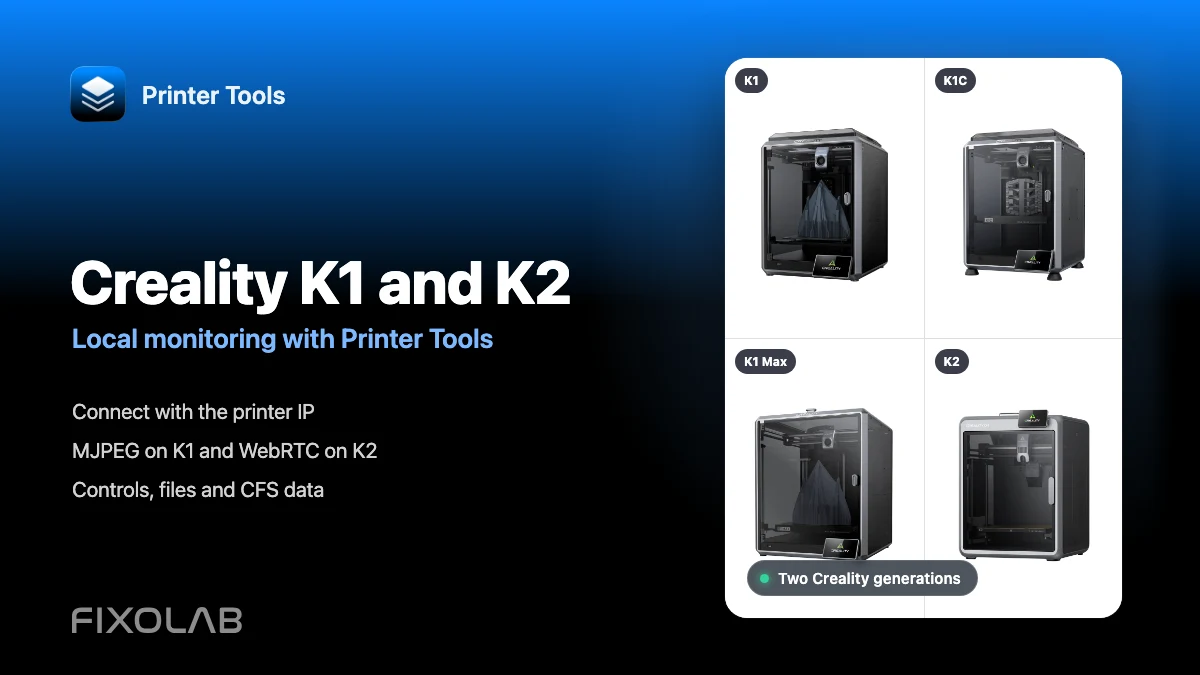
How to connect Creality K1, K1C, K1 Max and K2 to Printer Tools over LAN
Connect Creality K1, K1C, K1 Max and K2 to Printer Tools locally with automatic MJPEG or WebRTC camera selection, controls and file access.
| FixoLab
Printer Tools' Biggest Creality Update Yet With Files, Timelapses, CFS and More
The biggest Creality update yet for Printer Tools brings a full file browser, print history, CFS multi-color box tracking, timelapses and a faster, more reliable camera.
| FixoLab
How to fix the Creality K2 camera with WebRTC on your local network
Fix Creality K2, K2 Pro and K2 Plus camera problems in Printer Tools by checking model detection, local WebRTC and network reachability.
| FixoLab
Bambu Lab P2S vs Creality K2 Combo for cameras, multicolor and monitoring
A neutral, verifiable comparison of how Printer Tools monitors the Bambu Lab P2S and Creality K2 Combo, covering camera protocol, multicolor status and local monitoring.