How to fix Bambu Lab camera problems with RTSPS and TCP JPEG
Bambu Lab camera troubleshooting
Start with the camera transport
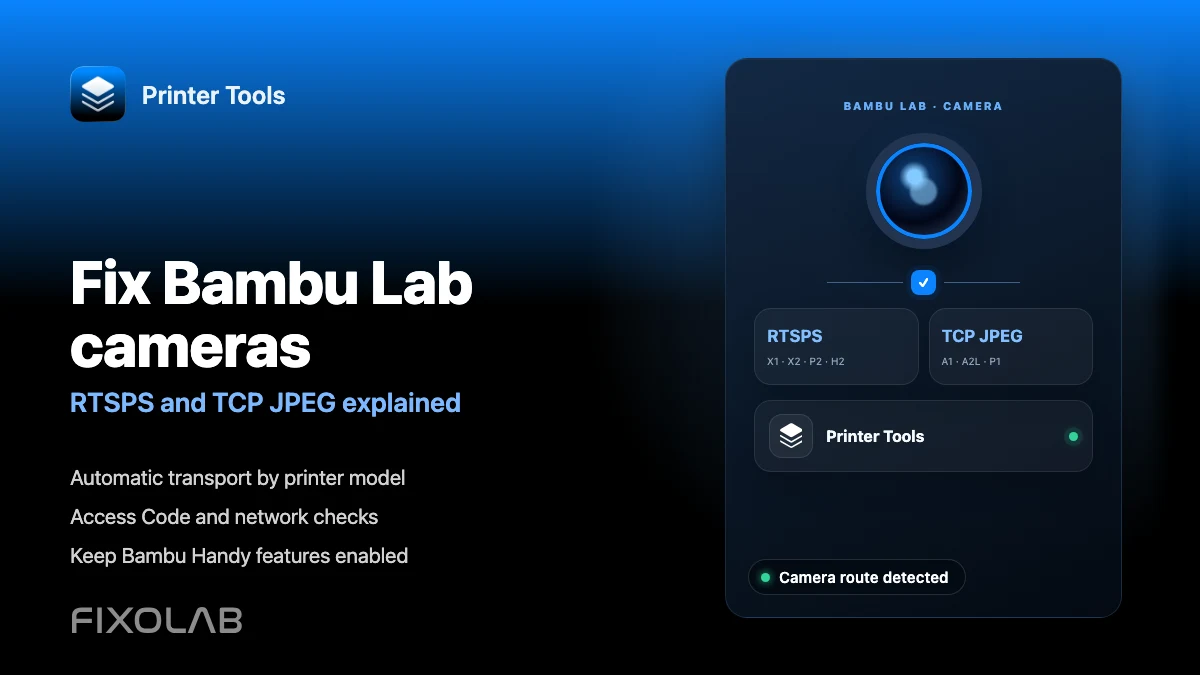
Printer Tools selects the Bambu Lab camera automatically from the printer model and the data reported by its firmware. X1, X2, P2 and H2 families use secure RTSPS, while A1, A2L and P1 families use TCP JPEG. If telemetry works but the camera does not, check the access code, local network reachability, other active viewers and any model-specific LAN live view setting before changing the main printer connection.
What to check before troubleshooting
- The Bambu Lab printer is online and visible in the Printer Tools Dashboard
- The current local IP address, serial number and LAN Access Code are saved correctly
- Printer Tools has local network permission on the phone, tablet or computer
- The device and printer can communicate across the current Wi-Fi, Ethernet or VPN route
- The physical camera is available and enabled by the installed printer firmware
- Other camera viewers are closed while testing the local feed
Fix a Bambu Lab camera that does not load
- 1
Check whether printer telemetry works
Open the Dashboard and look for current temperatures and print state. If those values are also offline, fix the printer IP, credentials or network connection first because the problem is not limited to the camera.
- 2
Confirm the saved model information
Check the printer serial number and use a clear model name. Printer Tools uses the serial family and firmware data to choose secure RTSPS or TCP JPEG without a manual stream setting.
- 3
Recheck the LAN Access Code
Open the network information on the printer and compare its current LAN Access Code with the value stored in Printer Tools. Update the printer entry if the code has changed.
- 4
Close other camera viewers
Close Bambu Handy live view, Bambu Studio camera windows and other apps temporarily, then reopen the Printer Tools camera. Some printers or firmware versions limit simultaneous local camera sessions.
- 5
Check local network access
Allow local network permission and make sure guest Wi-Fi, client isolation, VLAN rules or a restrictive VPN are not blocking direct printer traffic. Camera ports can fail even when basic internet access works.
- 6
Check model-specific live view settings
On H2 family firmware, enable the separate LAN live view option when it is present. This is not the same as LAN Only Mode. Reopen the Dashboard after changing the setting.
Which camera transport does Printer Tools use
The transport is selected automatically. This table helps identify which part of the local connection to investigate.
| Printer family | Camera transport | What to verify |
|---|---|---|
| X1, X1 Carbon and X1E | Secure RTSPS | Access Code, local reachability and other active viewers |
| X2D, P2S and H2 family | Secure RTSPS | Access Code and LAN live view when the firmware exposes that option |
| A1, A1 Mini and A2L | TCP JPEG | Access Code, local network permission and camera availability |
| P1P and P1S | TCP JPEG | Access Code, camera hardware and other active viewers |
Bambu Lab camera and controls in Printer Tools
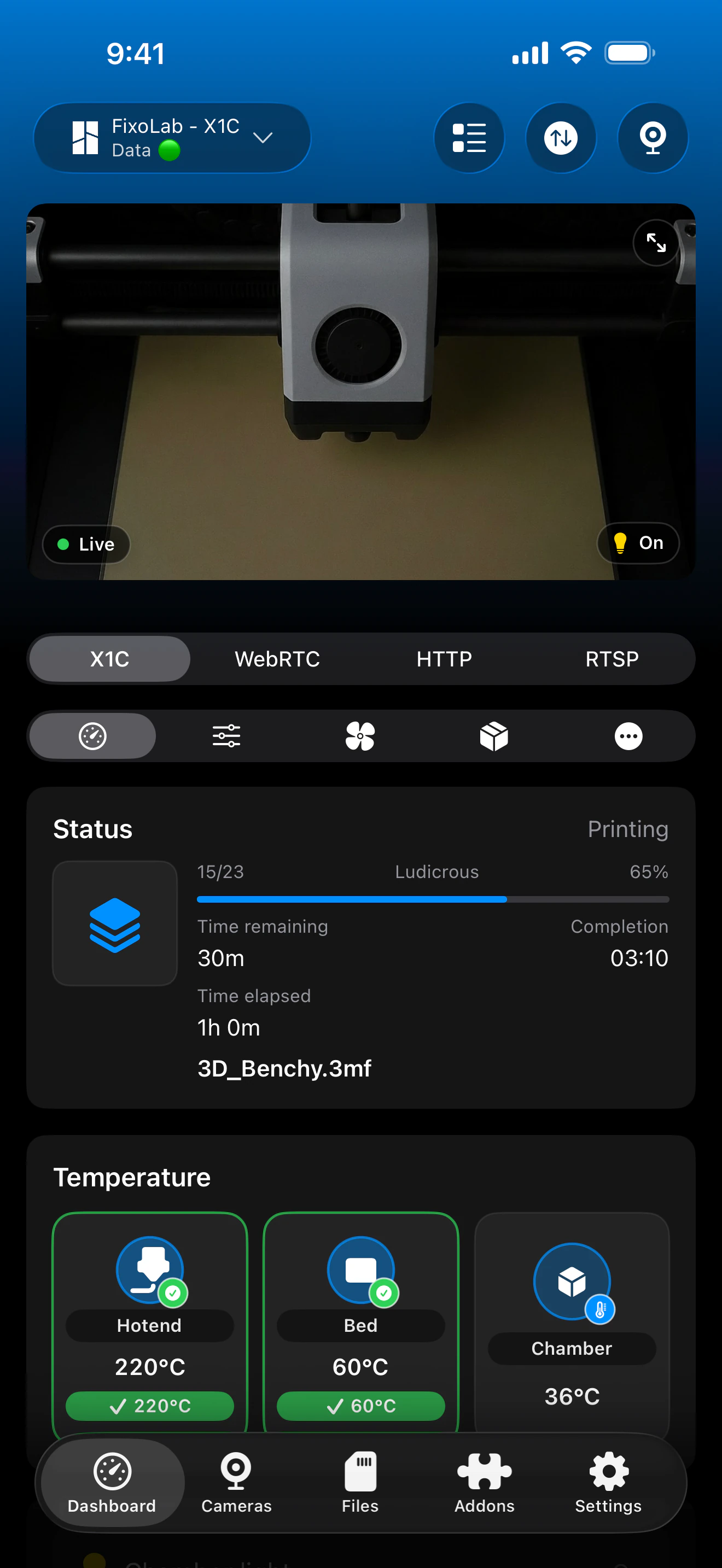
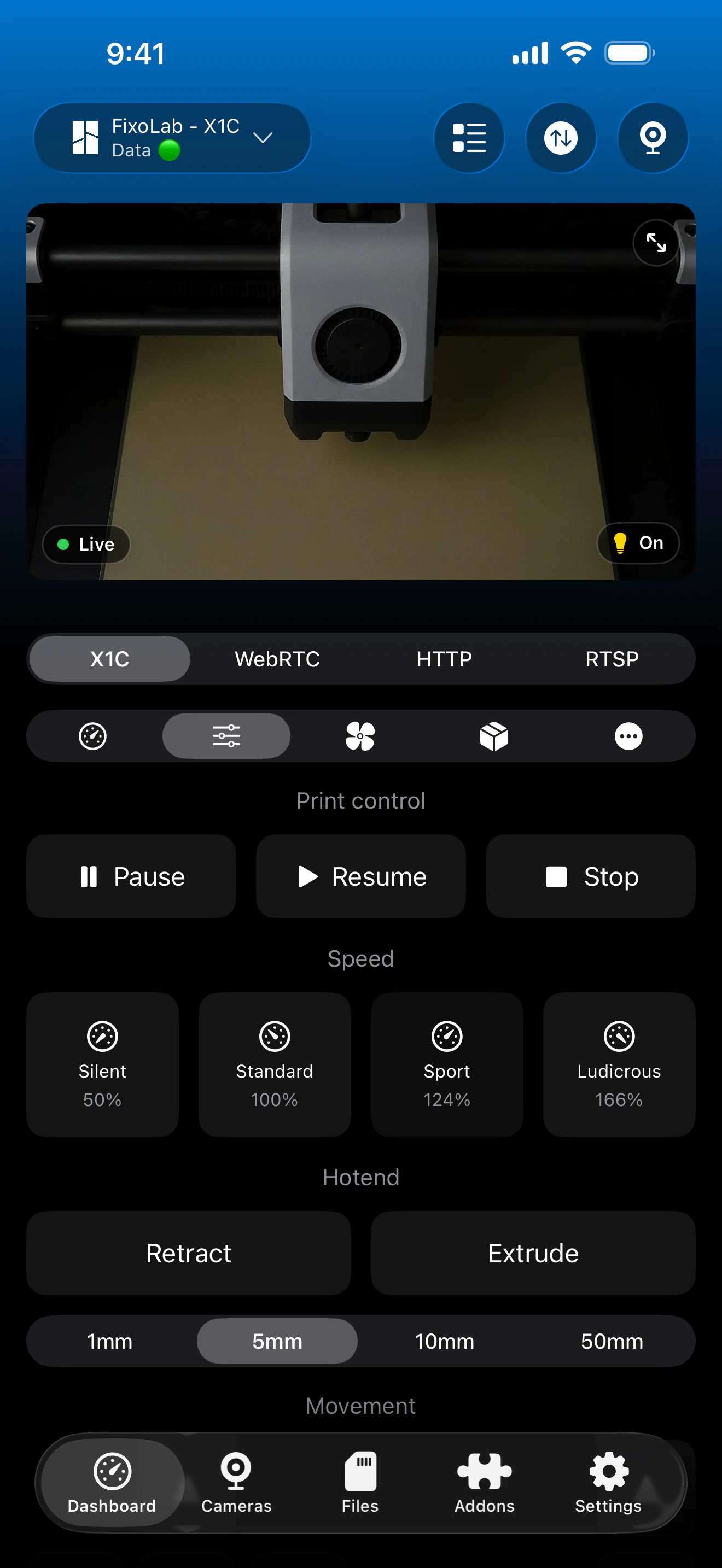
The built-in camera belongs to the same Bambu Lab printer entry as telemetry and controls. Printer Tools selects the appropriate local player automatically from the model and firmware data.
What should work without special modes
- Live camera viewing through the transport supported by the printer model
- Print state, progress, temperatures and AMS information
- Chamber light control when the printer exposes it
- Bambu Handy and its notifications while the printer remains connected to Bambu Cloud
- Automatic recovery after the printer or app returns to the foreground
- VPN, OctoEverywhere or Obico as optional remote access routes
What this guide does not require
- LAN Only Mode is not required for normal monitoring, camera, AMS or light control
- Developer Mode is not required for normal monitoring or camera viewing
- The built-in camera should not be added as a separate external camera
- A camera feed cannot work when the model lacks camera hardware or the firmware disables it
- Directly forwarding RTSPS or TCP JPEG ports to the internet is not a safe remote access method
Troubleshoot by symptom
The whole Bambu Lab printer is offline
Update the local IP, serial number and LAN Access Code, then confirm the network allows direct local communication. Camera troubleshooting should begin only after telemetry reconnects.
The camera is black but telemetry is live
Close other viewers, reopen the camera and verify the model-specific live view setting. A working MQTT connection does not prove that the separate camera transport is reachable.
The camera stopped after changing the Access Code
Edit the Bambu Lab printer in Printer Tools and save the new code. Both secure RTSPS and TCP JPEG authenticate with the current LAN Access Code.
The camera works on one network but not another
Check guest network isolation, VLAN firewall rules and VPN routing. Printer Tools needs a direct route to the local camera service, not only access to Bambu Cloud.
H2 telemetry works but Live View stays unavailable
Look for the LAN live view option in the current printer firmware and enable it. Keep LAN Only Mode off if you want Bambu Handy and cloud notifications to remain available.
Remote camera access without exposing printer ports
Use a VPN back to the printer network, OctoEverywhere or Obico when you need the camera away from home. Never forward the local RTSPS, TCP JPEG, MQTT or file services directly through the router.
Frequently asked questions
Do I choose RTSPS or TCP JPEG myself?
No. Printer Tools selects the transport automatically from the printer family and the camera information reported by its firmware.
Which models use RTSPS?
The current X1, X2, P2 and H2 families use the secure RTSPS player in Printer Tools.
Which models use TCP JPEG?
The current A1, A2L and P1 families use the local TCP JPEG camera player in Printer Tools.
Do I need LAN Only Mode or Developer Mode for the camera?
No. Normal monitoring and camera viewing do not require either mode. Some H2 firmware versions provide a separate LAN live view switch that can be enabled without disconnecting Bambu Cloud.
Can I keep using Bambu Handy?
Yes. Keep LAN Only Mode off and the printer can remain connected to Bambu Cloud while Printer Tools uses its local monitoring, camera, AMS and light features.
Related guides
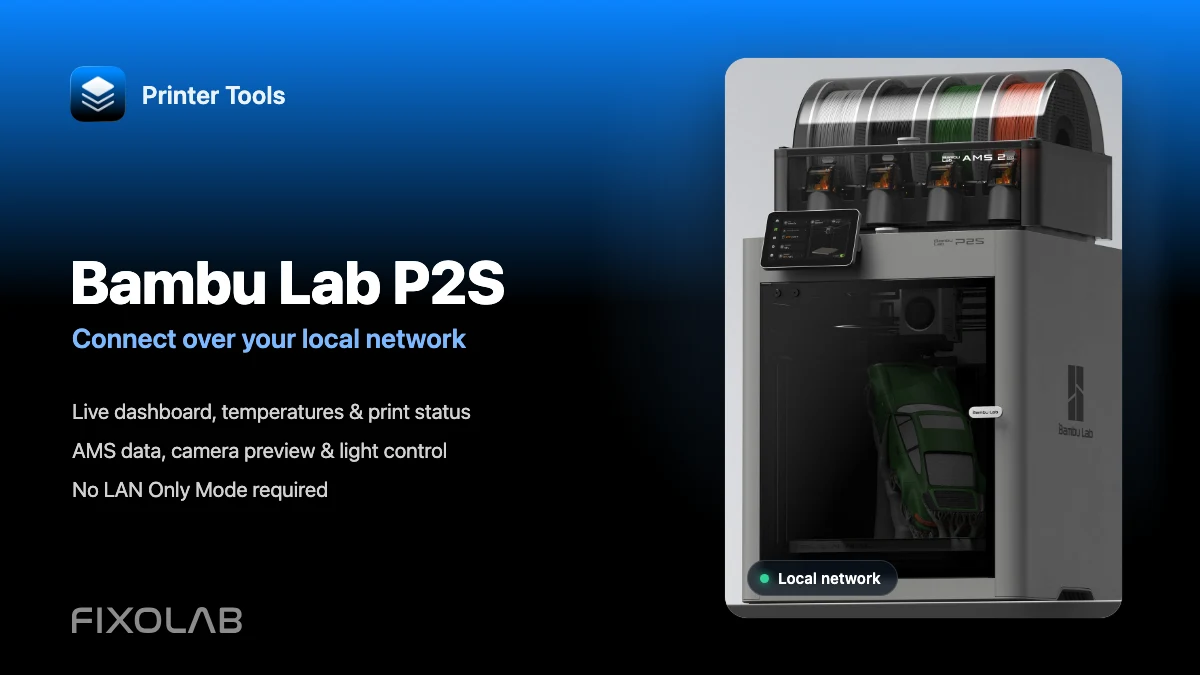
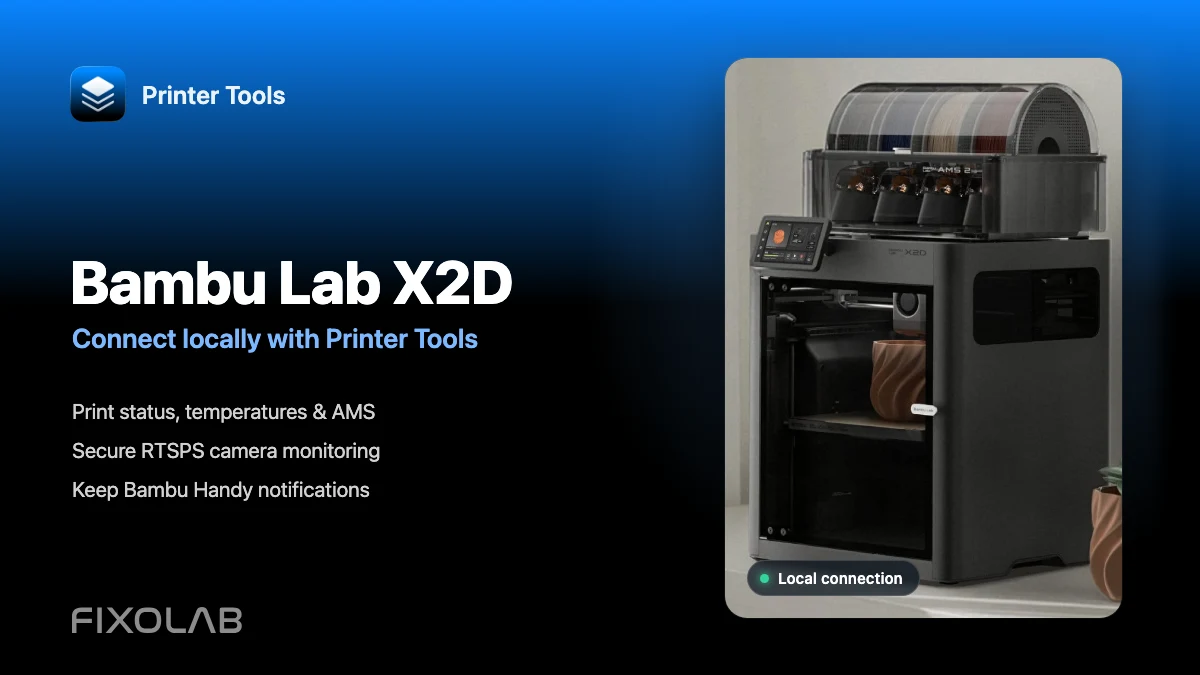
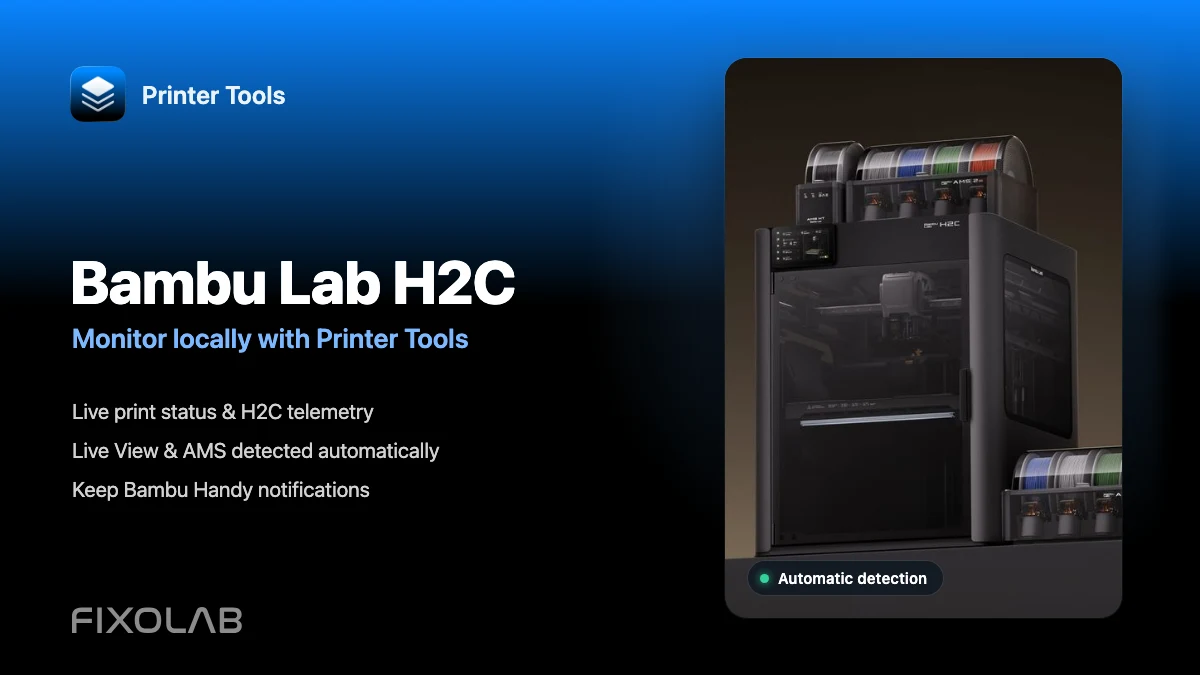
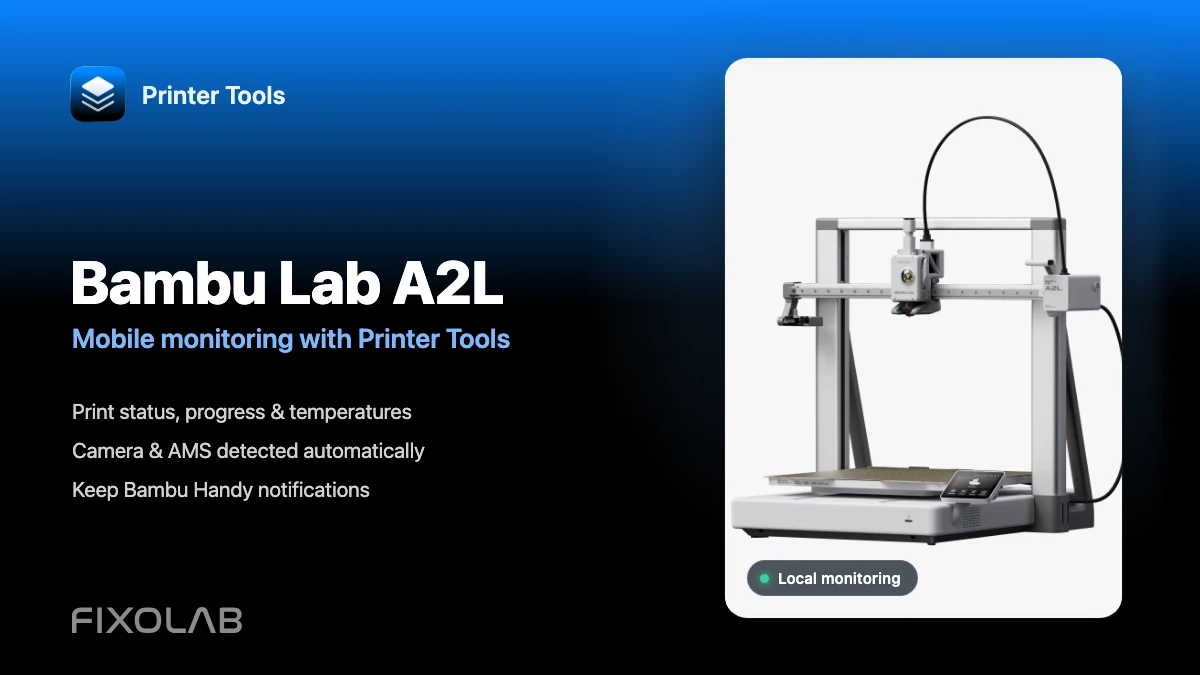
See full Bambu Lab compatibility
Review every supported model, its automatic camera transport, local features and current limitations.
All your 3D printers in one dashboard
Monitor Bambu Lab, Klipper, OctoPrint, Creality, Snapmaker, Anycubic, Flashforge, Elegoo, and Prusa printers from one app
Available on Android, iPhone, iPad and Mac, with Apple Watch and Wear OS companion apps plus optional remote access through VPN, OctoEverywhere or Obico
