Bambu Lab Compatibility
Connect Bambu Lab printers locally, no Bambu cloud account needed
Printer Tools talks to Bambu Lab printers using the same local MQTT interface exposed by the printer's LAN mode, plus FTPS for file transfers. This connection is entirely local, Printer Tools never uses Bambu Lab's cloud services. To reach your printer away from home, connect over a VPN back to your home network (Printer Tools then behaves exactly as if you were on the same LAN) or add OctoEverywhere for a managed remote-access option.
Compatible models
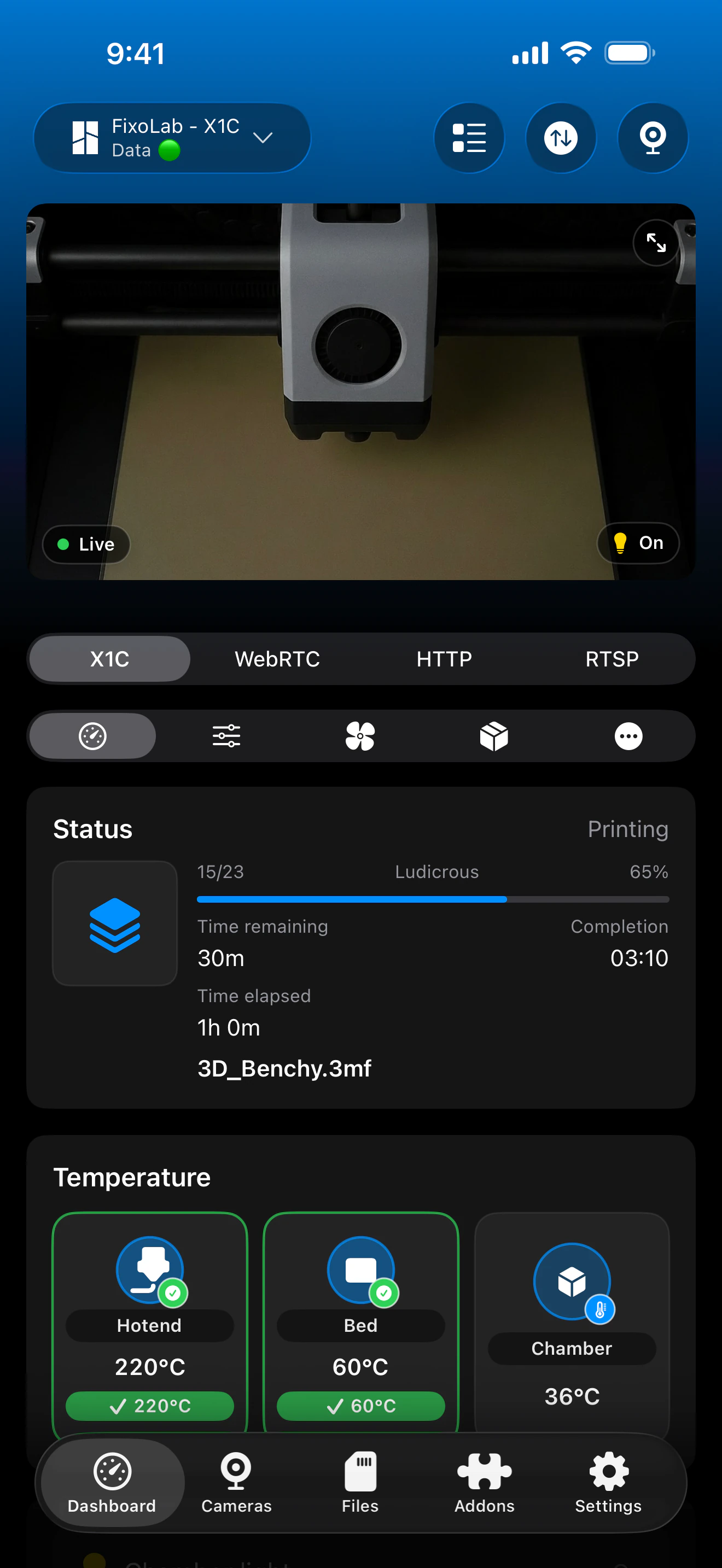
See it in action
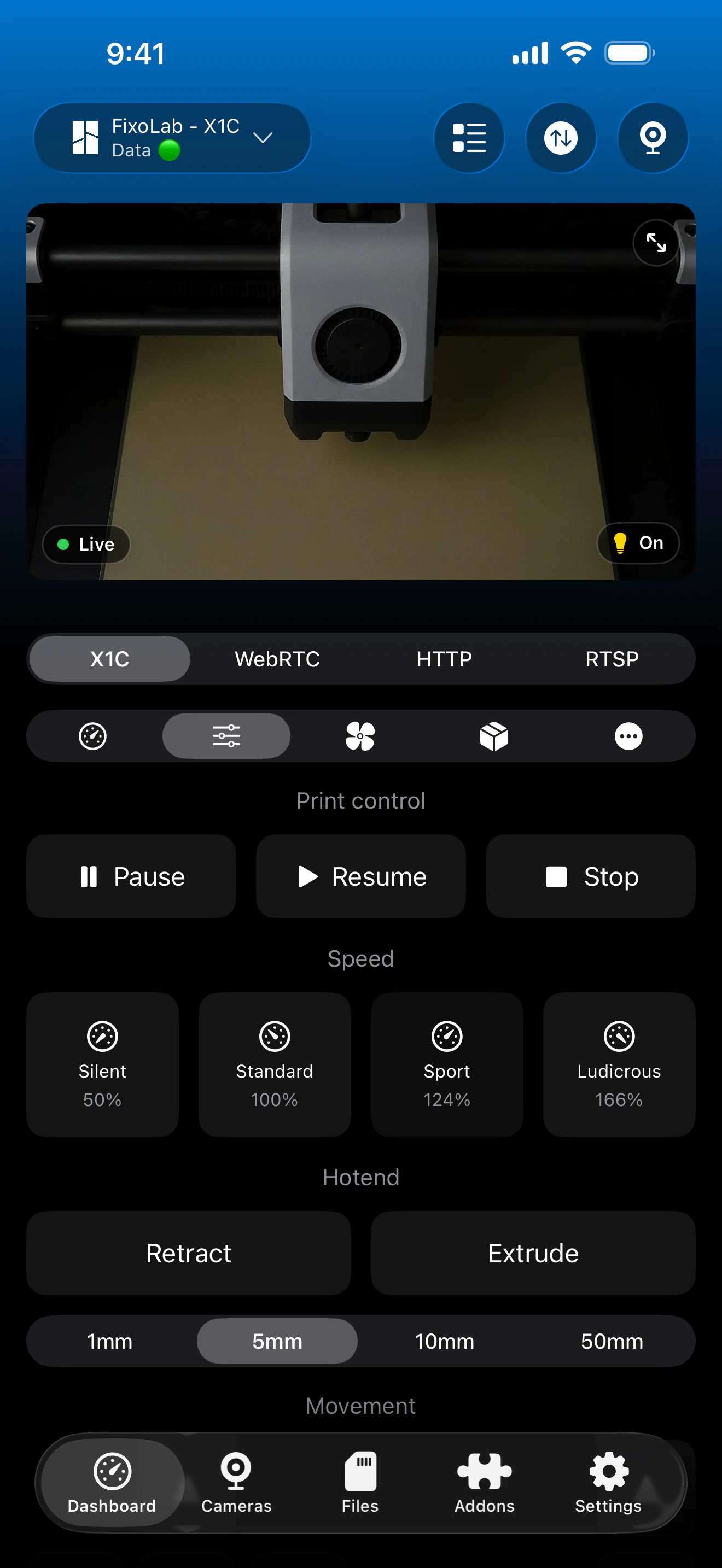
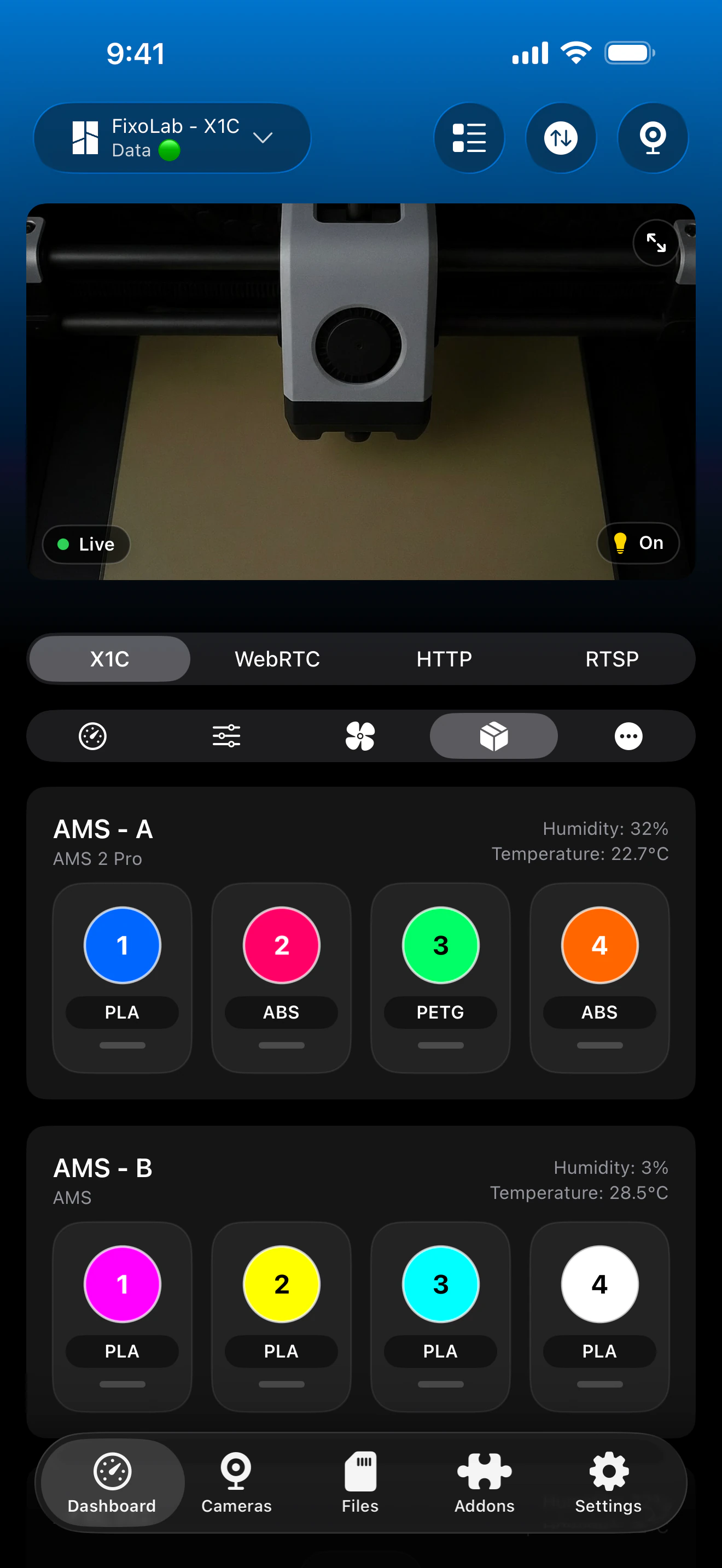
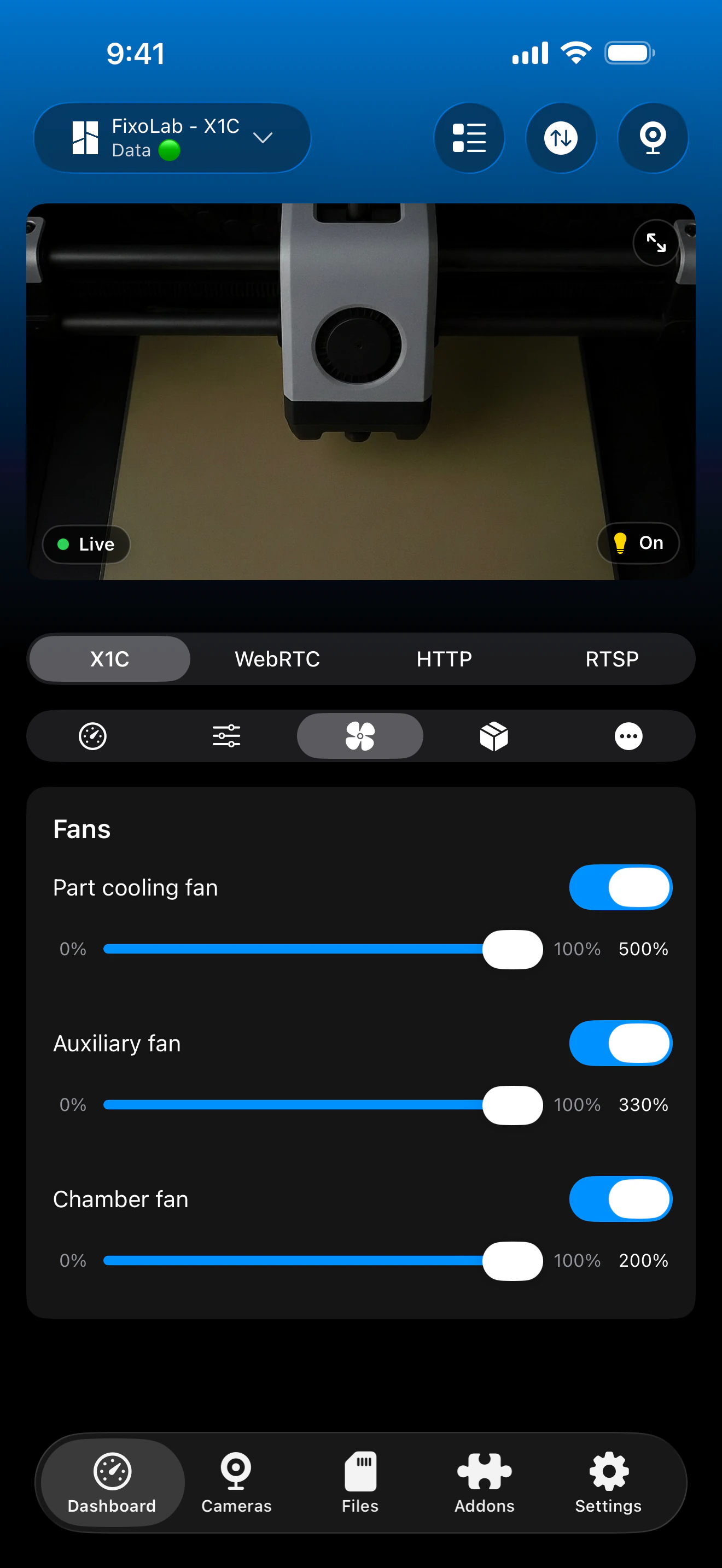
Connection & protocol
| Transport | MQTT over TLS (port 8883) |
| Authentication | Access Code + printer Serial Number |
| File transfer | FTPS |
| Cloud usage | None, Printer Tools never uses Bambu Lab's cloud services |
| Away from home | Connect over a VPN back to your network, or add OctoEverywhere |
What's verified today
- ✓Print status, progress, remaining layers and nozzle/bed/chamber temperatures
- ✓HMS error codes surfaced by the printer
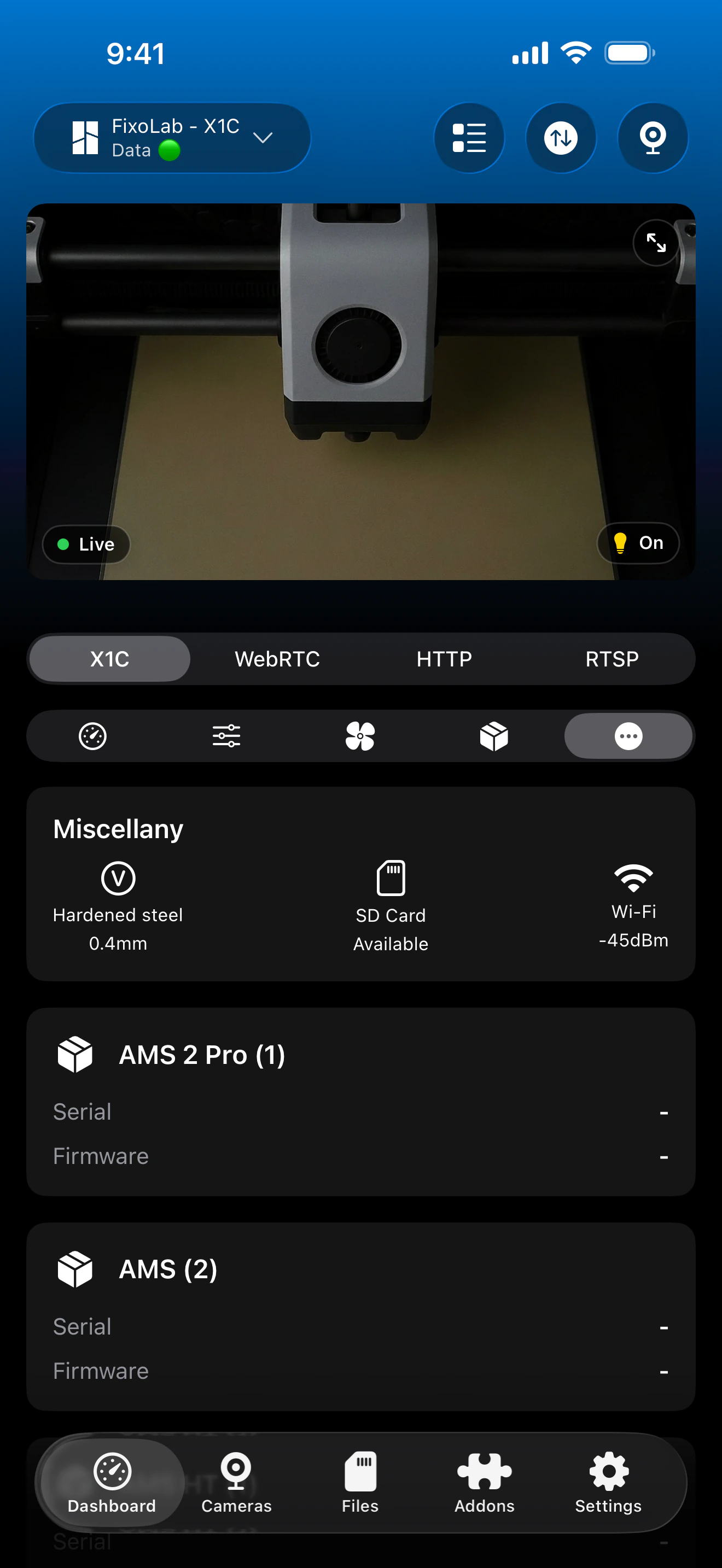
- ✓AMS status and active material, where the firmware reports it
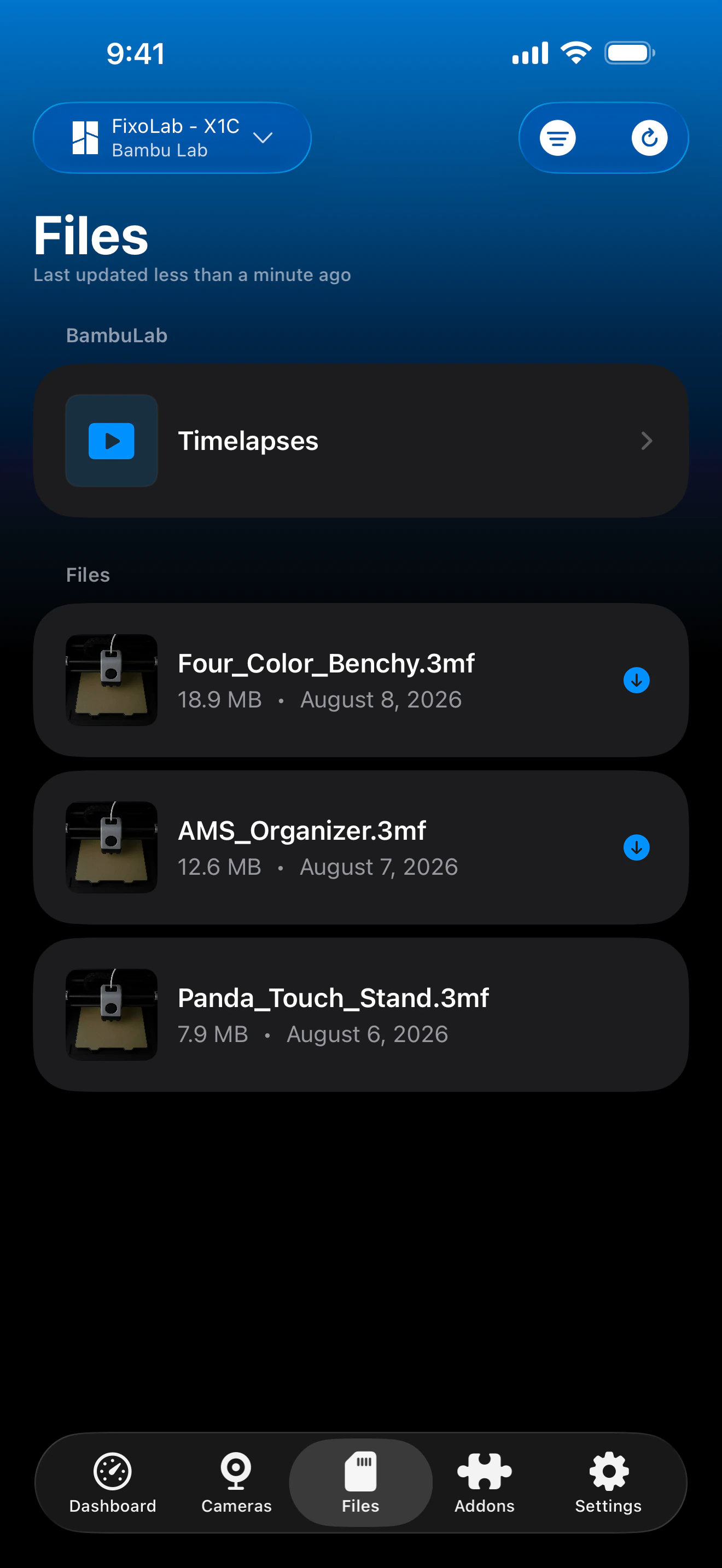
- ✓File browsing over FTPS, with thumbnails when available
- ✓Camera preview, using the transport supported by each model
Feature matrix
| Feature | Status | Notes |
|---|---|---|
| Real-time monitoring | Available | Status, progress, layers and nozzle/bed/chamber temperatures over MQTT. |
| Multi-printer dashboard | Available | Manage several Bambu Lab printers from one dashboard. |
| Camera preview | Available | RTSPS on printers that support it, TCP (JPEG) image polling on others, depending on model and firmware. |
| File browser & history | Available | Browse files over FTPS, with thumbnails where the firmware exposes them. |
| Job control (pause / resume / stop) | Available | Pause, resume and stop through the local MQTT connection. |
| Filament / AMS management | Partial | AMS status and material info surface where the firmware reports them; not every slot detail is exposed on every model. |
| Remote access via OctoEverywhere | Available | OctoEverywhere can be used for remote access, or connect over a VPN back to your network since this integration is fully local. |
Known limitations
- !Camera transport (RTSPS vs. TCP JPEG) depends on the printer model and installed firmware version.
- !Printer Tools never uses Bambu Lab's cloud; away from home, use a VPN back to your network or OctoEverywhere instead.
- !AMS slot detail is limited to what the printer's firmware reports over MQTT.
Frequently asked questions
Do I need a Bambu Lab cloud account to use Printer Tools?
No. Printer Tools talks to Bambu Lab printers over the same local MQTT interface exposed by LAN mode, and never uses Bambu Lab's cloud services at all. For access away from your network, connect over a VPN back to your home network, or add OctoEverywhere.
Does Printer Tools support the AMS and AMS Lite?
Yes. AMS status, active material and remaining filament are shown for each connected unit whenever the printer's firmware reports that data over MQTT; the exact detail available depends on your model and firmware version.
Can I see the camera feed from my X1C, P1S or A1?
Yes. Printer Tools automatically uses RTSPS on printers that support it and falls back to TCP JPEG image polling on models that don't expose an RTSPS stream.
Is the H2S, H2C, H2D and H2D Pro supported?
Yes, the H2 series is supported alongside the rest of the X1, P1 and A1 lineup, using the same local MQTT and FTPS interfaces.
Why can't I control my printer when I'm away from home?
Printer Tools connects to Bambu Lab printers locally only, so by default your device needs to be on the same network as the printer. To reach it from outside your home, connect over a VPN back to your home network (Printer Tools then behaves as if you were on the same LAN), or add OctoEverywhere for a managed remote-access option.
Available on
Other compatible systems
Available for Android, iOS, iPadOS, macOS and watchOS