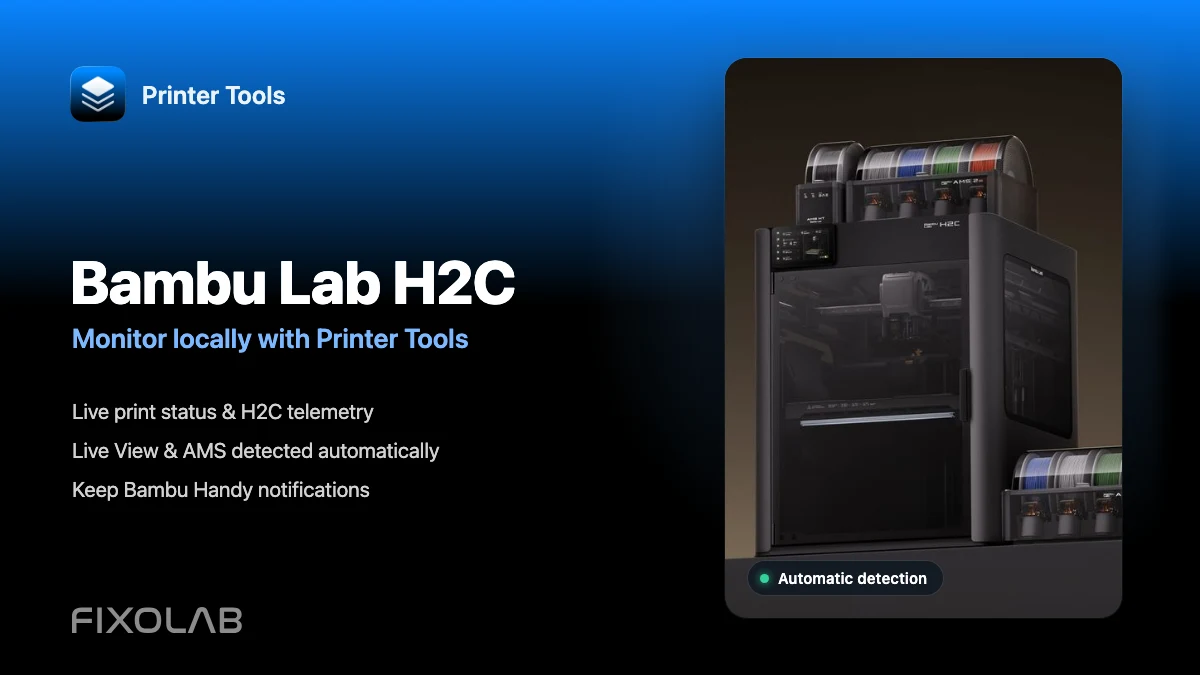
How to monitor Bambu Lab H2C locally with Printer Tools
Bambu Lab H2C · Local monitoring
The short answer
Connect the Bambu Lab H2C to Printer Tools once with its local IP address, serial number and LAN Access Code. The Live View camera, AMS units and filament slots are detected automatically from the printer. You do not add or configure them separately in Printer Tools. Normal monitoring does not require LAN Only Mode or Developer Mode, so Bambu Handy can remain available.
What you need
- Printer Tools installed on Android, iPhone, iPad or Mac
- The H2C and your phone, tablet or computer connected to the same reachable local network
- The printer's IP address, serial number and LAN Access Code
- The H2C Live View camera enabled for local access if your installed firmware provides that setting
Connect the H2C and verify automatic detection
- 1
Leave the cloud connection unchanged
For print monitoring, the Live View camera, AMS data and chamber light control, keep LAN Only Mode and Developer Mode off. This lets the H2C remain connected to Bambu Cloud for Bambu Handy and its notifications.
- 2
Copy the H2C connection details
Open the printer's network or LAN settings and note the IP address and LAN Access Code. Copy the serial number from Device Information or the printer label.
- 3
Add the H2C in Printer Tools
In Printer Tools, open Settings, choose Printers and select Add Bambu Lab. Enter the IP address, serial number and Access Code, then save the printer.
- 4
Open the automatically detected Live View camera
Open the H2C Dashboard and select the camera panel. Printer Tools discovers and uses the secure local RTSPS feed automatically. If the printer firmware offers a separate LAN live-view switch, enable that switch without enabling LAN Only Mode.
- 5
Review the automatically detected AMS units
Open the filament section and confirm that each installed AMS unit and slot appears with its color and material. No AMS setup is required in Printer Tools. The app reflects the information sent by the H2C, so the result depends on the connected hardware and current firmware.
Automatic H2C monitoring in Printer Tools
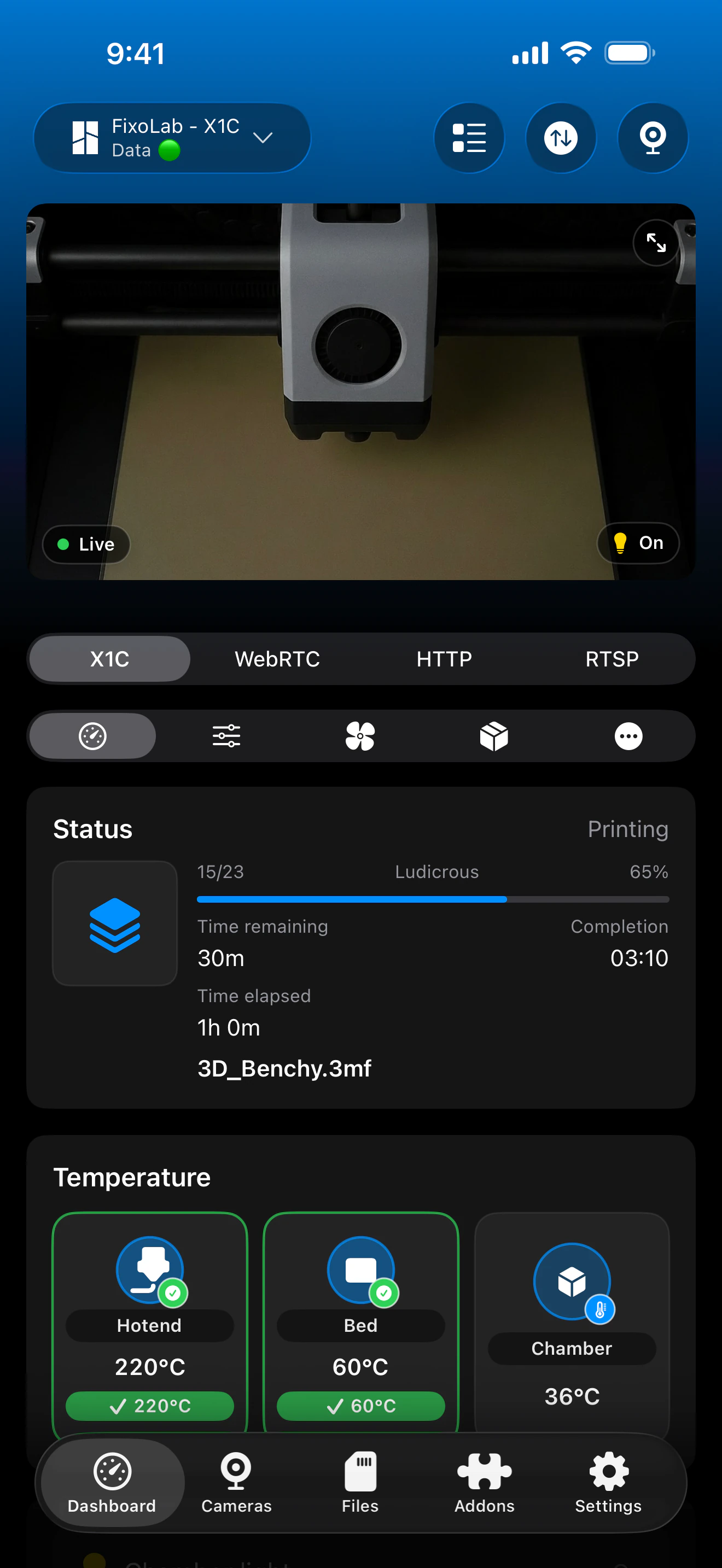
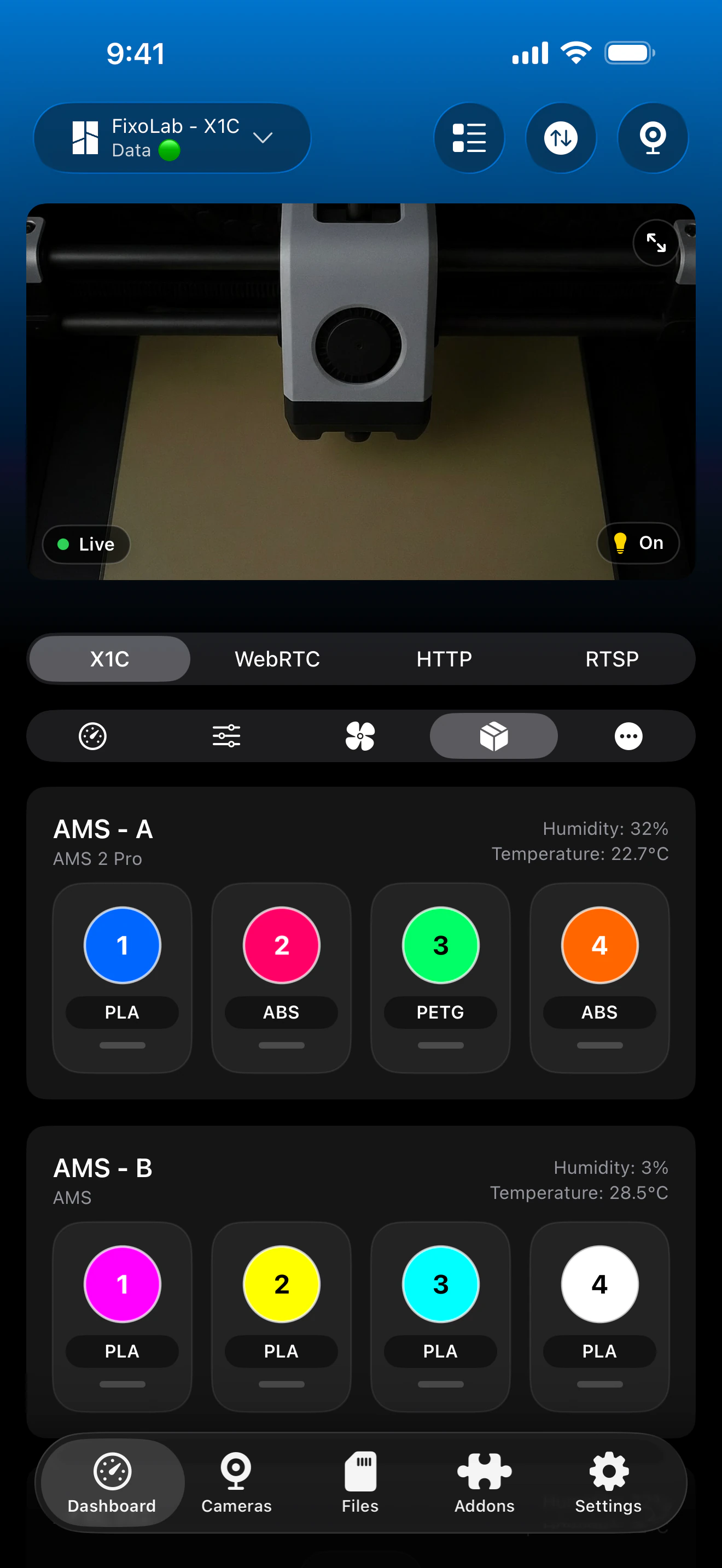
Real screens from the Bambu Lab integration in Printer Tools. The H2C uses the same dashboard structure, with camera and AMS panels populated from the capabilities and telemetry exposed by its firmware.
What Printer Tools can show
- Live print state, progress, layers, elapsed time and remaining time
- Nozzle, bed and chamber telemetry reported by the H2C
- The secure RTSPS Live View camera feed
- Multiple AMS units and the filament slots, colors and materials reported by the printer
- Printer alerts, HMS information and chamber light control
- Local file browsing and thumbnails when exposed by the installed firmware
H2C camera and AMS troubleshooting
The H2C connects but the camera does not load
Check whether LAN live view is enabled in the current printer firmware, then close other viewers and reopen the camera in Printer Tools. LAN live view is not the same as LAN Only Mode.
Some AMS units or slots are missing
Verify the hardware connections on the H2C, wait until every AMS has completed startup and refresh the Dashboard. Printer Tools displays only the units and slots reported by the printer.
Filament colors or materials are out of date
Update the slot information on the printer or in Bambu Studio, then allow the H2C to send a fresh status update. Reopen the filament section if the old value remains cached.
The printer is unreachable
Confirm the saved IP address and make sure both devices can communicate across the local network. Guest Wi-Fi, client isolation, VLAN rules and some VPN profiles can block local printer traffic.
Vortek hotend assignments are not available
Use the H2C interface or Bambu Studio to configure materials and hotend assignments. Printer Tools monitors the compatible H2C and AMS telemetry exposed by the firmware rather than replacing the printer's Vortek setup workflow.
Monitor the H2C away from home
Use a VPN back to your network to preserve the local Printer Tools connection outside your home. OctoEverywhere and Obico are also supported as optional managed remote-access services. Never forward the H2C's MQTT, file or camera ports directly to the internet.
Frequently asked questions
Do I need to configure the camera or AMS separately?
No. Printer Tools detects the H2C Live View camera and AMS information automatically after the printer connection is established.
Which H2C camera appears in Printer Tools?
Printer Tools uses the H2C Live View feed exposed locally over RTSPS. It does not claim access to the nozzle, BirdsEye or toolhead inspection cameras.
Can Printer Tools show all 24 filaments?
Bambu Lab specifies support for up to 24 filaments when the H2C is combined with the required AMS hardware. Printer Tools displays the AMS units and slots that the installed configuration and firmware report, so the exact number can vary.
Do I need LAN Only Mode for the camera or AMS?
No. Normal camera, AMS and print monitoring can work while the H2C remains connected to Bambu Cloud. A separate LAN live-view switch may still need to be enabled for the camera on some firmware versions.
Related guides
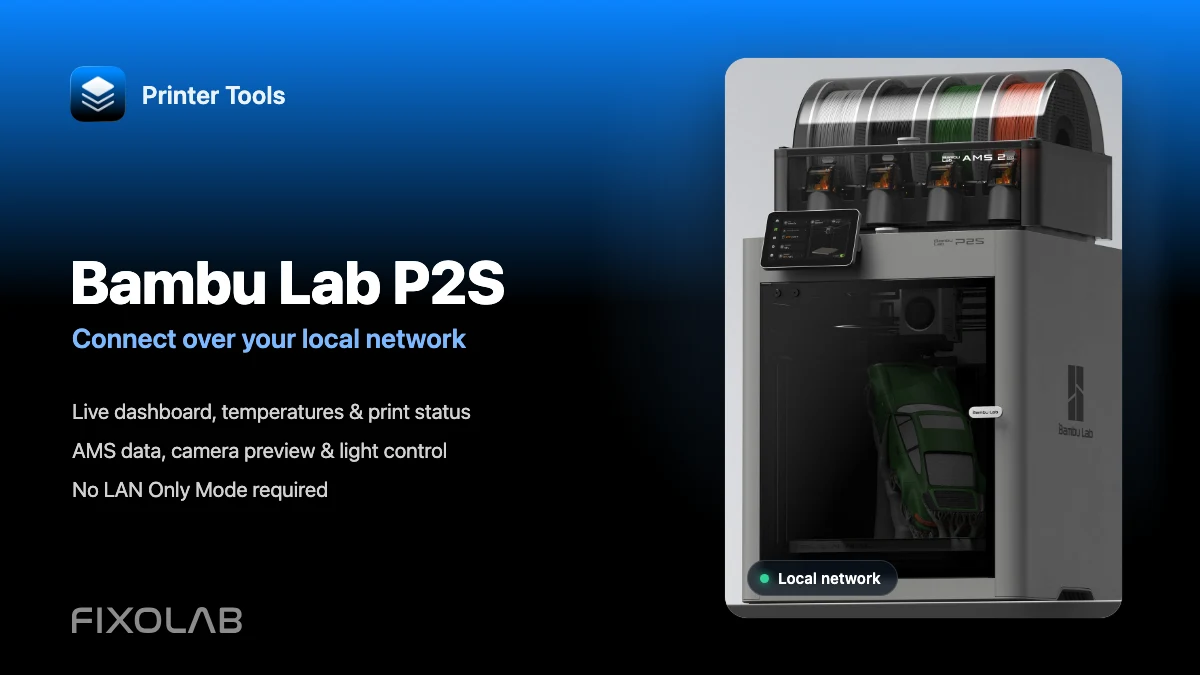
Check Bambu Lab support before setup
Review supported models, camera transports, local features and remote-access options in the current Printer Tools compatibility matrix.
All your 3D printers in one dashboard
Monitor Bambu Lab, Klipper, OctoPrint, Creality, Snapmaker, Anycubic, Flashforge, Elegoo, and Prusa printers from one app
Available on Android, iPhone, iPad and Mac, with Apple Watch and Wear OS companion apps plus optional remote access through VPN, OctoEverywhere or Obico
