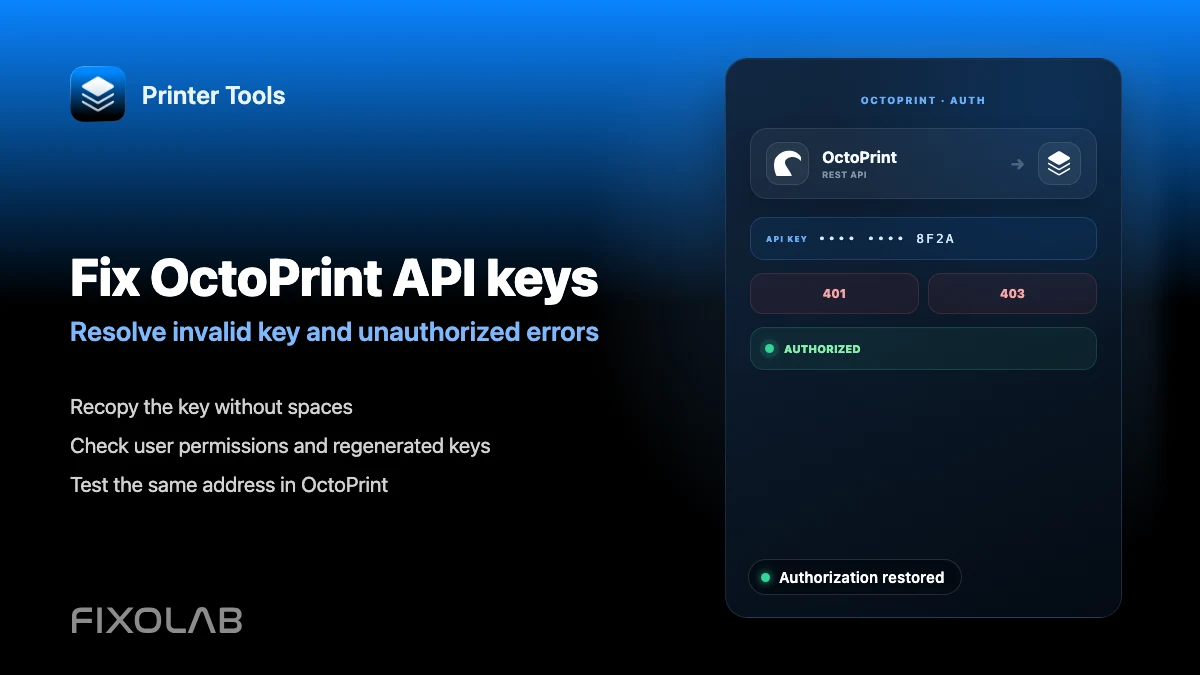
How to fix invalid API key and unauthorized errors in OctoPrint
OctoPrint API key troubleshooting
The short answer
An invalid API key or unauthorized error in Printer Tools almost always means the key entered does not match the current global API key in OctoPrint's Settings. A separate error where the printer shows as not connected is usually a serial connection issue inside OctoPrint itself, not an authentication problem.
What you need
- Access to OctoPrint's own Settings page, under the API section
- The OctoPrint printer already added in Printer Tools
- A few minutes to regenerate the key if it was lost or changed
Fix an API key error
- 1
Recopy the current key
Open OctoPrint's Settings, go to the API section and copy the global API key exactly as shown, with no extra spaces.
- 2
Replace the key in Printer Tools
Open the printer's settings in Printer Tools and paste the freshly copied key, replacing whatever was there before.
- 3
Reconnect and test
Reconnect the printer. If the dashboard loads, the key was the issue. If it still fails, confirm you copied it from the same OctoPrint instance Printer Tools is pointed at.
- 4
Regenerate the key if needed
If the key was lost or you suspect it was exposed, regenerate it from OctoPrint's Settings and update every client that uses it, including Printer Tools.
- 5
Check for a serial issue separately
If the key is accepted but the printer still shows as not connected, look at OctoPrint's own connection panel for a serial disconnection rather than continuing to troubleshoot the API key.
OctoPrint API key settings
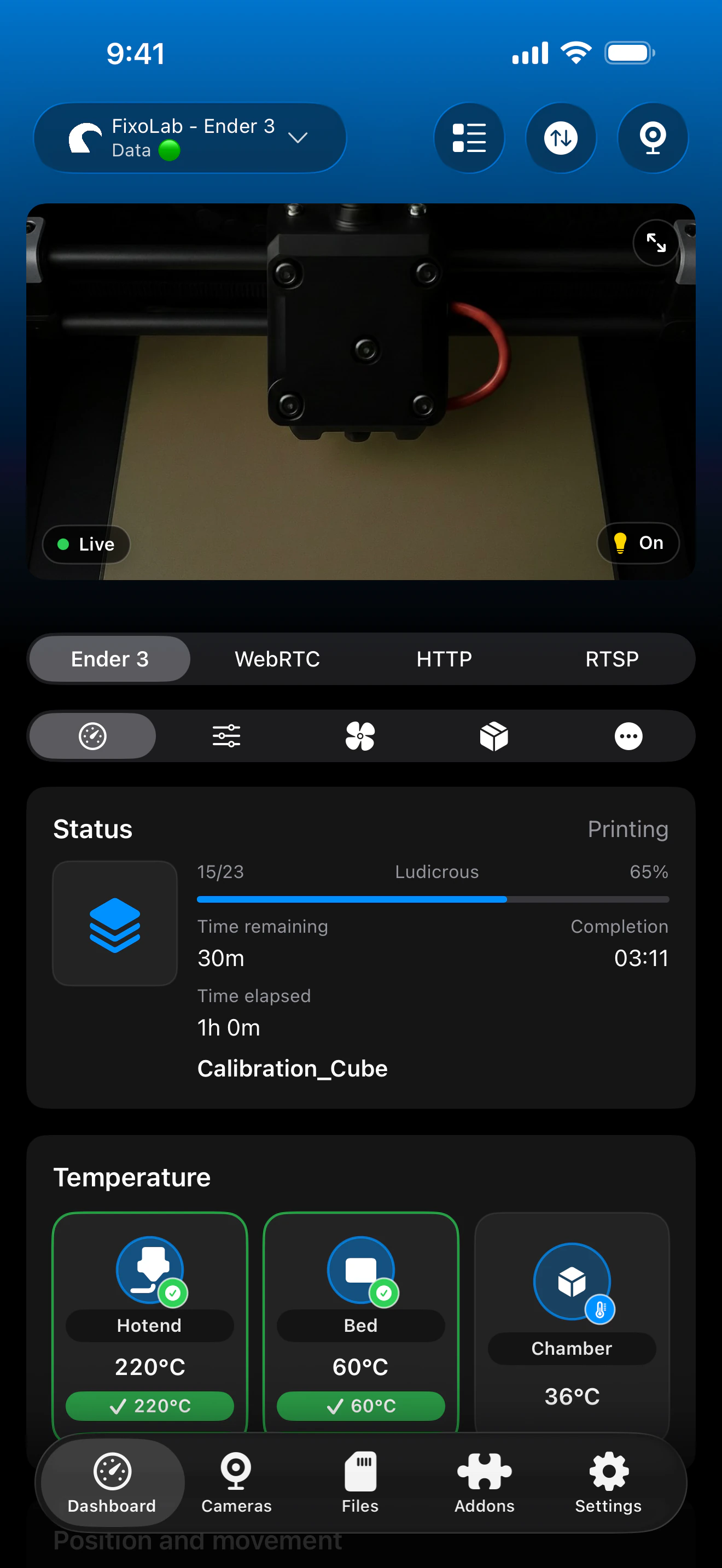
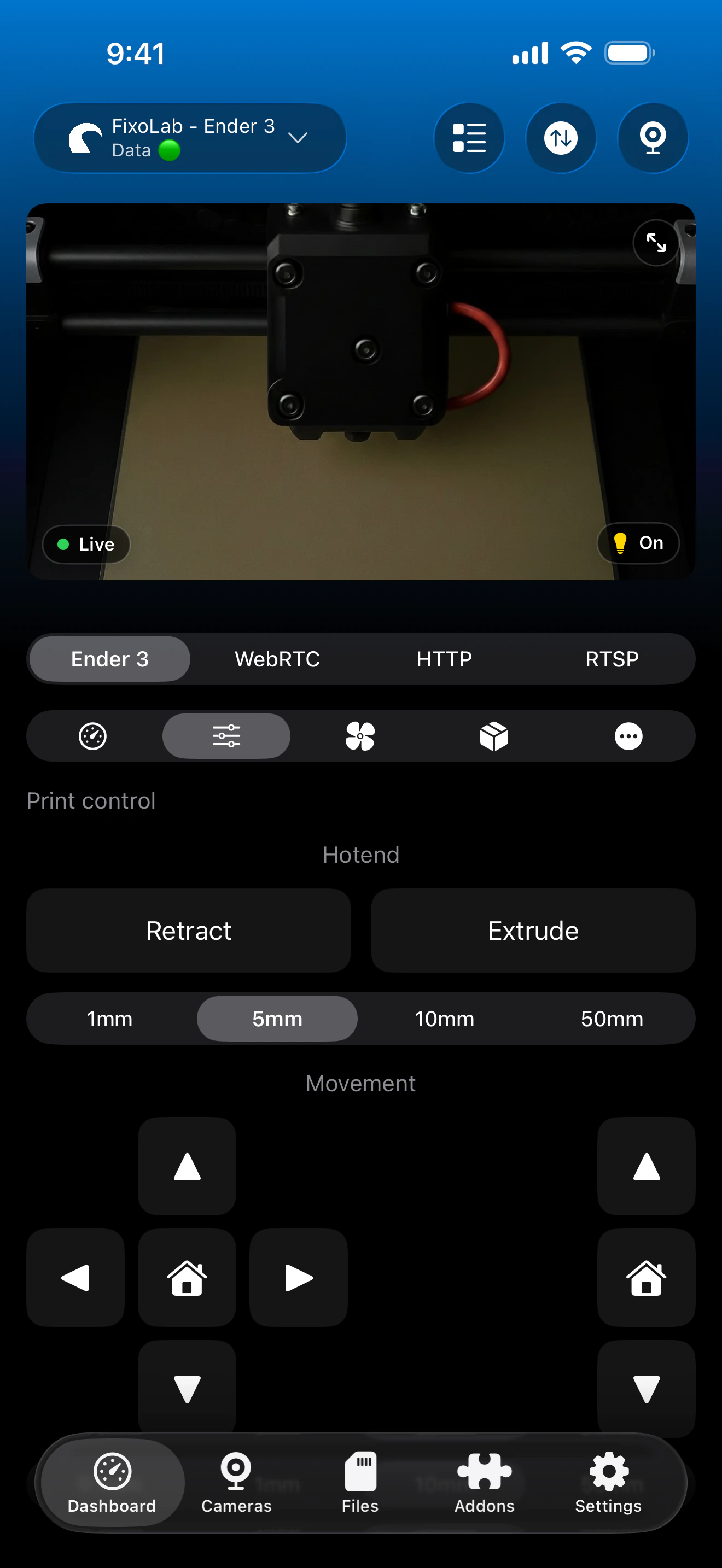
The API key field in Printer Tools must match the global key currently shown in OctoPrint's own Settings.
How Printer Tools handles this
- A clear invalid or unauthorized state shown when the API key itself is rejected
- A separate serial disconnection state when OctoPrint has no active connection to the printer
- Reconnection without needing to remove and re-add the printer from scratch
What is not automatic
- Printer Tools cannot generate or repair an OctoPrint API key on its own
- A serial connection problem must be fixed from OctoPrint's own connection settings
- Per-user API keys are not supported; only the single global key works
Common API key errors
Unauthorized immediately after entering the key
Confirm the key was copied fully and without extra characters, and that it matches the key currently shown in OctoPrint, not an older saved value.
The key worked for weeks and then stopped
Check whether the key was regenerated in OctoPrint, intentionally or through a plugin, and update it in Printer Tools if so.
The key is accepted but the printer shows disconnected
This is a serial connection issue inside OctoPrint, not an authentication problem. Reconnect the printer from OctoPrint's own connection panel.
Different errors appear on different devices
Confirm every device is using the same current API key. An old key saved on one phone will fail even if another device already has the correct one.
API key errors over remote access
The same API key applies whether you connect directly, through a VPN or through OctoEverywhere. A rejected key fails the same way regardless of how you reach the server.
Frequently asked questions
Why does Printer Tools say unauthorized when OctoPrint's website works fine?
OctoPrint's own interface may already have a valid browser session, while Printer Tools authenticates separately with the API key you entered. Recheck that key specifically.
Does regenerating the key affect other apps using OctoPrint?
Yes. Every client using the old global key, not just Printer Tools, will need the new key entered after you regenerate it.
Is a 403 error different from a 401 error here?
Both are treated as an authentication problem in Printer Tools and point to the same fix, rechecking the API key against OctoPrint's current value.
Can I use different API keys per device?
OctoPrint issues one global key by default, so the same key is normally used across every device and client.
Related guides
See full OctoPrint compatibility
Review the supported OctoPrint features, camera setup, authentication and current limitations in Printer Tools.
All your 3D printers in one dashboard
Monitor Bambu Lab, Klipper, OctoPrint, Creality, Snapmaker, Anycubic, Flashforge, Elegoo, and Prusa printers from one app
Available on Android, iPhone, iPad and Mac, with Apple Watch and Wear OS companion apps plus optional remote access through VPN, OctoEverywhere or Obico
