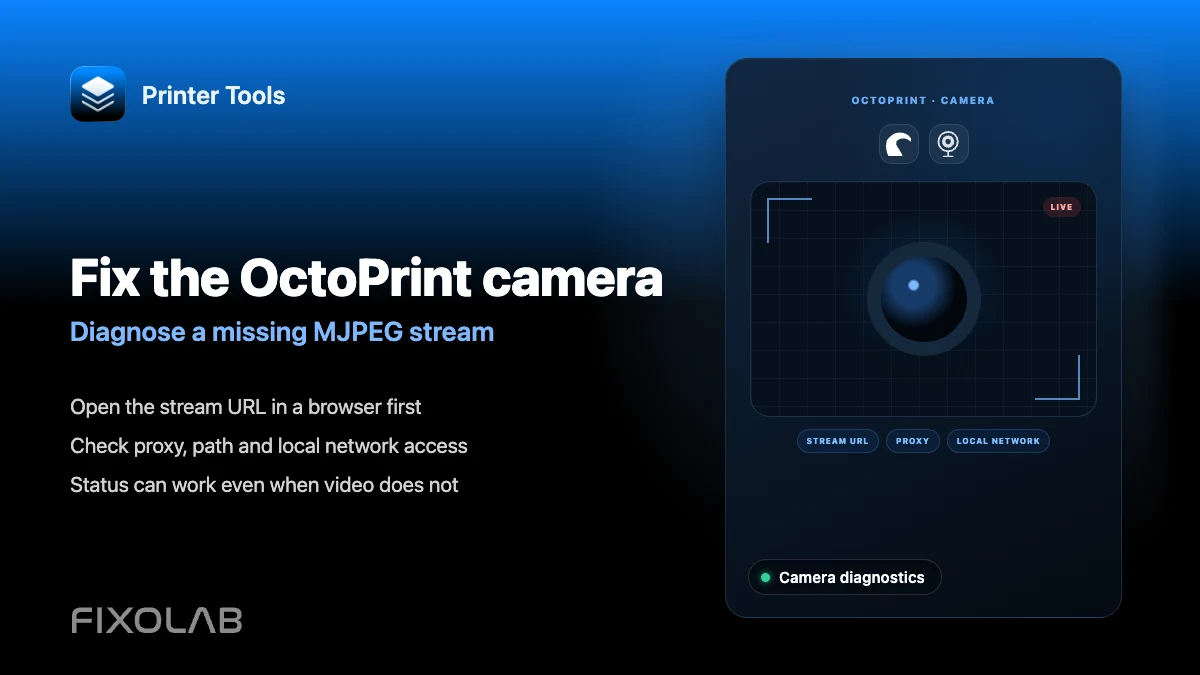
How to fix an OctoPrint camera that is not loading in Printer Tools
OctoPrint camera troubleshooting
The short answer
Printer Tools requests an MJPEG stream from the standard webcam route on your OctoPrint server, the same default path used by OctoPi installations. If the camera is on a different host or port than the rest of OctoPrint, use the separate streaming address field so Printer Tools knows where to look for the actual video feed.
What you need
- An OctoPrint printer already connected to Printer Tools
- A webcam configured in OctoPrint and confirmed working from OctoPrint's own interface
- The local address of the machine actually serving the MJPEG stream, if it differs from the OctoPrint server itself
Fix a camera that will not load
- 1
Confirm the stream works in OctoPrint first
Open OctoPrint's own web interface and check that the camera preview loads there. If it does not, the issue is in the webcam setup itself, not in Printer Tools.
- 2
Test the default route in a browser
Open the standard webcam route directly in a browser on the same network as the OctoPrint server, separately from the main OctoPrint interface.
- 3
Use a separate streaming address if needed
If the camera is served from a different host or port than the rest of OctoPrint, for example behind a separate proxy, enter that address specifically in Printer Tools' streaming settings for this printer.
- 4
Check for network isolation
Guest Wi-Fi or client isolation can block the camera stream even while status and job control keep working, since they may reach the server through a different path.
- 5
Reconnect the printer
After changing any address, reconnect the printer in Printer Tools rather than only refreshing the camera view.
OctoPrint camera settings
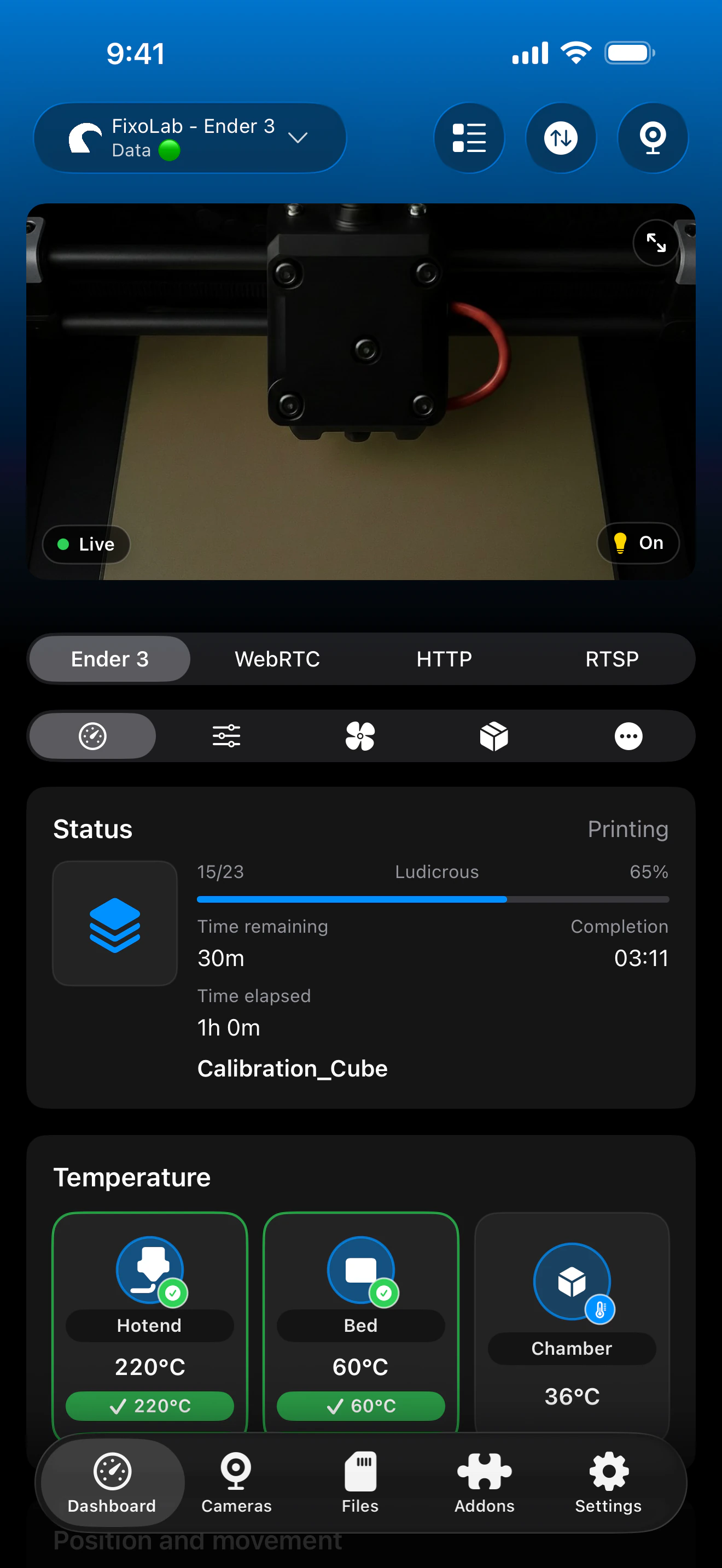
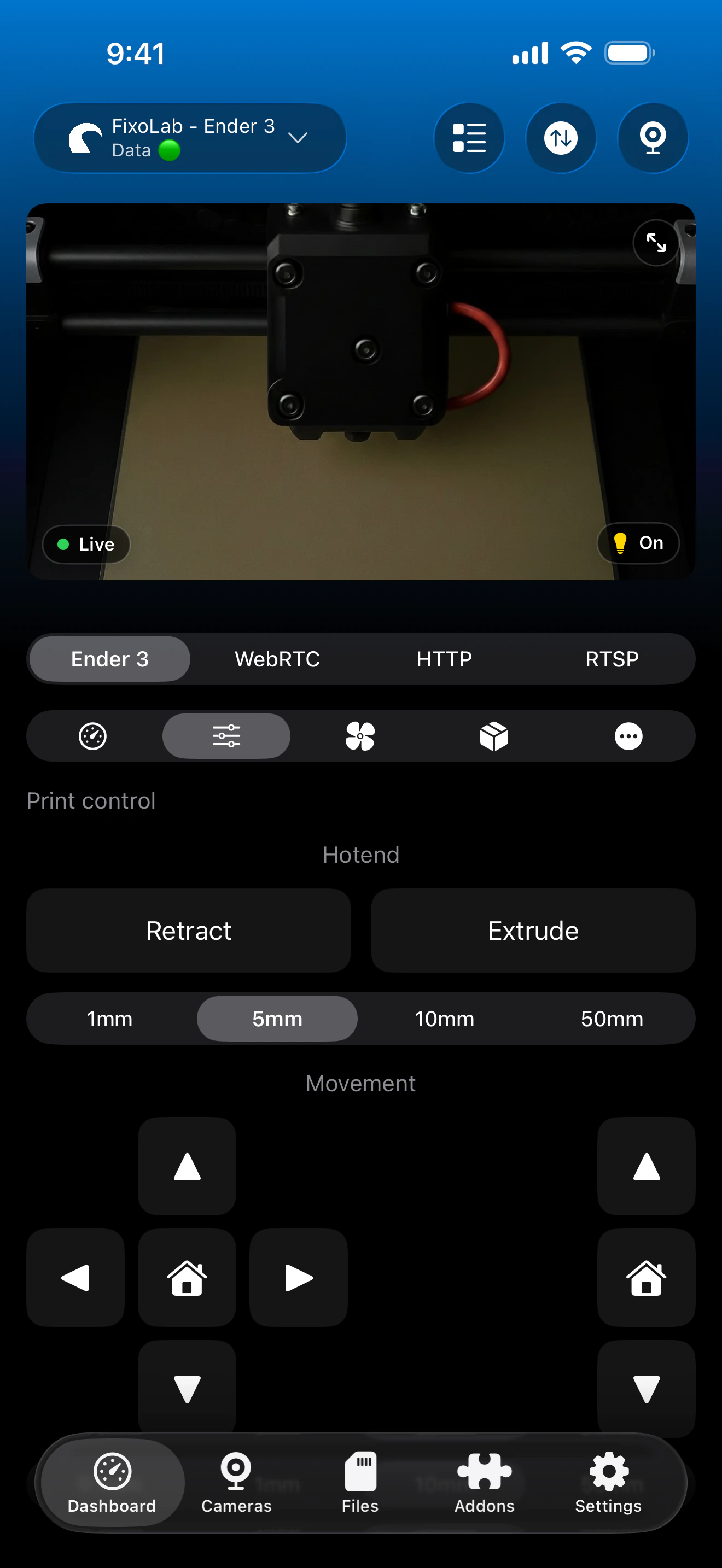
A separate streaming address is available for setups where the camera is not served from the same host as the rest of OctoPrint.
What the camera view supports
- Automatic MJPEG detection at the standard OctoPrint webcam route
- A separate streaming address field for cameras served from a different host or port
- Live viewing alongside status and job controls on the same screen
What is not automatic
- Custom webcam plugin routes that differ from the standard path are not detected automatically
- Printer Tools does not configure OctoPrint's webcam settings for you
- Only MJPEG is supported for the native OctoPrint camera
Common camera issues
The camera works in OctoPrint but not in Printer Tools
Check whether the camera is served from a different address than the main OctoPrint server, and enter that address in Printer Tools' separate streaming field if so.
The stream loads but is very slow
Adjust resolution and frame rate in your webcam's own configuration. Printer Tools displays the stream as published and does not apply extra compression.
The camera worked before and stopped after a network change
Confirm the streaming address is still reachable at the same IP. A router or DHCP change can move the camera host to a new local address.
Status loads fine but the camera never appears
This usually means status and camera traffic take different network paths. Check firewall or client isolation rules specifically for the camera's port.
Viewing the camera away from home
Add OctoEverywhere to the same OctoPrint printer for remote camera access, or use a VPN back to your network. Avoid forwarding the camera port directly on your router.
Frequently asked questions
Do I need to enter the camera address manually?
Only if your webcam is served from a different host or port than the rest of OctoPrint. Otherwise Printer Tools finds it automatically at the standard route.
Does Printer Tools support RTSP for OctoPrint cameras?
The native OctoPrint camera in Printer Tools is MJPEG only. Other protocols would need to be added through a separate external camera setup.
Why does the camera fail only away from home?
Remote access to a local camera stream requires OctoEverywhere or a VPN. A direct connection to the local address only works on the same network.
Can I use a snapshot image instead of a live stream?
Printer Tools requests a live MJPEG stream for the native OctoPrint camera rather than periodic snapshots.
Related guides
See full OctoPrint compatibility
Review the supported OctoPrint features, camera setup, authentication and current limitations in Printer Tools.
All your 3D printers in one dashboard
Monitor Bambu Lab, Klipper, OctoPrint, Creality, Snapmaker, Anycubic, Flashforge, Elegoo, and Prusa printers from one app
Available on Android, iPhone, iPad and Mac, with Apple Watch and Wear OS companion apps plus optional remote access through VPN, OctoEverywhere or Obico
