How to browse files and manage OctoPrint jobs from Printer Tools
OctoPrint files and job control
The short answer
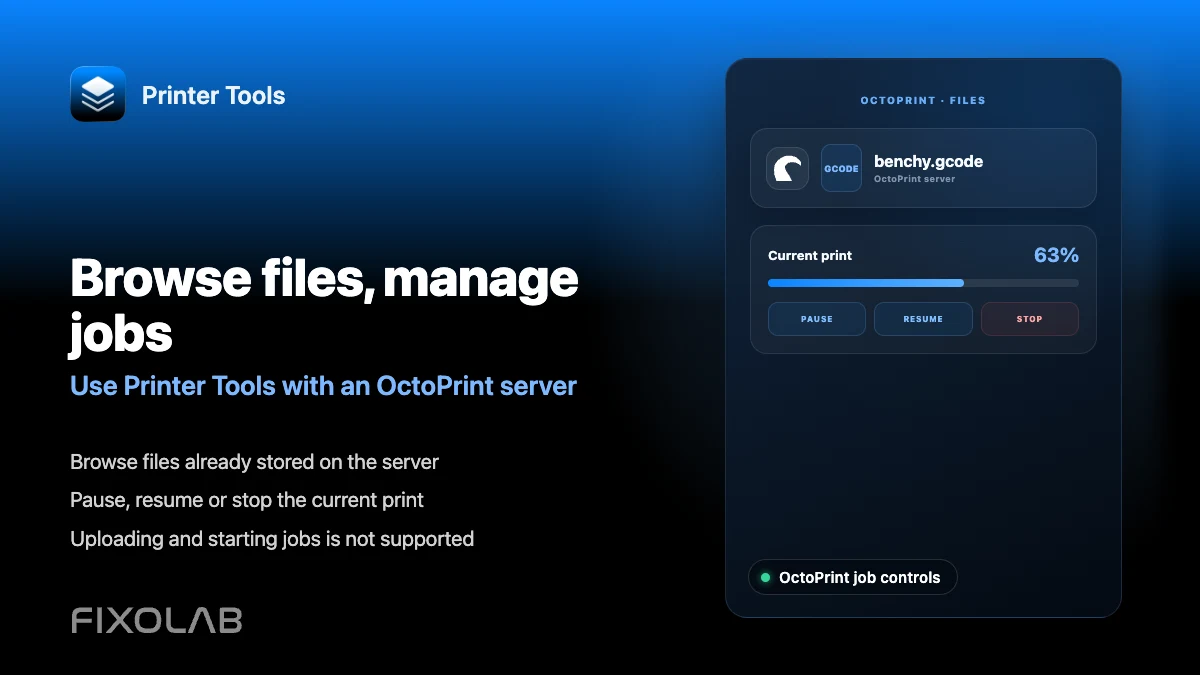
Printer Tools lets you browse the files already stored on your OctoPrint server and pause, resume or stop the job currently printing. Uploading a new G-code file or starting a fresh print by selecting one is not supported yet, so that step still needs to happen from OctoPrint's own web interface or another client.
What you need
- An OctoPrint printer already connected to Printer Tools
- Files already uploaded to OctoPrint through its own web interface or another tool
- A job already started in OctoPrint if you want to use pause, resume or stop from Printer Tools
Browse files and manage a job
- 1
Open Files for your OctoPrint printer
From the printer's screen in Printer Tools, open Files to see what is already stored on the OctoPrint server, organized the same way OctoPrint itself presents them.
- 2
Review what is available
Look through the existing library to plan what to print next, even though starting that print still requires OctoPrint's own interface for now.
- 3
Start a print from OctoPrint directly
Select and start the file from OctoPrint's web interface, or from another client that supports it, since Printer Tools does not trigger a new print job yet.
- 4
Manage the job from Printer Tools once it starts
After the print is running, return to Printer Tools to pause, resume or stop it, and to keep an eye on progress and temperatures.
OctoPrint files and job controls
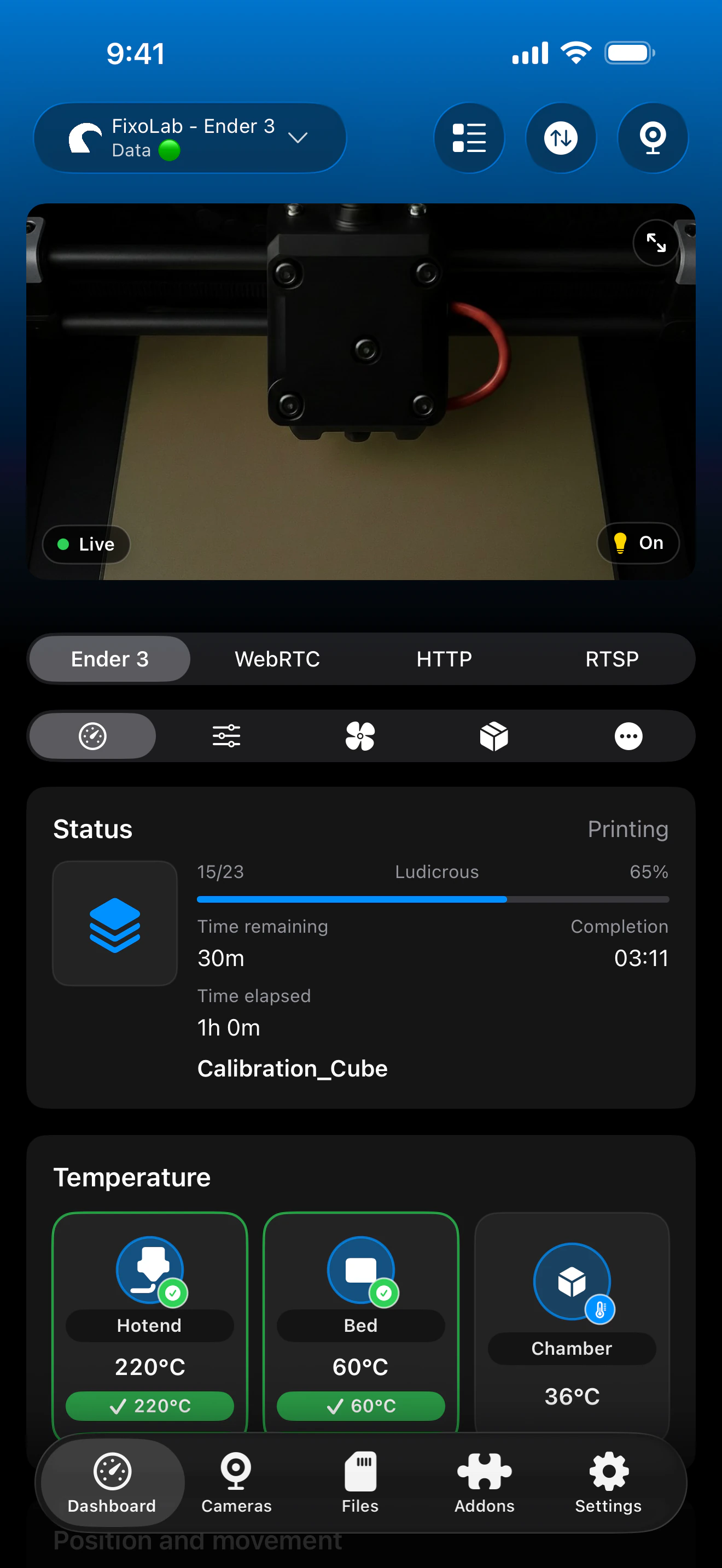
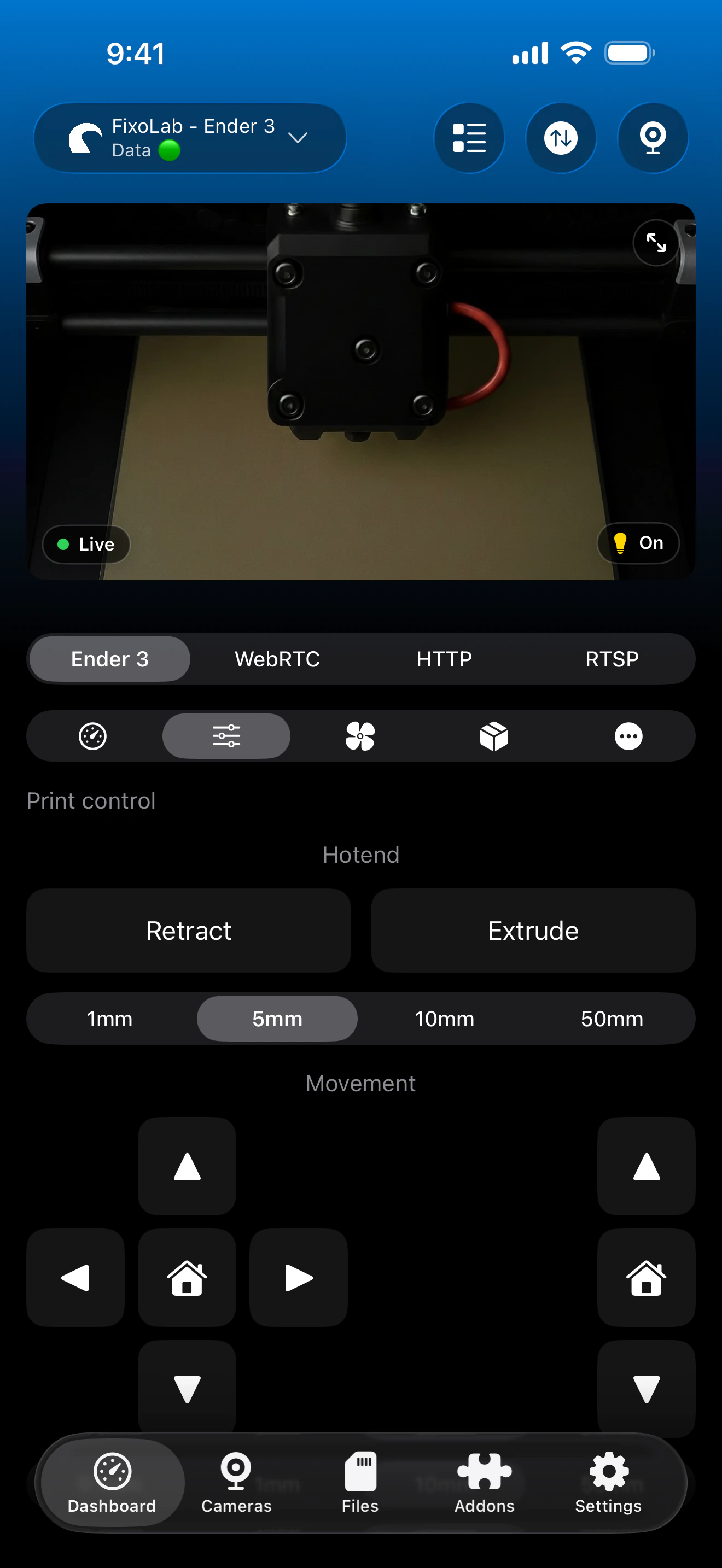
The file browser and job controls both read directly from OctoPrint, with job control acting on whatever is already printing.
What works today
- Read-only browsing of files already stored on the OctoPrint server
- Pause, resume and stop for the job currently printing
- Live progress, elapsed and remaining time while a job runs
What is not supported yet
- Uploading a new G-code file to OctoPrint from Printer Tools
- Selecting a stored file and starting a new print from Printer Tools
- Deleting or reorganizing files stored on the OctoPrint server
Common file and job issues
The file list is empty
Confirm the files actually exist on the OctoPrint server's storage. Printer Tools only displays what OctoPrint itself already has.
Pause or stop does not respond
Check that OctoPrint shows an active serial connection to the printer. Job controls only work while OctoPrint is actually connected and printing.
A file appears but with no thumbnail
Thumbnails depend on metadata OctoPrint itself extracted when the file was uploaded, which Printer Tools cannot generate afterward.
Managing a job away from home
Pause, resume and stop work the same way through OctoEverywhere or a VPN back to your network. Starting a new print still requires OctoPrint's own interface regardless of connection method.
Frequently asked questions
Can I upload a G-code file from my phone?
Not yet. Printer Tools can browse files already on the OctoPrint server, but uploading a new one is not currently supported.
Can I start a new print by picking a file in Printer Tools?
Not yet. Starting a print still needs to be done from OctoPrint's own interface or another compatible client.
Can I still pause or stop a print that someone else started?
Yes. Job control in Printer Tools works on whatever OctoPrint is currently printing, regardless of how that print was started.
Will file upload and starting a print be added later?
This page reflects what Printer Tools supports today. Check the OctoPrint compatibility page for the current feature list before assuming a specific capability exists.
Related guides
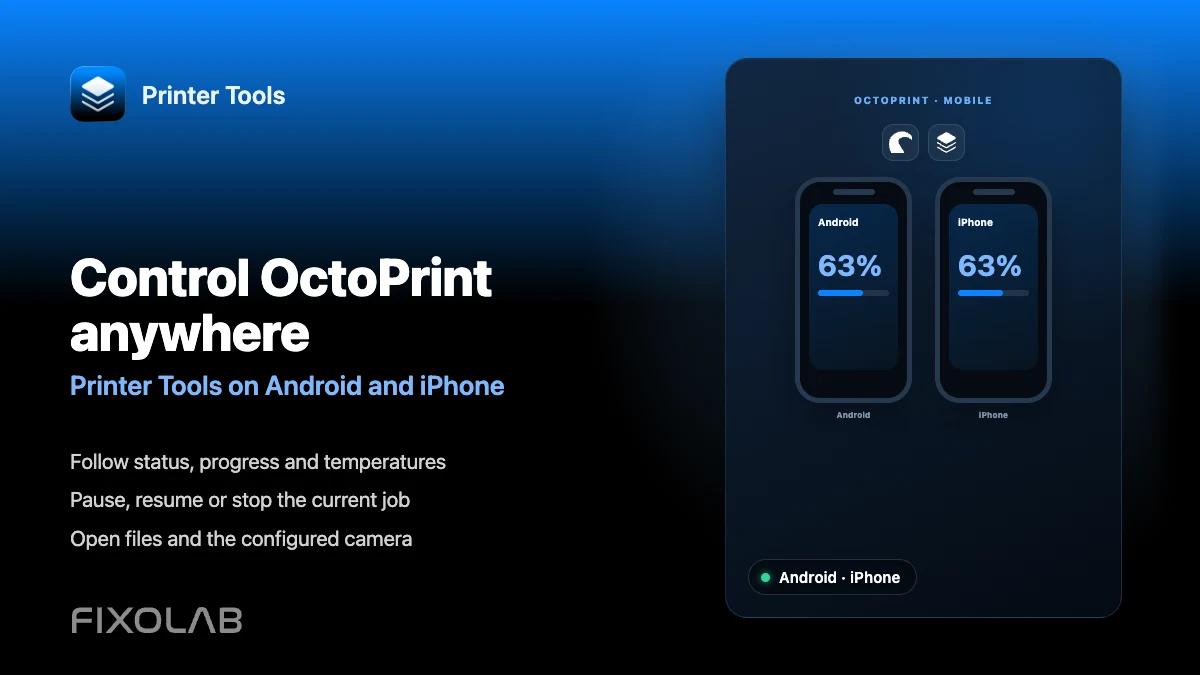
See full OctoPrint compatibility
Review the supported OctoPrint features, camera setup, authentication and current limitations in Printer Tools.
All your 3D printers in one dashboard
Monitor Bambu Lab, Klipper, OctoPrint, Creality, Snapmaker, Anycubic, Flashforge, Elegoo, and Prusa printers from one app
Available on Android, iPhone, iPad and Mac, with Apple Watch and Wear OS companion apps plus optional remote access through VPN, OctoEverywhere or Obico
