How to connect and monitor multiple OctoPrint printers in Printer Tools
Multiple OctoPrint printers
The short answer
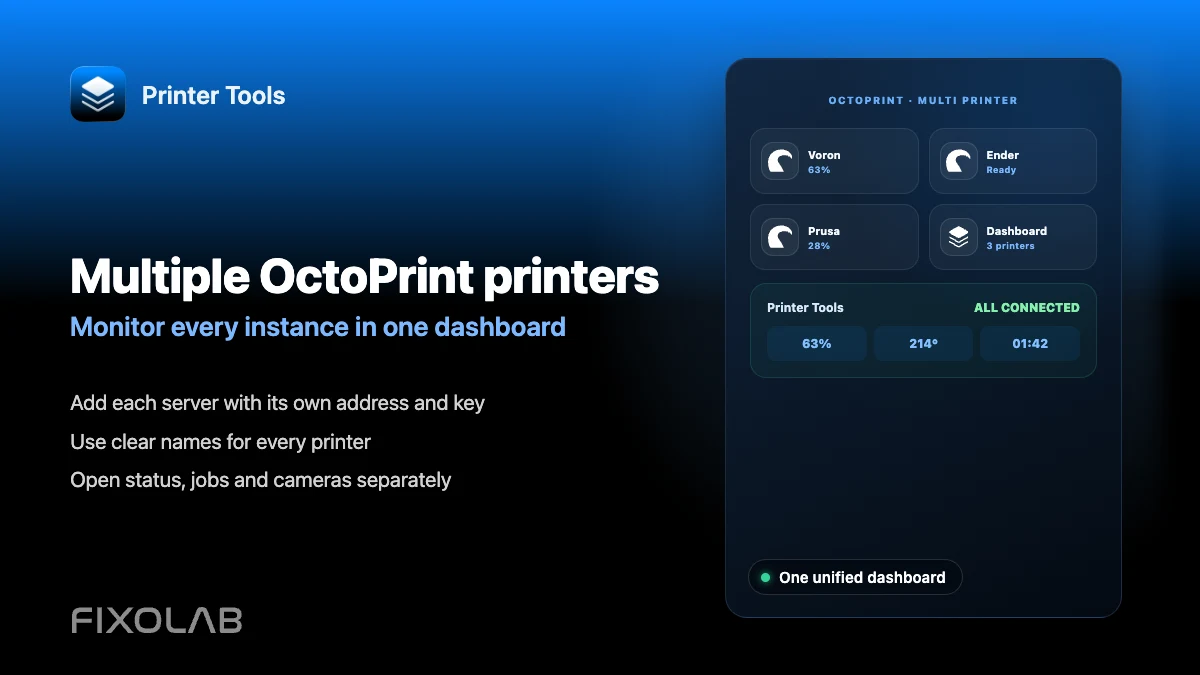
Printer Tools can connect and monitor several OctoPrint instances at the same time, each added as its own printer with its own address and API key. All of them appear together on the same Dashboard, so you do not need to switch between separate browser tabs to check on more than one printer.
What you need
- Each OctoPrint instance already installed and reachable on your network
- A separate API key for each OctoPrint server
- A clear naming scheme so you can tell the printers apart at a glance
Add several OctoPrint printers
- 1
Confirm each instance works on its own
Open each OctoPrint server's web interface individually first, to confirm it is reachable and reporting status correctly before adding it to Printer Tools.
- 2
Add the first printer in Printer Tools
Enter that server's local address and API key, and give it a clear name that identifies which physical printer it controls.
- 3
Repeat for each additional instance
Add every other OctoPrint server the same way, using its own address, API key and a distinct name.
- 4
Review the combined Dashboard
Open the Dashboard to see every connected printer together, with its own status, progress and temperatures shown separately.
- 5
Check cameras individually
If more than one printer has a webcam configured, each camera loads independently from its own OctoPrint instance.
Several OctoPrint printers together
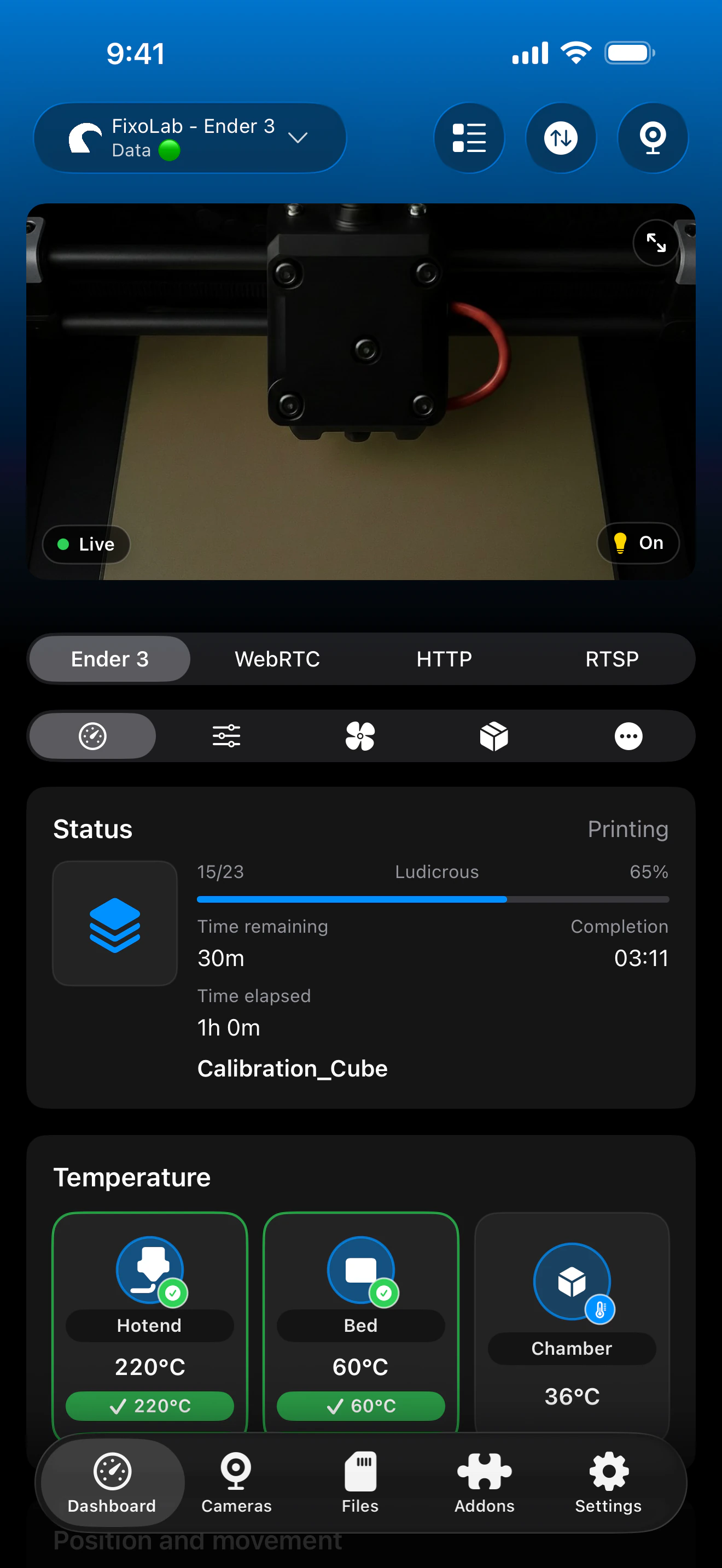
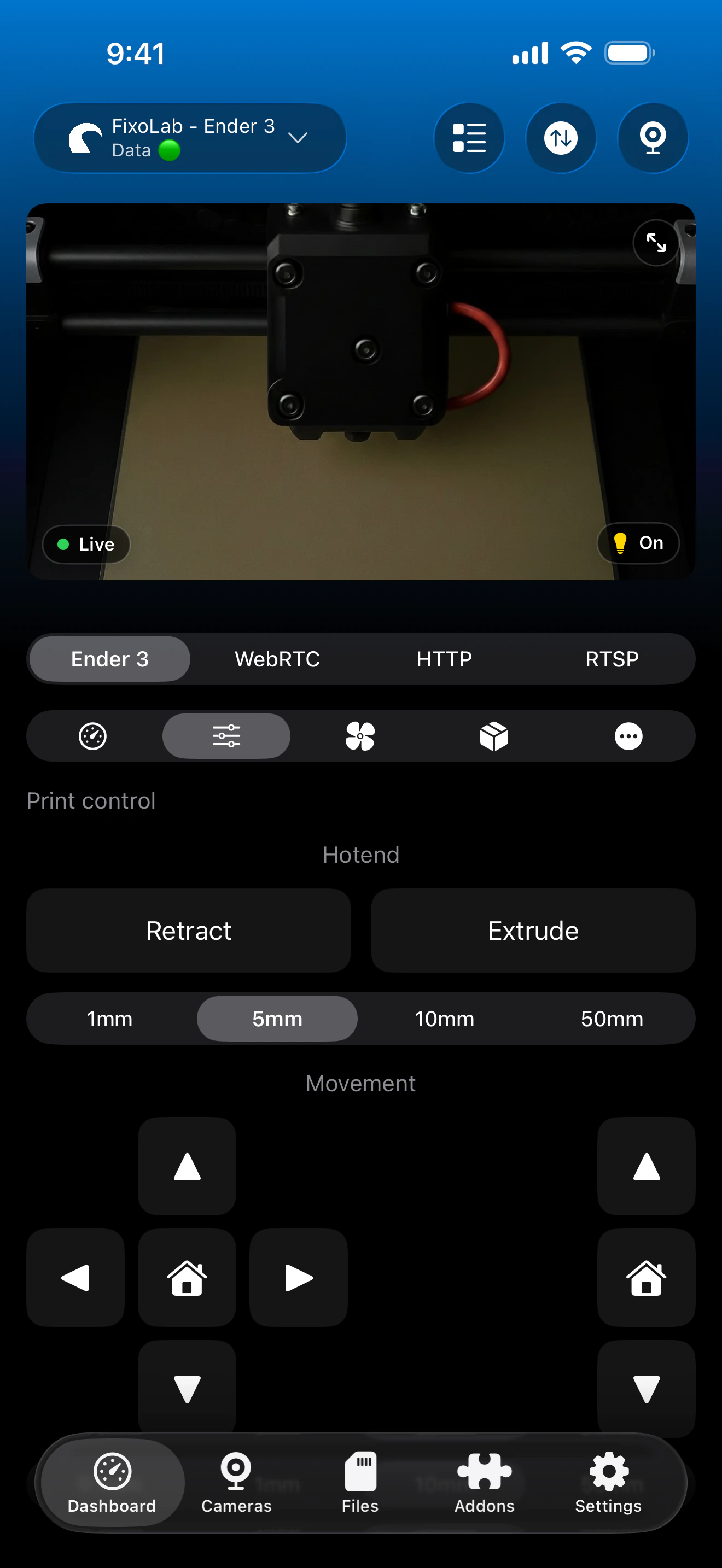
Each OctoPrint instance keeps its own status, progress and camera, all visible from a single combined dashboard.
What works across instances
- Independent status, progress and temperatures for every connected OctoPrint printer
- Separate job controls for each instance's currently running print
- Individual camera streams per instance when configured
- One combined Dashboard instead of separate browser sessions
What stays separate
- Each OctoPrint instance needs its own address and API key with no shared login
- File browsing and job control apply to one instance at a time, not as a batch action
- Naming and organization are manual; Printer Tools does not auto-detect OctoPrint servers on your network
Common multi-instance issues
Two printers show the same status by mistake
Check that each printer entry actually points to a different address and API key. A duplicated entry pointing at the same server will mirror the same data.
One printer disconnects while others keep working
This is expected, since each OctoPrint instance connects independently. Troubleshoot that specific server's network path or serial connection on its own.
It is hard to tell which printer is which on the Dashboard
Rename each printer in Printer Tools with a clear, specific label, since OctoPrint itself does not send a human-friendly name automatically.
Monitoring several printers remotely
Add OctoEverywhere separately to each OctoPrint instance you want to reach away from home, or use a VPN that can reach every printer's network at once.
Frequently asked questions
Is there a limit to how many OctoPrint printers I can add?
Printer Tools is built to support several printers on the same dashboard, including multiple OctoPrint instances alongside other systems like Klipper or Bambu Lab.
Do all my OctoPrint printers need the same API key?
No. Each OctoPrint server has its own independent global API key, and each needs to be entered separately in Printer Tools.
Can I mix OctoPrint printers with other brands on the same dashboard?
Yes. Printer Tools supports Bambu Lab, Klipper, Creality, PrusaLink and other systems together with OctoPrint on the same combined dashboard.
Does adding more printers slow the app down?
Each connection works independently, so performance depends mainly on your network reaching every printer's host reliably, not on the number of printers itself.
Related guides
See full OctoPrint compatibility
Review the supported OctoPrint features, camera setup, authentication and current limitations in Printer Tools.
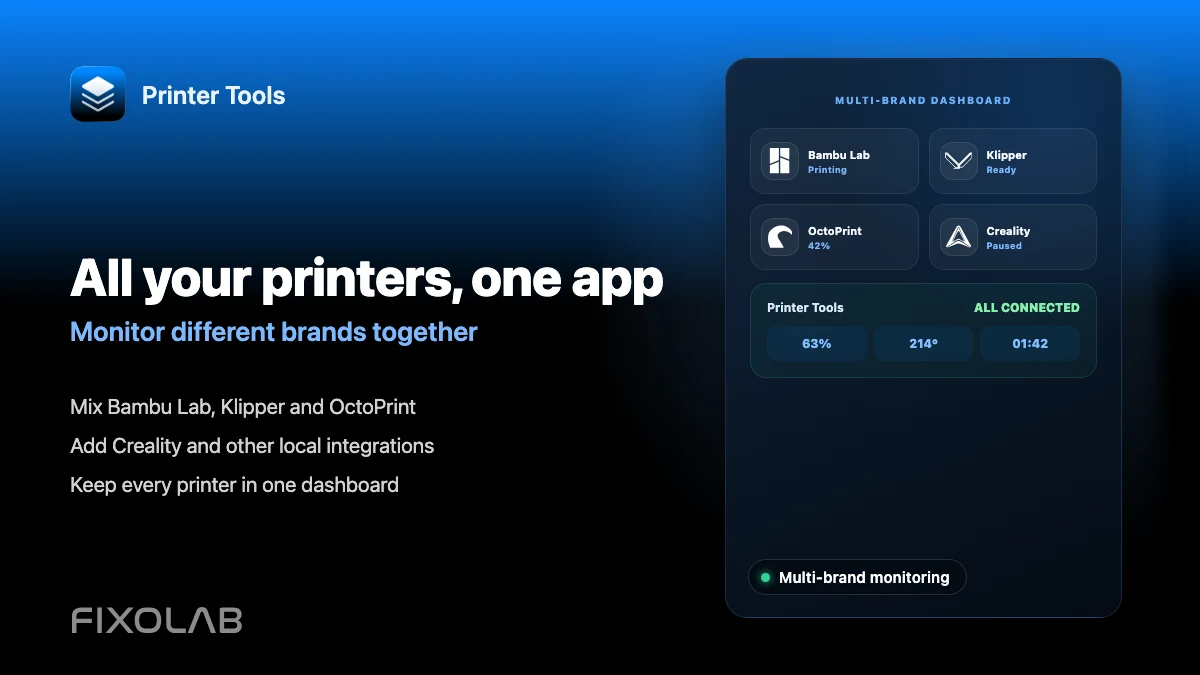
All your 3D printers in one dashboard
Monitor Bambu Lab, Klipper, OctoPrint, Creality, Snapmaker, Anycubic, Flashforge, Elegoo, and Prusa printers from one app
Available on Android, iPhone, iPad and Mac, with Apple Watch and Wear OS companion apps plus optional remote access through VPN, OctoEverywhere or Obico
