How to control OctoPrint from Android and iPhone with Printer Tools
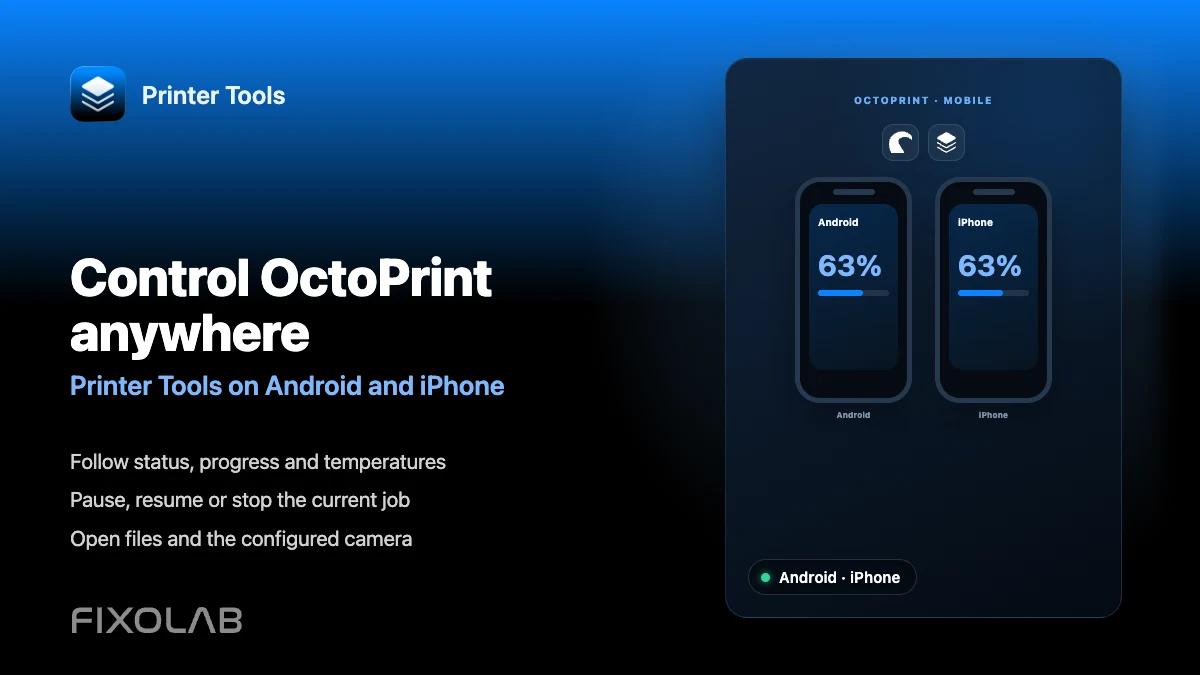
OctoPrint on Android and iPhone
The short answer
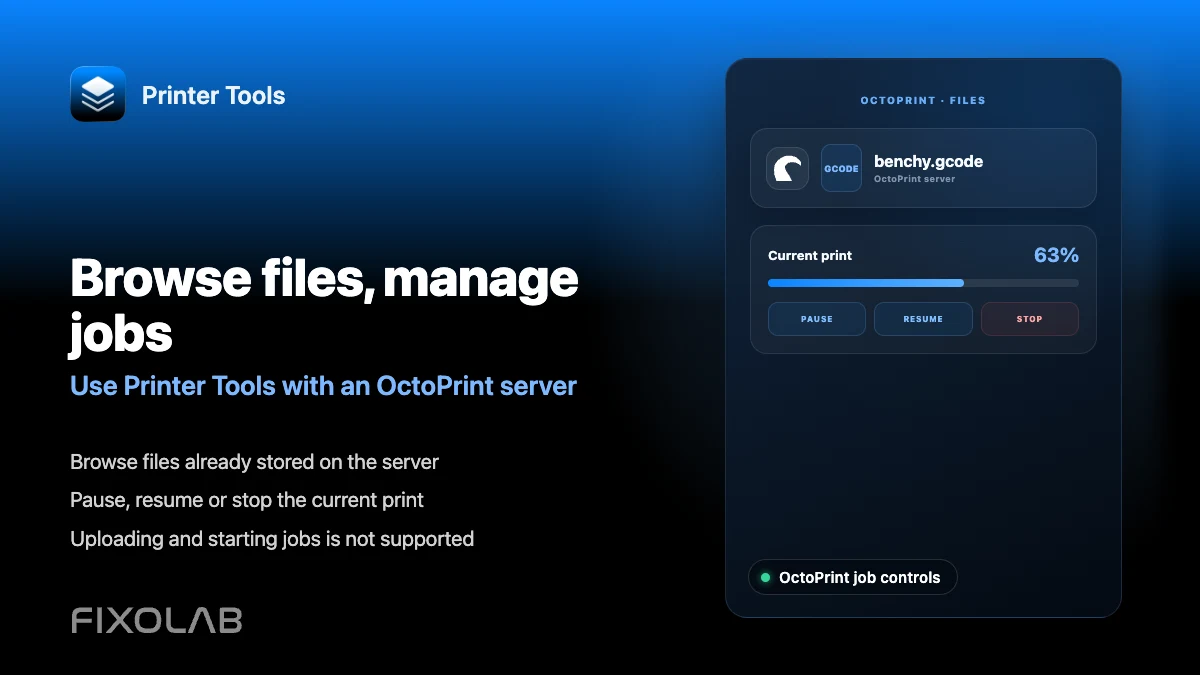
Once an OctoPrint printer is connected, Printer Tools shows live status, progress and temperatures on Android, iPhone, iPad and Mac, lets you pause, resume or stop the job currently running, browse files already stored on the server and view the camera when one is configured. Starting a brand new print from an uploaded file is not part of this yet.
What you need
- An OctoPrint server already connected to Printer Tools with its API key
- The printer connected to OctoPrint over serial and already reporting status in OctoPrint's own interface
- A stable local network, or OctoEverywhere configured for access away from home
What you can do from your phone
- 1
Check status from the Dashboard
Open the OctoPrint printer from the Dashboard to see live progress, elapsed and remaining time, and current temperatures.
- 2
Pause, resume or stop the current job
Use the standard job controls to pause, resume or stop whatever OctoPrint is already printing, the same actions available from OctoPrint's own interface.
- 3
Browse existing files
Open Files to look through what is already stored on the OctoPrint server, without needing a computer nearby.
- 4
Check the camera
If OctoPrint has a webcam configured, open the camera view to see the print in progress from your phone.
- 5
Monitor more than one printer
If you run several OctoPrint instances, switch between them from the same dashboard instead of opening a separate browser tab for each.
OctoPrint monitoring on mobile
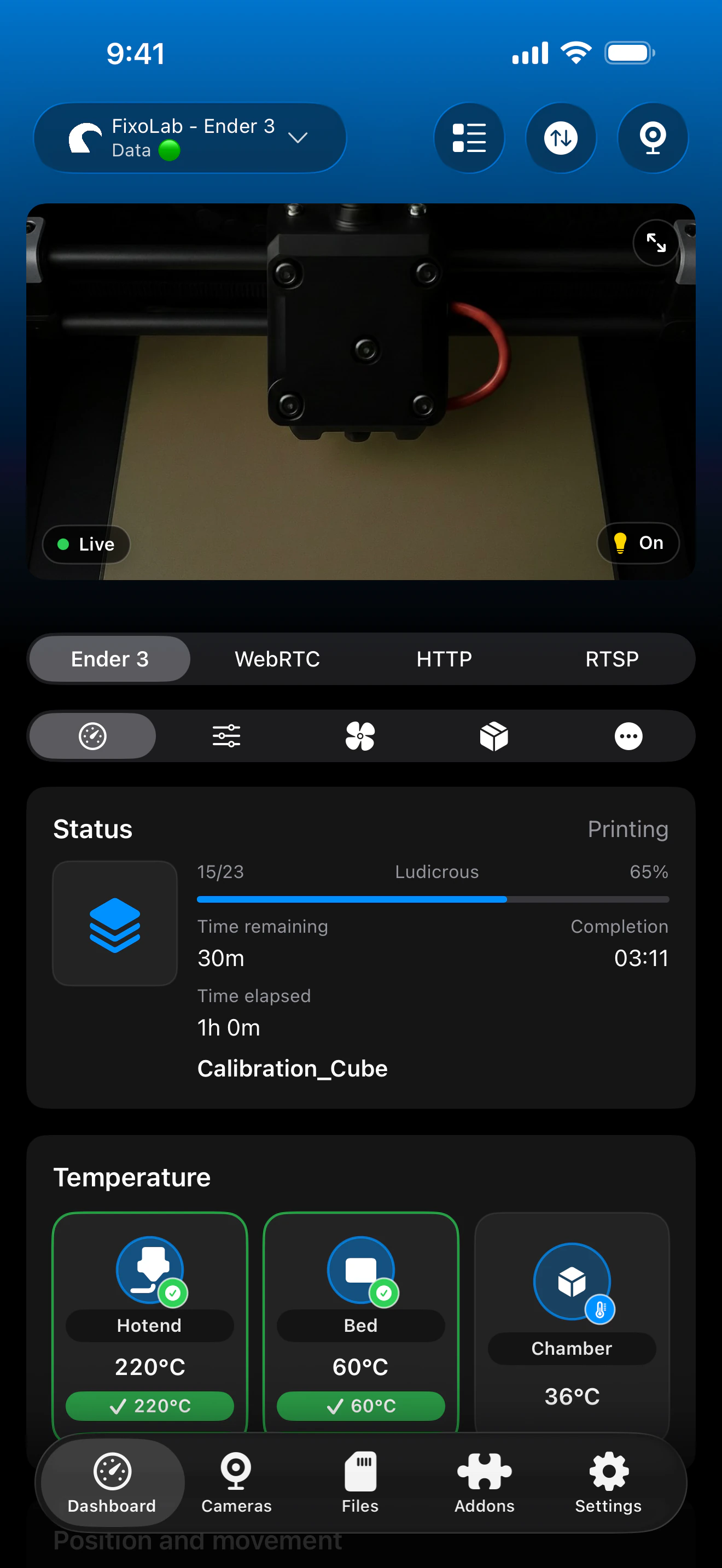
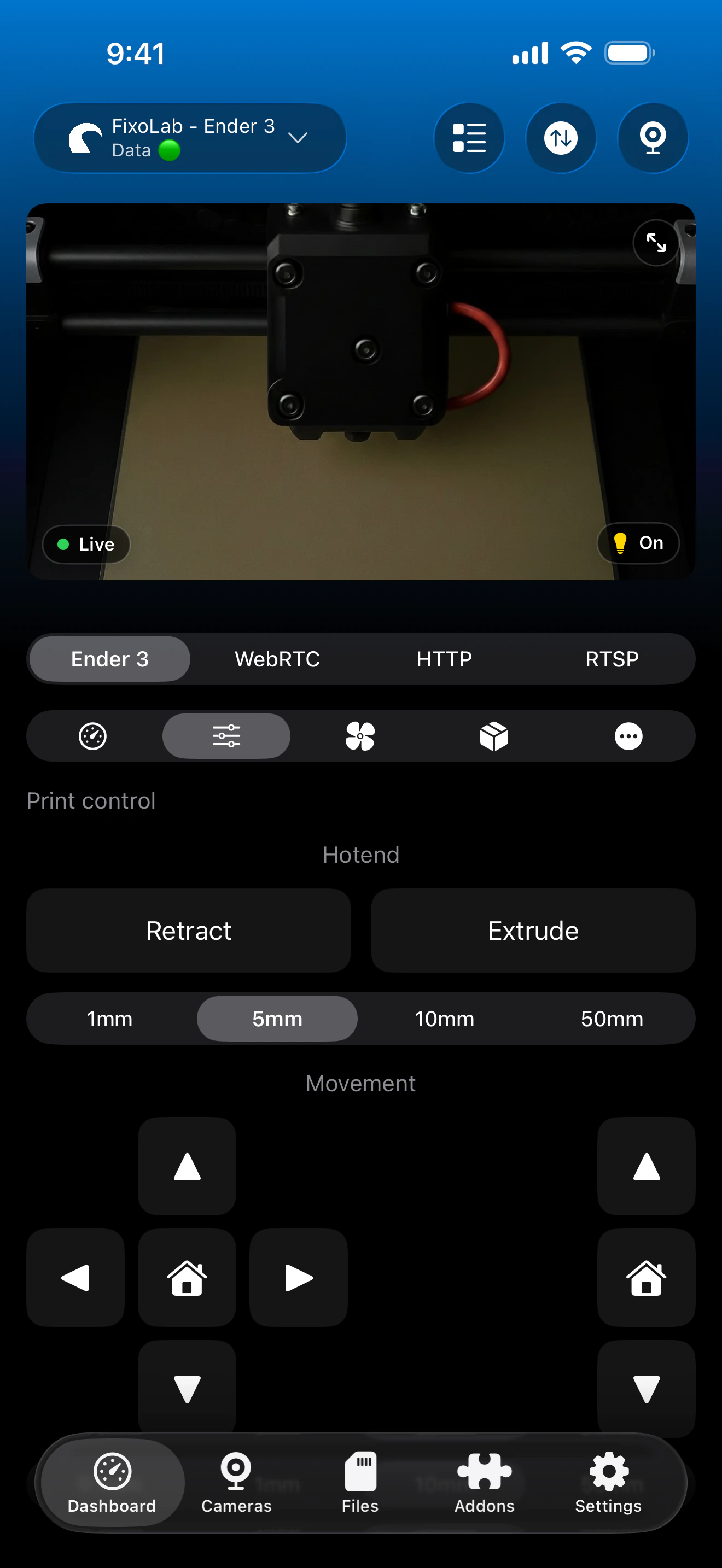
The same OctoPrint job status, controls and camera are available on Android, iPhone, iPad and Mac.
What works from your phone
- Live print status, progress, elapsed and remaining time
- Nozzle and bed temperatures reported by OctoPrint
- Pause, resume and stop for the job currently running
- Read-only browsing of files already stored on the OctoPrint server
- MJPEG camera viewing when configured
What still needs a computer
- Uploading a new G-code file to OctoPrint
- Starting a fresh print job by selecting a stored file
- Managing OctoPrint plugins or advanced serial connection settings
- Editing G-code or slicer profiles
Common mobile control issues
Pause or resume does nothing
Confirm OctoPrint itself shows the printer as connected over serial. Job controls only work while OctoPrint has an active serial connection to the printer.
Files list is empty
Check that the files actually exist on the OctoPrint server's local or SD storage. Printer Tools only displays what OctoPrint itself reports.
The app feels slow away from home
A direct local connection performs best. For remote access, add OctoEverywhere to the same OctoPrint printer in Printer Tools instead of relying on a slow VPN path.
Controlling OctoPrint away from home
Add OctoEverywhere to the same OctoPrint printer in Printer Tools for a purpose-built remote access option, or use a VPN back to your network. Avoid forwarding OctoPrint's port directly on your router.
Frequently asked questions
Can I start a new print from Printer Tools?
Not yet. You can pause, resume or stop a job that is already printing and browse existing files, but starting a new print by uploading or selecting a file still happens in OctoPrint itself.
Does this work the same on Android and iPhone?
Yes. OctoPrint monitoring and job control behave the same way on Android, iPhone, iPad and Mac.
Can I see the camera without opening OctoPrint's web page?
Yes, as long as OctoPrint has a webcam configured, the stream appears directly inside Printer Tools.
Does pausing from the app affect OctoPrint's own interface?
No. Every client reads and writes the same OctoPrint state, so a pause triggered from Printer Tools shows immediately in OctoPrint's own web interface too.
Can I manage more than one OctoPrint printer here?
Yes. Add each OctoPrint server separately and switch between them from the same Printer Tools dashboard.
Related guides
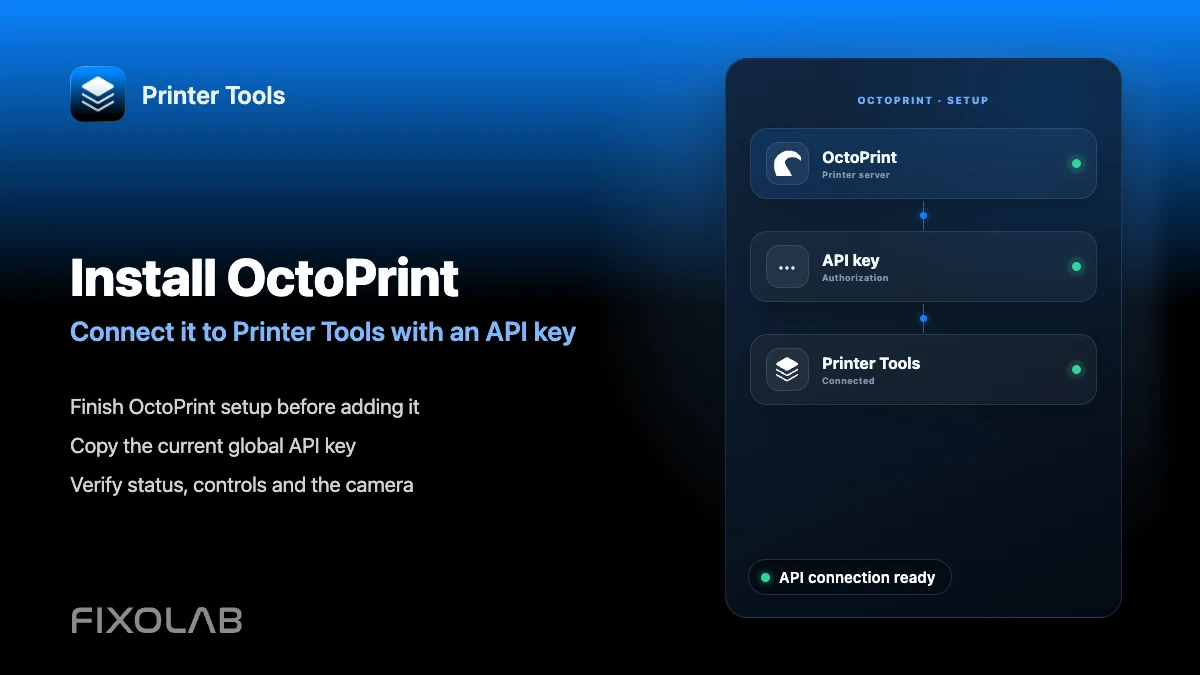
See full OctoPrint compatibility
Review the supported OctoPrint features, camera setup, authentication and current limitations in Printer Tools.
All your 3D printers in one dashboard
Monitor Bambu Lab, Klipper, OctoPrint, Creality, Snapmaker, Anycubic, Flashforge, Elegoo, and Prusa printers from one app
Available on Android, iPhone, iPad and Mac, with Apple Watch and Wear OS companion apps plus optional remote access through VPN, OctoEverywhere or Obico
