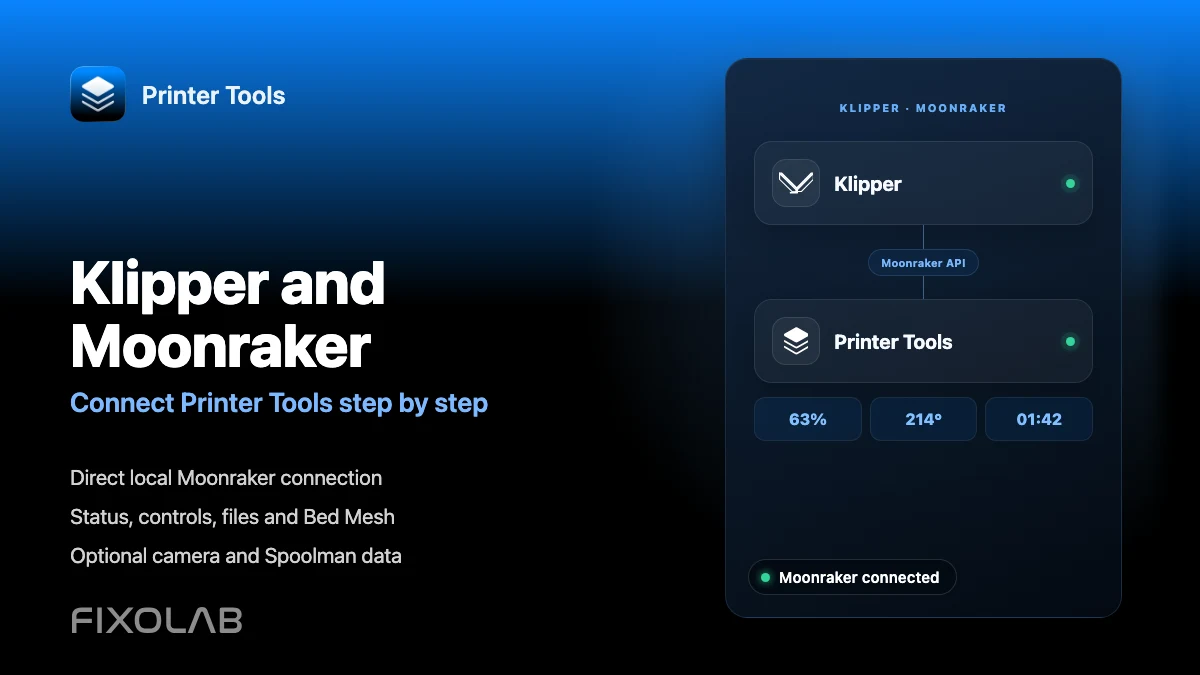
How to connect Klipper and Moonraker to Printer Tools step by step
Klipper and Moonraker local connection
The short answer
Printer Tools connects directly to Moonraker on Android, iPhone, iPad and Mac. Add the local address of the computer running Moonraker and the app can load live status, temperatures, files, print history, Bed Mesh, standard controls and any compatible camera or Spoolman data available in your setup. Mainsail and Fluidd are not required, although they can stay installed and work alongside Printer Tools.
What you need
- Printer Tools installed on Android, iPhone, iPad or Mac
- A printer running Klipper with Moonraker installed and started
- The local IP address or hostname used to reach Moonraker
- Your printer host and mobile device on networks that can communicate with each other
- Optional crowsnest or another MJPEG webcam service if you want camera monitoring
- Optional Spoolman configured in Moonraker if you want filament inventory and active spool data
Connect Klipper and Moonraker to Printer Tools
- 1
Confirm that Klipper and Moonraker are running
Start the printer host and wait until Klipper reports ready. Confirm that Moonraker is reachable from another device on the same network before adding it to Printer Tools.
- 2
Find the Moonraker host address
Use the local IP address or hostname of the Raspberry Pi, computer or controller running Moonraker. Reserving that address in your router prevents the connection from changing after a restart.
- 3
Add a Klipper printer
Open Printer Tools, go to Settings, choose Printers and select Add Klipper. Enter a clear printer name and the Moonraker host address. If your installation uses a custom port or reverse proxy, enter the complete address used by that setup.
- 4
Open the Dashboard
Save the printer and open it from the Dashboard. Printer Tools subscribes to Moonraker and starts filling in print state, progress, temperatures, movement, fans, lights and other standard objects exposed by your configuration.
- 5
Check files and print history
Open Files to browse the jobs reported by Moonraker, inspect available metadata and review print history. The exact thumbnails and details depend on the files and metadata stored by your Klipper setup.
- 6
Verify optional camera and Spoolman data
A camera appears when the same host exposes a compatible MJPEG webcam path, commonly through crowsnest. Spoolman information appears when Moonraker already has a working Spoolman connection. Neither service is installed by Printer Tools.
Klipper inside Printer Tools
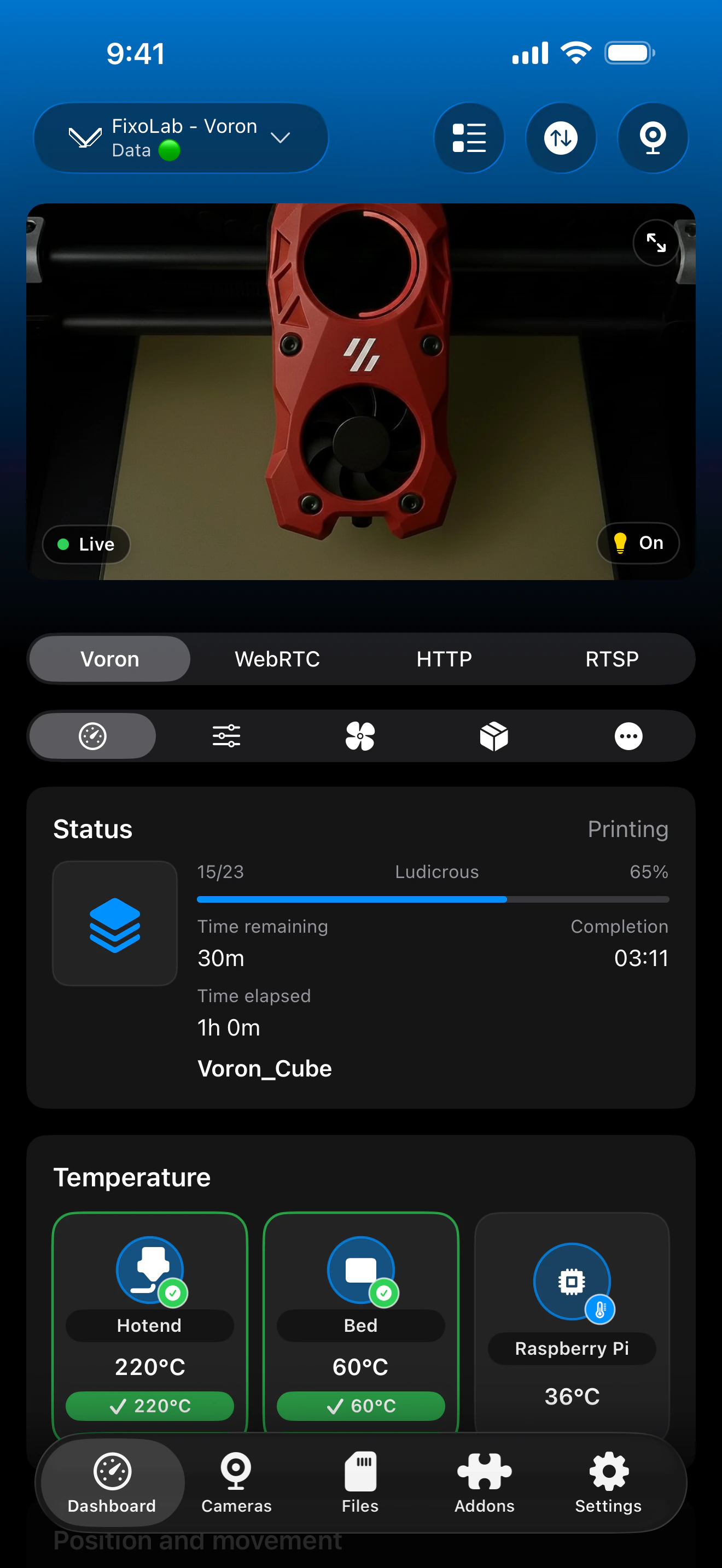
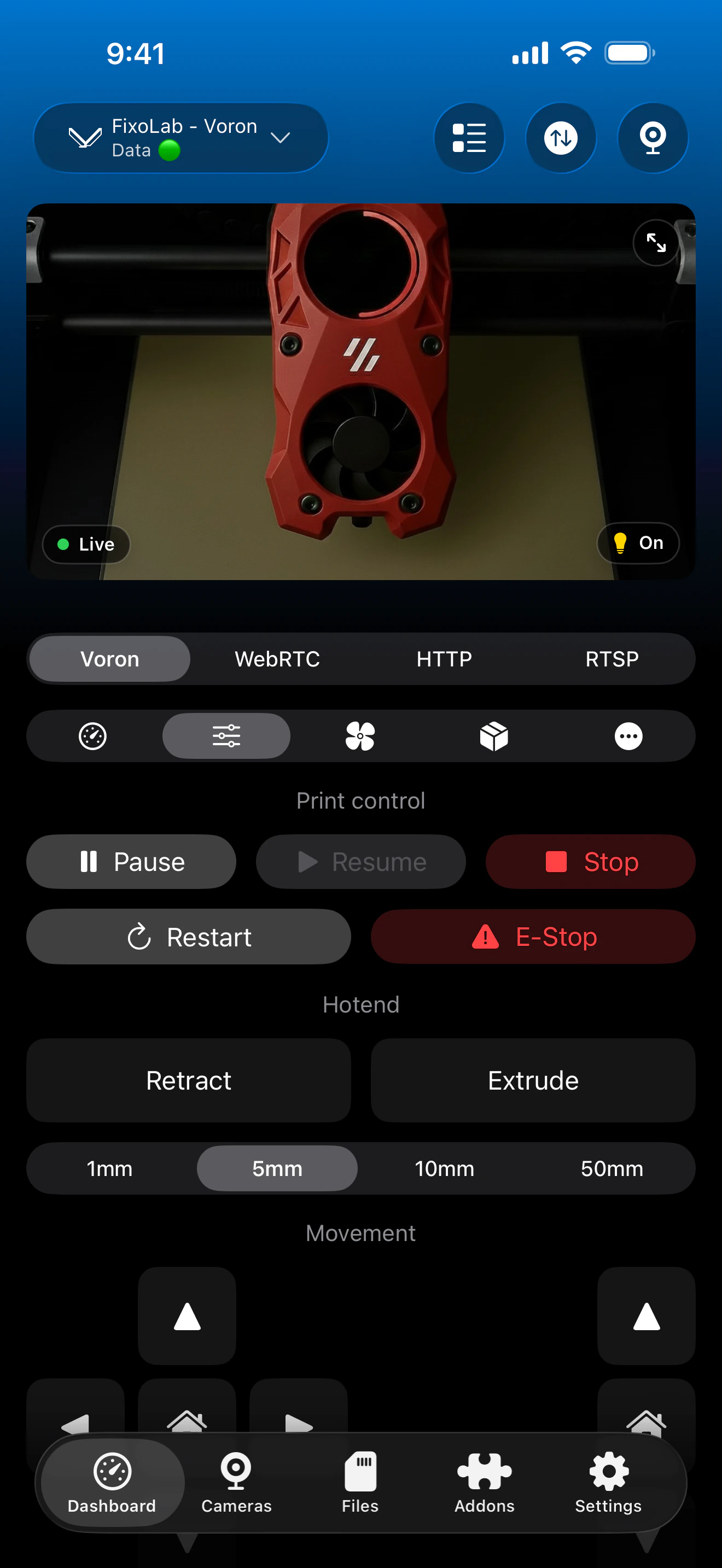
The Klipper dashboard combines Moonraker telemetry, standard controls, Bed Mesh and optional integrations. The exact cards depend on the objects and services exposed by your configuration.
What works through Moonraker
- Live print state, progress, file name, layers, elapsed time and remaining time
- Nozzle, bed and multiple extruder temperatures reported by Klipper
- Pause, resume, stop, movement, extrusion, fans and compatible light controls
- Bed Mesh data plus the standard motion and printer details exposed by Moonraker
- File browsing, metadata, thumbnails and print history when available
- MJPEG camera monitoring and Spoolman inventory when those optional services are configured
What is not automatic
- Klipper alone is not enough because Printer Tools needs a reachable Moonraker instance
- Printer Tools does not install Klipper, Moonraker, Mainsail, Fluidd, crowsnest or Spoolman
- A webcam needs its own compatible MJPEG service and standard webcam route
- Custom macros and non-standard controls are not shown as individual dashboard actions
- Network or authorization rules can block a client even when Moonraker works from the printer host itself
Connection troubleshooting
Printer Tools stays on connecting
Confirm that Moonraker is running, check the current host address and try to reach it from the same phone, tablet or computer. Restart Moonraker if the web interface also fails to connect.
Mainsail or Fluidd works but Printer Tools does not
Use the same reachable host in Printer Tools and include the complete address when your setup depends on a custom port, HTTPS or reverse proxy. Also check Moonraker authorization and firewall rules for the device running Printer Tools.
Status works but the camera does not
Confirm that crowsnest or your webcam service is running and that the host exposes a compatible MJPEG stream through its standard webcam route. Moonraker does not provide camera video by itself.
Spoolman is missing
Open your Moonraker configuration and verify that its Spoolman service is configured and reachable. Printer Tools reads and manages Spoolman through Moonraker but does not create that connection automatically.
Files or history are empty
Check the virtual SD card and Moonraker database configuration, then confirm that the same files and history appear in your existing web interface. Printer Tools can only display the records Moonraker returns.
Use Klipper away from home
For remote access, use a VPN back to the printer network or connect the Klipper printer through OctoEverywhere or Obico in Printer Tools. Do not expose Moonraker, crowsnest or Spoolman directly to the internet with router port forwarding.
Frequently asked questions
Do I need Mainsail or Fluidd?
No. Printer Tools talks directly to Moonraker. Mainsail and Fluidd can remain installed, but neither one is required for the app to connect.
Which Klipper printers are supported?
Any printer with a reachable Moonraker instance can use the same integration, including Voron, RatRig and Creality or Ender machines converted to Klipper.
Is the camera detected automatically?
Printer Tools uses the standard webcam path on the printer host. The camera can appear with the printer connection, but crowsnest or another compatible MJPEG service must already be installed and configured.
Does Printer Tools support Spoolman?
Yes. When Moonraker has a working Spoolman integration, Printer Tools can show the active spool and provide access to the inventory tools available in the app.
Can I use Printer Tools outside my local network?
Yes. Use a VPN to your home network or add the printer through the supported OctoEverywhere or Obico connection flow.
Related guides
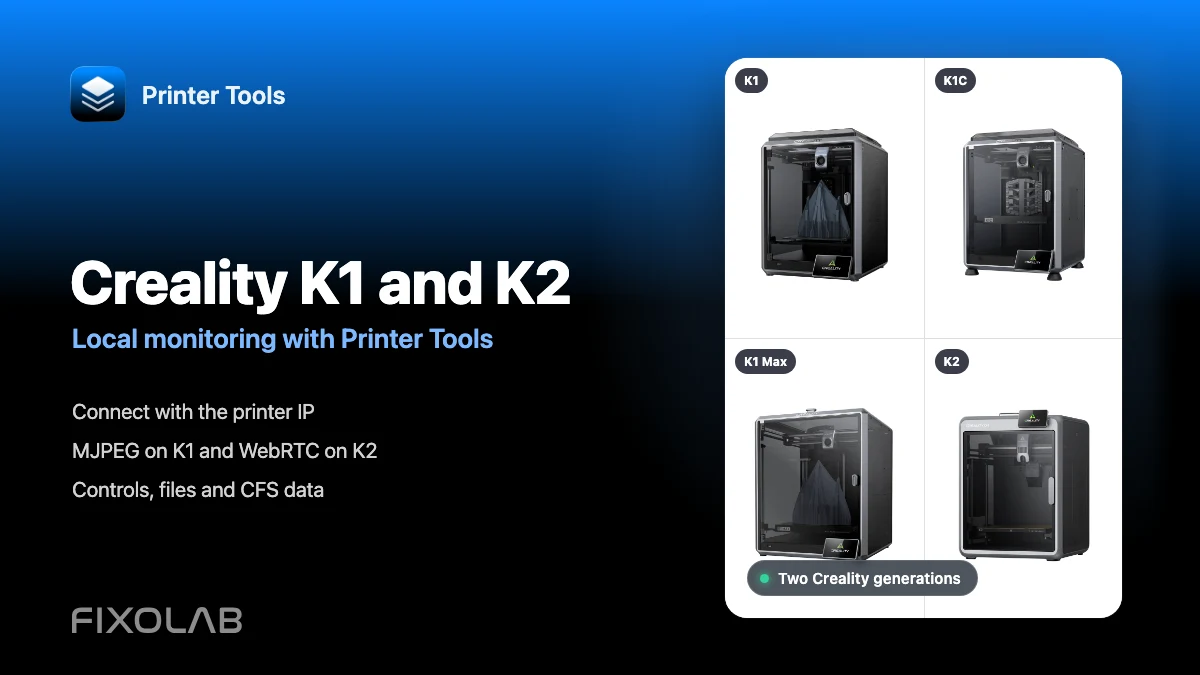
See full Klipper and Moonraker compatibility
Review the supported Moonraker features, optional camera and Spoolman requirements, remote access choices and current limitations.
All your 3D printers in one dashboard
Monitor Bambu Lab, Klipper, OctoPrint, Creality, Snapmaker, Anycubic, Flashforge, Elegoo, and Prusa printers from one app
Available on Android, iPhone, iPad and Mac, with Apple Watch and Wear OS companion apps plus optional remote access through VPN, OctoEverywhere or Obico
