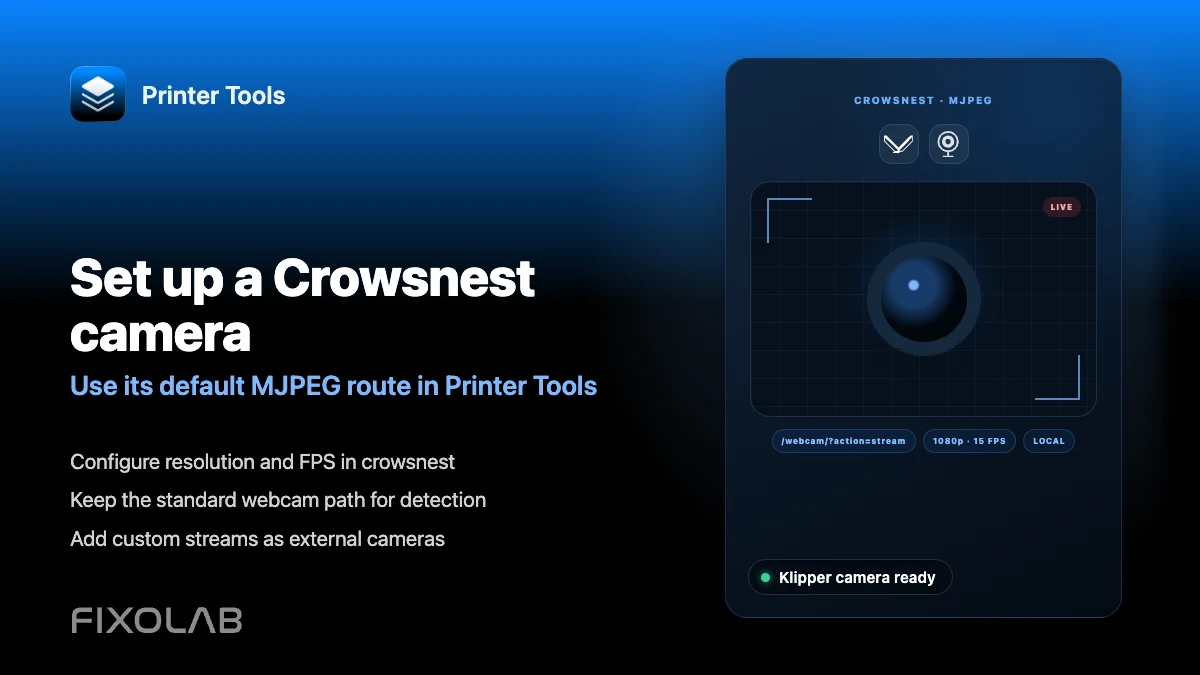
How to configure a Crowsnest camera for Klipper and Printer Tools
Crowsnest camera for Klipper
The short answer
Printer Tools looks for an MJPEG stream at the standard webcam route on your Moonraker host, the same default that crowsnest publishes out of the box on installations set up with KIAUH, Mainsail or Fluidd. If crowsnest uses its default camera name, the stream simply appears once the printer is connected. A custom route needs to be added separately as an external camera.
What you need
- A Klipper printer already connected to Printer Tools through Moonraker
- crowsnest installed and running on the same host, commonly through KIAUH
- A USB or CSI camera supported by crowsnest and configured in crowsnest.conf
- The default camera name and route, unless you plan to add a custom stream manually
Set up the Crowsnest camera
- 1
Confirm crowsnest is running
If you installed Klipper with KIAUH, install or verify crowsnest from the same menu. Confirm the service is active on the printer host before checking Printer Tools.
- 2
Keep the default camera configuration
Leave crowsnest.conf using its default camera name and route unless you have a specific reason to change it. The default is exactly what Printer Tools requests automatically.
- 3
Test the stream in a browser first
Open the standard webcam route directly in a browser on the same network. If the MJPEG stream loads there, Printer Tools should detect it the same way once the printer is connected.
- 4
Open the camera view in Printer Tools
With the Klipper printer already connected, open its camera view. The stream should appear automatically if crowsnest is reachable at the default route.
- 5
Add a custom route as an external camera if needed
If you changed crowsnest's camera name or run it on a different path or port, add it instead through Printer Tools' external camera feature, pointing directly at the real stream URL.
The Klipper camera inside Printer Tools
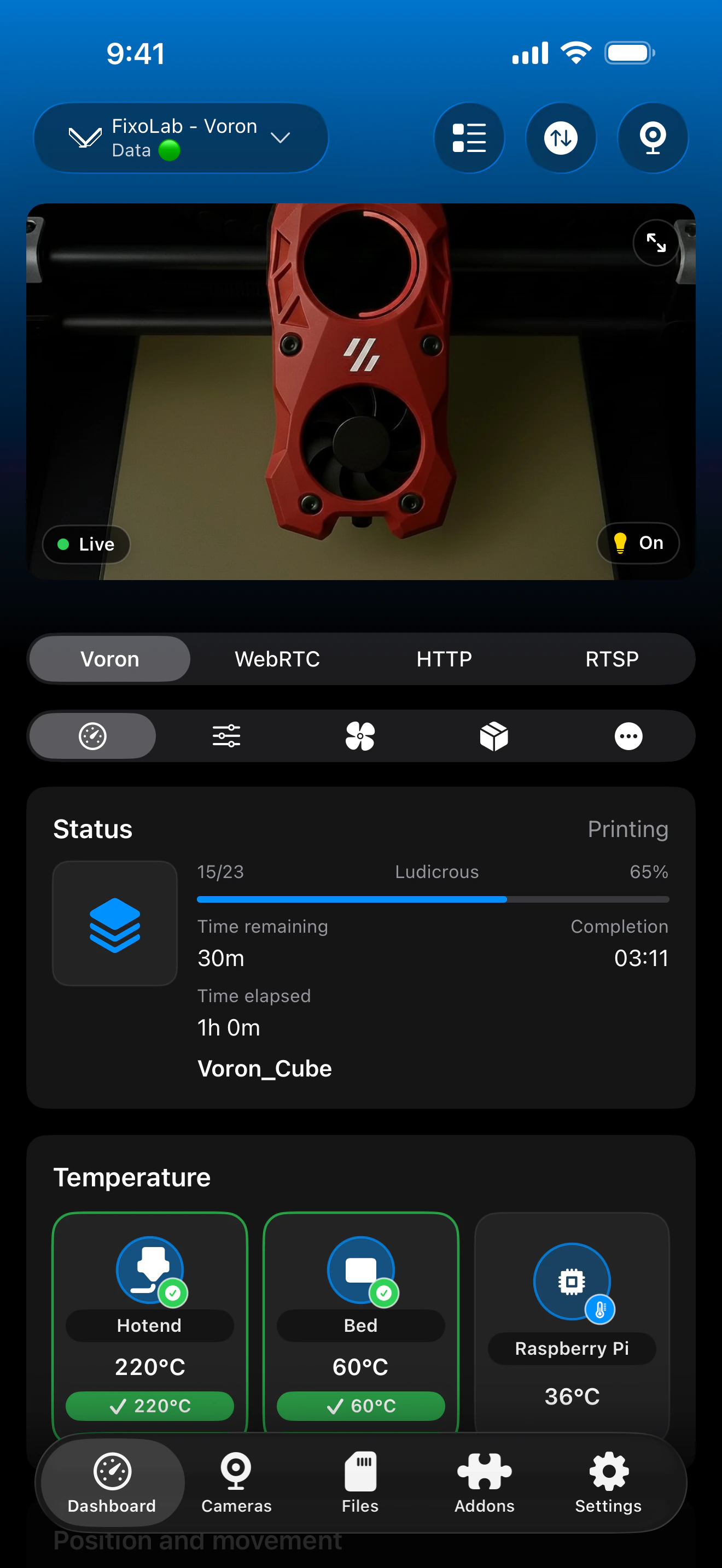
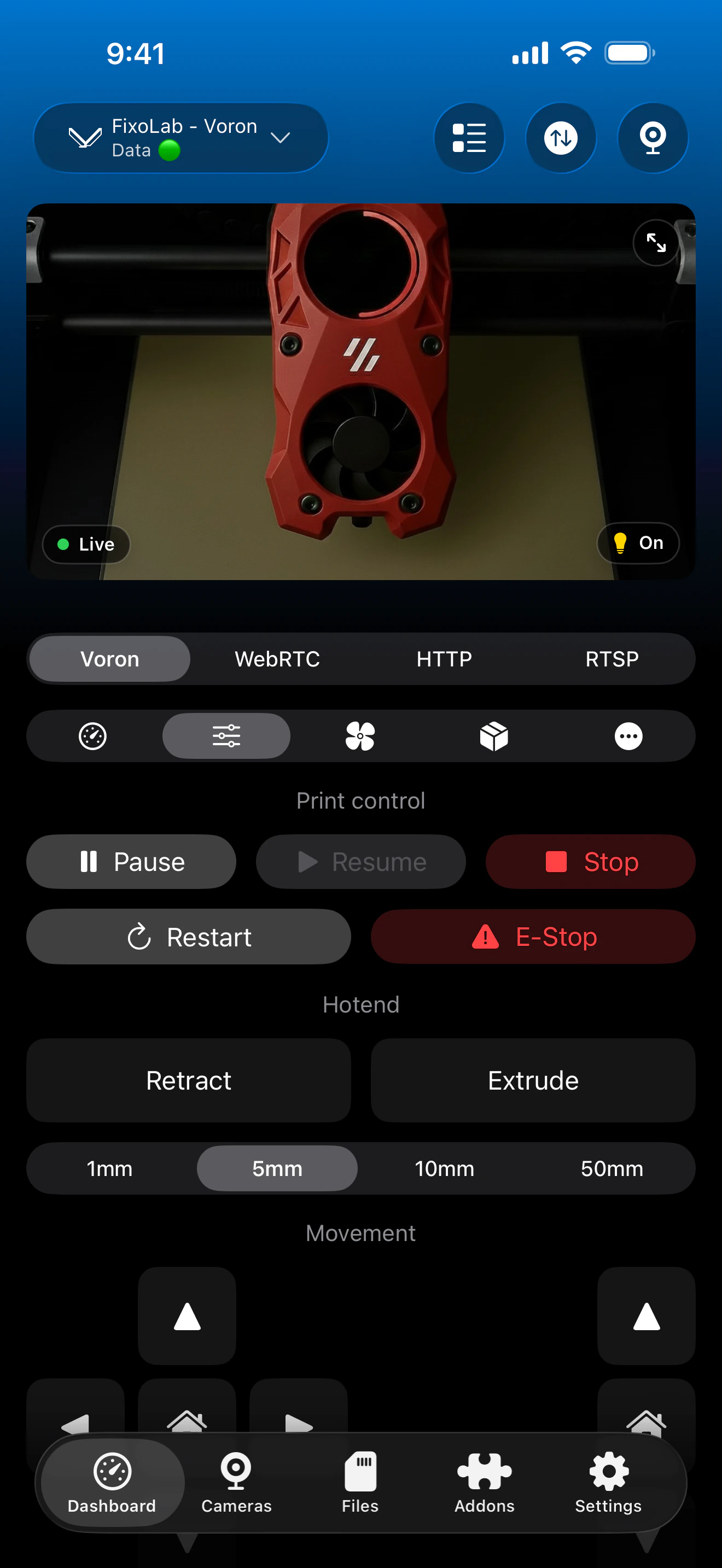
The camera view loads the default crowsnest MJPEG route automatically once the Klipper printer connection is active.
What works with Crowsnest
- Automatic MJPEG detection at the default webcam route once the printer is connected
- Live viewing alongside status, temperatures and controls on the same dashboard
- Support for adding a renamed or custom crowsnest stream as an external camera
What is not automatic
- Printer Tools only supports MJPEG for the native Klipper camera, not RTSP, RTSPS or WebRTC
- A custom camera name or non-default route in crowsnest.conf is not detected automatically
- Resolution, FPS and camera source are configured entirely inside crowsnest.conf, not in Printer Tools
- Printer Tools does not install or configure crowsnest itself
Common camera issues
Status works but the camera does not appear
Confirm crowsnest is running and reachable at the default webcam route from the same network. If the stream does not load in a browser either, the issue is in crowsnest, not in Printer Tools.
The camera worked before and stopped after a config change
Check whether the camera name or route in crowsnest.conf changed. If it no longer matches the default, add the new URL as an external camera instead of expecting automatic detection.
The stream is very slow or low quality
Adjust resolution and FPS directly in crowsnest.conf. Printer Tools displays whatever crowsnest publishes and does not apply its own quality settings to this camera.
Multiple cameras are configured but only one shows up
Printer Tools automatically detects only the default camera route. Add any additional crowsnest cameras individually through the external camera feature.
Viewing this camera away from home
The camera loads the same way through a VPN back to your network or through a Klipper printer added via OctoEverywhere or Obico. Do not forward the crowsnest port directly on your router.
Frequently asked questions
Do I need to enter the camera URL manually?
No, as long as crowsnest uses its default camera name and route. Printer Tools requests that same default path automatically once the printer is connected.
Can I use RTSP or WebRTC instead of MJPEG for Klipper?
The native Klipper camera in Printer Tools is MJPEG only. Other protocols are available through the separate external camera feature if your setup can expose them independently.
Does this work with a Raspberry Pi camera module?
Yes, as long as crowsnest is configured to use that camera and publishes it at the default route Printer Tools expects.
Why does Mainsail show the camera but Printer Tools does not?
Mainsail can read a custom camera configuration from webcam.json. Printer Tools only requests the default route automatically, so a custom setup needs to be added as an external camera.
Can I add more than one camera for the same Klipper printer?
Yes. Add any camera beyond the default one through Printer Tools' external camera feature, pointing to each stream's actual URL.
Related guides
See full Klipper and Moonraker compatibility
Review the supported Moonraker features, optional camera and Spoolman requirements, remote access choices and current limitations.
All your 3D printers in one dashboard
Monitor Bambu Lab, Klipper, OctoPrint, Creality, Snapmaker, Anycubic, Flashforge, Elegoo, and Prusa printers from one app
Available on Android, iPhone, iPad and Mac, with Apple Watch and Wear OS companion apps plus optional remote access through VPN, OctoEverywhere or Obico
