How to configure Bed Mesh and Z offset in Klipper and check them from your phone
Bed Mesh and Z offset for Klipper
The short answer
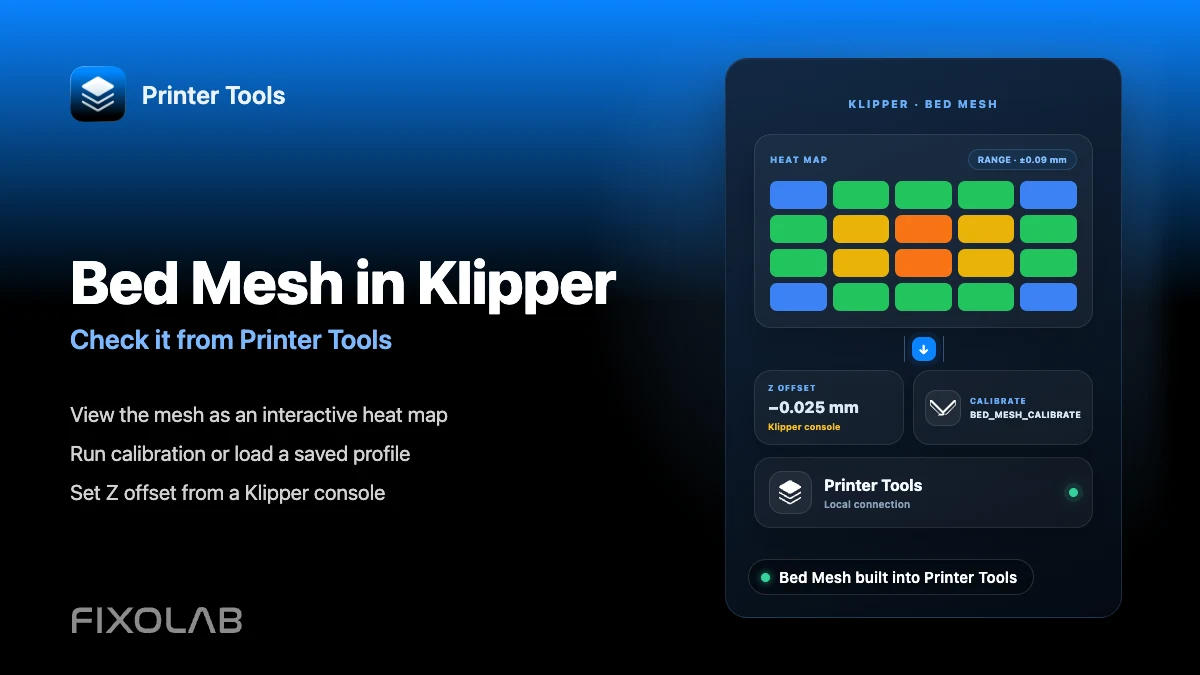
Printer Tools shows your Klipper Bed Mesh as an interactive heat map, with buttons to run a new calibration or load a saved profile, directly from the Addons area on Android, iPhone, iPad and Mac. Z offset is a separate Klipper setting and is not currently adjustable from Printer Tools, so it still needs to be set from Klipper's own console.
What you need
- A Klipper printer already connected to Printer Tools through Moonraker
- A bed_mesh section configured in your printer.cfg
- A probe or manual mesh setup already working when run from the Klipper console
- Access to a Klipper console, such as Mainsail, Fluidd or SSH, for adjusting Z offset itself
View and manage Bed Mesh from your phone
- 1
Open the Bed Mesh view in Printer Tools
With your Klipper printer connected, open the Bed Mesh screen from the Addons area. Printer Tools reads the current mesh data directly from Moonraker.
- 2
Read the heat map
The interactive map colors your bed according to the probed height at each point, with a legend showing the minimum, maximum and overall range so you can spot a warped area or a mesh that looks unusually rough.
- 3
Run a new calibration when needed
Use the Calibrate action to trigger the same BED_MESH_CALIBRATE command your printer.cfg already defines. Printer Tools asks for confirmation first, since this moves the toolhead and probes the bed.
- 4
Load a saved profile
If you keep multiple mesh profiles, for example for different build plates, select the one you want to load for the next print directly from the same screen.
- 5
Set Z offset from Klipper, not from Printer Tools
Use PROBE_CALIBRATE from a Klipper console, adjust the offset with the standard testing prompts, and save it with SAVE_CONFIG. Printer Tools does not currently expose this control, so this step happens outside the app.
Bed Mesh inside Printer Tools
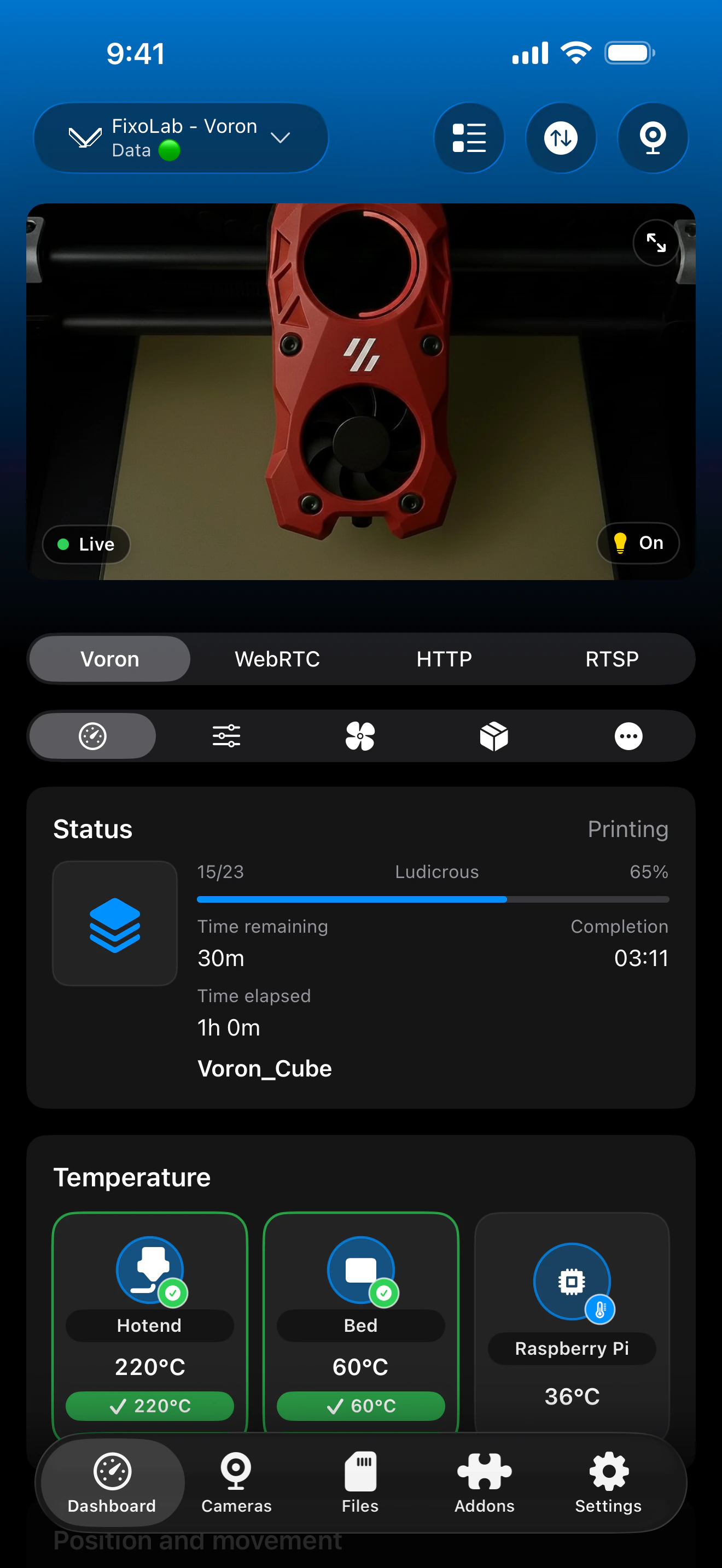
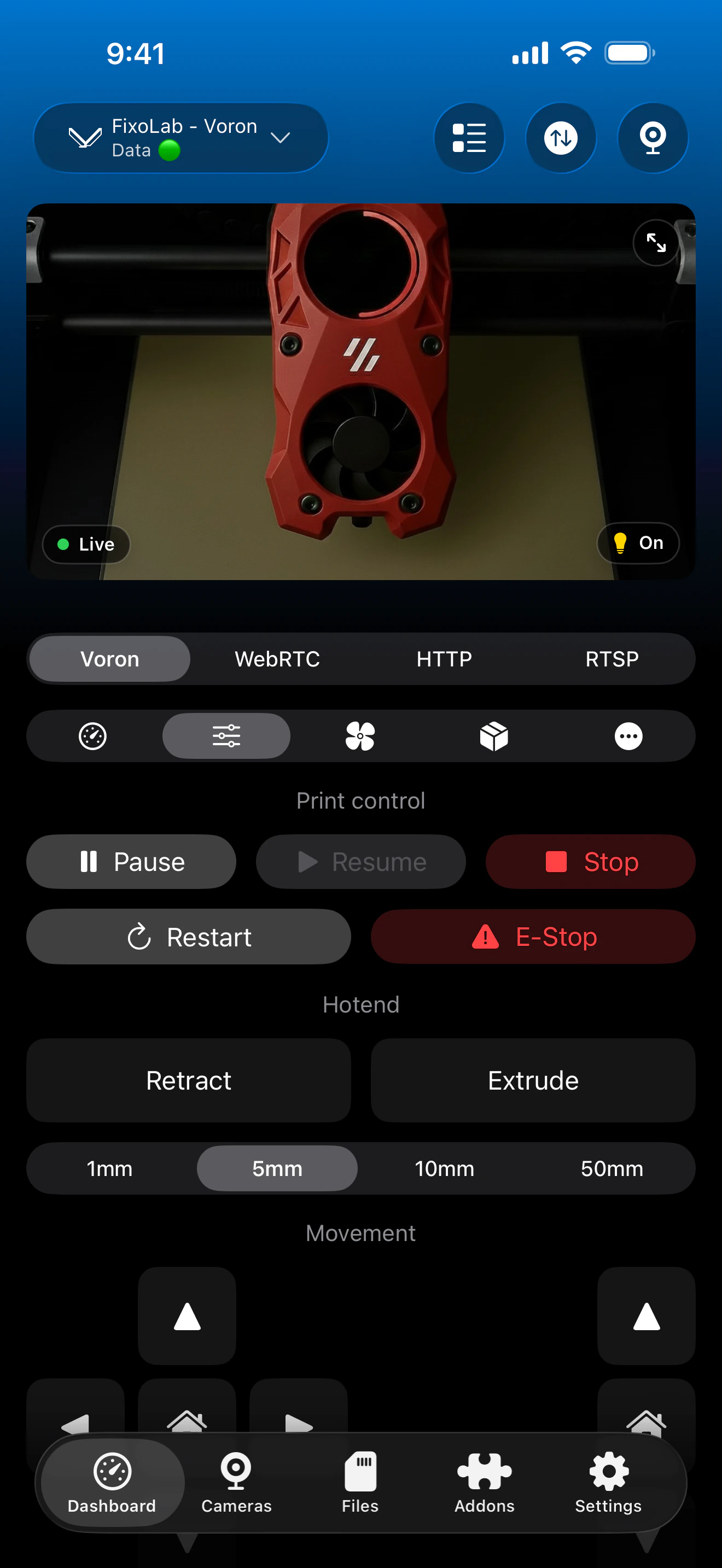
The heat map, range legend, calibration action and saved profiles all come directly from the bed_mesh object Moonraker reports.
What Printer Tools does for Bed Mesh
- An interactive heat map built from Moonraker's bed_mesh data, with a min/max/range legend
- A Calibrate action that runs your printer's existing BED_MESH_CALIBRATE macro with a confirmation step
- Loading a previously saved mesh profile from a list
- Automatic updates whenever the mesh data changes on the printer
What is not included
- There is no Z offset control in Printer Tools; that value must be set from a Klipper console
- Printer Tools does not create a bed_mesh configuration for you if one does not already exist
- Calibration behavior follows whatever your printer.cfg defines for BED_MESH_CALIBRATE, not a separate routine built by the app
- Saving a new profile name still needs to be done through Klipper's own macros or console if your setup requires it
Common Bed Mesh issues
The Bed Mesh screen shows no data
Confirm bed_mesh is configured in printer.cfg and that at least one calibration has completed successfully. Printer Tools can only display a mesh that Moonraker already has.
Calibrate does nothing when tapped
Check the Klipper console for the same error you would see running BED_MESH_CALIBRATE directly, since Printer Tools sends that same command rather than a custom routine.
The mesh looks correct but first layers are still bad
This is almost always a Z offset issue, not a mesh issue. Recheck your Z offset from a Klipper console since Printer Tools does not control it.
A loaded profile does not seem to apply
Confirm the profile name matches what your slicer or start macro expects, and that no start gcode is overriding it with a different BED_MESH_PROFILE command.
Checking Bed Mesh away from home
Bed Mesh data loads the same way through a VPN back to your network or through a Klipper printer added via OctoEverywhere or Obico, as long as the underlying Moonraker connection is active.
Frequently asked questions
Can I adjust Z offset from Printer Tools?
Not currently. Printer Tools focuses on Bed Mesh visualization and calibration. Z offset still needs to be set from a Klipper console such as Mainsail, Fluidd or SSH.
Does Calibrate rehome my printer first?
Printer Tools simply triggers your printer's existing BED_MESH_CALIBRATE macro, so it behaves exactly as it would if you ran that command from the console, including any homing your macro already performs.
Can I have different meshes for different build plates?
Yes, if your printer.cfg already saves multiple bed_mesh profiles. Printer Tools lets you pick which saved profile to load.
Is running Calibrate from the app safe?
Printer Tools shows a confirmation step because calibration moves the toolhead and probes the bed, the same way running the command from a console would.
Why doesn't Printer Tools just set Z offset for me?
Z offset tuning typically involves live paper or feeler gauge testing at the printer itself, so it is not yet part of the app's remote controls.
Related guides
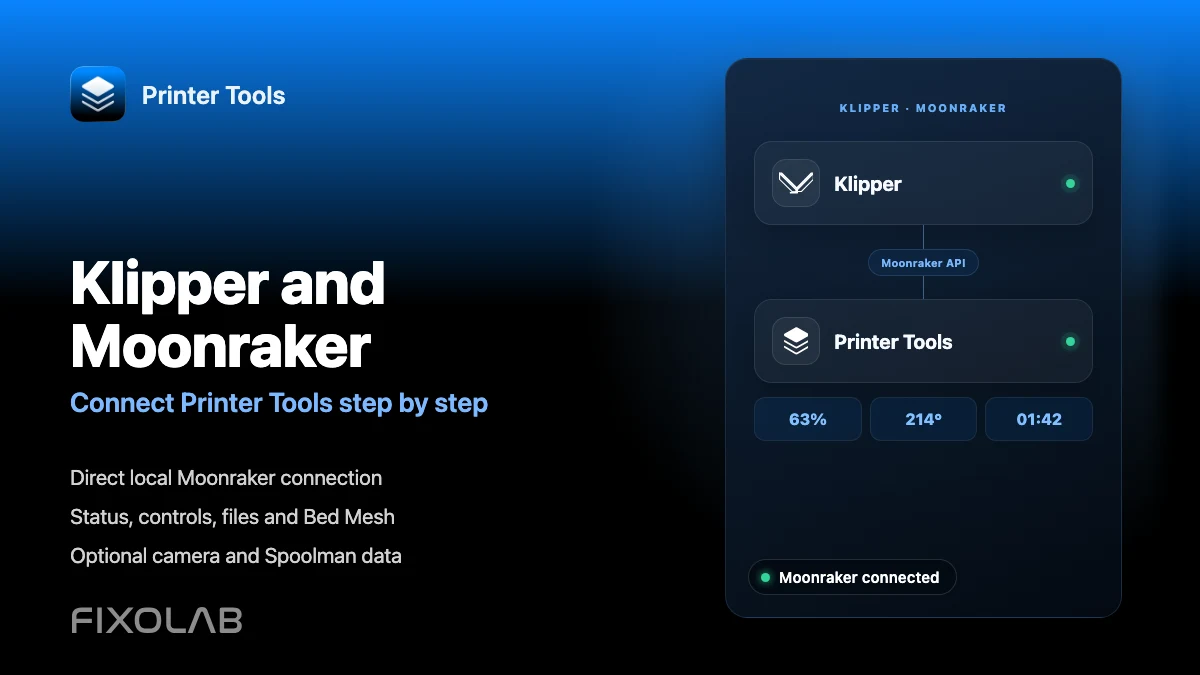
See full Klipper and Moonraker compatibility
Review the supported Moonraker features, optional camera and Spoolman requirements, remote access choices and current limitations.
All your 3D printers in one dashboard
Monitor Bambu Lab, Klipper, OctoPrint, Creality, Snapmaker, Anycubic, Flashforge, Elegoo, and Prusa printers from one app
Available on Android, iPhone, iPad and Mac, with Apple Watch and Wear OS companion apps plus optional remote access through VPN, OctoEverywhere or Obico
