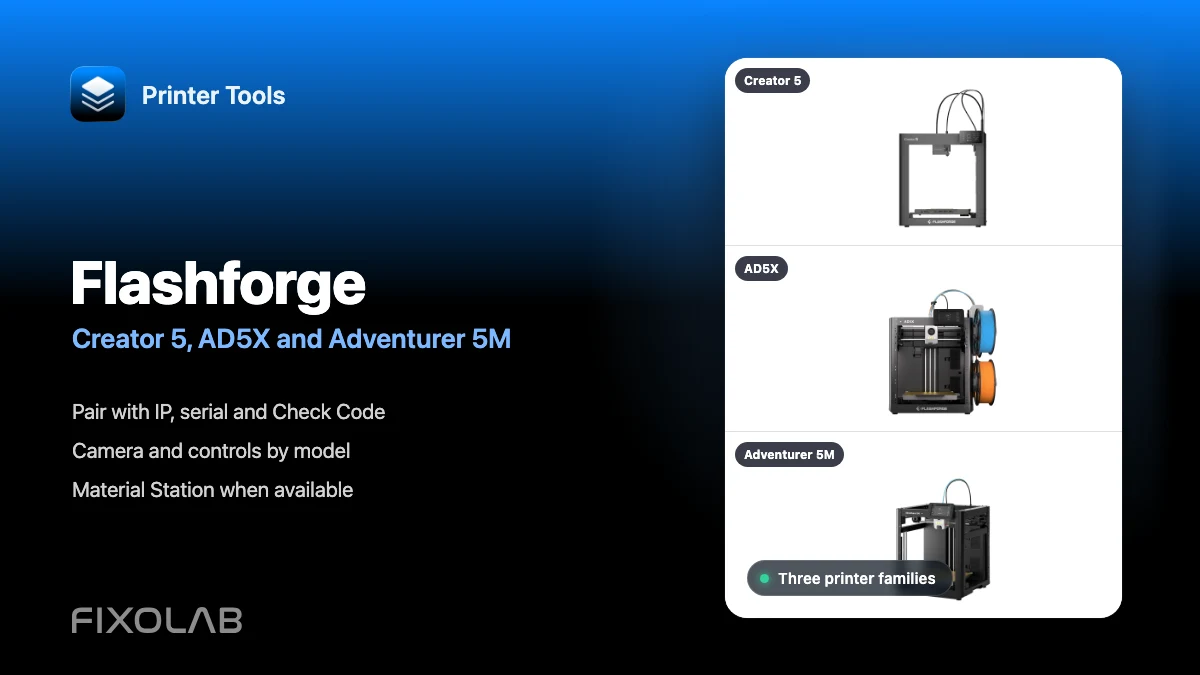
How to connect Flashforge Creator 5, AD5X and Adventurer 5M to Printer Tools
Flashforge local connection
The short answer
Printer Tools supports Flashforge Creator 5, Creator 5 Pro, AD5X, Adventurer 5M and Adventurer 5M Pro over their local network interface. Enable LAN mode and add the printer with its IP address, serial number and Check Code. Printer Tools then loads the telemetry, available controls, Material Station data and camera automatically when that model has compatible camera hardware.
What you need
- Printer Tools installed on Android, iPhone, iPad or Mac
- A supported Creator 5, AD5X or Adventurer 5M family printer
- LAN mode enabled on the printer
- The printer IP address and serial number
- The current Check Code shown in the printer network settings
- Compatible camera hardware installed if you want a live preview
Connect a supported Flashforge printer
- 1
Enable LAN mode
Open the network settings on the Flashforge touchscreen and enable LAN mode. Printer Tools connects directly to the printer and does not use a Flashforge cloud account.
- 2
Collect the pairing details
Note the local IP address, serial number and Check Code exactly as the printer displays them. Avoid extra spaces when copying the two credentials.
- 3
Add a Flashforge printer
In Printer Tools, open Settings, choose Printers and select Add Flashforge. Give the printer a clear model name and enter the three pairing values.
- 4
Let Printer Tools verify the model
Printer Tools checks the local identity and saves the printer only when it recognizes a supported Creator 5, AD5X or Adventurer 5M family model and the Check Code is accepted.
- 5
Open the Dashboard
Allow the first update to load print status, layers, temperatures, hardware information and any Material Station data exposed by the model.
- 6
Verify the camera and controls
If the printer has a camera installed, open its preview. Then confirm pause, resume, cancel, temperature, light and model-specific filtration controls before using them during a print.
What changes between the three printer families
The setup fields are the same, but Printer Tools adapts the dashboard to the hardware and data reported by each Flashforge family.
| Feature | Creator 5 | AD5X | Adventurer 5M |
|---|---|---|---|
| Supported variants | Creator 5 and Creator 5 Pro | AD5X | Adventurer 5M and Adventurer 5M Pro |
| Extruder telemetry | Temperatures for up to four independent toolheads | Single active toolhead telemetry | Single toolhead telemetry |
| Multi-material information | Four toolheads plus Material Station data when reported | Material Station slots and active material when reported | No Material Station on the standard 5M setup |
| Camera | Automatic local preview when the firmware reports a camera | Automatic local preview when optional camera hardware is installed | The standard 5M needs the optional camera accessory; 5M Pro includes camera hardware |
| Extra controls | Chamber temperature where fitted, lighting and available filtration modes | Lighting and Material Station information when exposed | Lighting and filtration on compatible variants such as 5M Pro |
Flashforge inside Printer Tools
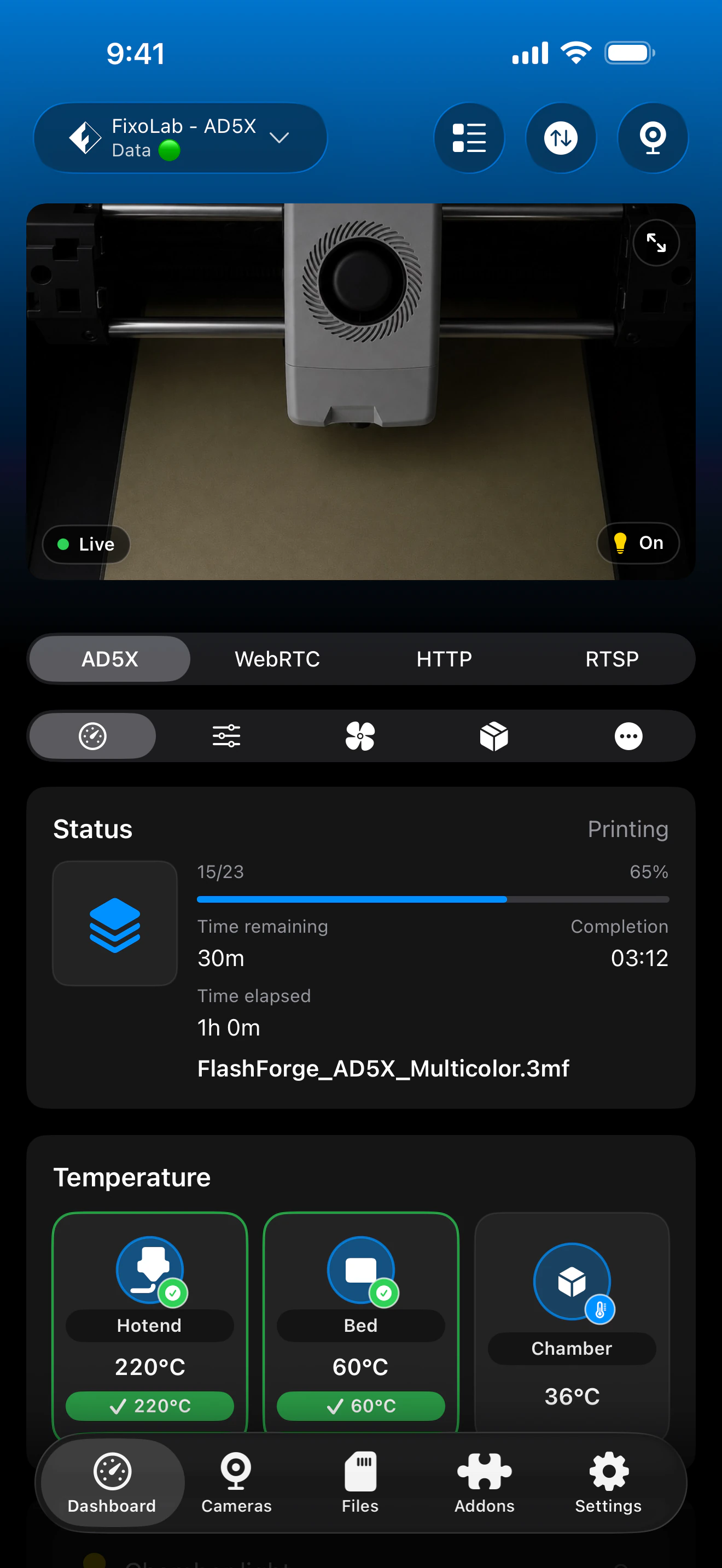
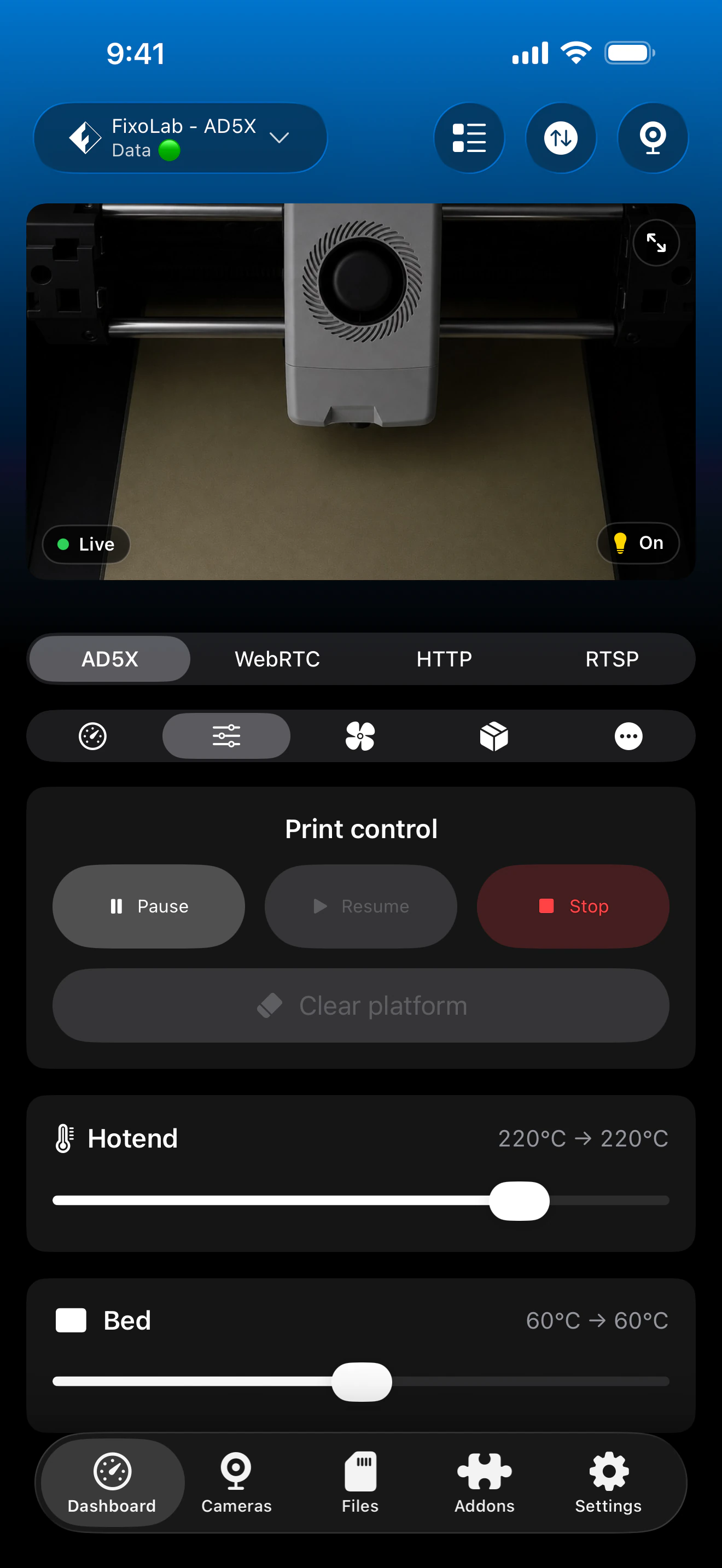
The shared Flashforge dashboard adapts to the connected model. Creator 5 toolheads, AD5X material slots and optional camera or filtration features appear only when reported by the printer.
Shared Printer Tools features
- Live print state, progress, current file, layers, elapsed time and estimated remaining time
- Nozzle and bed temperatures plus chamber temperature on models that report it
- Automatic local camera preview when compatible camera hardware is available
- Pause, resume and cancel through the local printer connection
- Temperature, lighting and filtration controls where supported by the model
- Material Station slots, colors and active material when the printer reports them
Current limitations
- File browsing, uploads and print history are not available for Flashforge printers in Printer Tools today
- Adventurer 5M and AD5X standard packages may not include camera hardware
- Part-cooling fan speed is monitored when reported but is not exposed as a direct manual control
- Controls differ by model, so Printer Tools only presents functions confirmed by the connected firmware
Pairing and camera troubleshooting
Printer Tools cannot reach the printer
Confirm that LAN mode is enabled, the IP address is current and both devices can communicate on the same network. Guest Wi-Fi and client isolation commonly block local access.
The Check Code is rejected
Read the current Check Code from the printer network settings and enter it together with the matching serial number. Remove spaces before and after both values.
The model is reported as unsupported
Update Printer Tools and confirm that the printer is a Creator 5, Creator 5 Pro, AD5X, Adventurer 5M or Adventurer 5M Pro. Other Flashforge families are not covered by this integration today.
No camera appears on Adventurer 5M or AD5X
Confirm that camera hardware is physically installed and enabled. The standard Adventurer 5M and AD5X do not necessarily include a camera, so Printer Tools cannot create a feed when the printer reports none.
Material Station or filtration controls are missing
Check the accessory connection and wait for the printer to finish starting. These panels are shown only when the active model and firmware report the corresponding hardware.
Monitor Flashforge away from home
Use a VPN back to the printer network for access away from home. OctoEverywhere and Obico are not connection options for Flashforge printers in Printer Tools today. Do not expose the local control or camera services directly to the internet.
Frequently asked questions
Does Printer Tools support Creator 5 Pro and Adventurer 5M Pro?
Yes. Both Pro variants are supported alongside Creator 5, AD5X and Adventurer 5M.
Where do I find the serial number and Check Code?
Both values are shown in the printer network settings. Printer Tools needs them together with the local IP address.
Do I add the camera separately?
No. Printer Tools uses the local camera source automatically after pairing, but a physical camera must be installed and reported by the printer.
Can I see all four Creator 5 toolheads?
Yes. Printer Tools reads the temperature arrays reported by Creator 5 and can display up to four independent toolheads.
Can I browse files on the printer?
Not yet. File management is a current limitation of the Flashforge integration.
Related guides
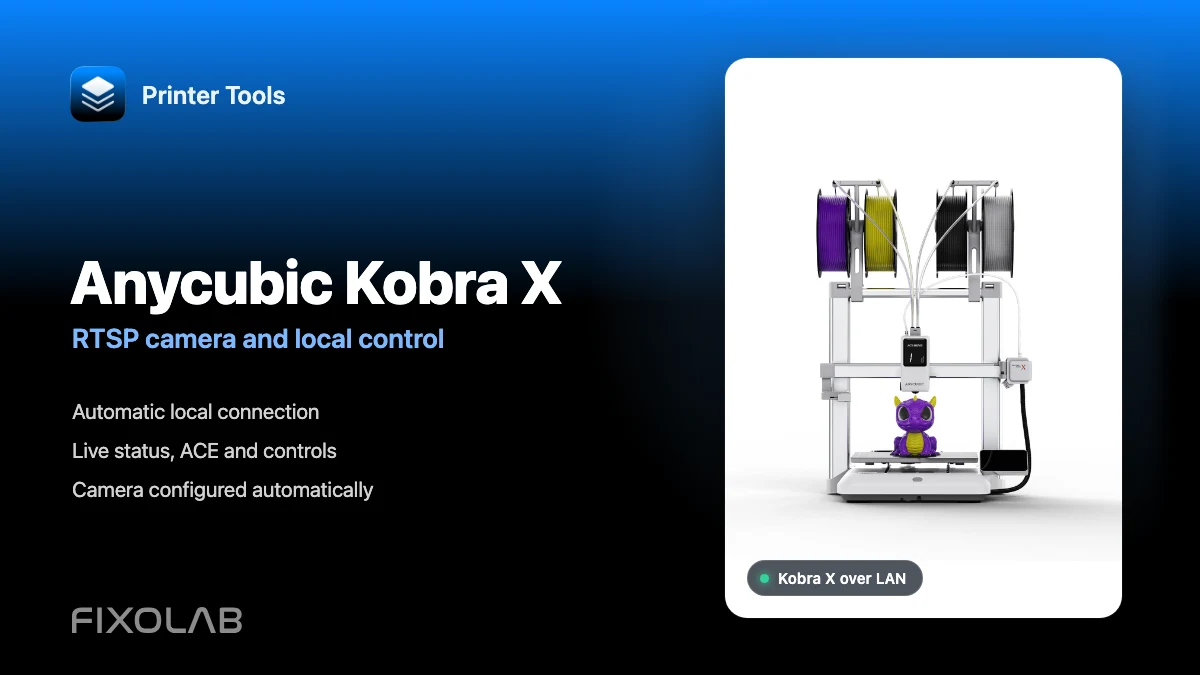
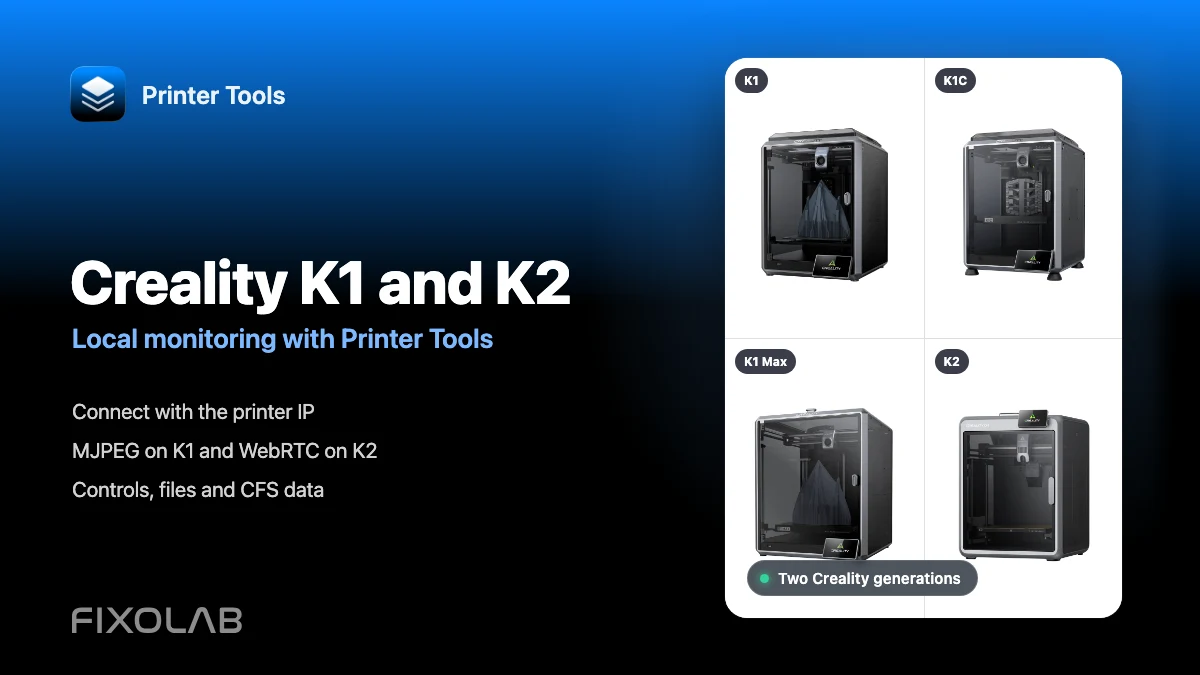
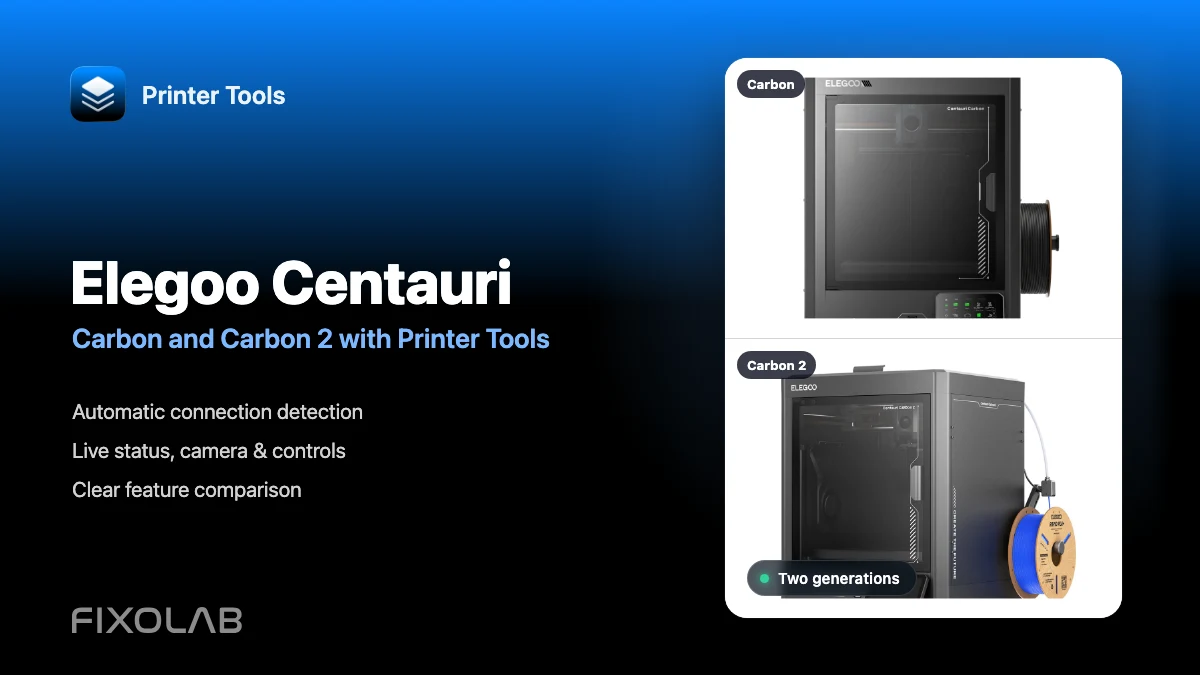
See full Flashforge compatibility
Review the supported models, pairing requirements, camera behavior and model-specific limitations before adding another Flashforge printer.
All your 3D printers in one dashboard
Monitor Bambu Lab, Klipper, OctoPrint, Creality, Snapmaker, Anycubic, Flashforge, Elegoo, and Prusa printers from one app
Available on Android, iPhone, iPad and Mac, with Apple Watch and Wear OS companion apps plus optional remote access through VPN, OctoEverywhere or Obico
