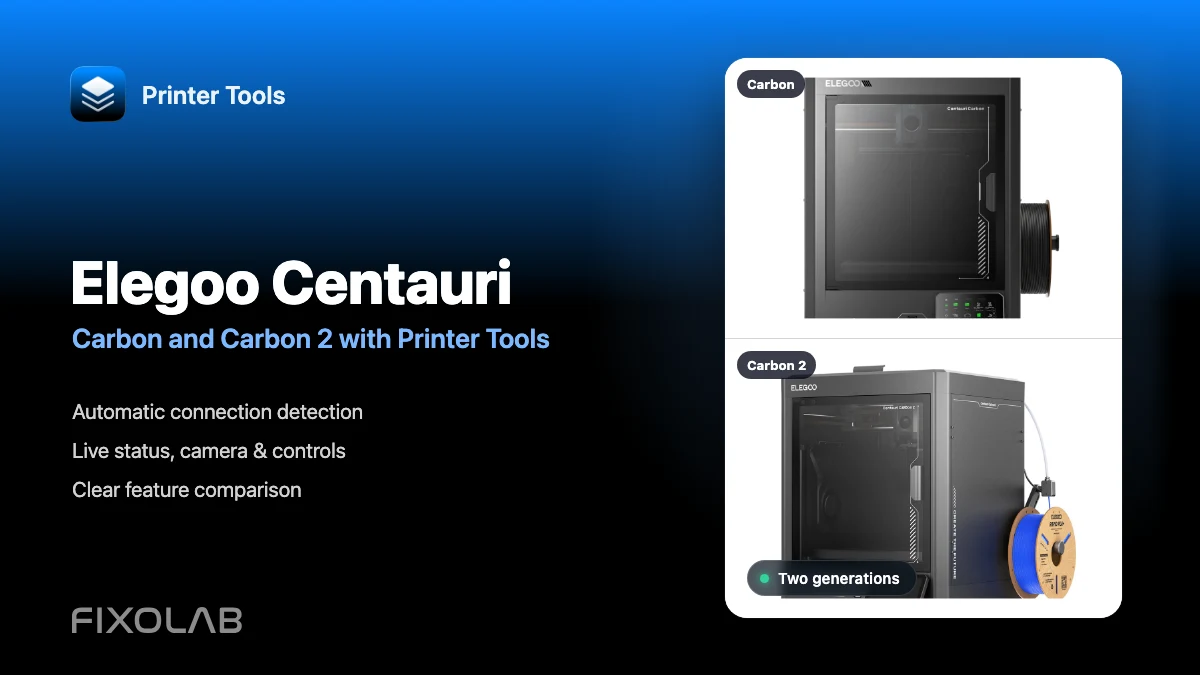
Using Elegoo Centauri Carbon and Centauri Carbon 2 with Printer Tools
Elegoo Centauri · Local compatibility
The short answer
Printer Tools supports both the Elegoo Centauri Carbon and Centauri Carbon 2 for local monitoring and compatible controls. Add the printer with its local IP address and Printer Tools detects which connection it uses. The camera is configured automatically. The Carbon 2 can also use an optional access code, while the original Carbon normally connects without one on current firmware.
What you need
- Printer Tools installed on Android, iPhone, iPad or Mac
- The printer and your phone, tablet or computer on the same reachable local network
- The printer's local IP address
- The Elegoo access code if one is enabled on a Centauri Carbon 2
Connect either Centauri Carbon model
- 1
Find the printer on your network
Open the network settings on the Centauri Carbon or Carbon 2 and note its local IP address. Make sure the device running Printer Tools can reach the same network.
- 2
Check the access code on Carbon 2
If you enabled an access code on the Centauri Carbon 2, keep it ready. Leave the field empty when no code is configured. The original Centauri Carbon normally does not need this value on current firmware.
- 3
Add an Elegoo printer
In Printer Tools, open Settings, choose Printers and select Add Elegoo. Enter the local IP address and the optional access code, then continue.
- 4
Let Printer Tools detect the generation
Printer Tools verifies the local connection and saves the correct transport automatically. You do not need to enter a camera address or identify the protocol manually.
- 5
Verify monitoring and controls
Open the printer in the Dashboard. Check live status, progress, temperatures and the camera, then confirm that the controls exposed by your installed firmware respond as expected.
What works on each model
The core Printer Tools experience is similar on both printers. The important difference is the local connection used behind the scenes, not a separate setup flow.
| Feature | Centauri Carbon | Centauri Carbon 2 |
|---|---|---|
| Local connection | SDCP over a local WebSocket | The local CC2 MQTT protocol |
| Setup | Local IP address, normally without authentication | Local IP address with an optional access code |
| Print monitoring | Status, progress, layers, elapsed time and remaining time | Status, progress, layers, elapsed time and remaining time |
| Temperatures and hardware state | Nozzle, bed, chamber when reported, fans and light | Nozzle, bed, chamber when reported, fans and light |
| Camera | Automatic local chamber camera preview | Automatic local chamber camera preview |
| Print controls | Pause, resume, stop, temperature, fan, light and speed controls | Pause, resume, stop, temperature, fan, light and speed controls |
| Canvas material data | Shown when compatible hardware and firmware report it | Shown when compatible hardware and firmware report it |
| Printer file browser | Not available in Printer Tools today | Not available in Printer Tools today |
Centauri monitoring inside Printer Tools
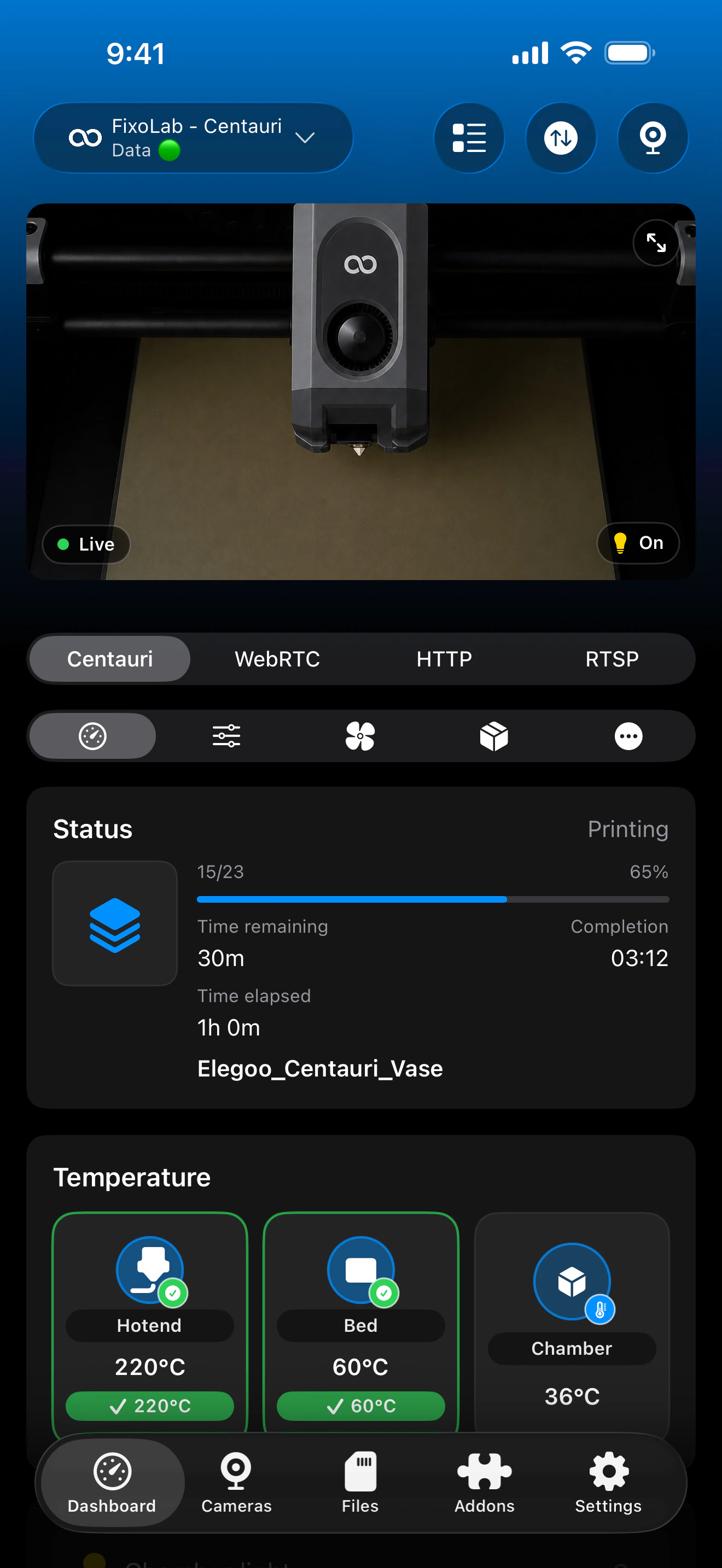
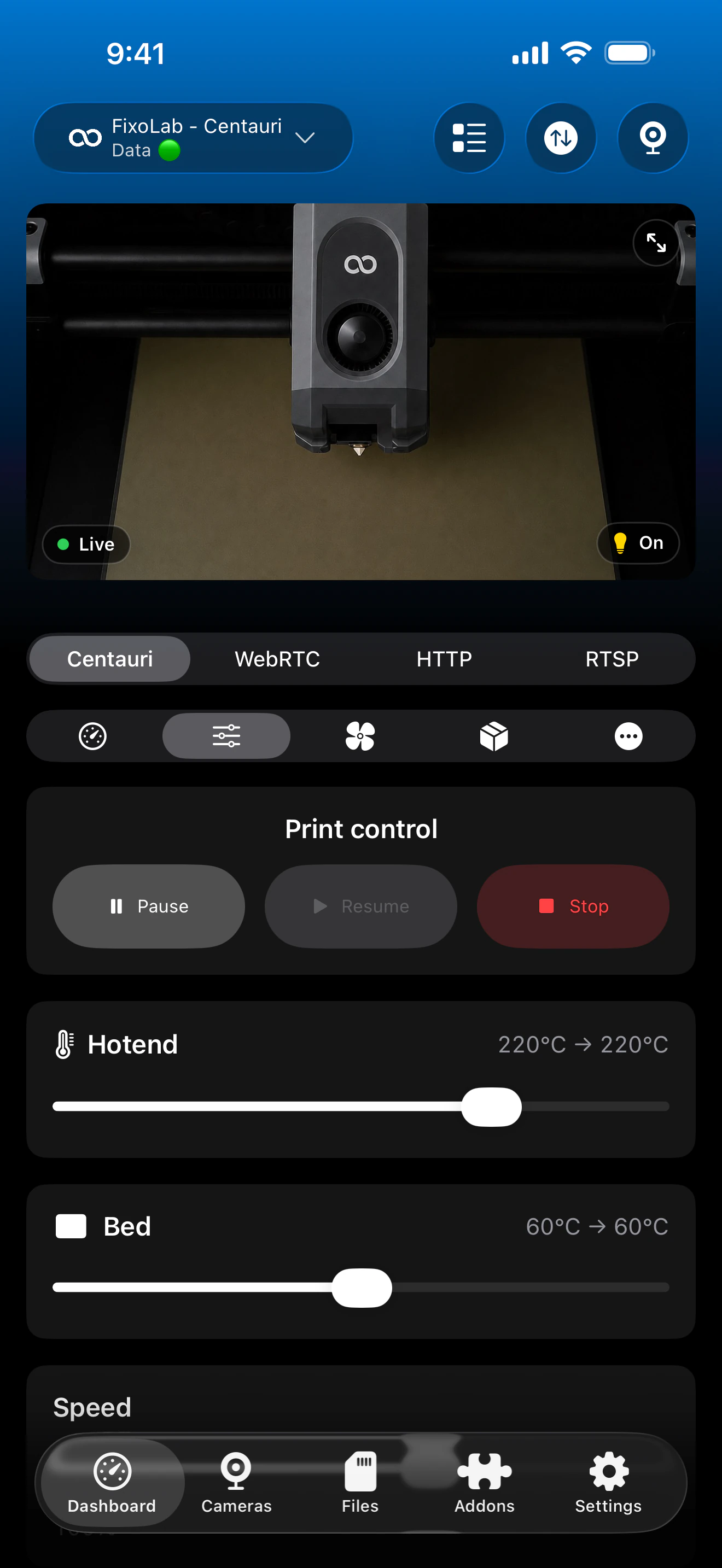
Real screens from the Elegoo integration in Printer Tools. Both Centauri generations use this shared dashboard, while the exact sensors, controls and Canvas information depend on the installed printer hardware and firmware.
Shared Printer Tools features
- Live print state, progress, layers, file name, elapsed time and remaining time
- Nozzle, bed and available chamber temperature telemetry
- Automatic chamber camera preview without entering a separate stream address
- Pause, resume and stop plus compatible temperature, fan, light and speed controls
- Printer errors, position and storage information when reported
- Canvas trays, colors and materials when compatible hardware exposes them
Current limitations
- Printer file browsing and job upload are not available for Elegoo printers in Printer Tools today
- Axis jogging and a G-code console are not exposed for these two integrations
- Canvas information appears only when the connected hardware and firmware report it
- Exact controls can vary with firmware, so Printer Tools only presents capabilities confirmed by the printer
Connection and camera troubleshooting
Printer Tools cannot find the printer
Enter the current local IP address and confirm that both devices can communicate. Guest Wi-Fi, client isolation and VLAN firewall rules commonly block local discovery and telemetry.
The Carbon 2 rejects the connection
Check whether an access code is enabled on the printer. Enter the current code without extra spaces, or leave the field empty when the printer is not configured to require one.
The camera panel is unavailable
Confirm that the chamber camera is enabled and reported by the printer, close another viewer temporarily and reopen the camera in Printer Tools. Also make sure local traffic between the two devices is not filtered.
Canvas trays do not appear
Check the Canvas hardware connection and wait for the printer to finish starting. Printer Tools can only show the trays and materials reported by the installed firmware.
A control is missing
Update Printer Tools and check the printer firmware. The dashboard hides actions that the active Centauri connection does not report as available.
Monitor a Centauri away from home
Use a VPN back to the printer's network if you want to keep this local connection while away. OctoEverywhere and Obico are not connection options for Elegoo printers in Printer Tools today. Never expose the printer's local control or camera services directly to the internet.
Frequently asked questions
Do I select SDCP or CC2 during setup?
No. Add an Elegoo printer with its local IP address and Printer Tools detects the correct connection automatically.
Does the Centauri Carbon 2 work in Printer Tools?
Yes. Current Printer Tools builds include a dedicated local CC2 client for the Centauri Carbon 2 on both iOS and Android.
Do I need an Elegoo cloud account?
No. Both integrations connect directly to the printer over your local network.
Does the camera need a separate address?
No. Printer Tools chooses the matching local camera source after it detects the printer generation.
Can I browse or upload files from Printer Tools?
Not yet. File management is a current limitation for both Centauri Carbon generations.
Related guides
See full Elegoo compatibility
Review the supported Elegoo models, local connection methods, available controls and current limitations before adding another printer.
All your 3D printers in one dashboard
Monitor Bambu Lab, Klipper, OctoPrint, Creality, Snapmaker, Anycubic, Flashforge, Elegoo, and Prusa printers from one app
Available on Android, iPhone, iPad and Mac, with Apple Watch and Wear OS companion apps plus optional remote access through VPN, OctoEverywhere or Obico
