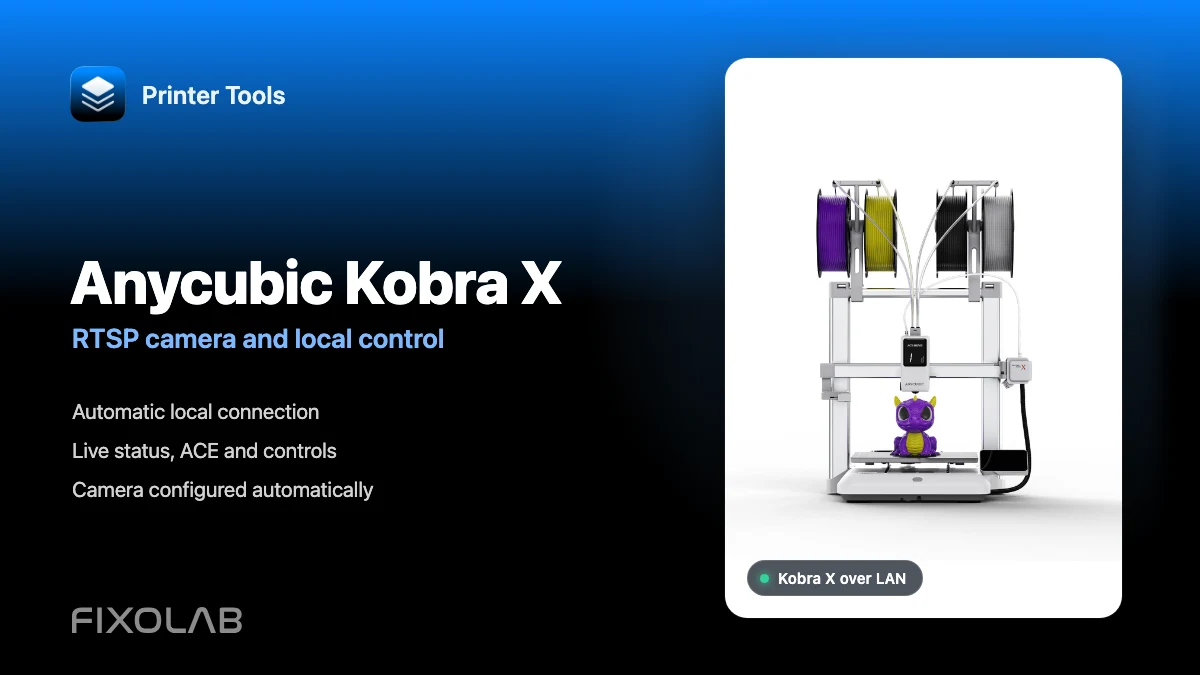
How to connect Anycubic Kobra X to Printer Tools with RTSP camera and local control
Anycubic Kobra X local connection
The short answer
Printer Tools supports the Anycubic Kobra X over its local network connection on Android, iPhone, iPad and Mac. Enable LAN mode on the printer, add its current IP address and Printer Tools retrieves the local connection details automatically. Print telemetry, compatible controls, ACE information and the Kobra X RTSP camera are then loaded from the printer without an Anycubic Cloud account.
What you need
- Printer Tools installed on Android, iPhone, iPad or Mac
- An Anycubic Kobra X with current firmware
- LAN mode enabled in the printer network settings
- The printer and your device on the same reachable local network
- The current local IP address shown by the Kobra X
Connect Kobra X to Printer Tools
- 1
Enable LAN mode on the Kobra X
Open the network settings on the printer and enable LAN mode. This is required because Printer Tools talks directly to the local controller instead of Anycubic Cloud.
- 2
Find the printer IP address
Keep the Kobra X connected to Wi-Fi and note the local IP address shown on its network screen. A DHCP reservation in your router can prevent that address from changing later.
- 3
Add an Anycubic printer
Open Printer Tools, go to Settings, choose Printers and select Add Anycubic. Enter a clear name such as Anycubic Kobra X and its local IP address.
- 4
Let Printer Tools verify the connection
Printer Tools contacts the local controller, identifies the Kobra X and securely retrieves the credentials needed for its local telemetry connection. You do not enter a username, password or camera address.
- 5
Wait for the first complete update
Open the Kobra X in the Dashboard and allow a few seconds for status, temperatures, ACE data and the current camera session to arrive.
- 6
Test the available controls
Confirm that pause, resume, stop, the light and any reported fan or ACE controls match the current printer state before relying on them during a long print.
Kobra X inside Printer Tools
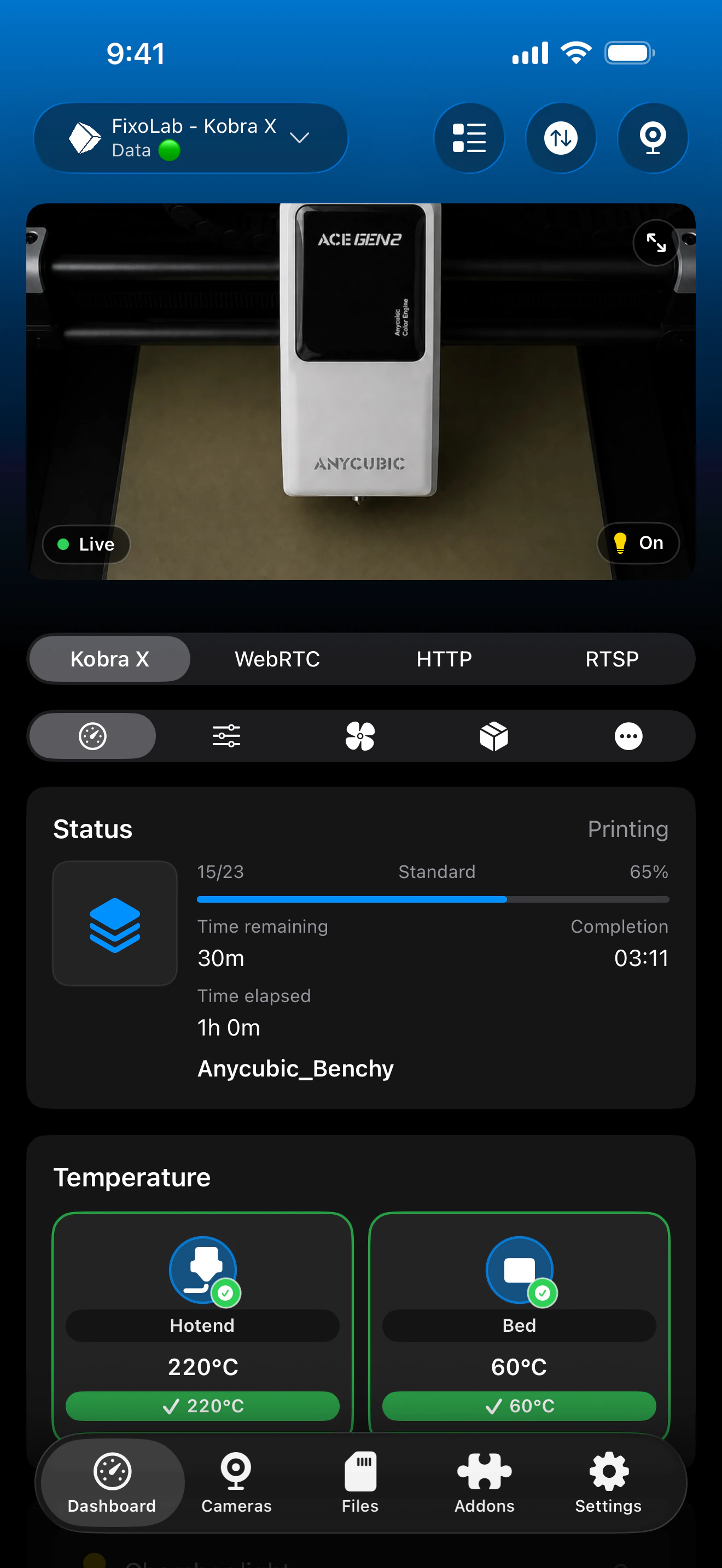
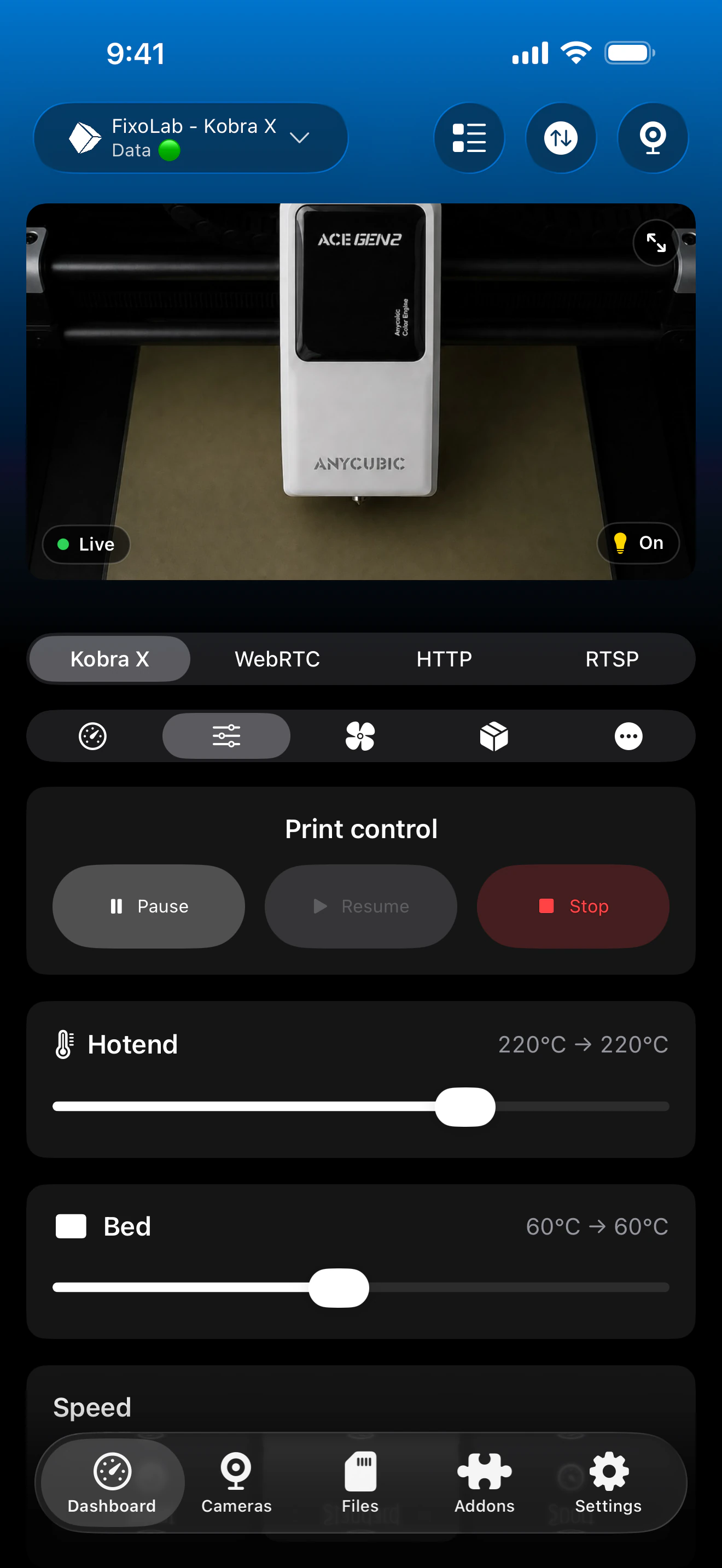
The Anycubic dashboard combines print status, temperatures, camera and compatible local controls. ACE trays and extra hardware appear when the Kobra X reports them.
What works with Kobra X
- Live print state, progress, file name, current layer, elapsed time and remaining time
- Nozzle and bed temperatures plus every additional sensor reported by the printer
- Automatic RTSP camera playback from the live session reported by Kobra X
- Pause, resume and stop through the local printer connection
- Light and fan controls when the installed firmware exposes them
- ACE Pro and ACE 2 trays, material, humidity, temperature, drying and auto-feed data when connected
Current limitations
- File browsing, upload and print history are not available for Anycubic printers in Printer Tools today
- The camera session is supplied by the printer and can change after a restart or network reconnection
- LAN mode must remain enabled for this integration to connect
- Printer Tools only shows controls and ACE details that the active Kobra X firmware reports
Connection and camera troubleshooting
Printer Tools says LAN mode is required
Return to the Kobra X network settings, enable LAN mode and wait for the network connection to restart before trying again.
The printer cannot be reached
Confirm the current IP address and place both devices on a network where local clients can communicate. Guest Wi-Fi, client isolation and VLAN firewall rules often block the connection.
Status loads but the camera does not
Keep the Dashboard open until the first complete telemetry update arrives, then reopen the camera. The Kobra X reports its RTSP session dynamically rather than using a fixed address.
The printer worked before its IP changed
Edit the printer in Printer Tools with its new local IP address. Consider reserving that address in the router to keep future connections stable.
ACE trays or drying controls are missing
Check the ACE connection on the printer and wait for it to finish starting. Printer Tools can only display the units and fields included in the Kobra X telemetry.
Monitor Kobra X away from home
Use a VPN back to the Kobra X network when you need access away from home. OctoEverywhere and Obico are not connection options for Anycubic printers in Printer Tools today. Never expose the printer controller or RTSP camera directly to the internet.
Frequently asked questions
Does Kobra X require LAN mode?
Yes. Printer Tools uses the local controller and cannot connect while the printer reports a cloud-only control mode.
Do I enter the RTSP camera address myself?
No. Printer Tools reads the current camera session from the Kobra X after connecting and configures the camera automatically.
Does Printer Tools support ACE 2 Pro?
Yes. Printer Tools displays ACE Pro and ACE 2 units, including available tray, material, drying and auto-feed information reported by the printer.
Can I browse files stored on Kobra X?
Not yet. File browsing and uploads are current limitations of the Anycubic integration.
Does this work on Android and Apple devices?
Yes. The Anycubic integration is available on Android, iPhone, iPad and Mac, with companion print information available through supported Apple Watch and Wear OS experiences.
Related guides
See full Anycubic compatibility
Review every supported Kobra model, its camera transport, ACE support and current limitations before adding another Anycubic printer.
All your 3D printers in one dashboard
Monitor Bambu Lab, Klipper, OctoPrint, Creality, Snapmaker, Anycubic, Flashforge, Elegoo, and Prusa printers from one app
Available on Android, iPhone, iPad and Mac, with Apple Watch and Wear OS companion apps plus optional remote access through VPN, OctoEverywhere or Obico
