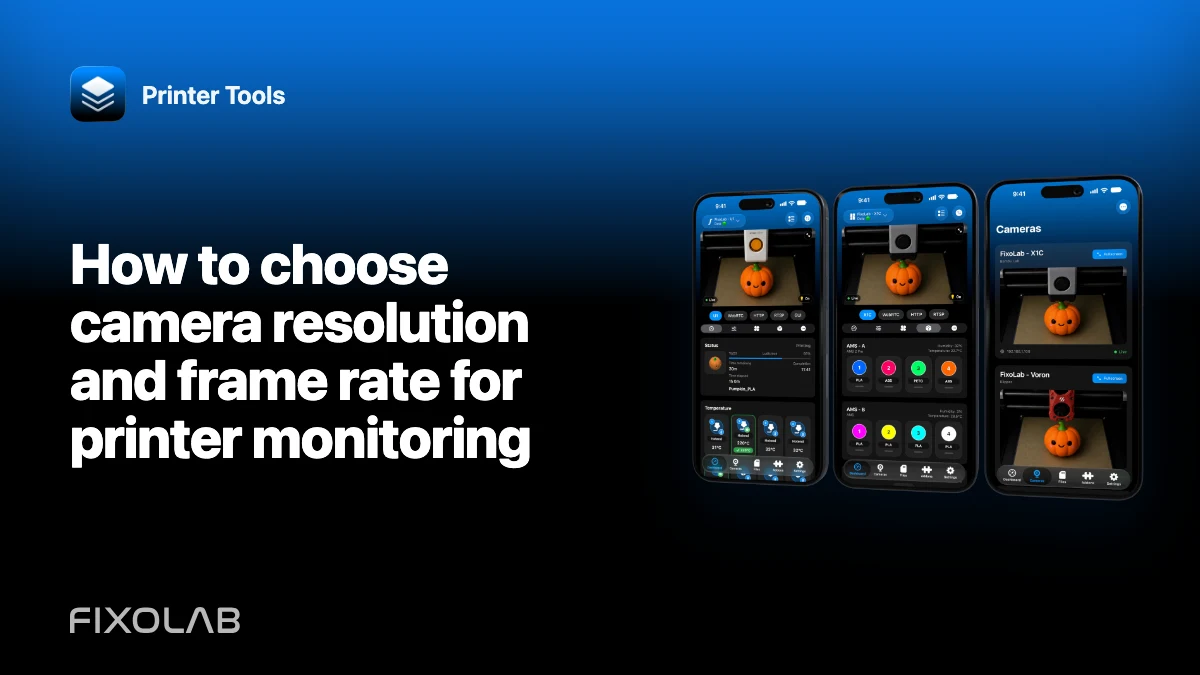
How to choose camera resolution and frame rate for printer monitoring
The highest camera resolution and frame rate are not always the best settings for watching a 3D print. Monitoring needs a clear view of the first layer, nozzle area and part movement, but it also benefits from low latency and a stream that stays connected for hours.
Start with the purpose of the view, then increase quality only where the extra detail changes a decision.

All your 3D printers in one dashboard
Monitor Bambu Lab, Klipper, OctoPrint, Creality, Snapmaker, Anycubic, Flashforge, Elegoo, and Prusa printers from one app
Available on Android, iPhone, iPad and Mac, with Apple Watch and Wear OS companion apps plus optional remote access through VPN, OctoEverywhere or Obico
Decide what you need to see
A wide chamber view can show spaghetti, layer shifts and whether the part remains on the bed. A close nozzle view needs more detail but may cover less of the build area. One camera profile may not optimize both.
Position, lighting and focus often improve useful detail more than doubling pixel count.
Start with a moderate profile
For a phone dashboard, choose a moderate resolution and frame rate from the camera or webcam server. Test it during a representative print while the rest of the network is active.
If the view remains clear and responsive, keep it. A stream that is slightly less sharp but consistently live is more valuable than a high-resolution stream that buffers.
Understand bandwidth by protocol
MJPEG sends separate compressed images and can consume substantial bandwidth at high frame rates. H.264-based RTSP and WebRTC can be more efficient, but decoding, keyframes and negotiation add their own constraints. RTSPS adds transport security without creating extra camera detail.
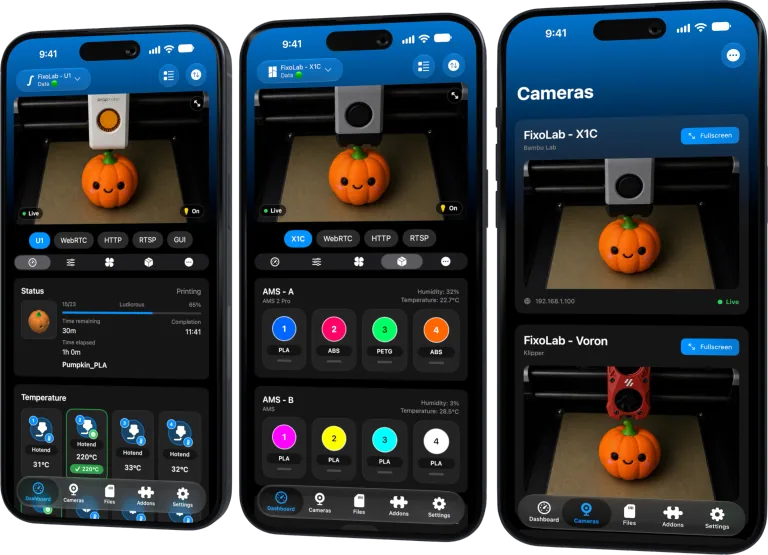
Printer Tools uses a native protocol for supported built-in cameras. Quality controls may belong to the printer firmware and may not be adjustable in the app.
Use a substream for dashboards
Many IP cameras provide a main stream for recording and a substream for monitoring. Use the substream in Printer Tools when it offers enough detail. Keep the main profile for a recorder or close inspection.
This also reduces load when several printers are visible in one dashboard.
Tune one variable at a time
Change resolution, then frame rate, then quality or bitrate. Test long enough to catch Wi-Fi contention and thermal load. If you change everything at once, you cannot identify which setting caused improvement.
Record the stable profile before experimenting so it is easy to restore.
Fix lighting before increasing bitrate
Poor lighting makes compression work harder and creates noise. Add even illumination that does not overheat the enclosure or interfere with the printer. Avoid flicker that fights the camera exposure frequency.
WLED can provide local printer lighting where installed, but follow electrical and thermal limits for the enclosure.
Watch device and network limits
Opening several high-resolution streams can saturate the access point or decoder. Test on the oldest phone or tablet you intend to use, not only a fast desktop.
For symptoms after a stream connects, use the camera latency guide.
Frequently asked questions
Is 4K useful for a small dashboard tile?
Usually not. A lower profile can preserve the detail visible at that display size with far less load.
Does a higher frame rate always reduce latency?
No. It can increase bandwidth and buffering when the network or decoder cannot keep up.
Should every printer use the same profile?
No. Camera position, protocol, Wi-Fi quality and monitoring purpose differ.
Can Printer Tools increase a stock camera’s quality?
It displays what the supported printer transport provides. Native quality limits belong to the printer and firmware.
All your 3D printers in one dashboard
Monitor Bambu Lab, Klipper, OctoPrint, Creality, Snapmaker, Anycubic, Flashforge, Elegoo, and Prusa printers from one app
Available on Android, iPhone, iPad and Mac, with Apple Watch and Wear OS companion apps plus optional remote access through VPN, OctoEverywhere or Obico
| FixoLab
How to add an external IP camera to a 3D printer in Printer Tools
Add an independent IP camera to Printer Tools over HTTP, MJPEG, RTSP, RTSPS, TCP JPEG, WebRTC or ONVIF discovery.
| FixoLab
How to build and test an RTSP camera URL safely
Identify the local host, port, path and credentials for an RTSP camera, then add it to Printer Tools without leaking secrets.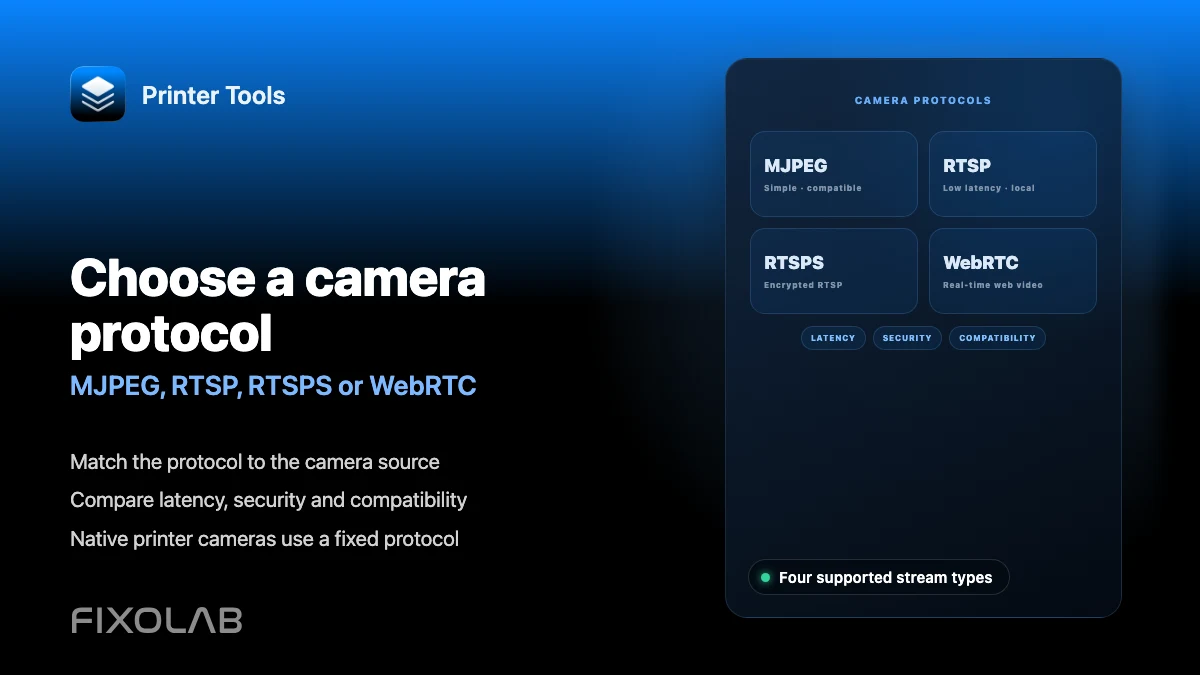
| FixoLab
Choosing MJPEG, RTSP, RTSPS or WebRTC for a 3D printer camera
Understand how MJPEG, RTSP, RTSPS and WebRTC differ and which ones Printer Tools uses for native and external cameras.
| FixoLab
How to discover an ONVIF camera for a 3D printer
Find a compatible ONVIF camera on the local network, verify its profile and add its stream to Printer Tools without exposing it online.