How to add an external IP camera to a 3D printer in Printer Tools
External cameras in Printer Tools
The short answer
Printer Tools can add an independent IP camera, separate from any printer's own built-in camera, over HTTP, MJPEG, RTSP, RTSPS, TCP JPEG or WebRTC, including ONVIF cameras that support automatic discovery on your local network. This is useful for a wider enclosure view, a second angle or any camera your printer's native integration does not already expose.
What you need
- An IP camera that supports one of HTTP, MJPEG, RTSP, RTSPS, TCP JPEG, WebRTC or ONVIF
- The camera's stream URL, or ONVIF support if you want Printer Tools to discover it automatically
- Any username and password the camera requires
- The camera and your device on networks that can reach each other
Add an external camera
- 1
Open the external camera setup
In Printer Tools, go to the camera addon area and choose to add an external camera rather than relying on a printer's built-in feed.
- 2
Discover it automatically if it supports ONVIF
Printer Tools can search your local network with ONVIF WS-Discovery to find compatible cameras automatically, saving you from typing the stream URL by hand.
- 3
Or enter the stream manually
For cameras without ONVIF, choose the correct protocol, HTTP, MJPEG, RTSP, RTSPS, TCP JPEG or WebRTC, and enter the exact stream URL your camera documentation provides.
- 4
Add credentials if required
Enter the username and password your camera needs, if it is not left open on your local network.
- 5
Confirm the stream loads
Check that video appears before relying on the camera during a print, since a wrong protocol or URL will fail silently rather than showing a clear error in every case.
- 6
Use PTZ controls if your camera supports them
ONVIF cameras with pan, tilt and zoom support expose those controls directly from the same camera view in Printer Tools.
An external camera next to your printers
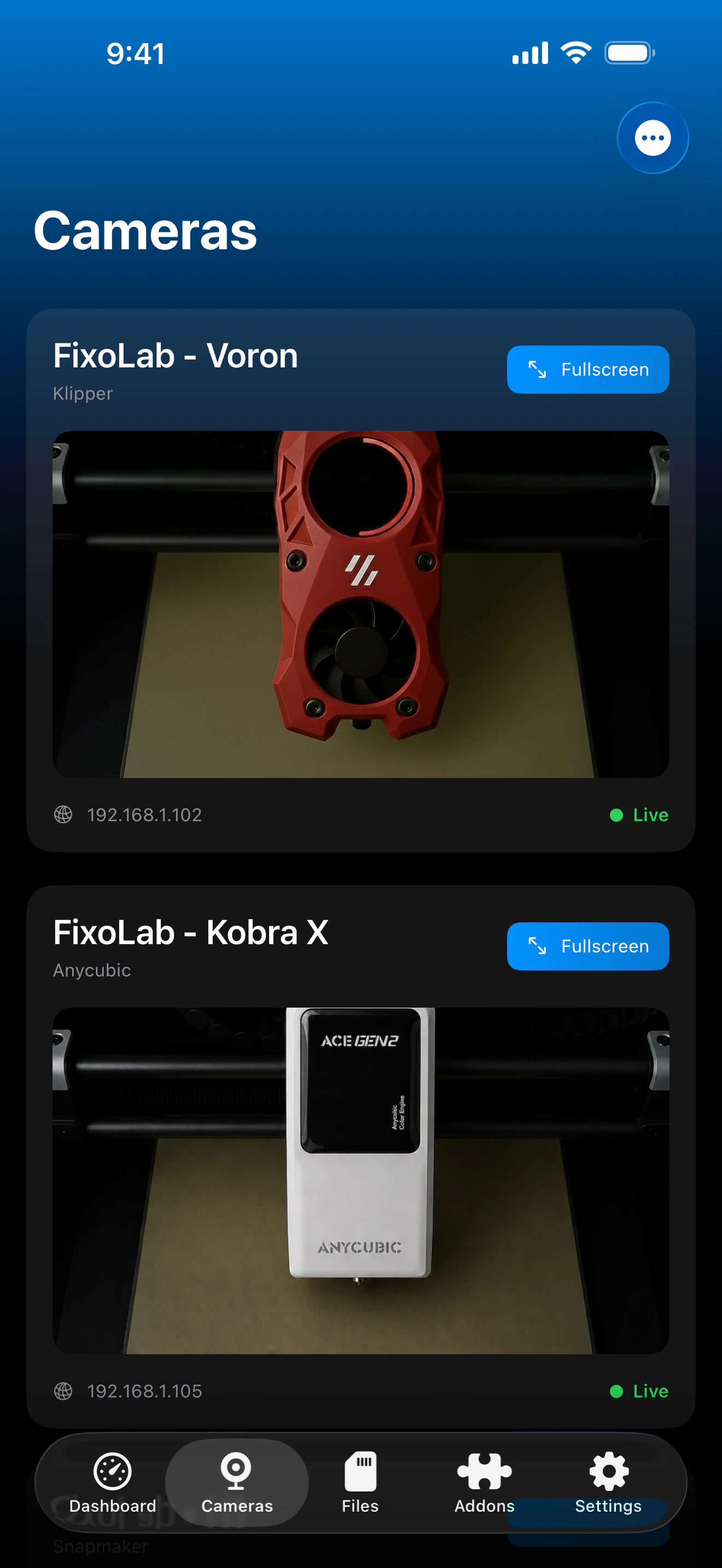
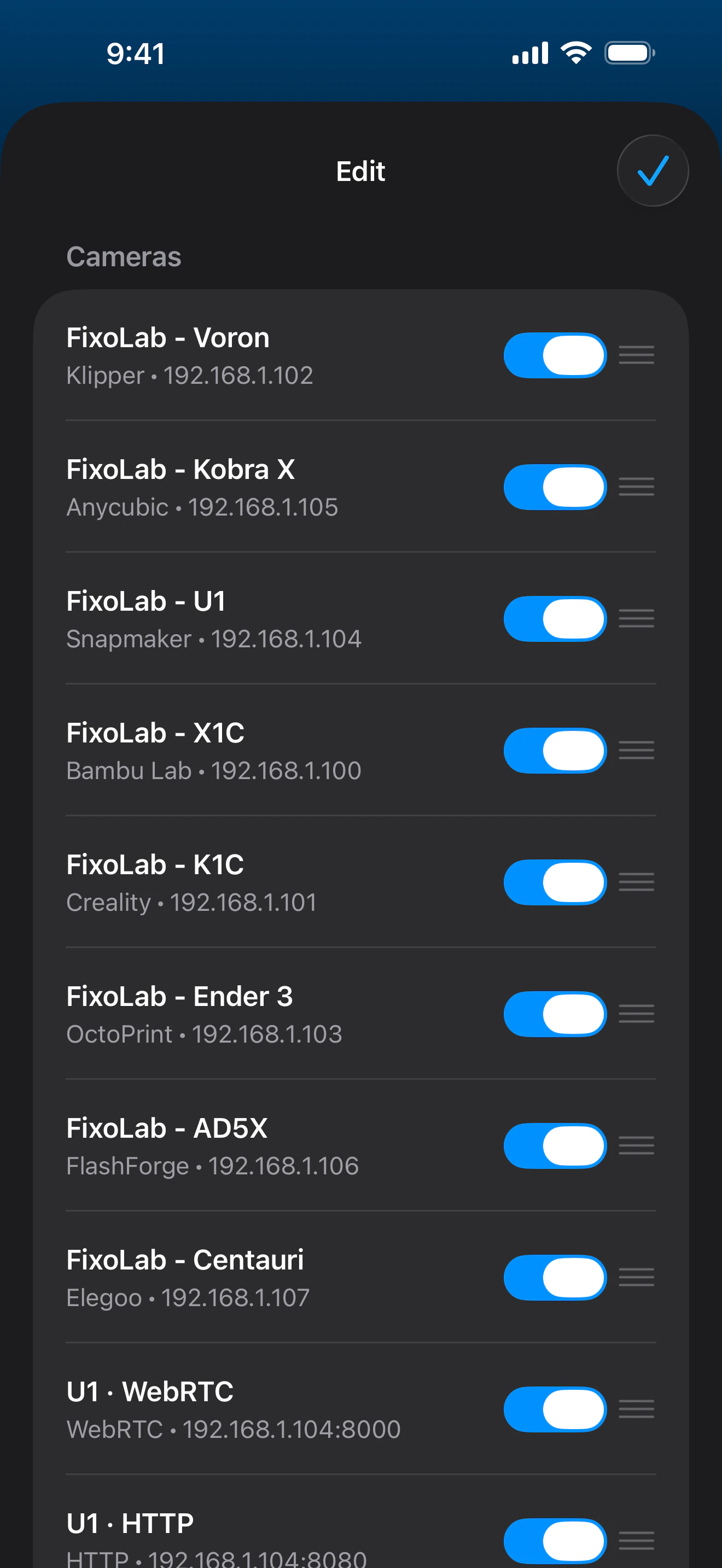
External cameras appear alongside your printers, with their own protocol, credentials and, for ONVIF cameras, PTZ controls.
What external cameras support
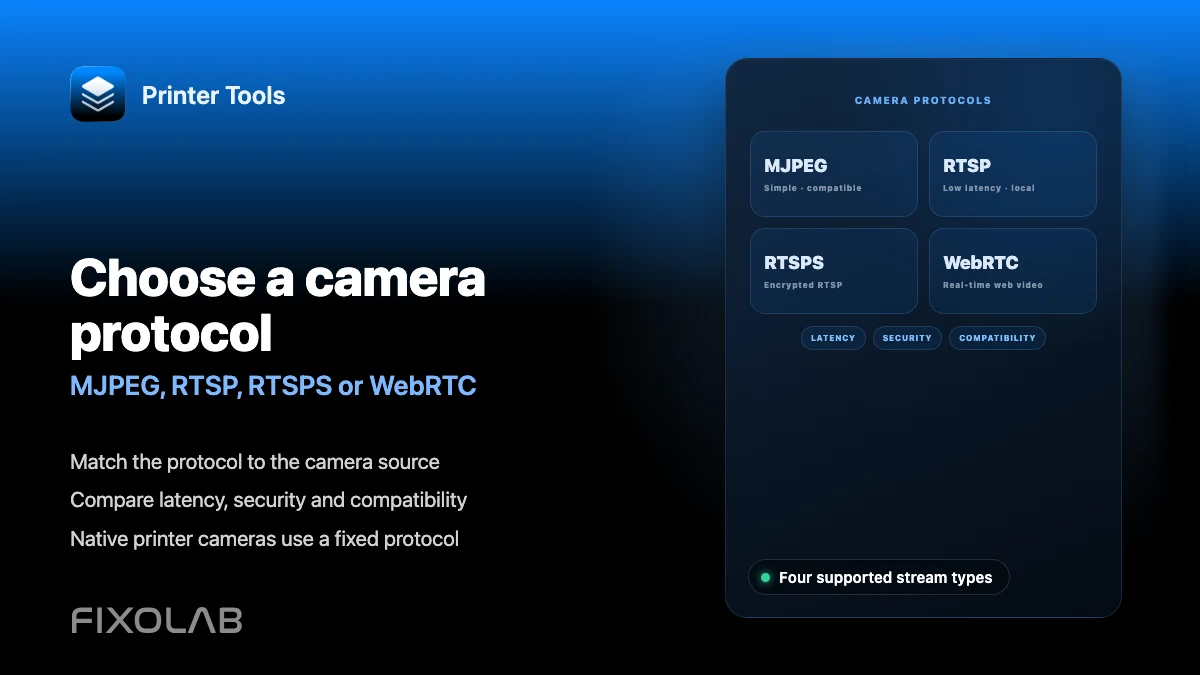
- HTTP, MJPEG, RTSP, RTSPS, TCP JPEG and WebRTC stream protocols
- ONVIF discovery to find compatible cameras automatically on your local network
- PTZ controls for ONVIF cameras that support pan, tilt and zoom
- Independent credentials and settings per camera, separate from any printer connection
What to keep in mind
- An external camera is not tied to a specific printer's telemetry, only to its own video stream
- ONVIF discovery only finds cameras that actually implement WS-Discovery and are on a reachable network segment
- Video quality and latency depend entirely on the camera and its own configuration, not on Printer Tools
Common external camera issues
ONVIF discovery finds nothing
Confirm the camera actually supports ONVIF and WS-Discovery, and that it sits on the same network segment as your device, since discovery does not cross isolated Wi-Fi networks or subnets.
The stream URL was entered but nothing loads
Double check the exact protocol and URL format your camera expects, since a small difference, such as a missing port or path, prevents the stream from connecting.
The camera worked once and then stopped
Check whether the camera's IP address changed after a router restart, and reserve a static address for it if this keeps happening.
PTZ controls do not appear for an ONVIF camera
Confirm the camera itself supports pan, tilt and zoom over ONVIF, since Printer Tools only shows those controls when the camera reports that capability.
Viewing an external camera away from home
External cameras are reached the same way as any other local device, through a VPN back to your network. They are not currently tied into OctoEverywhere or Obico's remote camera tunnels.
Frequently asked questions
Can I use an external camera instead of my printer's built-in one?
Yes. You can add an external camera for a different angle or a wider view, in addition to or instead of relying on your printer's native camera integration.
Does this work with generic security cameras?
Yes, as long as the camera exposes one of the supported protocols, HTTP, MJPEG, RTSP, RTSPS, TCP JPEG or WebRTC, or supports ONVIF for automatic discovery.
Do I need to know the exact stream URL?
Only if the camera does not support ONVIF discovery. ONVIF-compatible cameras can be found and added automatically on your local network.
Can I add more than one external camera?
Yes. External cameras are added independently, so you can set up as many as your network and devices can reasonably handle.
Related guides
See the full camera feature overview
Review every supported camera transport, from native printer integrations to external ONVIF, RTSP and WebRTC cameras.
All your 3D printers in one dashboard
Monitor Bambu Lab, Klipper, OctoPrint, Creality, Snapmaker, Anycubic, Flashforge, Elegoo, and Prusa printers from one app
Available on Android, iPhone, iPad and Mac, with Apple Watch and Wear OS companion apps plus optional remote access through VPN, OctoEverywhere or Obico
