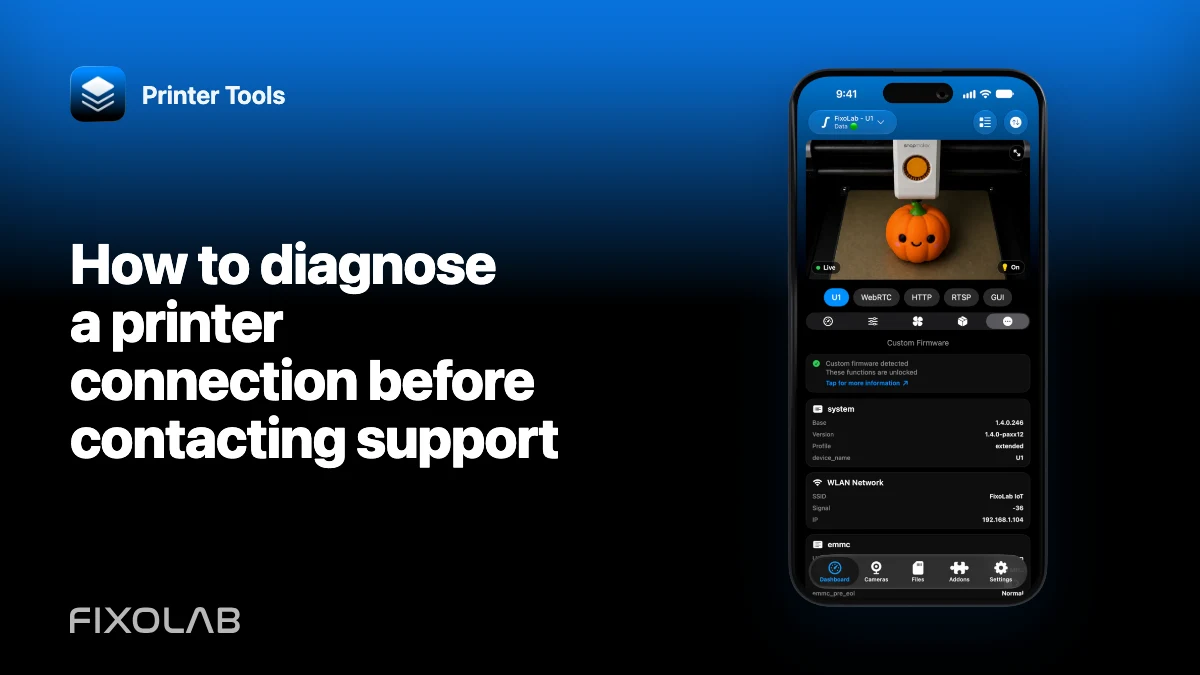
How to diagnose a printer connection before contacting support
A concise diagnosis helps support reproduce the right problem and often reveals a one-field fix. The aim is not to perform a factory reset. It is to identify the first layer that fails while preserving logs and the working parts of the setup.
Work through this checklist once, in order, and stop before any unsafe printer action.

All your 3D printers in one dashboard
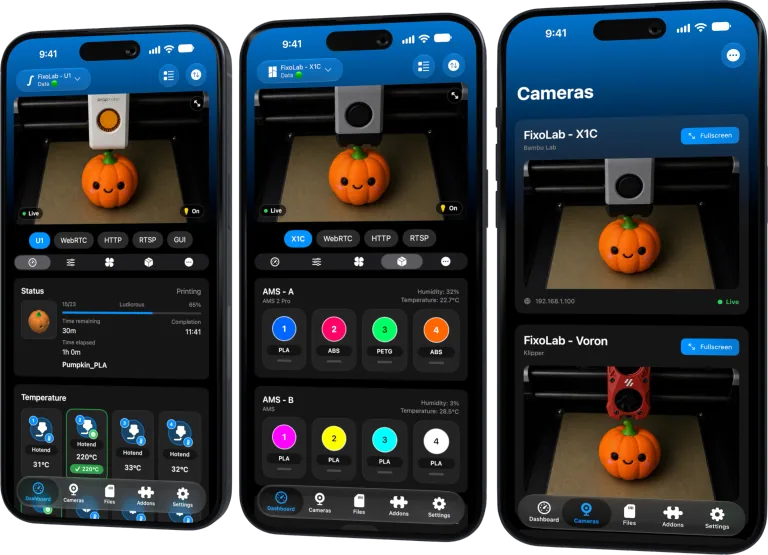
Monitor Bambu Lab, Klipper, OctoPrint, Creality, Snapmaker, Anycubic, Flashforge, Elegoo, and Prusa printers from one app
Available on Android, iPhone, iPad and Mac, with Apple Watch and Wear OS companion apps plus optional remote access through VPN, OctoEverywhere or Obico
1. Confirm the exact supported model
Open the live Printer Tools compatibility page and match the model, firmware family and connection type. Do not assume that every product from a supported brand uses the same protocol.
Record any documented unavailable feature. A missing file browser on Anycubic is different from failed Anycubic telemetry.
2. Record versions before changing anything
Write down Printer Tools version and build, operating-system version, printer firmware and router or network changes. If the problem began after an update, include the last version known to work.
Do not downgrade or reinstall until the current evidence is saved.
3. Check power, state and current address
Confirm the printer is fully started, not applying firmware and connected to the intended network. Compare its current IP with the saved entry.
If it changed, edit the address and create a DHCP reservation after recovery.
4. Verify credentials privately
Retype the required LAN Access Code, API key, Check Code, username or password from the printer or local service. Remove accidental whitespace.
Never paste the value into a public support message.
5. Test from the main LAN
Place the client and printer on a simple reachable network. Remove guest isolation as a variable and pause a conflicting phone VPN for the test.
If it works there, document the VLAN, firewall or VPN policy that blocks the intended network.
6. Separate features
Create a small result list for telemetry, controls, files, filament data and camera. Identify the camera protocol or printer model when possible.
One working feature proves only its own service. Bambu MQTT can work while RTSPS is disabled; Creality port 9999 can work while WebRTC fails.
7. Check feature-specific settings
Examples include Bambu LAN Only Liveview, Anycubic or FlashForge LAN mode, Moonraker authentication, OctoPrint API key and an ONVIF enable switch on an external camera.
Use the exact guide for the integration rather than changing unrelated settings.
8. Reproduce once and export logs
Trigger the symptom, reopen the app if it closed and export the encrypted log immediately. Preserve the timestamp.
Do not clear app data between reproduction and export.
9. Send a compact support report
Include versions, exact model, firmware, connection path, what works, what fails, steps to reproduce and the encrypted file. Redact credentials and personal information in screenshots.
10. Wait for the smallest next test
Support may request one setting, a build update or a targeted network test. Apply that isolated change and report the result. Avoid several simultaneous resets that make the cause impossible to prove.
Use the safe log-sharing guide for the diagnostic package.
Frequently asked questions
Should I reinstall first?
No. First preserve versions, configuration and logs. Reinstallation rarely changes a printer-side setting or router rule.
Must I share credentials?
No. Support needs symptoms and encrypted diagnostics, not plain-text secrets.
Why list working features?
They identify which protocol path is healthy and narrow the failure.
When is a factory reset appropriate?
Only as a final, explicit step supported by the manufacturer or a diagnosis, after evidence is saved.
All your 3D printers in one dashboard
Monitor Bambu Lab, Klipper, OctoPrint, Creality, Snapmaker, Anycubic, Flashforge, Elegoo, and Prusa printers from one app
Available on Android, iPhone, iPad and Mac, with Apple Watch and Wear OS companion apps plus optional remote access through VPN, OctoEverywhere or Obico
| FixoLab
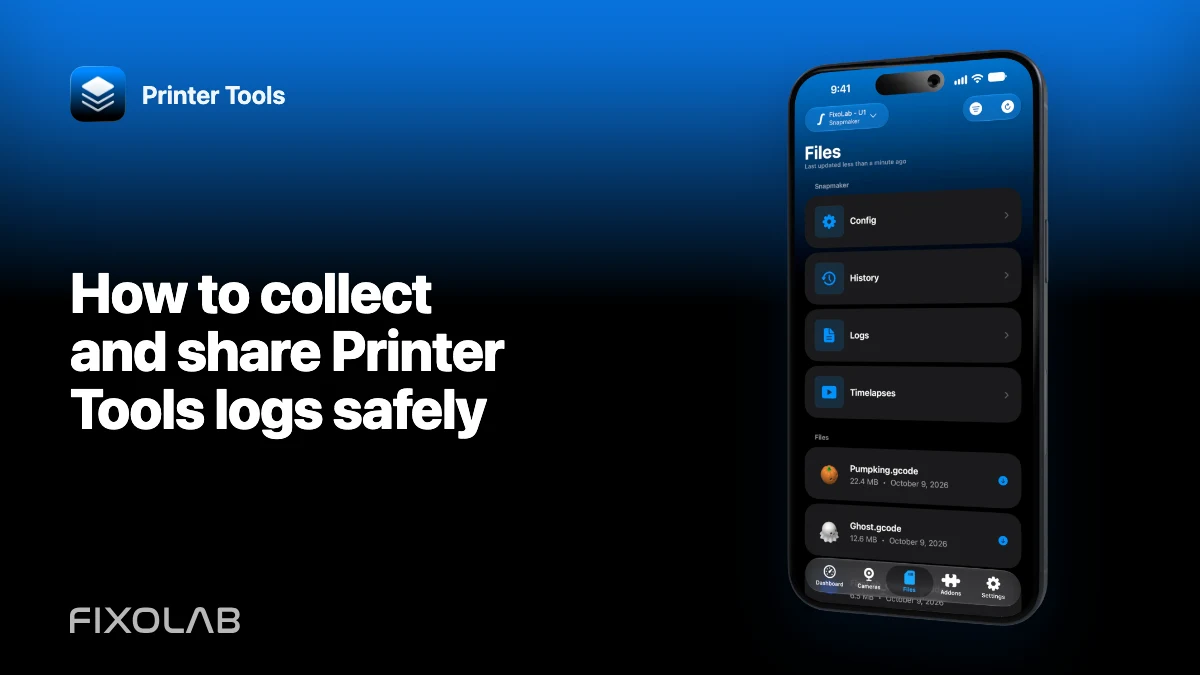
How to collect and share Printer Tools logs safely
Reproduce a printer problem, export the encrypted diagnostic log and provide useful context without exposing access codes, URLs or personal data.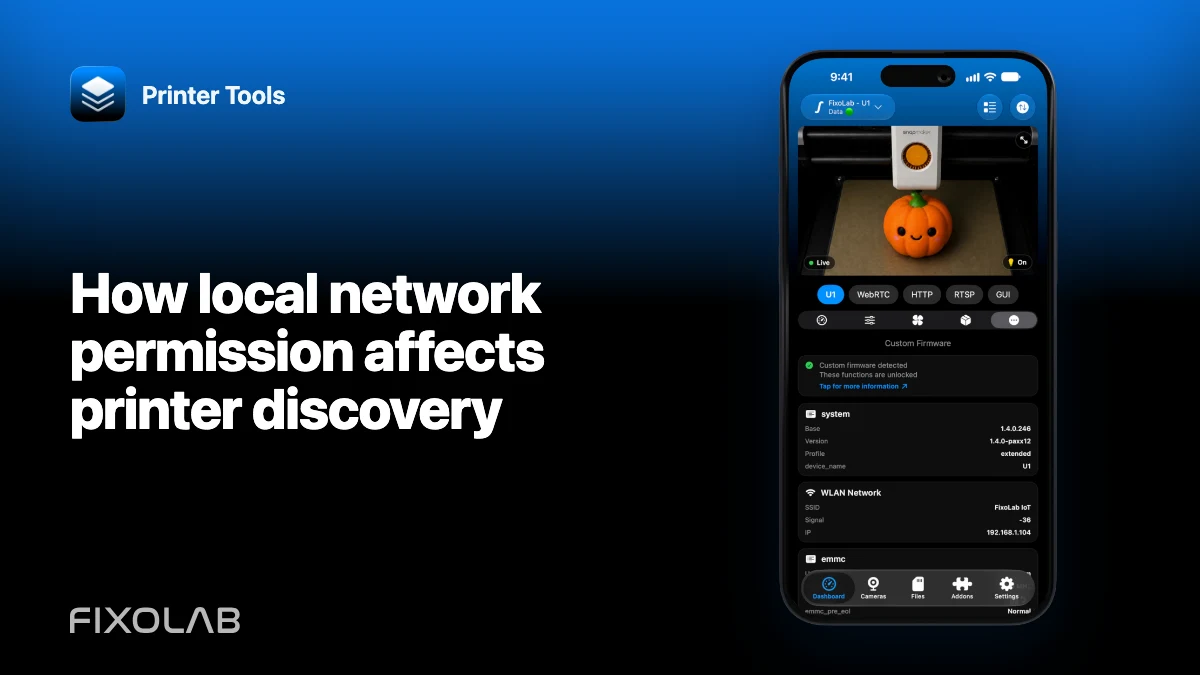
| FixoLab
How local network permission affects printer discovery
Check iOS and Android network permissions, Wi-Fi isolation and VPN behavior when Printer Tools cannot find local devices.
| FixoLab
Fix camera stream dropouts (Troubleshoot buffering and disconnects)
Open the stream URL in a browser first. Check proxy, path and local network access. Status can work even when video does not.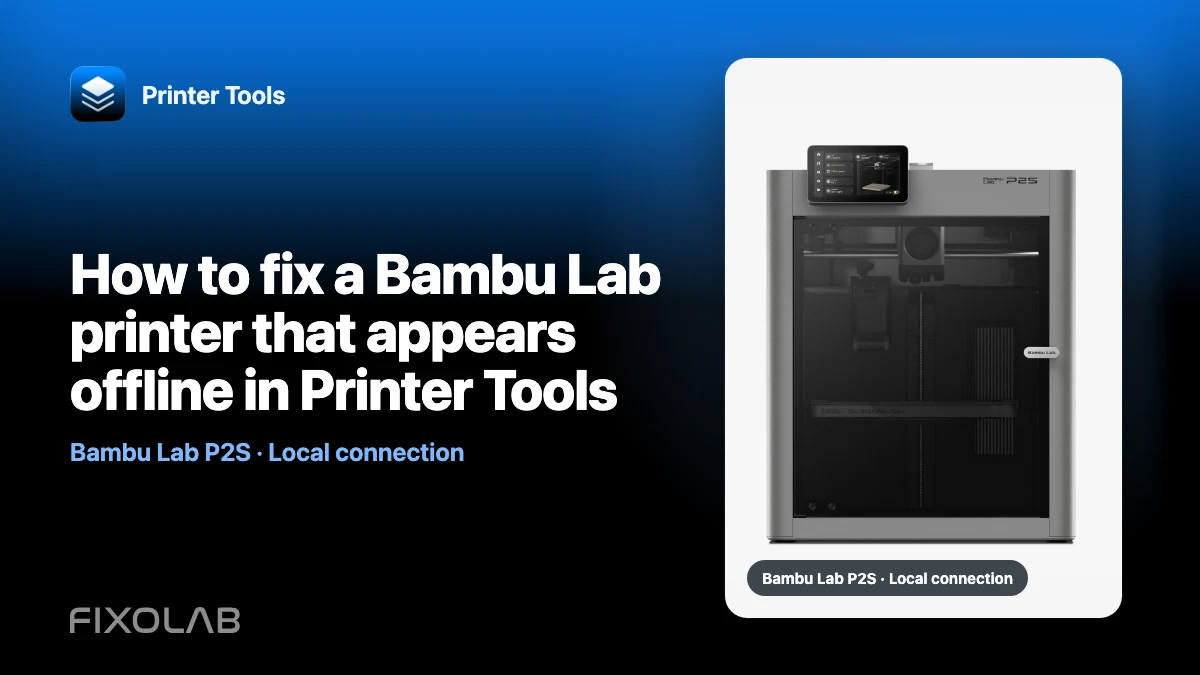
| FixoLab
How to fix a Bambu Lab printer that appears offline in Printer Tools
Diagnose a Bambu Lab printer that stopped updating in Printer Tools by checking power, IP address, access code, network isolation and local services.