How to collect and share Printer Tools logs safely
A useful support log captures the failure close to the moment it happens and pairs it with clear context. Sending repeated screenshots of a blank camera or reinstalling before exporting can remove the evidence needed to distinguish model detection, networking, authentication and native playback problems.
Printer Tools provides an encrypted log export so the diagnostic file can be handled without placing readable printer data in a public message.

All your 3D printers in one dashboard
Monitor Bambu Lab, Klipper, OctoPrint, Creality, Snapmaker, Anycubic, Flashforge, Elegoo, and Prusa printers from one app
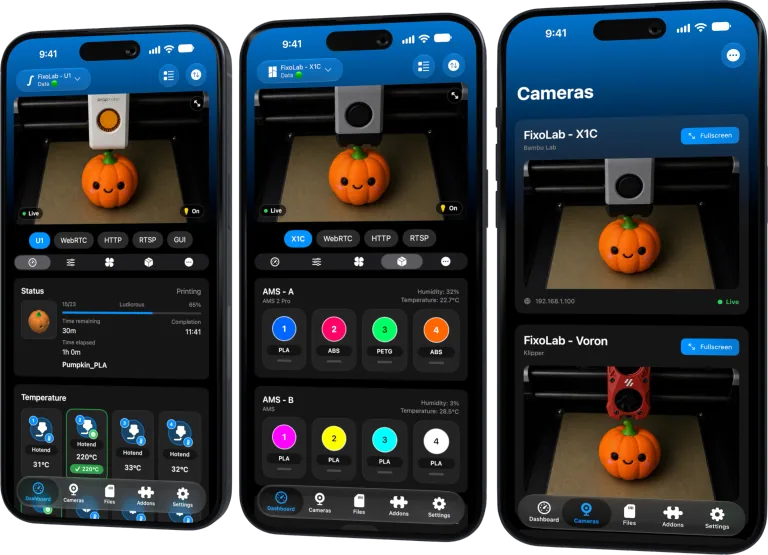
Available on Android, iPhone, iPad and Mac, with Apple Watch and Wear OS companion apps plus optional remote access through VPN, OctoEverywhere or Obico
Record the environment first
Before reproducing the issue, note:
- Printer Tools version and build;
- Android, iOS, iPadOS or macOS version;
- exact printer or camera model;
- printer firmware version;
- connection type and whether you are local, on VPN or using a managed remote service;
- the last action before the failure.
This context prevents a valid error line from being applied to the wrong protocol or app version.
Reproduce once in a controlled state
Stop interacting with a moving printer and avoid changing several settings at once. Open the affected dashboard, files view or camera and reproduce the symptom once.
If the app closes, relaunch it without clearing data. If the device or printer is performing a firmware update, wait for that process to finish rather than forcing the failure.
Export immediately after the symptom
Open Printer Tools > Settings, scroll to the support or log section and create the encrypted export. The exact filename includes a timestamp so the support team can align it with your report.
Do not rename the encrypted extension to make it look like plain text, and do not attempt to paste the binary file contents into chat.
Keep secrets out of the message
Do not include LAN Access Codes, API keys, Check Codes, camera passwords, authenticated URLs, private keys or unredacted tokens in the accompanying text. The encrypted file is not permission to repeat those values elsewhere.
Crop screenshots so notification banners, email addresses and unrelated devices are not visible. If a credential was exposed, rotate it even if the message was deleted.
Describe the feature boundary
Say whether telemetry, files, controls and camera fail together or separately. For a camera, include the protocol when known. For WebRTC, state whether Live View stayed connecting, showed one frame or closed the app.
A concise timeline is more useful than a general statement that the app is broken.
Send through the agreed support channel
Share the encrypted file only with the support contact handling the case. Do not upload it to a public issue or community post. The private decryption key must remain outside the repository and is not something a user should receive.
After support confirms receipt, keep the original until the case is resolved. Then remove local copies according to your own retention needs.
Do not reset before evidence is saved
Reinstalling, deleting the printer or factory-resetting the device can erase state without fixing the network. Export first, then perform the smallest requested test.
For the initial diagnosis, use the connection checklist before contacting support.
Frequently asked questions
Can I open the encrypted file myself?
It is intended for the protected support workflow. Do not post it or convert it to plain text.
Should I reproduce a crash many times?
No. One controlled reproduction followed by an immediate export is normally better and safer.
Can I include my access code in the chat message?
No. Support should not need a plain-text printer credential.
Should I reinstall before exporting?
No. Preserve the failing state and evidence first unless support gives a specific reason to reset.
All your 3D printers in one dashboard
Monitor Bambu Lab, Klipper, OctoPrint, Creality, Snapmaker, Anycubic, Flashforge, Elegoo, and Prusa printers from one app
Available on Android, iPhone, iPad and Mac, with Apple Watch and Wear OS companion apps plus optional remote access through VPN, OctoEverywhere or Obico
| FixoLab
How to diagnose a printer connection before contacting support
Use a ten-minute checklist to separate model support, address, credentials, network policy, feature limits and app regressions before sending logs.
| FixoLab
How local network permission affects printer discovery
Check iOS and Android network permissions, Wi-Fi isolation and VPN behavior when Printer Tools cannot find local devices.
| FixoLab
Fix camera stream dropouts (Troubleshoot buffering and disconnects)
Open the stream URL in a browser first. Check proxy, path and local network access. Status can work even when video does not.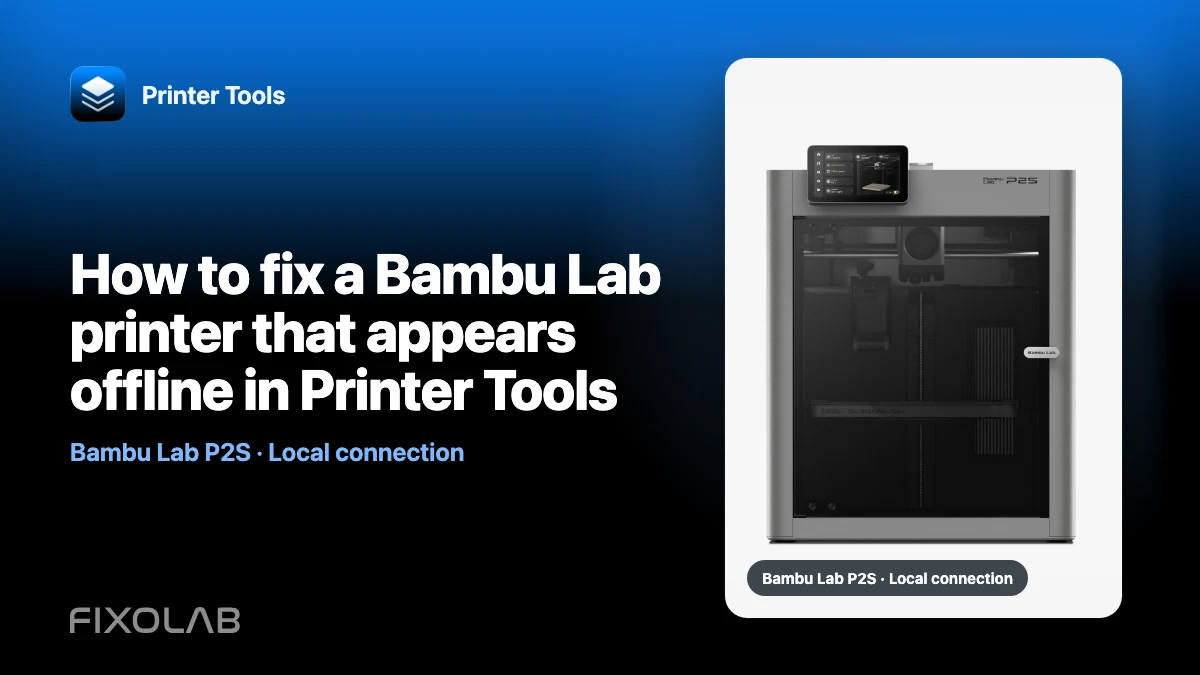
| FixoLab
How to fix a Bambu Lab printer that appears offline in Printer Tools
Diagnose a Bambu Lab printer that stopped updating in Printer Tools by checking power, IP address, access code, network isolation and local services.