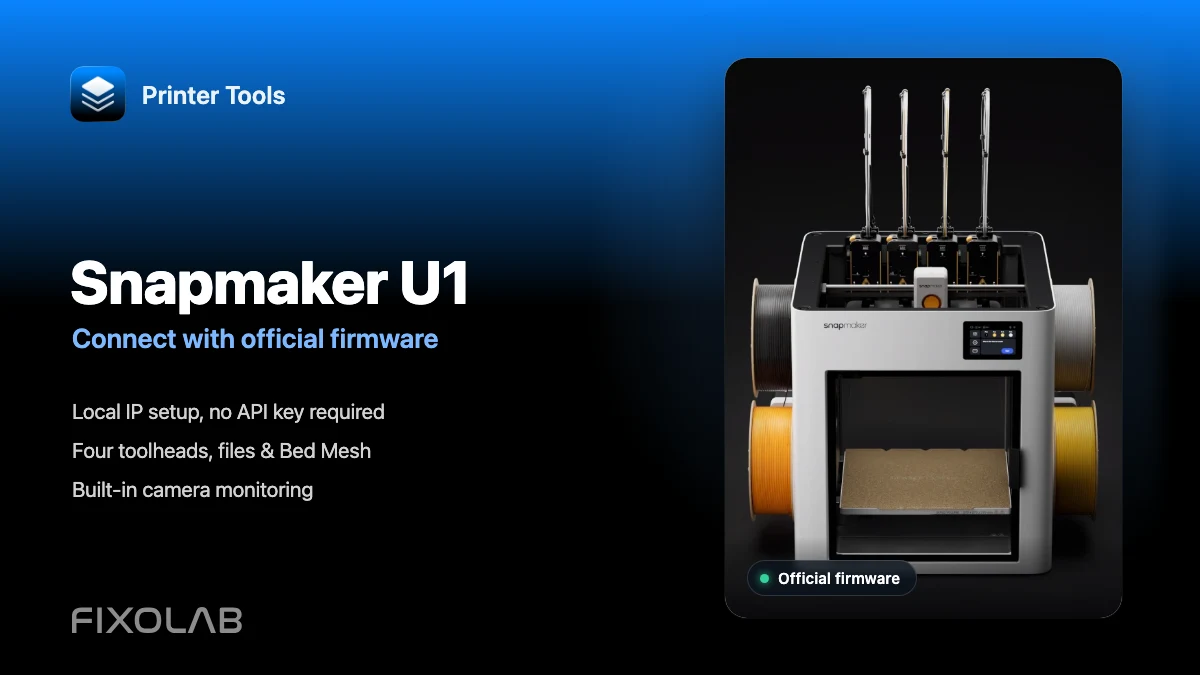
How to connect Snapmaker U1 to Printer Tools with official firmware
Snapmaker U1 · Official firmware
The short answer
Connect the Snapmaker U1 and your Android phone, iPhone, iPad or Mac to the same reachable local network. In Printer Tools, add a Snapmaker printer, enter a name and the U1's IP address, leave the paxx12 camera option disabled and save. No Snapmaker account, API key or custom firmware is required.
What you need
- A Snapmaker U1 running current official firmware
- Printer Tools installed on Android, iPhone, iPad or Mac
- The U1 and Printer Tools on the same reachable local network
- The printer's IP address from Settings → Wi-Fi
Connect the U1 to Printer Tools
- 1
Check the official firmware
On the U1, open Settings → About → Firmware Version and install an official update if one is offered. Snapmaker supports updates over Wi-Fi and local updates from a FAT32 USB drive. Complete any update and let the printer restart before continuing.
- 2
Find the U1's IP address
Open Settings → Wi-Fi on the printer and copy its IPv4 address, for example 192.168.1.120. It is worth reserving this address in your router so the connection does not need to be edited after a DHCP change.
- 3
Confirm that local access works
From a device on the same network, open the U1's IP address in a browser. The Fluidd interface should load. If it does not, fix the local network connection before adding the printer to Printer Tools.
- 4
Add a Snapmaker printer
Open Printer Tools and go to Settings → Printers → Add Snapmaker. Enter a recognizable name, such as “Workshop U1”, and paste the printer's IP address. You do not need a username, password, API key or Snapmaker Cloud account.
- 5
Keep the paxx12 camera option off
Leave “Add all cameras compatible with paxx12 firmware” disabled. Save the printer. Printer Tools will use the official U1 connection and its built-in camera monitor automatically.
- 6
Verify the dashboard and camera
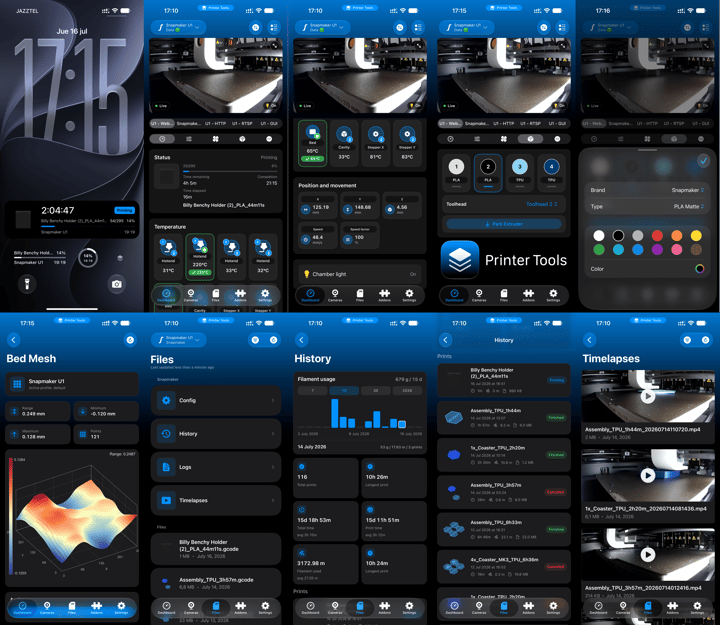
Select the U1 in the Dashboard. You should see print status, progress, temperatures for the four toolheads, bed data and the official camera. Open Files and Controls as a final check that the local Moonraker connection is responding.
The U1 in Printer Tools
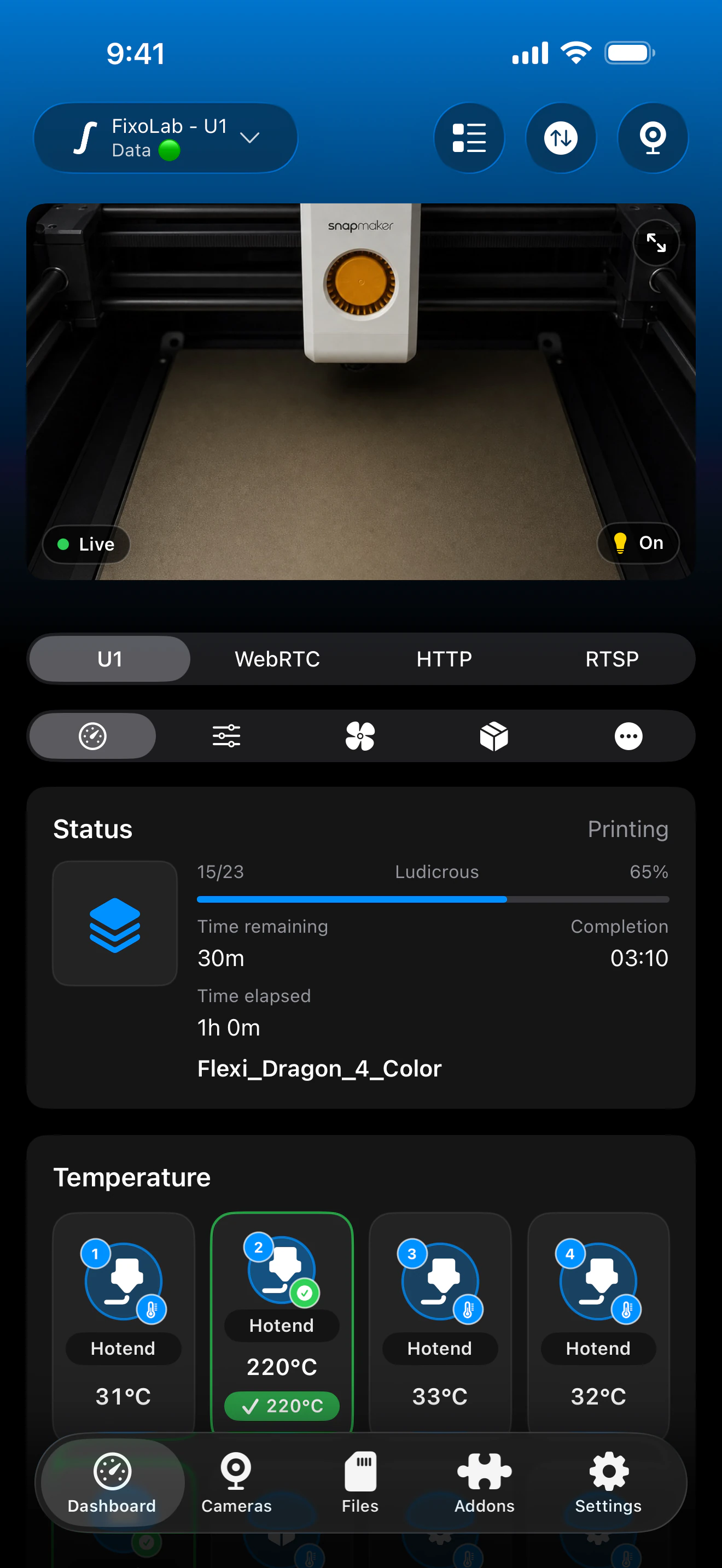
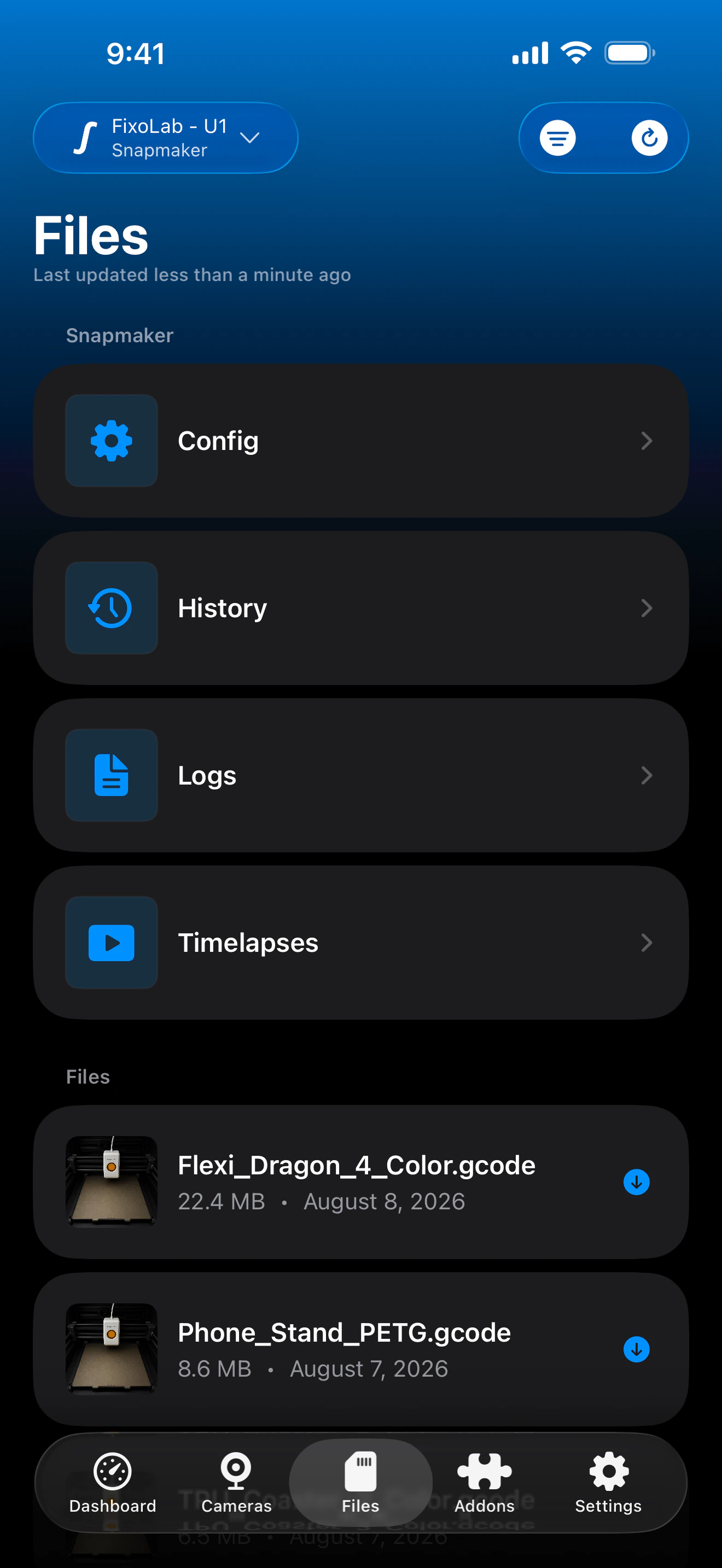
Real Printer Tools screenshots showing Snapmaker U1 status and local controls. The “U1” camera source is the official built-in monitor; the additional WebRTC, HTTP and RTSP tabs shown in the demo are optional paxx12 sources and are not needed with official firmware.
What works with official firmware
- Live print state, progress, current layer, elapsed time and remaining time
- Temperatures and activity for up to four independent U1 toolheads
- Official built-in camera preview through Snapmaker's local monitor
- Bed Mesh, printer fans, lights and the controls exposed by the firmware
- File browsing, print history, thumbnails and job actions
- multiACE information when the hardware and installed firmware expose it
How the official U1 camera behaves
The stock U1 camera is a 2 MP monitoring camera that Snapmaker specifies at roughly one frame per second. Printer Tools starts the official local monitor and refreshes its snapshots; it does not pretend that the stock feed is a low-latency WebRTC stream. A slower preview is therefore expected and does not mean that the printer connection is failing.
If the U1 does not connect
The printer is unreachable
Recheck the IP address and confirm that both devices can communicate on the same network. Guest Wi-Fi, client isolation, VLAN rules and an active VPN profile can block local traffic even when both devices have internet access.
Fluidd opens, but Printer Tools shows no data
Remove spaces or a protocol accidentally pasted into the IP field, save again and allow Printer Tools to access the local network. Restart the app and the U1 if Moonraker remains unavailable after a firmware update.
The official camera remains black
Wait a few seconds after opening the Dashboard, close another viewer that may be using the camera and reopen the U1 source. Confirm that the printer is reachable first; the official monitor cannot load if the local API connection is down.
WebRTC, HTTP or RTSP camera entries appeared
The paxx12 camera toggle was enabled when the printer was added or edited. Turn it off and remove the unused custom camera entries. Keep only the official U1 source for this firmware.
A control or data card is missing
Update to a current official firmware and reconnect. Printer Tools only shows values and actions that the installed U1 firmware reports, so availability can differ between firmware releases.
Accessing the U1 away from home
This setup is local. For remote access, connect back to your home network through a trusted VPN and then use the U1's local address. Do not forward the Fluidd, Moonraker or camera ports directly on your router. Printer Tools does not currently present OctoEverywhere or Obico as a managed Snapmaker U1 setup option, so this guide does not promise those paths.
Frequently asked questions
Does Printer Tools require paxx12 firmware for Snapmaker U1?
No. Printer Tools supports the U1's official firmware directly. paxx12 is a separate, optional community firmware with additional camera and system options.
Do I need an API key or Snapmaker account?
No. The local setup only asks for a printer name and the U1's IP address.
Can Printer Tools display all four print heads?
Yes. It can show the temperatures and reported state of up to four U1 toolheads, including which toolhead is active.
Why is the official camera less fluid than WebRTC?
The official U1 monitor is snapshot-based and Snapmaker specifies an approximate 1 Hz frame rate. WebRTC is an optional paxx12 feature, not part of the stock camera path used in this guide.
Does this guide work for other Snapmaker printers?
No. Printer Tools currently lists the Snapmaker U1 as the supported Snapmaker model. Do not assume the same setup works on Artisan, J1, Ray or the 2.0 series.
Related guides
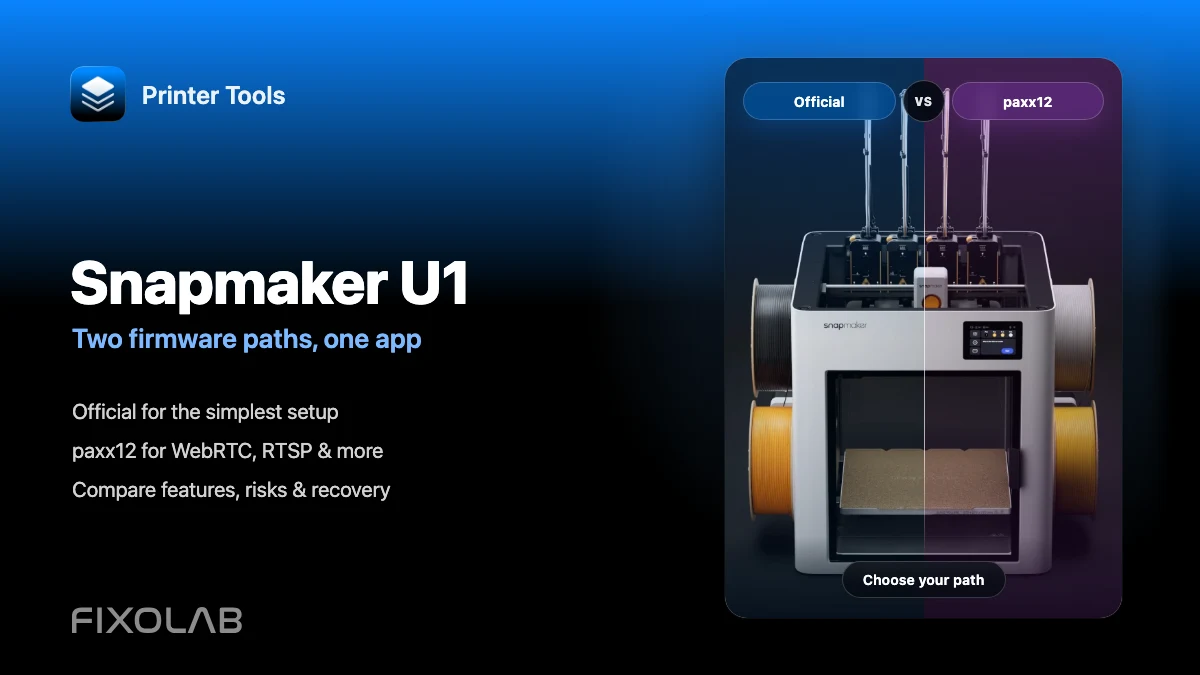
Check Snapmaker U1 compatibility
Review verified features, known limitations, screenshots and the currently supported Snapmaker model before adding your printer.
All your 3D printers in one dashboard
Monitor Bambu Lab, Klipper, OctoPrint, Creality, Snapmaker, Anycubic, Flashforge, Elegoo, and Prusa printers from one app
Available on Android, iPhone, iPad and Mac, with Apple Watch and Wear OS companion apps plus optional remote access through VPN, OctoEverywhere or Obico
