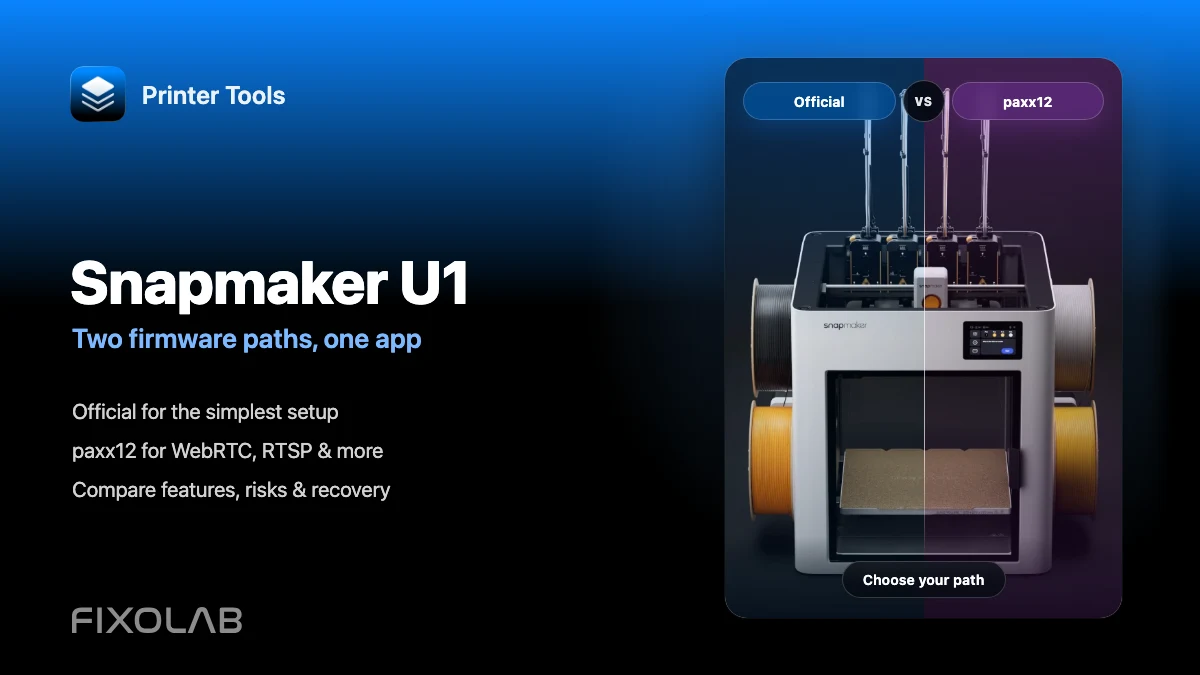
Snapmaker U1 official firmware vs paxx12 with Printer Tools
Snapmaker U1 · Firmware comparison
The short answer
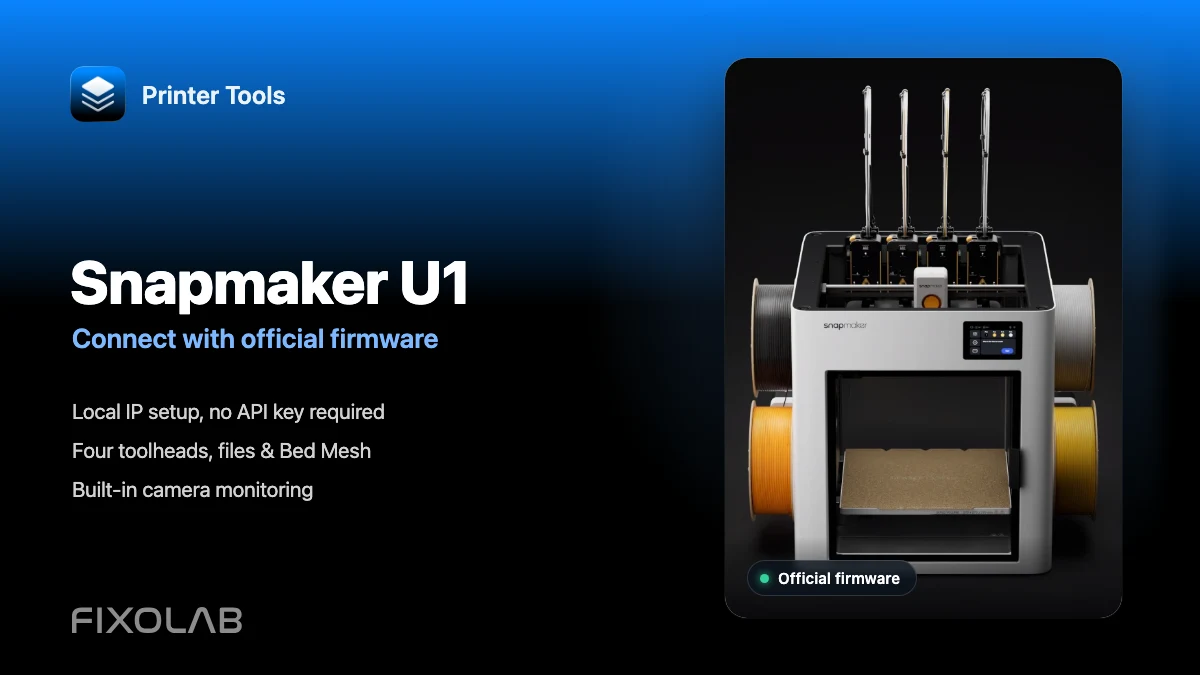
Stay on official firmware if you want the simplest supported setup: Printer Tools already connects by local IP, monitors all four toolheads and uses the built-in U1 camera. Choose paxx12 only when its lower-latency WebRTC camera, optional RTSP, remote screen or other advanced services justify installing and maintaining community firmware.
Start with these facts
- Printer Tools supports Snapmaker U1 with official firmware and paxx12
- Both options use the U1's local IP address for the core printer connection
- Print status, four toolheads, files, Bed Mesh and controls do not require paxx12
- The main practical difference is the camera and the extra services exposed by paxx12
Official firmware vs paxx12 at a glance
| Feature | Official firmware | paxx12 |
|---|---|---|
| Printer Tools connection | Printer name and local IP address | Printer name and local IP, plus optional paxx12 camera presets |
| Built-in camera | Snapmaker's snapshot monitor at roughly one frame per second | Hardware-accelerated WebRTC by default |
| Additional video sources | Official U1 monitor | WebRTC, optional RTSP, HTTP player, remote screen and USB camera |
| Advanced Mode | Not required for the Printer Tools connection | Required to access and configure Firmware Config features |
| Updates and support | Delivered and supported by Snapmaker | Installed and maintained independently as community firmware |
| Best fit | Most users who want reliable local monitoring and control | Advanced users who specifically need its camera and system options |
Which firmware should you choose?
- 1
Choose official firmware for the simplest setup
Official firmware is the sensible default when you want local status, four-toolhead temperatures, files, Bed Mesh, job controls and the built-in camera without taking responsibility for a custom firmware installation.
- 2
Choose paxx12 for specific advanced features
paxx12 becomes attractive when low-latency WebRTC, optional RTSP, a remote-screen source, USB camera support or access to its extended configuration tools solves a real need. Installing it only to connect Printer Tools is unnecessary.
- 3
Compare camera expectations
The official camera is designed for periodic monitoring and is expected to refresh slowly. The paxx12 WebRTC service is intended for smoother, lower-latency viewing. RTSP and Remote Screen are additional paxx12 choices, but neither is enabled merely by adding its preset in Printer Tools.
- 4
Account for maintenance and recovery
Official updates follow Snapmaker's normal release path. With paxx12, you must select a compatible release, follow its update notes and be prepared to recover Extended settings or reinstall the official .bin if a custom update or Klipper startup fails.
- 5
Configure Printer Tools for your choice
For official firmware, add the U1 with its name and IP and leave the paxx12 camera toggle off. For paxx12, enable Advanced Mode, configure the services you actually want in Firmware Config, then add the same name and IP with “Add all cameras compatible with paxx12 firmware” enabled.
The same U1, different camera options
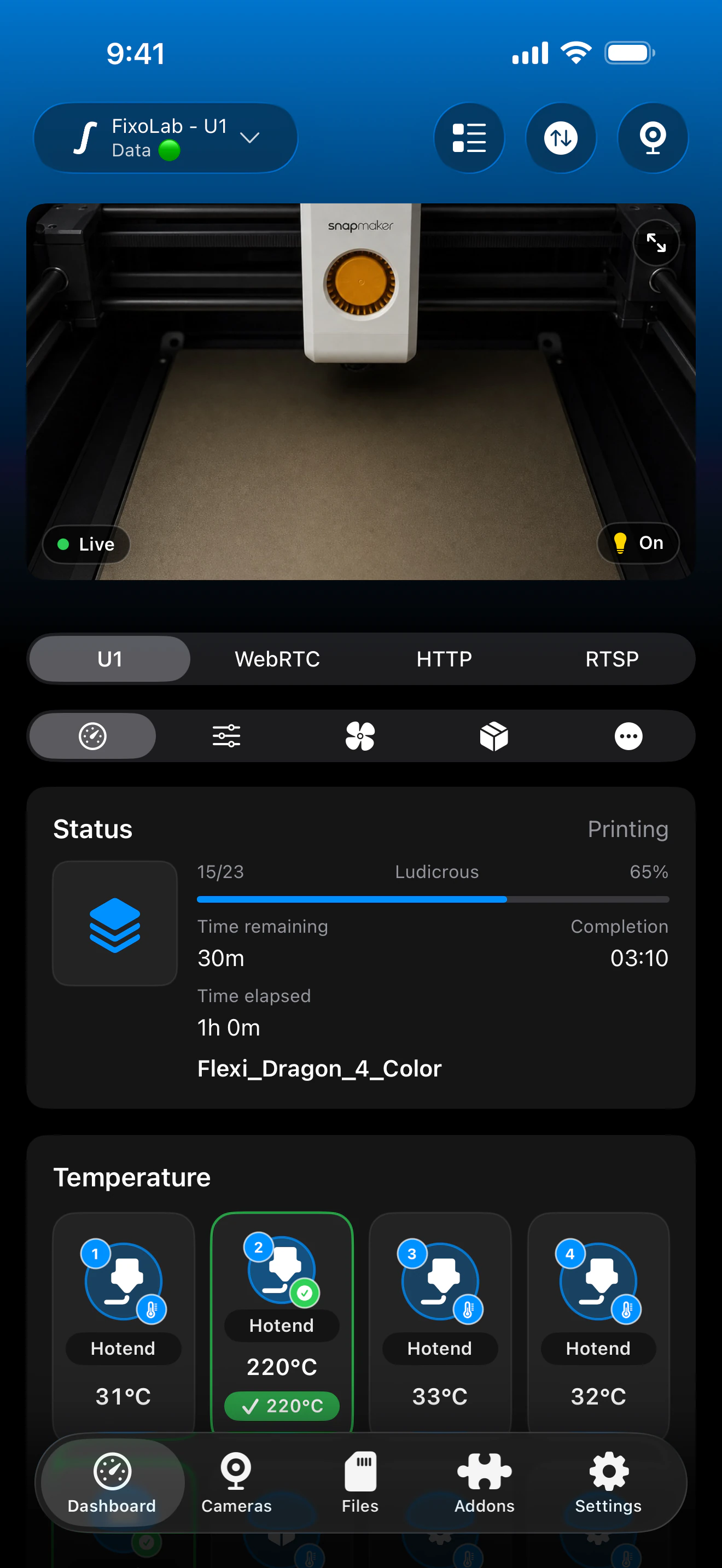
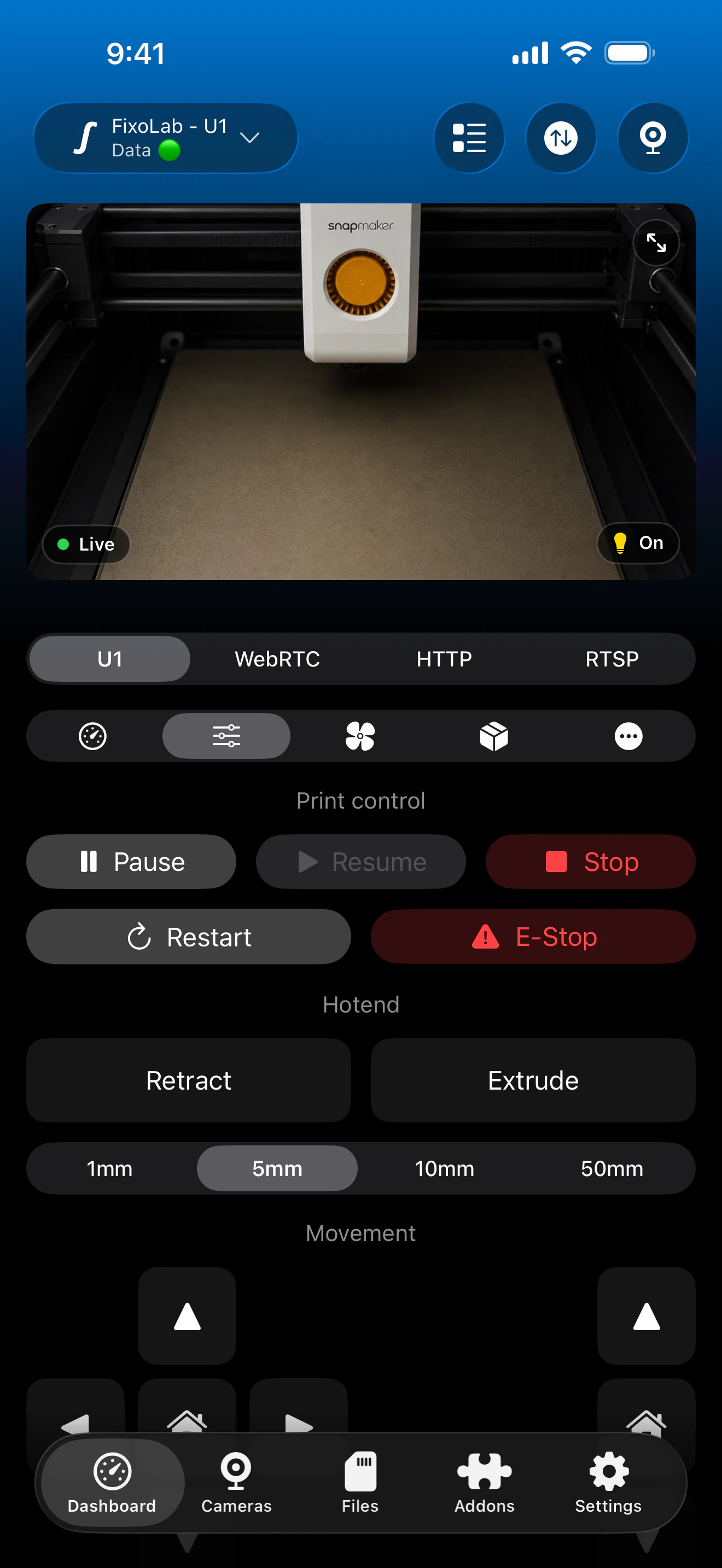
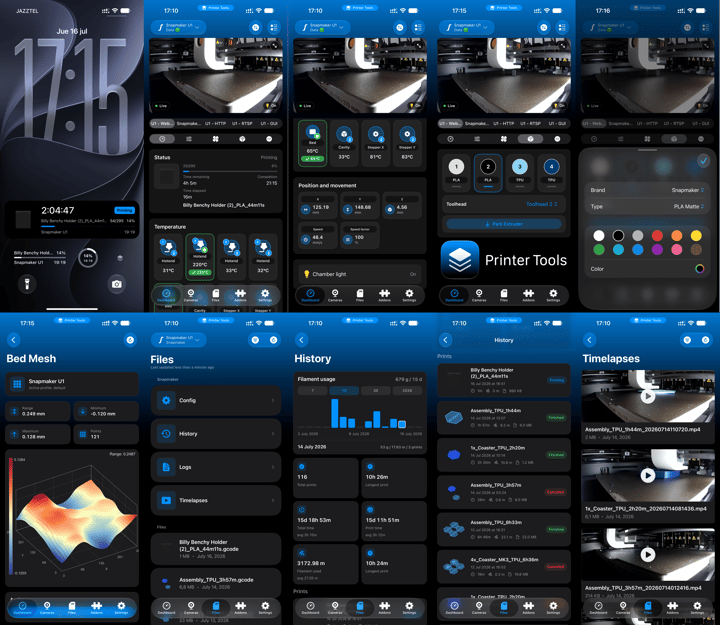
Real Printer Tools screenshots showing the official U1 source alongside optional WebRTC, HTTP and RTSP presets. The core dashboard and controls remain available with either firmware; only configured camera services should be kept.
What both firmware options support
- Live U1 print state, progress, layers, elapsed time and remaining time
- Temperatures and activity for up to four independent print heads
- Files, print history, thumbnails, Bed Mesh and job controls
- A local camera source appropriate to the selected firmware
- Printer fans, lights and the controls exposed by the installed firmware
- multiACE information when the connected hardware and firmware expose it
The camera is the clearest difference
Official firmware gives Printer Tools the stock U1 snapshot monitor, which is adequate for checking a print but is not smooth video. paxx12 replaces that limitation with a hardware-accelerated WebRTC path and can expose other services. Printer Tools can create their presets, but the corresponding service must also be enabled on the printer.
- Official U1 camera
- Simplest and supported by Snapmaker, but snapshot-based and specified at roughly 1 Hz
- WebRTC
- The recommended paxx12 internal-camera option for lower-latency viewing
- RTSP
- Optional and disabled by default in paxx12; it must be enabled in Firmware Config
- HTTP player and Remote Screen
- Optional paxx12 sources whose services must be configured before their presets work
Before switching to paxx12
Do I need paxx12 just to connect Printer Tools?
No. Use official firmware unless you specifically need one of the extra paxx12 capabilities. The normal U1 connection, dashboard, four toolheads, files and official camera already work locally.
Will the Printer Tools setup itself become more complicated?
The core connection still uses a name and IP address. The extra work is on the printer: Advanced Mode, Firmware Config and each optional camera service must be configured and maintained.
Can Require Login block Printer Tools?
Yes. Printer Tools' current Snapmaker form has no credential fields. If paxx12 protects Moonraker with Require Login, keep the printer on a trusted isolated LAN or VPN while preserving compatible local access.
Why do RTSP or Remote Screen presets stay offline?
Adding a preset in Printer Tools does not start that service. RTSP is disabled by default and Remote Screen is separate; enable each one in paxx12 before selecting it.
Can I return to official firmware?
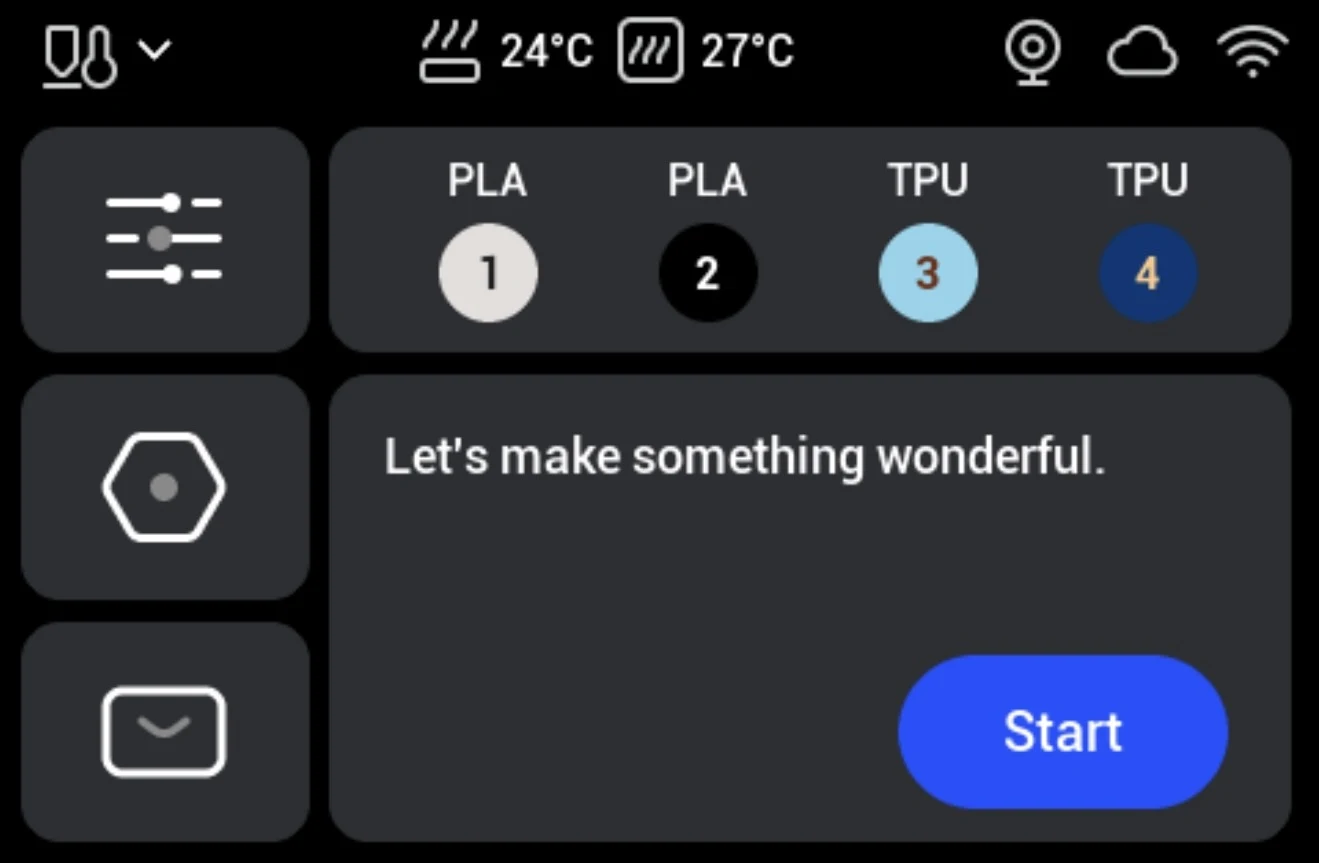
Yes. Keep the official Snapmaker .bin available and use Settings → About → Firmware Version → Local Update. If Klipper cannot start, use the paxx12 recovery process before reverting.
Remote access does not decide the firmware
A trusted VPN back to your home network is the recommended remote path for either setup. paxx12 documents experimental Tailscale and OctoEverywhere features, but they are separate from Printer Tools' current Snapmaker setup and may add CPU or memory load. Do not expose Moonraker, HTTP, RTSP or camera ports directly on your router.
Frequently asked questions
Which firmware do you recommend for most Printer Tools users?
Official firmware. It already provides the local data, controls, files and camera needed by most users without adding custom-firmware maintenance.
What is the strongest reason to choose paxx12?
Its camera stack. WebRTC offers lower-latency viewing, while optional RTSP, HTTP, Remote Screen and USB camera support provide more flexibility.
Does paxx12 improve the four-toolhead dashboard?
The core four-toolhead data is already available with official firmware. paxx12 should be chosen for its additional services, not because Printer Tools requires it for standard U1 monitoring.
Is paxx12 official Snapmaker firmware?
No. It is an independent community project and is not affiliated with, endorsed by or supported by Snapmaker.
Can both firmware options use multiACE in Printer Tools?
Printer Tools can display multiACE information whenever the connected hardware and installed firmware expose it. Installing paxx12 alone does not add the required hardware or guarantee every related feature.
Related guides
Check Snapmaker U1 compatibility
Review verified features, known limitations, screenshots and supported firmware options before changing your U1.
All your 3D printers in one dashboard
Monitor Bambu Lab, Klipper, OctoPrint, Creality, Snapmaker, Anycubic, Flashforge, Elegoo, and Prusa printers from one app
Available on Android, iPhone, iPad and Mac, with Apple Watch and Wear OS companion apps plus optional remote access through VPN, OctoEverywhere or Obico
