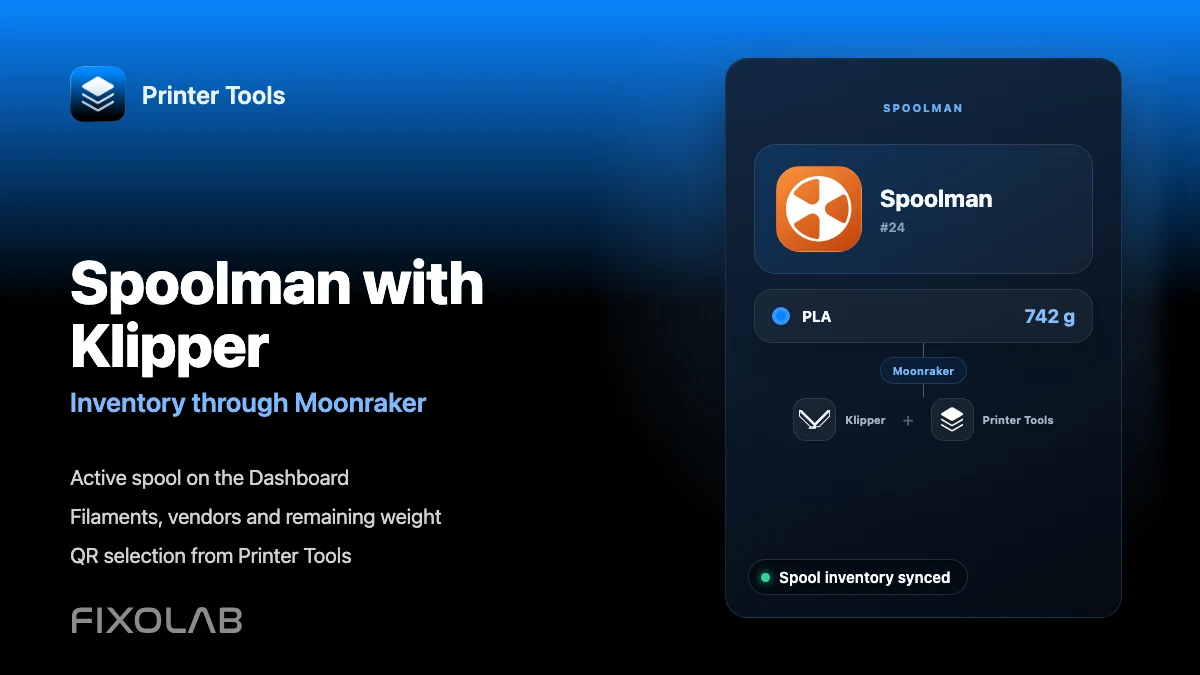
How to configure Spoolman with Klipper, Moonraker and Printer Tools
Spoolman through Moonraker
The short answer
Configure a running Spoolman server in Moonraker first, then connect that Klipper printer to Printer Tools. The app reuses the existing Moonraker connection to show the active spool and manage spools, filaments and vendors on Android, iPhone, iPad and Mac. You do not add a second Spoolman address or account inside Printer Tools.
What you need
- A working Klipper printer with Moonraker
- A running Spoolman server reachable from the Moonraker host
- A Spoolman section configured in moonraker.conf with the server address
- Moonraker restarted successfully after the configuration change
- The same Klipper printer already added in Printer Tools
- At least one filament and spool in Spoolman if you want to select an active spool
Configure Spoolman for Printer Tools
- 1
Install and start Spoolman
Run Spoolman on a computer, server or container that the Moonraker host can reach. Open its interface once and confirm that the service remains available after a restart.
- 2
Connect Moonraker to the Spoolman server
Open moonraker.conf and add a Spoolman section whose server value points to the running Spoolman instance. Keep the default sync interval unless your setup has a specific reason to change it.
- 3
Restart Moonraker and check the connection
Restart Moonraker, then confirm that your existing Klipper interface can see the Spoolman integration without configuration errors. Fix server reachability before opening Printer Tools.
- 4
Add the Klipper printer to Printer Tools
If it is not already present, add the printer through Settings, Printers and Add Klipper. Spoolman is discovered through that Moonraker connection, so no separate Spoolman printer or account is created.
- 5
Open Spoolman in Addons
Open Addons and select the Spoolman entry associated with the Klipper printer. Printer Tools loads the active spool, inventory, filaments and vendors through Moonraker.
- 6
Choose the active spool
Select a spool from the inventory or scan a compatible Spoolman QR label. Once active, Moonraker can associate filament usage with that spool and Printer Tools keeps the active selection visible on the Dashboard.
Spoolman inside Printer Tools
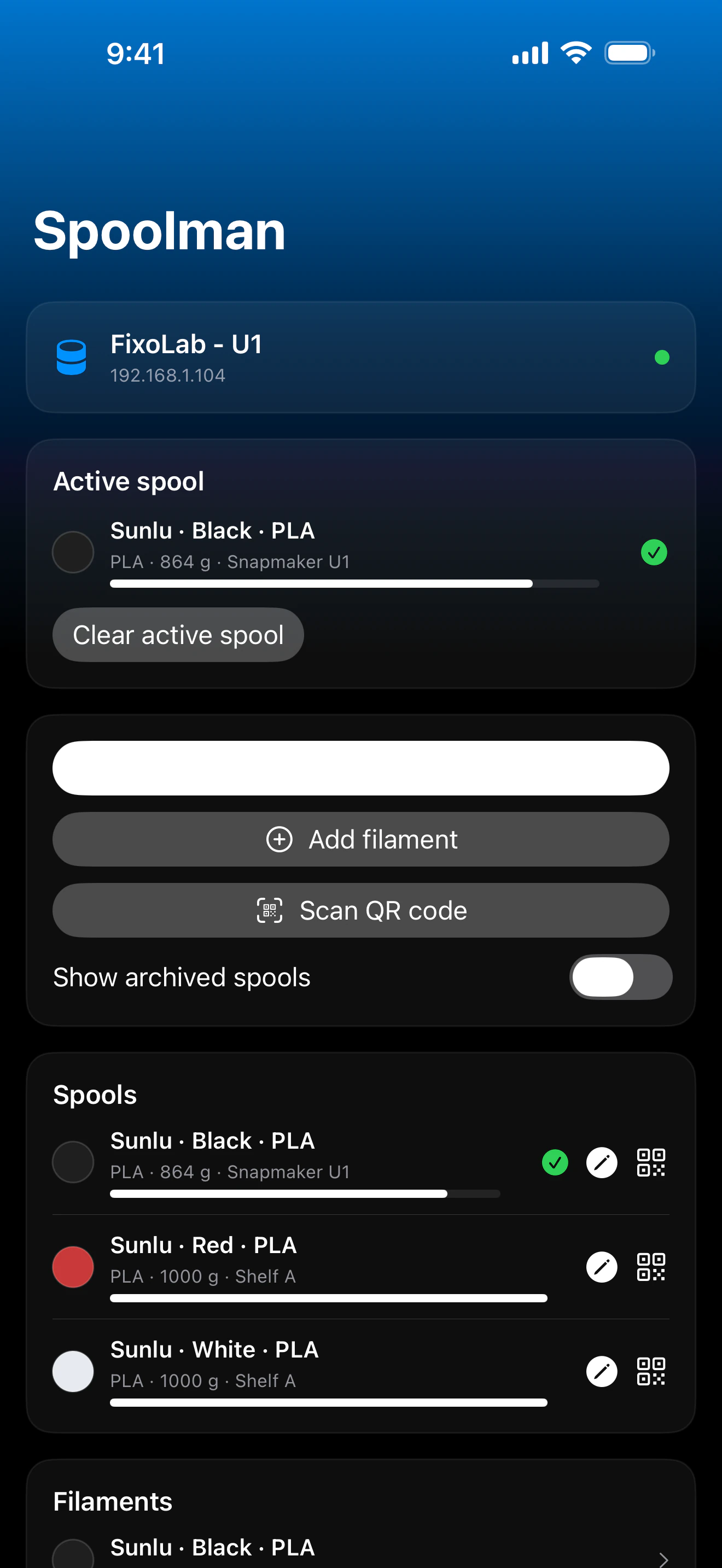
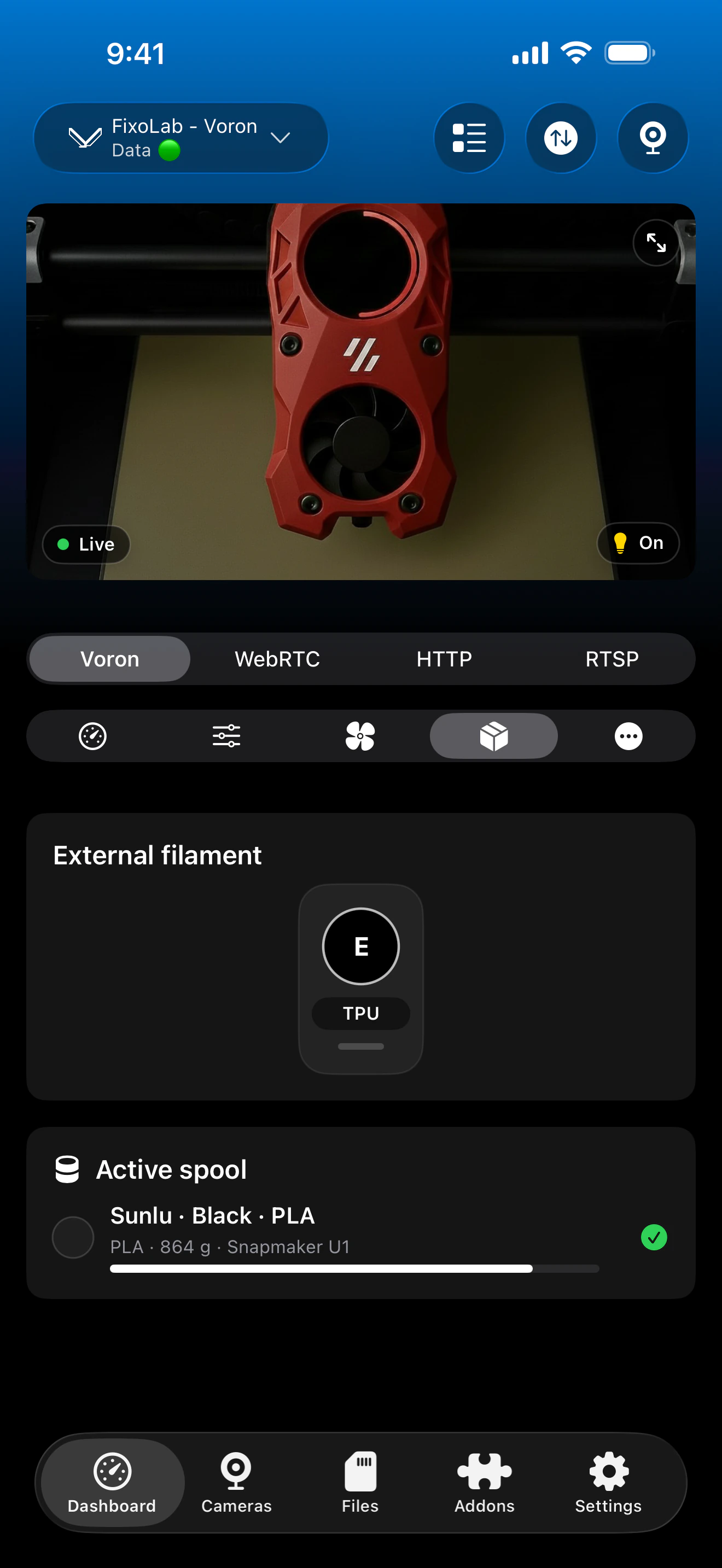
Printer Tools exposes the Spoolman inventory through the connected Klipper printer. The Dashboard shows the active spool while Addons provides the complete management view.
What you can manage
- The active spool on the Klipper Dashboard with regular status updates
- Spools with remaining weight, material, color, vendor, location and archive state
- Filaments and vendors, including creation and editing from Printer Tools
- Active spool selection from the list or by scanning a Spoolman QR label
- Gross weight measurements used to update the calculated remaining filament
- Printable or shareable QR labels for individual spools
Current requirements and limits
- Spoolman is not a standalone printer connection in Printer Tools
- Printer Tools does not install the Spoolman server or add its Moonraker configuration for a standard Klipper setup
- Moonraker must be able to reach the Spoolman server even if your phone can open it
- Automatic usage tracking requires the correct spool to remain active in Moonraker
- Remote Spoolman access depends on the same Moonraker route used by the Klipper printer
Spoolman troubleshooting
Printer Tools says Spoolman is not configured
Check that moonraker.conf contains the Spoolman section and the correct server address, then restart Moonraker. A missing Moonraker module normally appears as a not configured state in Printer Tools.
Spoolman is configured but unreachable
Test the server from the Moonraker host, not only from your phone. Container networks, firewalls and a localhost address that points to the wrong machine are common causes.
No active spool appears
Create at least one spool in Spoolman and select it from Printer Tools or another compatible interface. Inventory can be available while the active spool is still empty.
Remaining weight does not change after printing
Confirm that the correct spool was active for the whole print and that Moonraker can still synchronize with Spoolman. Review Moonraker and Spoolman logs if usage updates stopped.
A QR code does not select the spool
Use a QR label that contains the standard Spoolman spool identifier. A generic product barcode or a custom URL does not identify the inventory record Printer Tools needs.
Use Spoolman away from home
Use a VPN back to the printer network or a compatible OctoEverywhere Klipper connection when you need the Moonraker route remotely. Do not expose Moonraker or the Spoolman server directly with router port forwarding.
Frequently asked questions
Do I enter the Spoolman server address in Printer Tools?
No. Add the server to Moonraker and Printer Tools accesses it through the Klipper printer's existing Moonraker connection.
Can Printer Tools set the active spool?
Yes. Select a spool from the inventory or scan its compatible Spoolman QR label, and Printer Tools updates the active spool through Moonraker.
Can I create and edit inventory from the app?
Yes. Printer Tools can manage spools and filaments, create vendors, archive inventory, record measured weight and generate labels using the Spoolman data exposed through Moonraker.
Does Spoolman work without Klipper?
Spoolman itself can run independently, but this Printer Tools integration requires a Klipper or compatible Moonraker printer because Moonraker is the connection bridge.
Does Moonraker update filament usage automatically?
Yes, when its Spoolman module is connected and a spool is active. The active selection must match the filament actually loaded for the usage record to be meaningful.
Related guides
See everything Printer Tools supports in Spoolman
Review the current inventory, active spool, QR label, weighing and Moonraker requirements before configuring another printer.
All your 3D printers in one dashboard
Monitor Bambu Lab, Klipper, OctoPrint, Creality, Snapmaker, Anycubic, Flashforge, Elegoo, and Prusa printers from one app
Available on Android, iPhone, iPad and Mac, with Apple Watch and Wear OS companion apps plus optional remote access through VPN, OctoEverywhere or Obico
