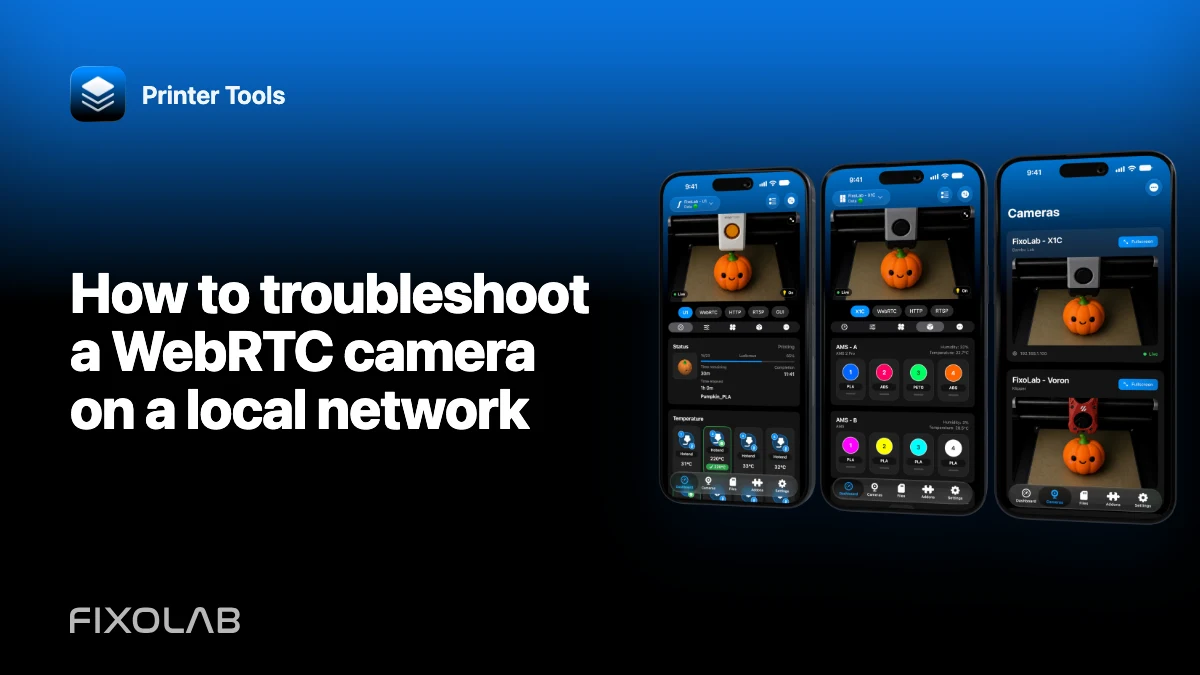
How to troubleshoot a WebRTC camera on a local network
WebRTC camera failures can look abrupt because several steps happen before the first frame appears. The app obtains signaling information, gathers network candidates, negotiates a peer connection and starts a native video decoder. Telemetry can work while any one of those stages fails.
Creality K2 and supported remote camera paths use WebRTC in Printer Tools. Do not troubleshoot them as if they were simple MJPEG URLs.

All your 3D printers in one dashboard
Monitor Bambu Lab, Klipper, OctoPrint, Creality, Snapmaker, Anycubic, Flashforge, Elegoo, and Prusa printers from one app
Available on Android, iPhone, iPad and Mac, with Apple Watch and Wear OS companion apps plus optional remote access through VPN, OctoEverywhere or Obico
Confirm the signaling source
Printer Tools should receive the WebRTC offer, session details or endpoint from the supported printer or service. A generic web page that happens to display WebRTC cannot be pasted as a stream URL.
Verify the exact printer model and use a current app version. Model routing determines whether Printer Tools should attempt WebRTC at all.
Separate telemetry and camera negotiation
If the dashboard updates over the printer API but Live View fails, preserve that fact. It proves part of the local path and narrows the issue to signaling, candidates, media or decoding.
If both fail, fix the printer address and network route before interpreting WebRTC messages.
Check ICE and network candidates
On a simple LAN, the peers may connect directly with local candidates. VLAN rules, VPNs, multiple active interfaces and client isolation can produce unreachable candidates or block the media path after signaling succeeds.
Test with the phone and printer on the main LAN. Disable only the conflicting VPN for that test, then design an explicit route instead of leaving protections disabled.
Keep the native runtime current
WebRTC playback uses native libraries. A build can pass compilation yet fail at runtime if required native classes or binaries were removed during release optimization. Use the latest official Printer Tools release before collecting a regression report.
If the app closes when the camera opens, record the exact version and platform, then export the log after relaunch. Do not repeatedly trigger the crash while a print-critical action is in progress.
Interpret common symptoms
- immediate refusal suggests the endpoint or local service is unavailable;
- endless connecting suggests signaling or ICE negotiation did not complete;
- audio or state without video suggests a media track or decoder issue;
- video that starts and freezes suggests network loss, bitrate pressure or a decoder stall;
- app termination suggests a native runtime failure that needs the exact build details.
Avoid unsafe network workarounds
Do not expose signaling or media ports broadly to the internet. For remote access, use the supported service flow or a trusted VPN. A permissive router rule can mask the diagnosis while creating a serious camera exposure.
For Creality-specific setup, see the K2 WebRTC camera guide.
Frequently asked questions
Is WebRTC just another video URL?
No. It includes signaling, candidate negotiation and media tracks, not only a static stream path.
Why can printer data work while WebRTC fails?
The printer API and camera peer connection use different services and network flows.
Should I forward every candidate port?
No. Do not open broad public ranges. Repair the local route or use the supported remote-access method.
What should I include in a crash report?
App version, platform, printer model, firmware, exact action and a fresh encrypted log after relaunch.
Official sources: MDN — WebRTC API · RFC 8445 — ICE
All your 3D printers in one dashboard
Monitor Bambu Lab, Klipper, OctoPrint, Creality, Snapmaker, Anycubic, Flashforge, Elegoo, and Prusa printers from one app
Available on Android, iPhone, iPad and Mac, with Apple Watch and Wear OS companion apps plus optional remote access through VPN, OctoEverywhere or Obico
| FixoLab
Fix camera stream dropouts (Troubleshoot buffering and disconnects)
Open the stream URL in a browser first. Check proxy, path and local network access. Status can work even when video does not.
| FixoLab
How to add an external IP camera to a 3D printer in Printer Tools
Add an independent IP camera to Printer Tools over HTTP, MJPEG, RTSP, RTSPS, TCP JPEG, WebRTC or ONVIF discovery.
| FixoLab
Choosing MJPEG, RTSP, RTSPS or WebRTC for a 3D printer camera
Understand how MJPEG, RTSP, RTSPS and WebRTC differ and which ones Printer Tools uses for native and external cameras.
| FixoLab
Reduce camera stream latency (MJPEG, RTSP, RTSPS or WebRTC)
Match the protocol to the camera source. Compare latency, security and compatibility. Native printer cameras use a fixed protocol.