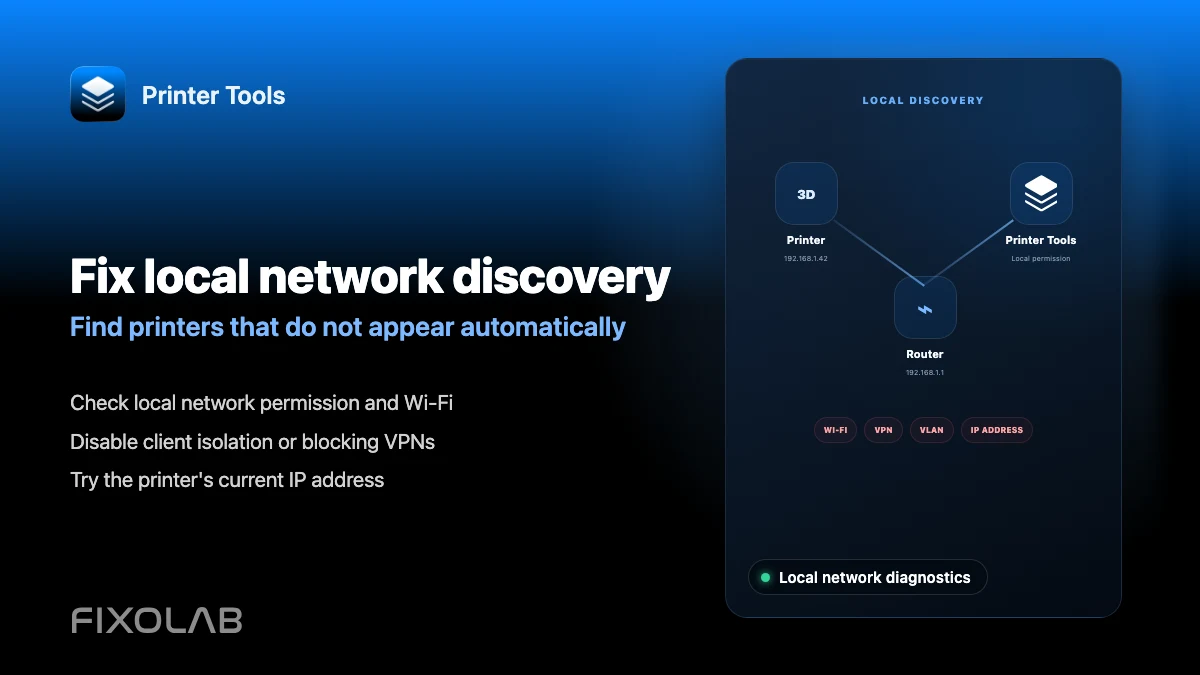
How to fix local network discovery problems in Printer Tools
Local network discovery troubleshooting
The short answer
Printer Tools does not scan your network to find printers automatically; you enter each printer's local IP address or hostname directly, except for ONVIF cameras, which can use automatic discovery. Most connection failures come from the phone and printer being on different networks, guest Wi-Fi client isolation, a VLAN, or a VPN that does not route to your local subnet.
What to check first
- That your phone or computer and the printer host share the same Wi-Fi network, not a guest network
- That the local network permission prompt on iOS was allowed for Printer Tools
- Whether your router enables client or AP isolation, which blocks devices on the same Wi-Fi from reaching each other
- Whether an active VPN routes traffic to your home network's local address range
Fix a local network connection failure
- 1
Allow the local network permission on iOS
iOS asks for permission the first time an app tries to reach devices on your local network. If this was denied, go to Settings, find Printer Tools and enable Local Network access.
- 2
Confirm both devices share the same network
A phone on a guest Wi-Fi network or a different VLAN than the printer cannot reach it, even if both have working internet access.
- 3
Check for client or AP isolation
Some routers isolate wireless clients from each other by default, especially on mesh systems and guest networks. Disable isolation for your trusted network, or move the printer and your device to a network without it.
- 4
Review any active VPN
A VPN that routes all traffic through a remote server, without also reaching your home network's local address range, will block a direct connection to the printer. Disable it at home or use a split-tunnel configuration.
- 5
Reserve a static address for the printer
Reserve the printer host's IP address in your router's DHCP settings to prevent it from changing after a restart, which is one of the most common causes of a printer that suddenly becomes unreachable.
Connection status in Printer Tools
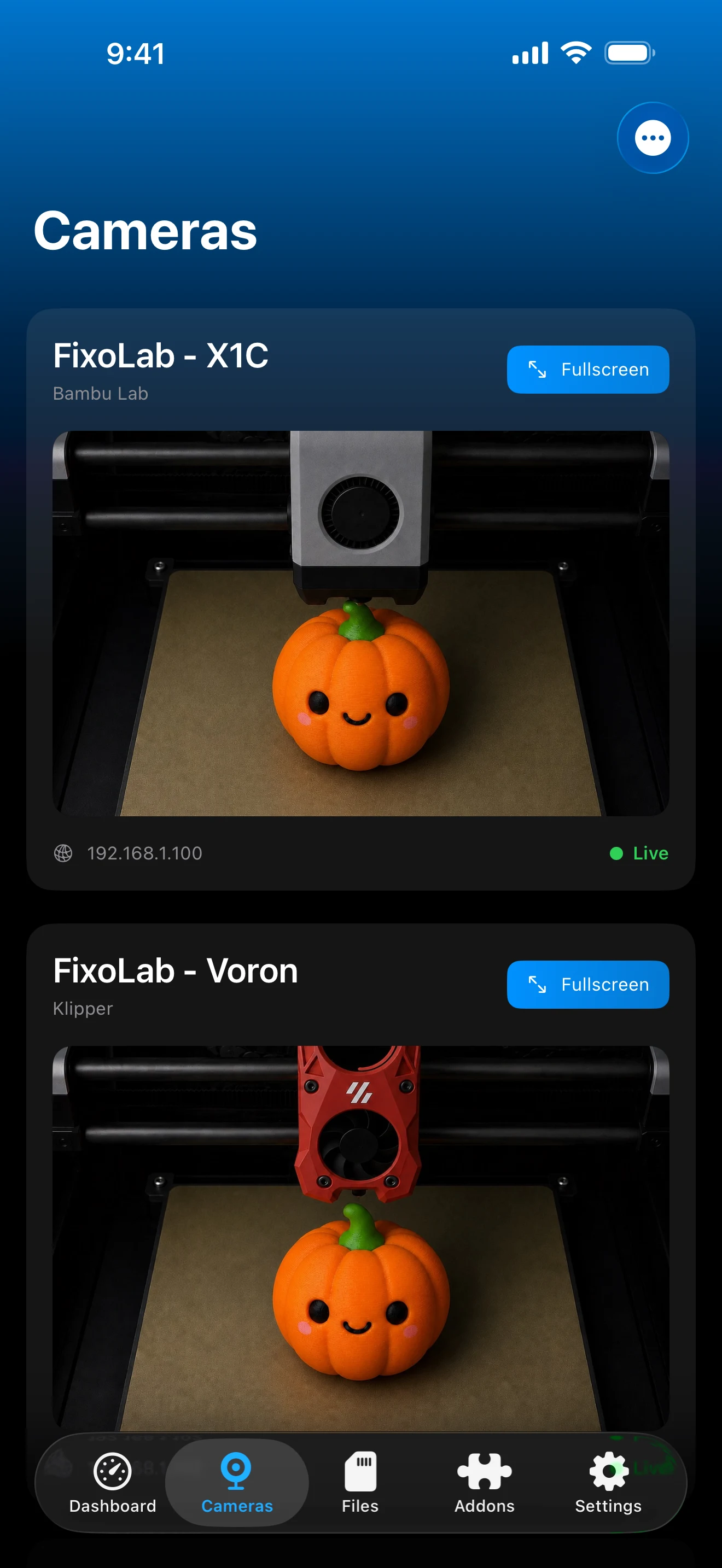
Most local network issues show up as a printer stuck on connecting rather than a specific discovery error message.
What local connections rely on
- A manually entered IP address or hostname for every printer brand except ONVIF-discoverable external cameras
- The iOS local network permission prompt, required for reaching any local device
- A shared, non-isolated network segment between your device and the printer host
What Printer Tools cannot work around
- Client or AP isolation enforced by your router blocks the connection regardless of app settings
- A VPN that does not route to your home network's local addresses prevents a direct connection
- A changed IP address after a router restart requires updating the printer's saved address
Common discovery and network errors
The printer worked yesterday and is unreachable today
Check whether the printer's IP address changed after a router or printer restart, and update it in Printer Tools if so. Reserving a static address prevents this going forward.
It works on Wi-Fi but not through a work or travel VPN
Most VPNs route all traffic away from your home network. Disable the VPN while on your home Wi-Fi, or use OctoEverywhere or Obico for genuine remote access instead.
ONVIF camera discovery finds nothing
Confirm the camera and your device sit on the same network segment, since WS-Discovery broadcasts do not cross isolated Wi-Fi networks or separate subnets.
iOS asked for local network permission and I denied it
Reopen Settings, find Printer Tools and enable Local Network access. Without this permission, iOS blocks the app from reaching any local device.
When the issue is really about remote access
If you are trying to reach a printer while away from home rather than on the same network, this is a remote access question, not a local discovery issue. Use a VPN, OctoEverywhere or Obico instead of trying to reach the printer's local address directly.
Frequently asked questions
Does Printer Tools scan my network for printers automatically?
No, except for ONVIF external cameras. Every printer brand is added using its own IP address or hostname entered manually.
Why do I get a local network permission prompt on iOS?
iOS requires explicit permission before any app can reach devices on your local network. Printer Tools needs this to connect to your printers at all.
Can guest Wi-Fi ever work for this?
Only if isolation is disabled for that network. Most guest networks intentionally block devices from reaching each other, which also blocks Printer Tools from reaching your printer.
Does a VPN always block local connections?
Only if it does not route to your home network's local address range. A VPN configured specifically to reach your home network can work for local connections, but a general-purpose VPN usually does not.
Related guides
Read the full privacy and local control overview
See how Printer Tools keeps communication local-first and where remote access options fit in when the local network is not enough.
All your 3D printers in one dashboard
Monitor Bambu Lab, Klipper, OctoPrint, Creality, Snapmaker, Anycubic, Flashforge, Elegoo, and Prusa printers from one app
Available on Android, iPhone, iPad and Mac, with Apple Watch and Wear OS companion apps plus optional remote access through VPN, OctoEverywhere or Obico
