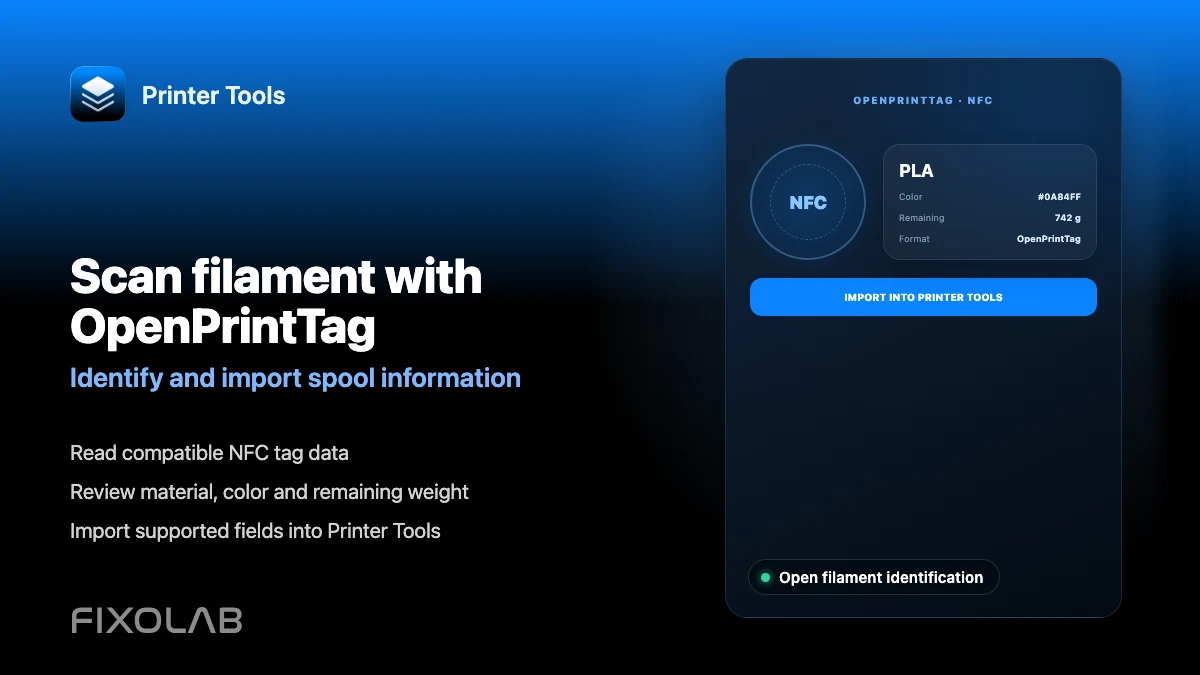
How to use OpenPrintTag to identify and import filament
OpenPrintTag in Printer Tools
The short answer
Printer Tools can read OpenPrintTag NFC tags on both Android and iOS, showing material, weight and length remaining, color, vendor and other stored fields, plus lists, search, filtering and export or import of the data. Writing new information back to a tag is not supported yet, so this is a read and organize workflow rather than a full editor.
What you need
- A filament spool with an OpenPrintTag NFC tag
- NFC enabled on your Android or iOS device
- Printer Tools installed with NFC permission granted
Read an OpenPrintTag
- 1
Enable NFC
Confirm NFC is turned on for your device and that Printer Tools has permission to use it.
- 2
Open the OpenPrintTag scanner
Go to the OpenPrintTag section in Printer Tools and start a scan.
- 3
Hold the tag near your device
Bring the filament spool's NFC tag close to your phone's NFC antenna until the scan completes.
- 4
Review the parsed data
Check material, weight and length remaining, color, vendor and any other fields the tag stores, organized clearly rather than as raw data.
- 5
Save it to your library
Add the scanned filament to your list for later reference, search or filtering, and export the data if you want a backup outside the app.
OpenPrintTag data in Printer Tools
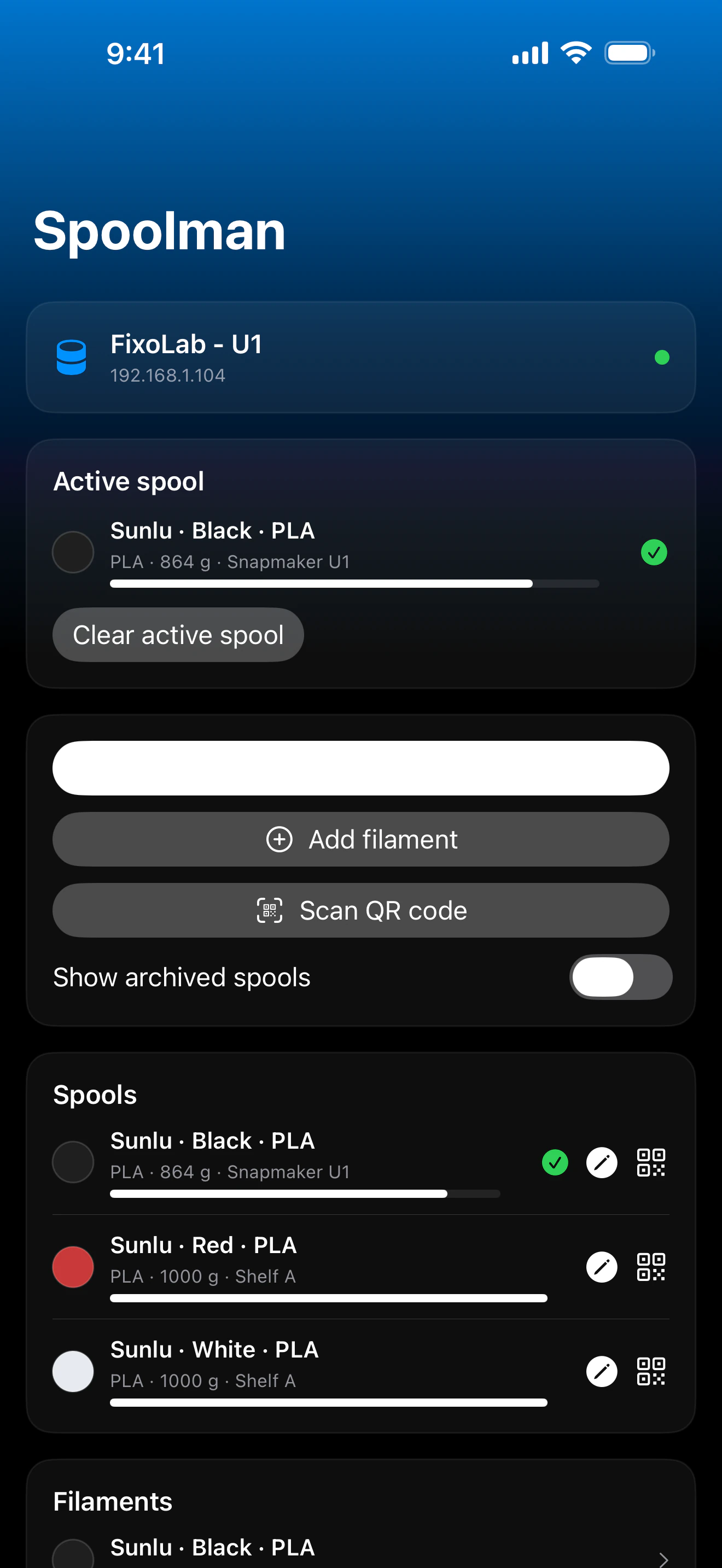
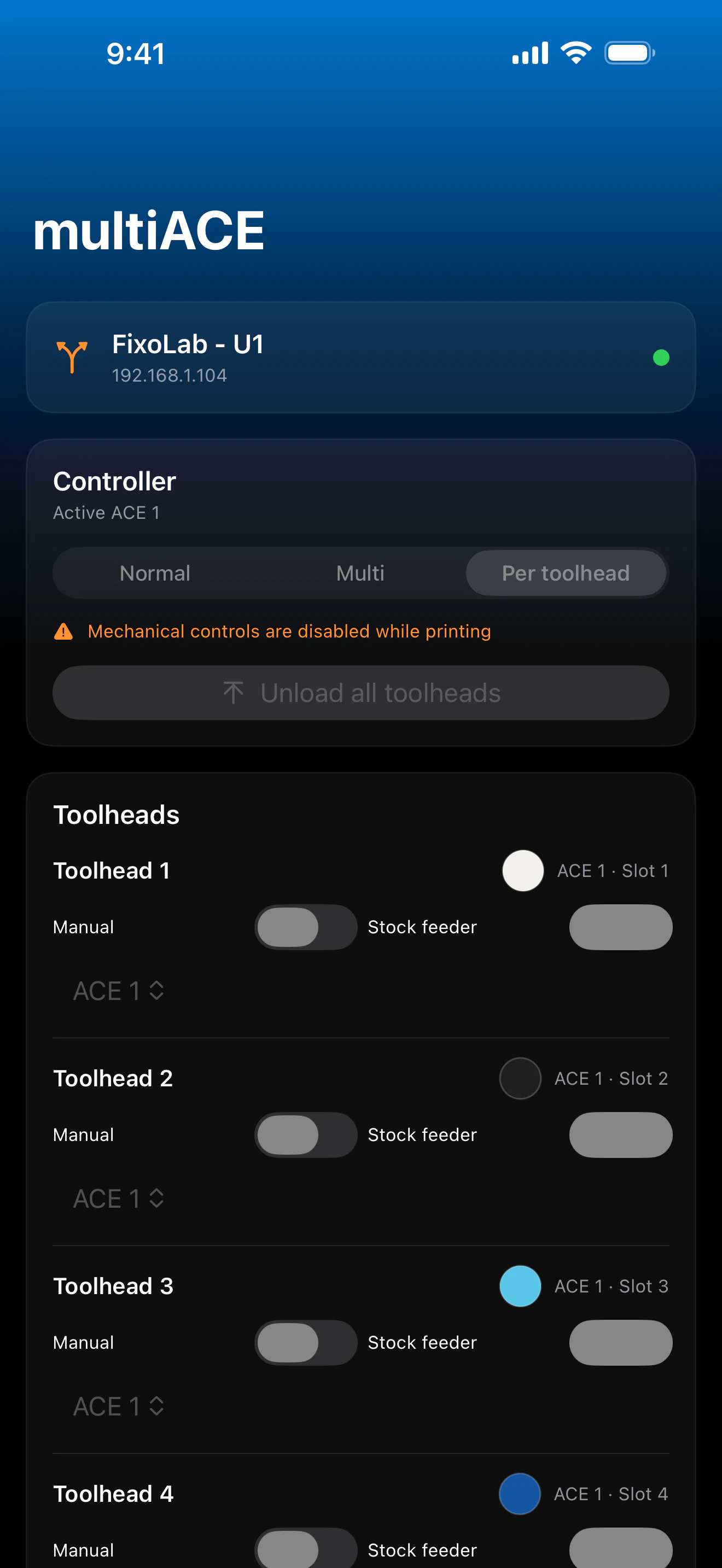
Scanned OpenPrintTag data is parsed into readable fields and saved to a searchable library inside Printer Tools.
What Printer Tools reads
- Material, weight and length remaining, computed from the tag's stored data
- Color, vendor, manufacturing dates and other standard OpenPrintTag fields
- A searchable, filterable library of scanned filament, with export and import support
- Raw tag data for diagnosis when something does not parse as expected
What is not supported yet
- Writing new data to an OpenPrintTag, including updating remaining weight after a print
- Initializing a blank NFC tag with OpenPrintTag data
- Automatically applying a scanned tag's material settings to a connected printer
Common OpenPrintTag issues
The scan does not detect the tag
Move the tag slowly around your phone's NFC antenna area, since its exact position varies by device, and confirm NFC is enabled in your system settings.
Some fields show as empty
Not every OpenPrintTag encodes every possible field. An empty field usually means the tag itself does not store that piece of data, not a scanning error.
I want to update the remaining weight after printing
This still needs to be tracked manually today, since writing back to the tag is not yet supported. Spoolman, where available, offers automatic weight tracking as an alternative.
OpenPrintTag and remote access
Scanning requires physical proximity to the tag, so this feature is used locally at the printer or spool storage location rather than remotely.
Frequently asked questions
Can I write data to an OpenPrintTag from Printer Tools?
Not yet. Writing to tags and initializing blank ones are planned but not available in the app today.
Does this work on both Android and iOS?
Yes, both platforms implement OpenPrintTag reading using their respective native NFC frameworks.
Can a scanned tag automatically configure my printer's material settings?
Not currently. Scanned data is stored in Printer Tools for reference, but it does not automatically push settings to a connected printer.
What is OpenPrintTag?
OpenPrintTag is an open specification for storing filament information, such as material, weight and color, on an NFC tag attached to a spool.
Related guides
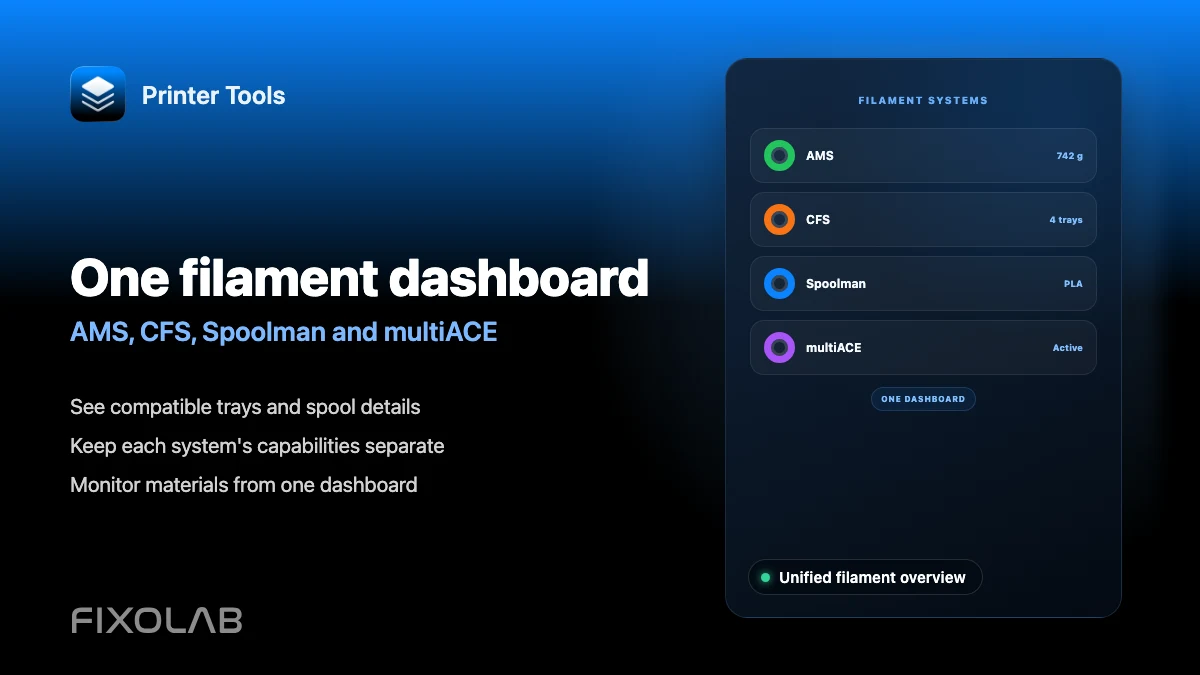
See the filament management overview
Review how AMS, CFS, Spoolman, multiACE and OpenPrintTag each fit into Printer Tools' filament tracking.
All your 3D printers in one dashboard
Monitor Bambu Lab, Klipper, OctoPrint, Creality, Snapmaker, Anycubic, Flashforge, Elegoo, and Prusa printers from one app
Available on Android, iPhone, iPad and Mac, with Apple Watch and Wear OS companion apps plus optional remote access through VPN, OctoEverywhere or Obico
