How to troubleshoot PrusaLink certificates, authentication and files
PrusaLink is the local service running on supported Prusa printers or on a dedicated Raspberry Pi for compatible older models. Printer Tools connects to that service, not to the separate Prusa Connect cloud product.
A PrusaLink entry can fail at several layers: address and TLS, API-key authentication, HTTP fallback credentials, file endpoints or the current-job thumbnail. Test them in that order.

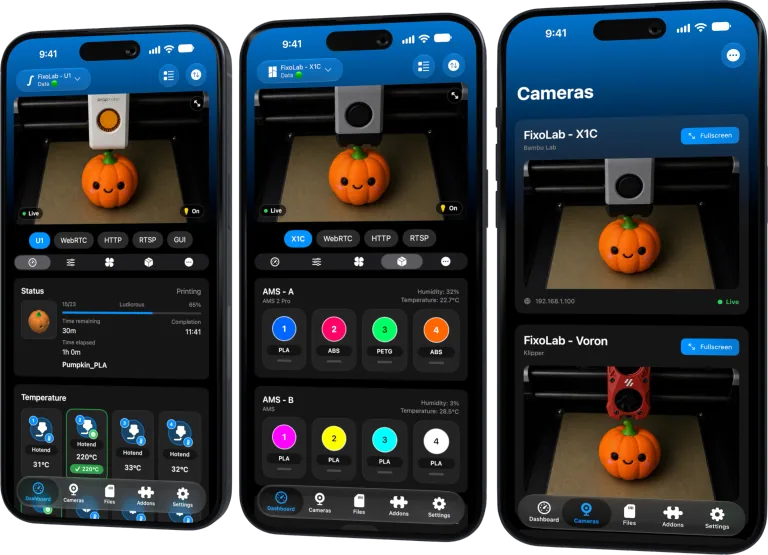
All your 3D printers in one dashboard
Monitor Bambu Lab, Klipper, OctoPrint, Creality, Snapmaker, Anycubic, Flashforge, Elegoo, and Prusa printers from one app
Available on Android, iPhone, iPad and Mac, with Apple Watch and Wear OS companion apps plus optional remote access through VPN, OctoEverywhere or Obico
Confirm that you are using PrusaLink
Open the local PrusaLink interface from a browser on the same network. If you only have a Prusa Connect cloud URL, find the printer’s local PrusaLink address instead.
Current CORE One, XL, MK4-family, MINI-family and other listed models can provide PrusaLink directly. Older MK3 and MK2.5 families require a compatible Raspberry Pi installation and may expose a different set of endpoints.
Check the address and local certificate
Use the local printer or Raspberry Pi address expected by the setup. A self-signed or locally issued certificate can be normal on a private device, but an unexpected certificate or hostname mismatch should be investigated before credentials are entered.
Do not disable security across the whole phone or import an unknown root certificate merely to silence a warning. Confirm that the address belongs to your PrusaLink device and use the supported Printer Tools connection flow.
Try the API key first
Current built-in PrusaLink installations normally use an API key. Copy it from PrusaLink without extra spaces and store it only in the appropriate Printer Tools field.
If the key was regenerated, update the saved entry. An HTTP 401 indicates missing or invalid authentication; a 403 can mean the identity is recognized but not allowed to perform the requested operation.
Understand the HTTP fallback
Printer Tools can fall back to HTTP authentication where the installation requires it, using the configured username and password. The initial username used by the app is maker, but the actual installation remains the authority.
Do not put the API key into the password field and do not assume a Raspberry Pi installation uses the same credentials as a built-in printer.
Separate file browsing and thumbnails
File browsing uses PrusaLink’s local endpoints. A current-job model thumbnail can appear when PrusaLink supplies one, but that image is not a generic live webcam feed.
If status works but files fail, capture the exact endpoint error and verify permissions. If the thumbnail is absent, confirm the current job exposes one before treating it as a camera problem. A separate IP camera can be added independently.
Keep PrusaLink local
No Prusa Connect account is needed for this path. Use a VPN for access away from home and do not expose PrusaLink directly through router port forwarding.
For a broader checklist, continue with the existing PrusaLink authentication and file guide.
Frequently asked questions
Are PrusaLink and Prusa Connect the same?
No. PrusaLink is the local service used here. Prusa Connect is a separate cloud service.
Which credential should I use?
Use the API key on current installations, or the HTTP username and password required by your PrusaLink setup.
Is the current-job thumbnail a live camera?
No. It is a model image supplied for the job, not a generic webcam stream.
Should I ignore any certificate warning?
No. Verify the local address and device identity. Do not weaken security globally to bypass an unexplained warning.
Official sources: Prusa Knowledge Base — PrusaLink troubleshooting · Prusa Knowledge Base — Prusa Connect and PrusaLink
All your 3D printers in one dashboard
Monitor Bambu Lab, Klipper, OctoPrint, Creality, Snapmaker, Anycubic, Flashforge, Elegoo, and Prusa printers from one app
Available on Android, iPhone, iPad and Mac, with Apple Watch and Wear OS companion apps plus optional remote access through VPN, OctoEverywhere or Obico
| FixoLab
How to connect PrusaLink to Printer Tools over your local network
Connect a compatible Prusa printer to Printer Tools with its local IP address and PrusaLink credentials, then monitor prints and browse files without Prusa Connect.
| FixoLab
How to troubleshoot PrusaLink authentication and file access in Printer Tools
Fix PrusaLink API key and HTTP authentication errors in Printer Tools, and resolve file access issues by firmware type.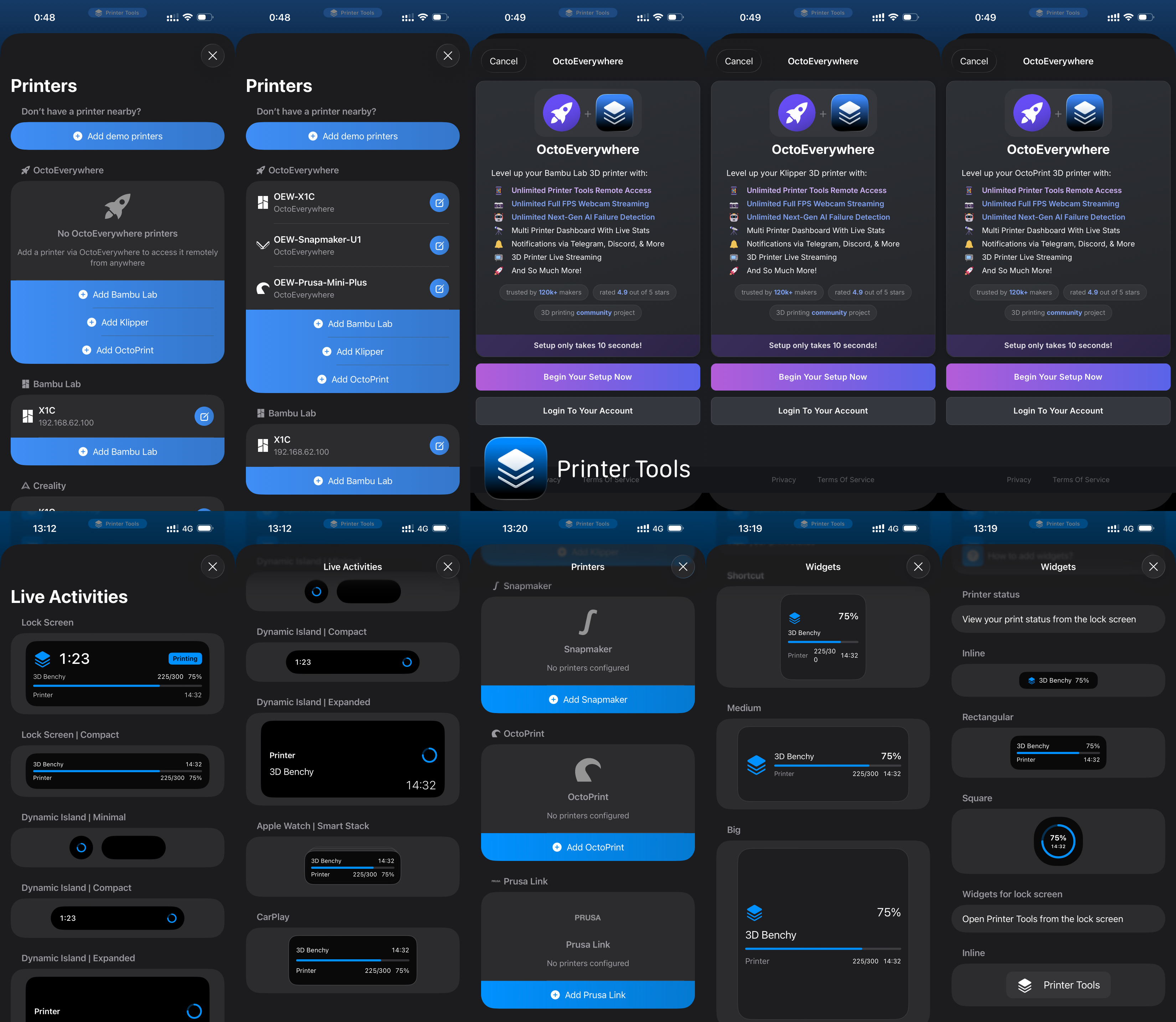
| FixoLab
Printer Tools 2.1 Adds OctoEverywhere and PrusaLink Support
Printer Tools App 2.1 brings full remote access via OctoEverywhere, remote Live Activities on Lock Screen, Dynamic Island and CarPlay, Prusa Link support, and up to 2x faster performance.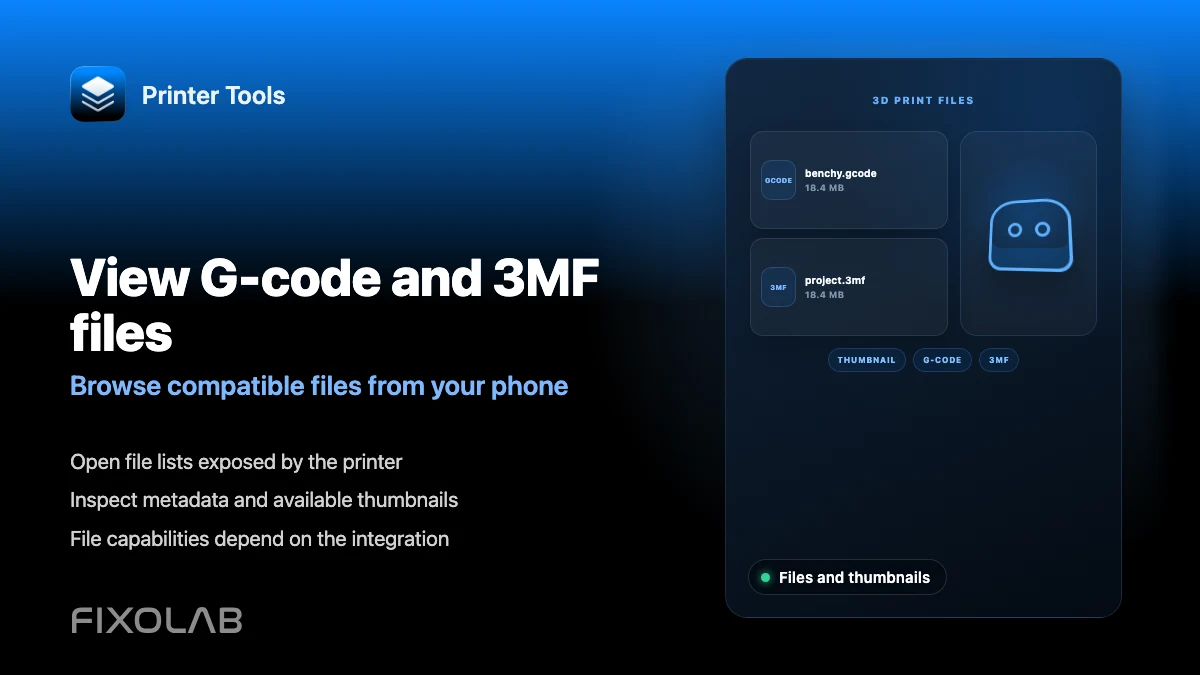
| FixoLab
How to view G-code, 3MF files and thumbnails from your phone
Browse G-code and 3MF files, inspect 3MF details and view thumbnails across Bambu Lab, Klipper, Creality and OctoPrint.