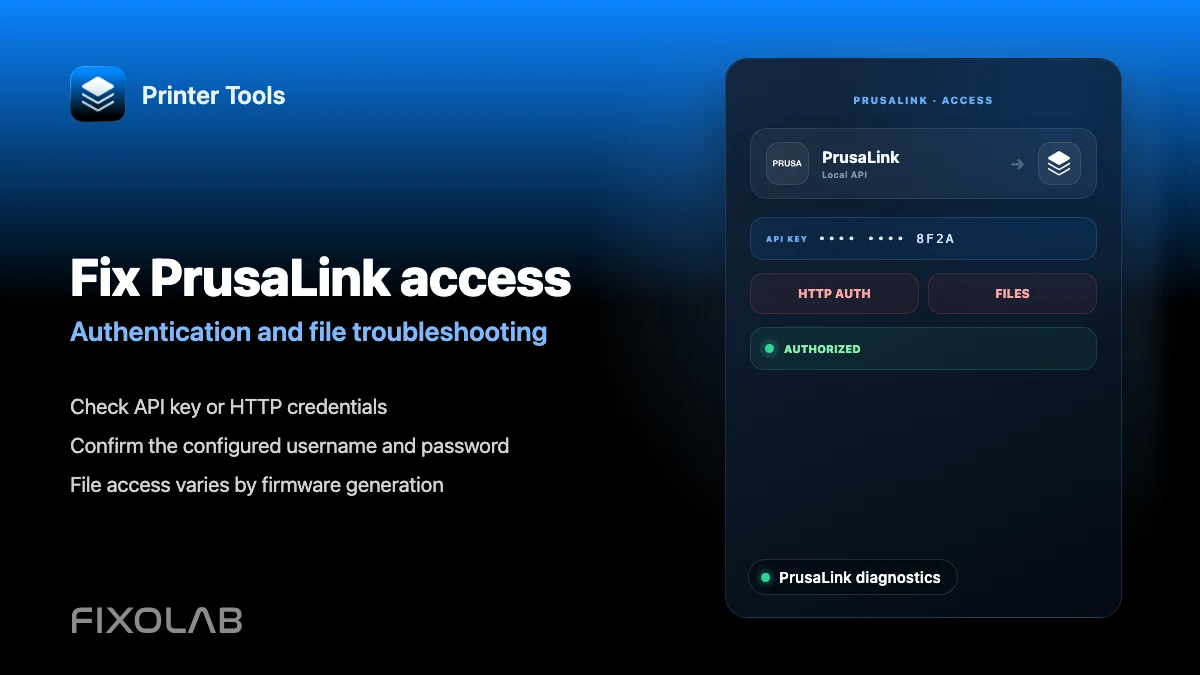
How to troubleshoot PrusaLink authentication and file access in Printer Tools
PrusaLink authentication troubleshooting
The short answer
Printer Tools first tries your entered credential as a PrusaLink API key, then falls back to HTTP authentication if your installation uses that instead. Raspberry Pi based PrusaLink setups commonly use HTTP Digest with a configurable username, defaulting to maker, while current integrated firmware usually issues a straightforward API key.
What you need
- The PrusaLink API key from your printer's network settings, for current integrated firmware
- Or the HTTP username and password, defaulting to maker, for Raspberry Pi based installations using HTTP authentication
- The printer's local IP address, on the same network as your phone
Fix a PrusaLink authentication or file error
- 1
Confirm which authentication type your installation uses
Open the PrusaLink page directly in a browser at the printer's local address. If it asks for a username and password, your setup uses HTTP authentication. If it does not, it likely expects an API key instead.
- 2
Retrieve the correct credential
Find the API key in the printer's network settings menu for integrated firmware, or the HTTP username and password you configured for a Raspberry Pi based installation.
- 3
Enter it in Printer Tools without extra characters
Re-enter the credential exactly, confirming there are no leading or trailing spaces, and that you are not using your Prusa Connect password by mistake.
- 4
Try maker as the username if you never set one
Printer Tools uses maker as the default HTTP username, matching the common PrusaLink default for Raspberry Pi based installations.
- 5
Recheck file access separately from authentication
If credentials work for status but files show an authorization error, the same login may have different permissions for storage and job actions on some firmware versions.
PrusaLink connection settings
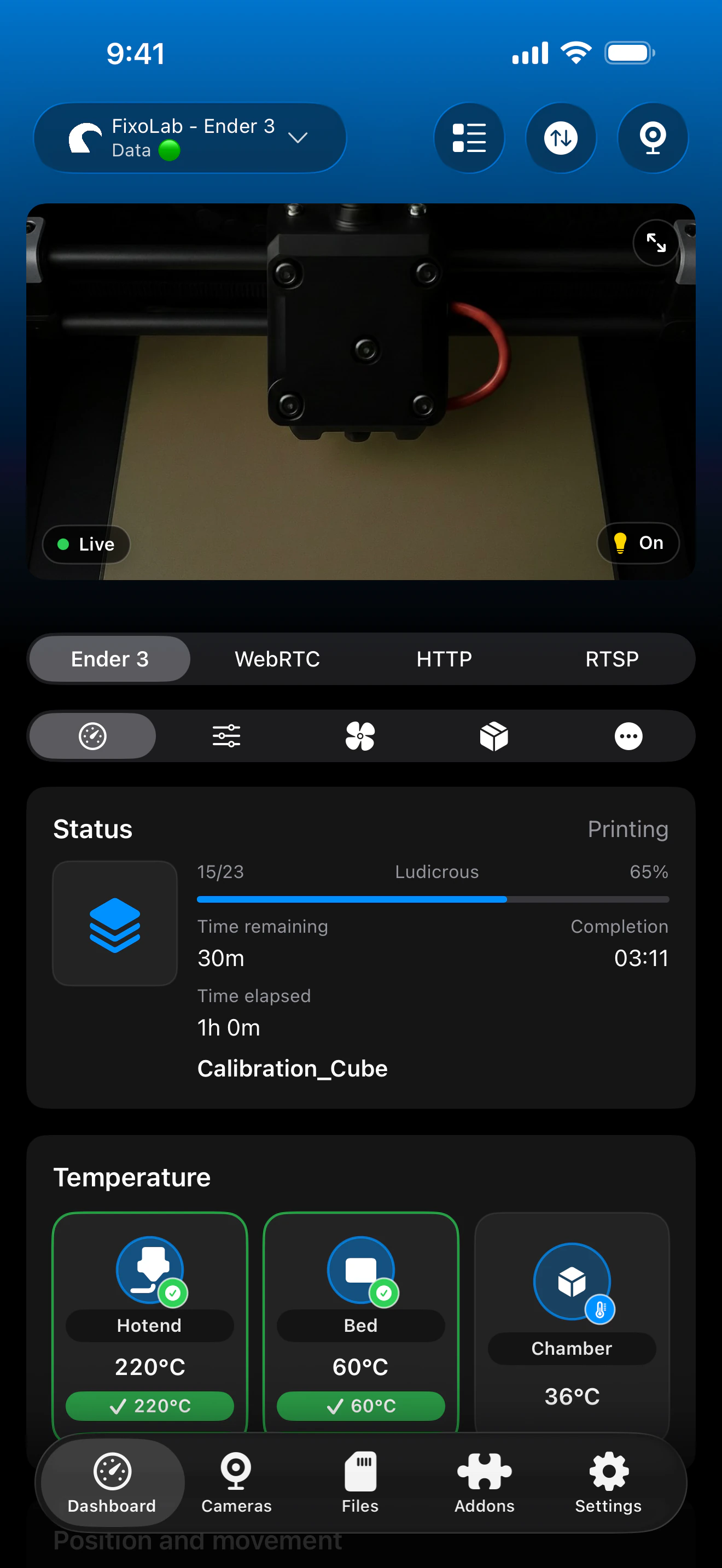
Printer Tools tries the entered value as an API key first and falls back to HTTP authentication automatically.
What works once connected
- Live status, temperatures and progress for the current job
- The current job's model thumbnail, when PrusaLink provides one
- Local file browsing on the printer
- Support for several PrusaLink printers alongside other brands on the same dashboard
What is not included
- PrusaLink is not treated as a generic live webcam source; only the current job thumbnail is shown, not a video stream
- There is no dedicated spool inventory or MMU management specific to PrusaLink
- File and job permissions can differ between storage and job actions on some firmware versions, even with the same login
Common PrusaLink errors
Printer Tools cannot reach PrusaLink at all
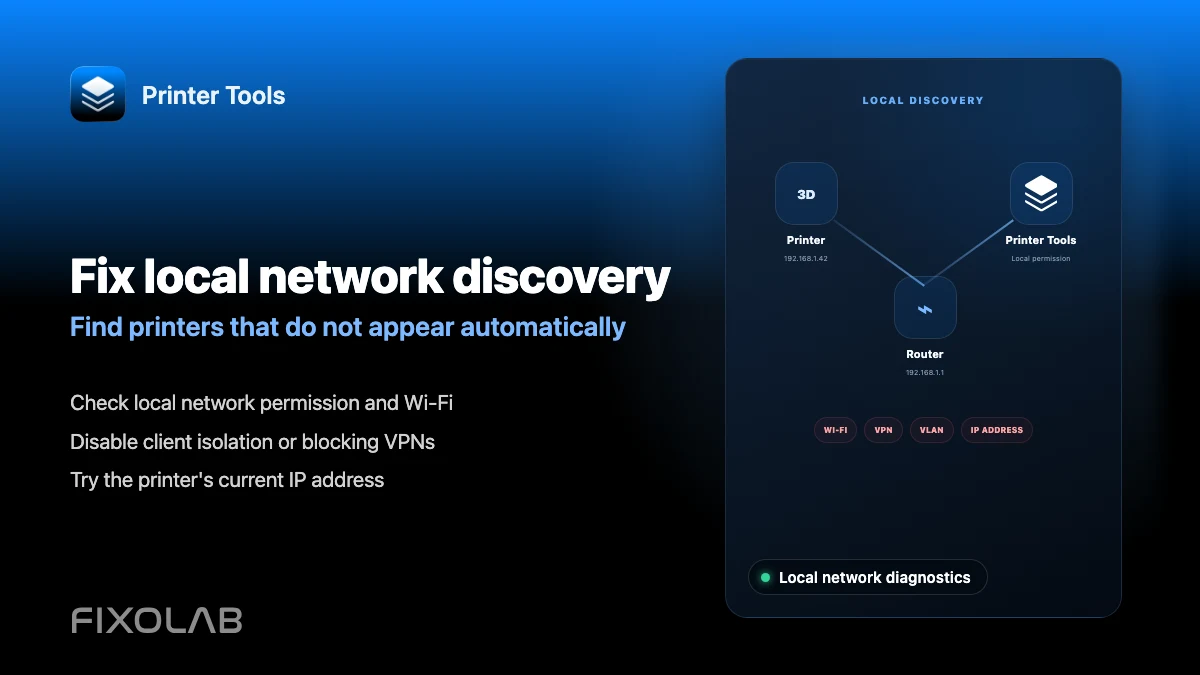
Confirm the IP address is current and that both devices are on the same network. Guest Wi-Fi, client isolation and VLAN firewall rules can block local access even when both devices have internet access.
Credentials are rejected
Reintroduce the value without spaces, confirm the HTTP username if one was set, and remember maker is only the default, not a value that overrides a custom username you already configured.
The browser works but Printer Tools does not
Printer Tools tries common ports and address forms automatically, but a reverse proxy or non-standard port can still prevent automatic detection. Update your firmware and the app if the issue persists.
Files show an authorization error but status works fine
The same credentials can carry different permissions for storage access and job actions on some firmware versions. Confirm your account has the necessary permission for file access specifically.
No thumbnail appears for the current job
Not every file or firmware version provides a thumbnail. A missing thumbnail does not indicate an authentication problem.
Reaching PrusaLink away from home
Use a VPN back to your network, or add the PrusaLink printer through OctoEverywhere in Printer Tools. Do not forward PrusaLink's port directly to the public internet.
Frequently asked questions
Do I need a Prusa Connect account?
No. PrusaLink is a local connection and does not require a Prusa Connect account or internet access to work.
What username should I use if I never set one?
Try maker, which is the common default for PrusaLink's HTTP authentication on Raspberry Pi based installations.
Can I browse and manage files on PrusaLink?
Yes, file browsing is supported. Upload, deletion and job actions depend on the permissions your firmware version and PrusaLink endpoints allow.
Why does Printer Tools not show a live PrusaLink camera?
Printer Tools does not currently treat PrusaLink as a generic live webcam source. It shows the current job's model thumbnail instead, when the printer provides one.
Related guides
See full PrusaLink compatibility
Review supported PrusaLink models, authentication methods, file access and current limitations in Printer Tools.
All your 3D printers in one dashboard
Monitor Bambu Lab, Klipper, OctoPrint, Creality, Snapmaker, Anycubic, Flashforge, Elegoo, and Prusa printers from one app
Available on Android, iPhone, iPad and Mac, with Apple Watch and Wear OS companion apps plus optional remote access through VPN, OctoEverywhere or Obico
