How to view G-code, 3MF files and thumbnails from your phone
Files and thumbnails on your phone
The short answer
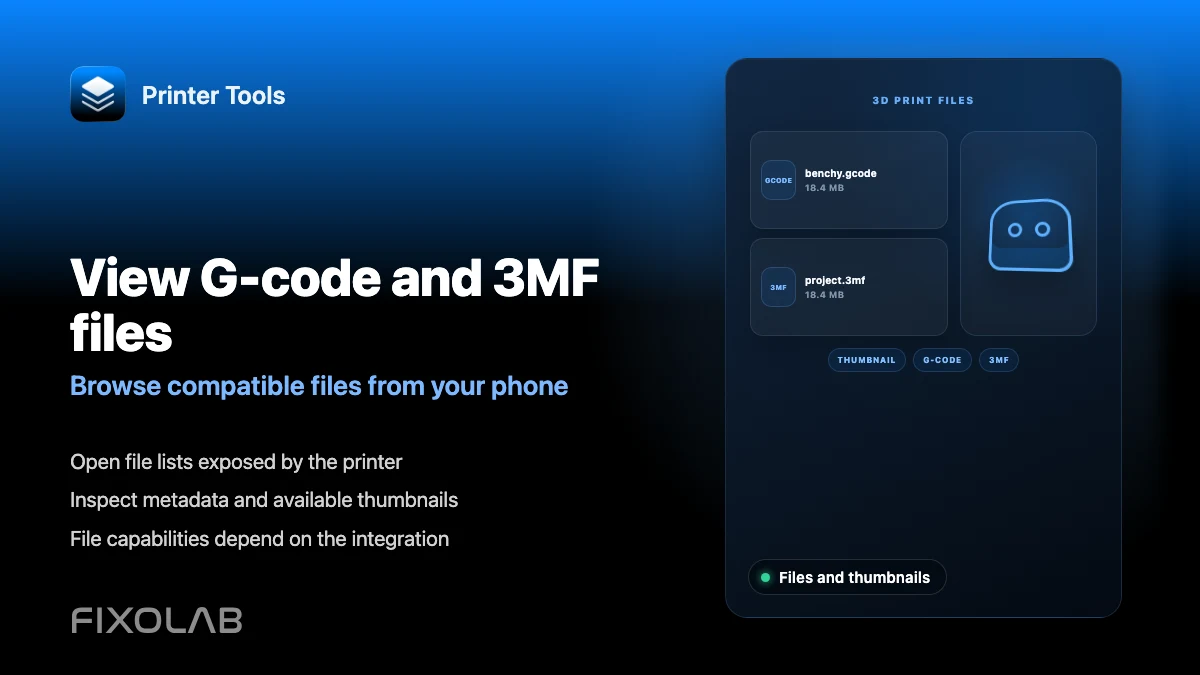
Printer Tools lets you browse G-code and 3MF files, inspect 3MF model details and see thumbnails where a printer's backend provides them, across Bambu Lab, Klipper, Creality and OctoPrint. Timelapse video is not part of the app today, so this covers files, metadata and previews rather than recorded video of a completed print.
What you need
- A printer already connected in Printer Tools
- Files already present on that printer's storage, uploaded through its own normal workflow
- Firmware or server metadata that includes thumbnails, if you want previews rather than plain file names
Browse files and thumbnails
- 1
Open Files for a connected printer
From the printer's screen, open Files to see what is already stored, organized the way that specific system reports its file structure.
- 2
Check the available thumbnails
Files with metadata that includes a thumbnail show a preview image; others show as plain entries when the source system did not provide one.
- 3
Inspect a 3MF file
Open a 3MF file's details to see the model information Printer Tools extracts directly from the file, rather than only a generic file name.
- 4
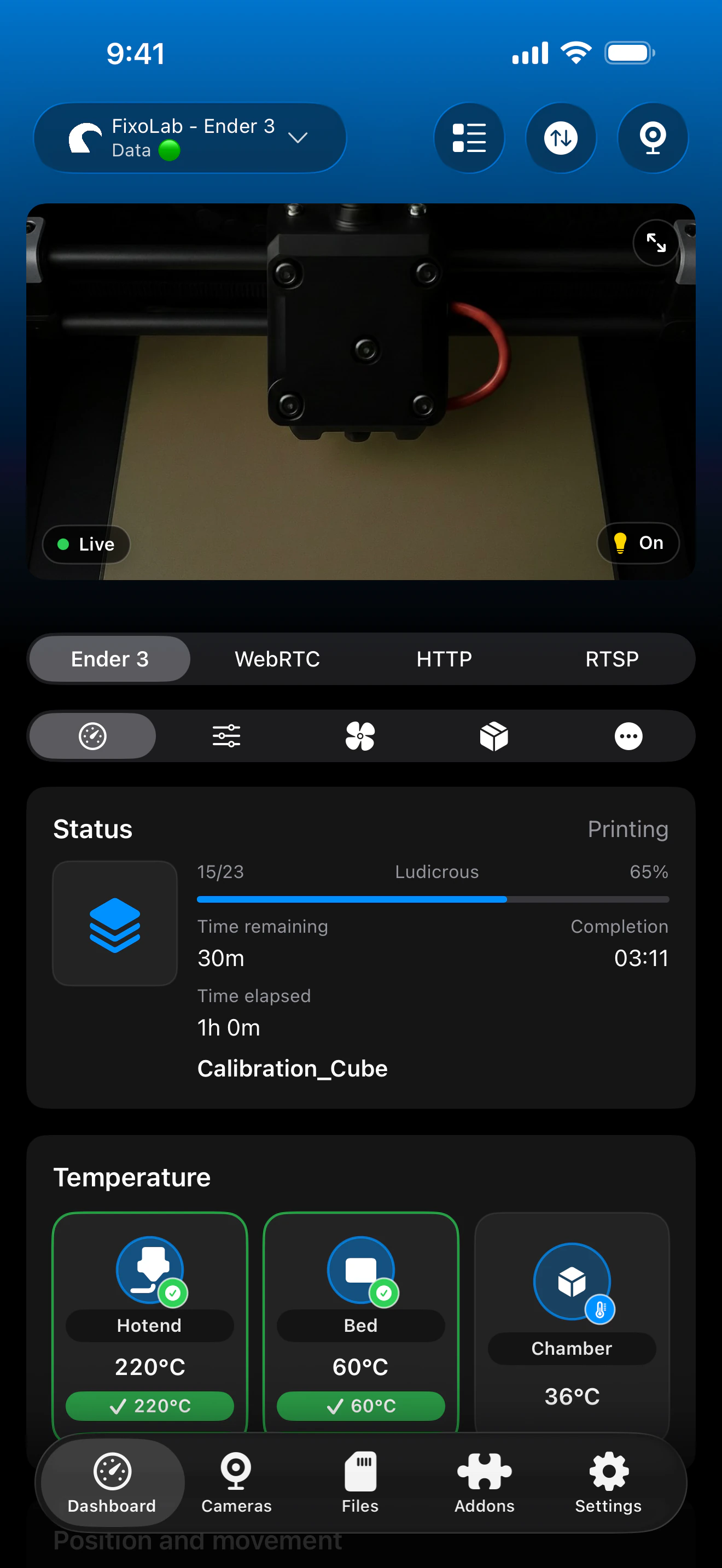
Check the Dashboard's G-code preview
While a print is running, the Dashboard can show a G-code preview badge for the current job, sourced from that printer's own thumbnail data.
- 5
Review print history where available
For systems that report it, such as Klipper through Moonraker's history API, browse past prints alongside the current file library.
Files, thumbnails and 3MF details
Thumbnails and 3MF details are extracted directly from each printer's own files and metadata, when that system provides them.
What works today
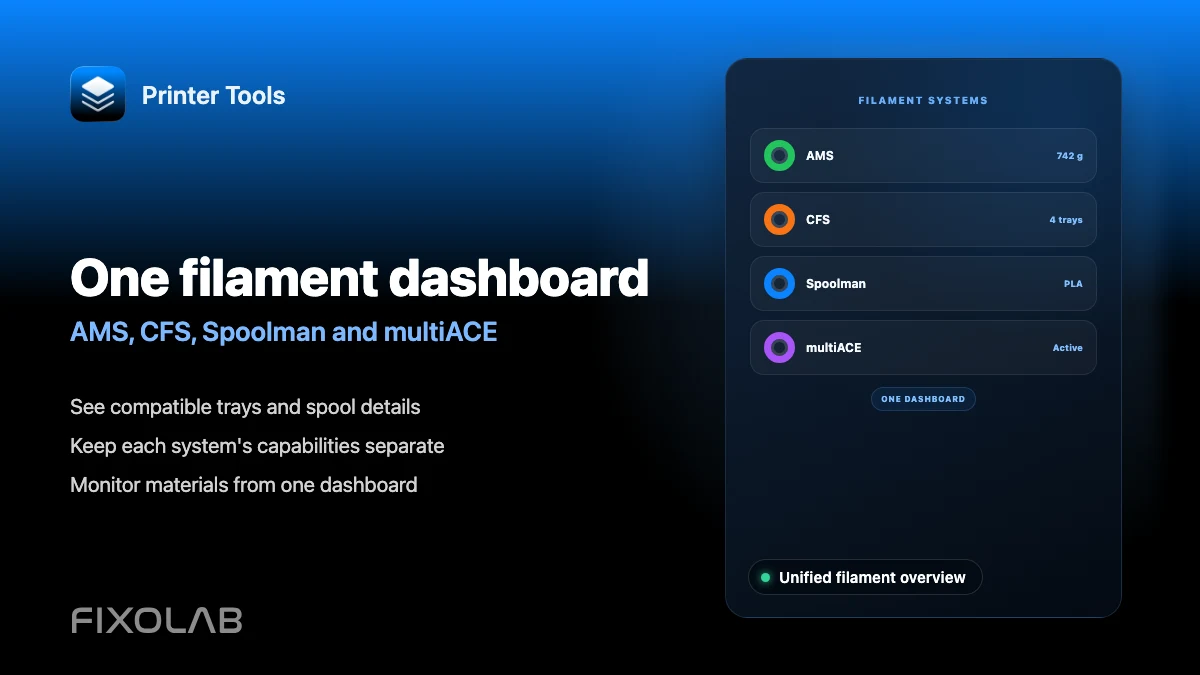
- File browsing across Bambu Lab, Klipper, Creality, OctoPrint and PrusaLink, each following that system's own structure
- 3MF file inspection with model details extracted directly from the file
- Thumbnails where the connected printer's firmware or server metadata provides them
- A G-code preview badge on the Dashboard for the currently printing job, when thumbnail data is available
- Print history through Moonraker for Klipper printers
What is not included
- Timelapse recording or playback is not currently part of Printer Tools for any connected system
- A missing thumbnail usually means the source system itself did not generate one, not an error in the app
- PrusaLink shows a thumbnail for the current job only, not a full file-by-file thumbnail browser
- OctoPrint file browsing does not include upload or starting a new print from those files yet
Common file and thumbnail issues
A file shows no thumbnail
Check whether that file was sliced with thumbnail generation enabled and whether the connected system's metadata actually includes one. Printer Tools cannot create a thumbnail that was never generated.
3MF details look incomplete
Confirm the 3MF file itself includes the expected model metadata, since Printer Tools reads what the file contains rather than inferring missing information.
I expected a timelapse video after a print
Timelapse is not currently a Printer Tools feature for any connected system. Check whether your printer's own manufacturer app or interface offers this separately.
Browsing files remotely
File browsing and thumbnails load the same way through a VPN back to your network, or through OctoEverywhere or Obico for the systems those services support.
Frequently asked questions
Does Printer Tools support timelapse video?
No, not currently, for any connected printer system. This page covers file browsing, 3MF inspection and thumbnails instead.
Why do some files have thumbnails and others do not?
Thumbnails depend entirely on whether the file was sliced with preview images enabled and whether the connected system's metadata includes them.
Can I inspect a 3MF file's contents without sending it to the printer?
Yes. Printer Tools reads 3MF metadata directly to show model details as part of the file browser.
Is print history available for every system?
Print history depth varies by system. Klipper printers benefit from Moonraker's dedicated history API, while other systems expose less historical detail.
Related guides
See the files and history overview
Review how file browsing, thumbnails and print history differ across every printer system Printer Tools supports.
All your 3D printers in one dashboard
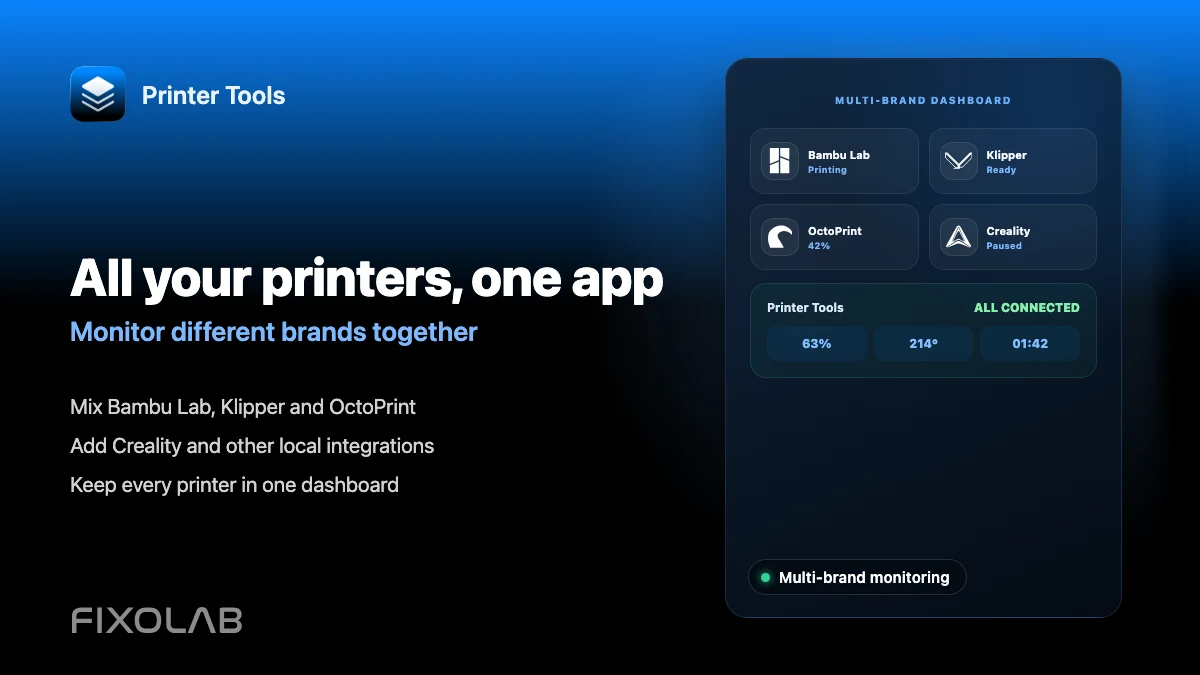
Monitor Bambu Lab, Klipper, OctoPrint, Creality, Snapmaker, Anycubic, Flashforge, Elegoo, and Prusa printers from one app
Available on Android, iPhone, iPad and Mac, with Apple Watch and Wear OS companion apps plus optional remote access through VPN, OctoEverywhere or Obico
