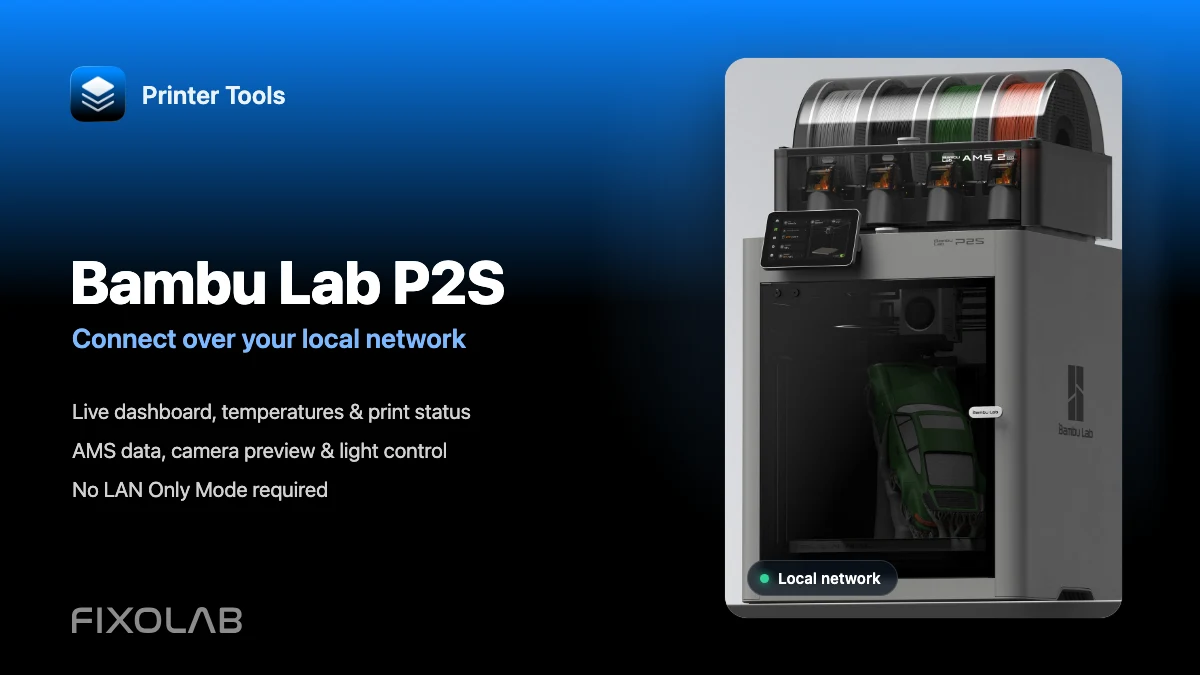
How to connect Bambu Lab P2S to Printer Tools over LAN while keeping Bambu Handy
Bambu Lab P2S · Local setup
The short answer
Printer Tools does not require LAN Only Mode or Developer Mode for normal use. Add the P2S using its local IP address, serial number and Access Code to view print information, AMS data and the camera, or turn the light on and off. The printer can remain connected to Bambu Cloud, so Bambu Handy and its notifications keep working.
What you need
- Printer Tools installed on Android, iPhone, iPad or Mac
- The P2S and the device running Printer Tools connected to the same reachable local network
- The printer's IP address, serial number (SN) and LAN Access Code
- LAN Only Mode and Developer Mode only if you want advanced control actions, such as homing the axes
Connect the P2S to Printer Tools
- 1
Decide whether you need advanced controls
For print information, AMS data, the camera and light control, leave LAN Only Mode and Developer Mode unchanged. Enable both only if you need advanced write actions such as homing the axes. Menu wording can vary slightly with the installed firmware.
- 2
Copy the three connection values
Write down the IP address and Access Code shown in the LAN screen. Copy the printer SN from Device Information or the printer label. The SN and Access Code are different values and both are required.
- 3
Open the Bambu Lab setup in Printer Tools
In Printer Tools, go to Settings → Printers and choose Add Bambu Lab. Give the printer a recognizable name, such as “Workshop P2S”.
- 4
Enter the IP, SN and Access Code
Paste each value into its matching field and save. Keep the Access Code private; if you regenerate it on the P2S, update it in Printer Tools as well.
- 5
Confirm the live connection
Open the Dashboard and select the P2S. Within a few seconds you should see live status, temperatures, print progress, AMS data and the camera; you can also switch the light on and off. If the printer remains in its normal mode, Bambu Handy and its notifications continue to work.
What it looks like in Printer Tools
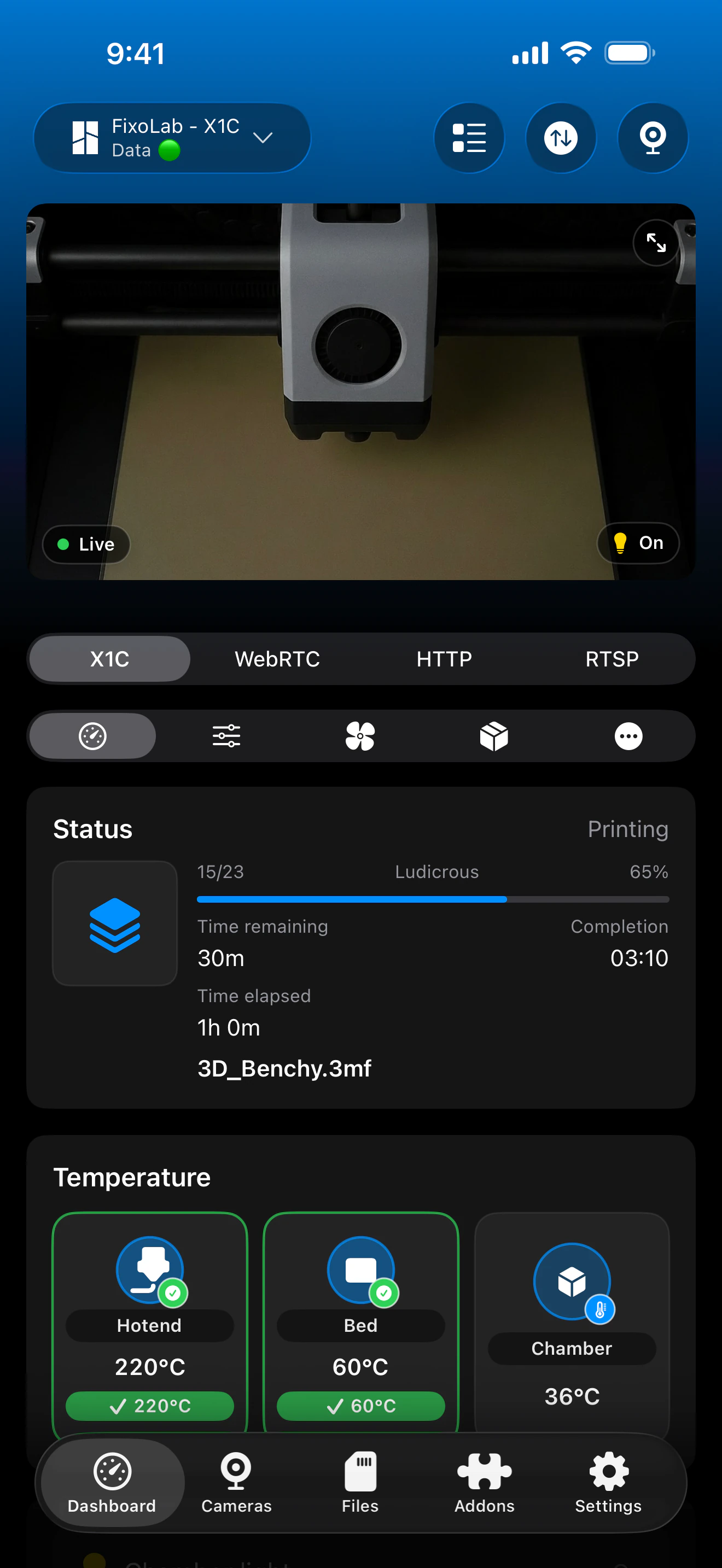
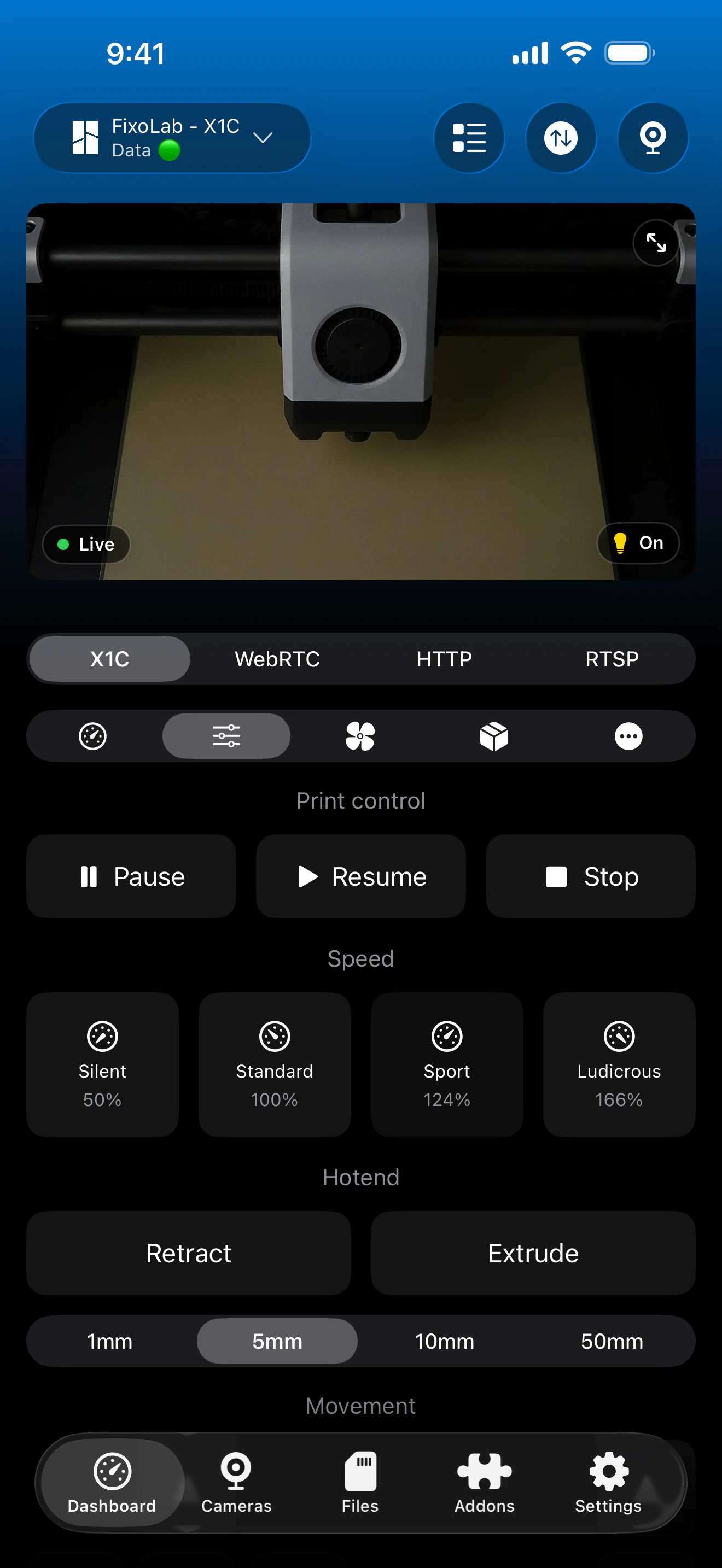
Real screenshots of the Bambu Lab integration. The selected printer in these reference captures is an X1C; Printer Tools detects a configured P2S automatically and presents the same dashboard structure with the data supported by its firmware.
What works after connecting
- Live print status, progress, remaining time and layer information
- Nozzle, bed and chamber temperatures, plus printer alerts and HMS codes
- P2S camera preview over RTSPS and AMS information when reported by the firmware
- Light control without enabling LAN Only Mode or Developer Mode
- File browsing over FTPS, including thumbnails when the printer exposes them
- Advanced controls such as axis homing after enabling LAN Only Mode and Developer Mode
If the P2S does not connect
No data appears
Check the IP address, SN and Access Code, confirm that both devices can communicate on the local network and allow Local Network access for Printer Tools. LAN Only Mode and Developer Mode are not required for monitoring.
The printer is unreachable
Confirm that both devices are on the same reachable network. Guest Wi-Fi, client isolation, VLAN rules or a VPN profile can block local traffic.
Authentication fails
Re-enter the SN and Access Code without spaces. If the code was regenerated on the printer, replace the old value in Printer Tools.
An advanced control does not respond
Enable LAN Only Mode and Developer Mode before using actions such as axis homing. Remember that cloud-dependent Bambu Handy features are unavailable while LAN Only Mode is active.
The camera stays black
Close other camera viewers temporarily, verify the local connection first and reopen the Dashboard. Camera availability can also depend on the installed P2S firmware.
What about access away from home?
Printer Tools connects locally even when the P2S remains linked to Bambu Cloud for Bambu Handy. Away from home, a VPN back to your network preserves that local Printer Tools connection. Printer Tools also supports OctoEverywhere and Obico as optional managed remote-access services. Do not forward MQTT, FTPS or camera ports on your router.
Frequently asked questions
Do I need a Bambu Lab account?
No. Printer Tools does not require a Bambu Lab login for this local connection.
Does the P2S camera work?
Yes. Printer Tools recognizes the P2S and automatically uses the secure RTSPS camera transport supported by the model.
Can I keep using Bambu Handy and its notifications?
Yes. Leave the P2S in its normal mode: Printer Tools can still show print information, AMS data and the camera, and control the light locally. Only LAN Only Mode disconnects cloud-dependent Bambu Handy features.
Is the connection really local?
Yes. Printer Tools connects directly to the IP address of your P2S using local MQTT over TLS, FTPS and RTSPS. The printer may remain independently connected to Bambu Cloud for Bambu Handy.
Related guides
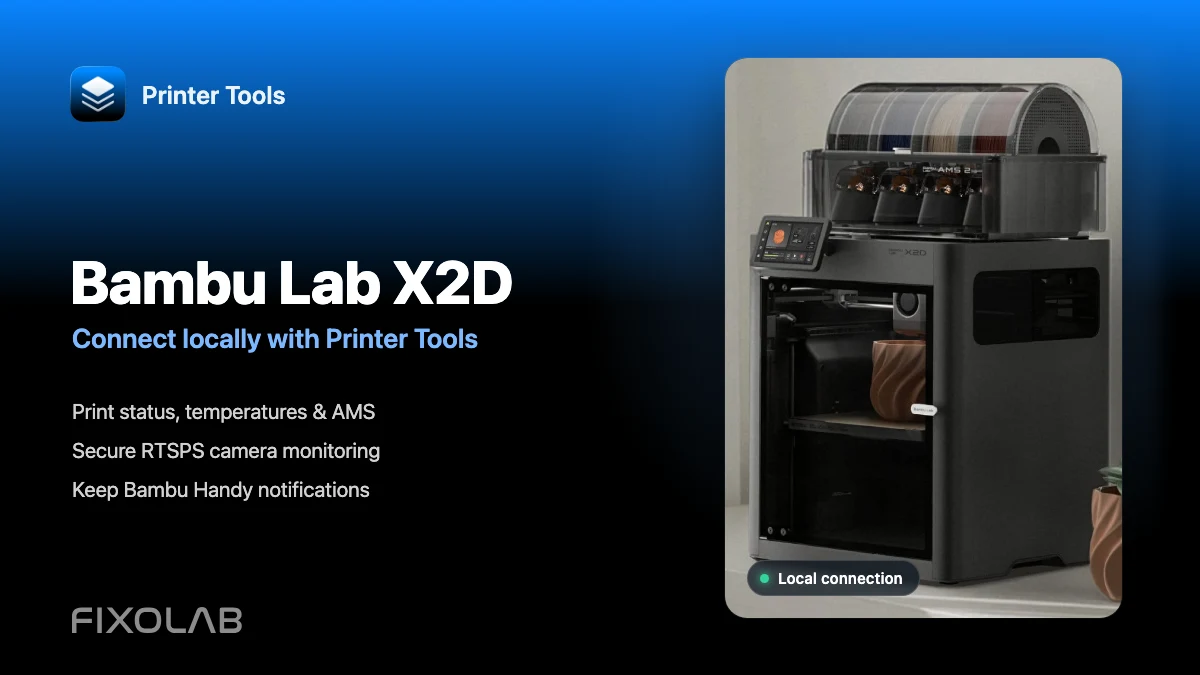
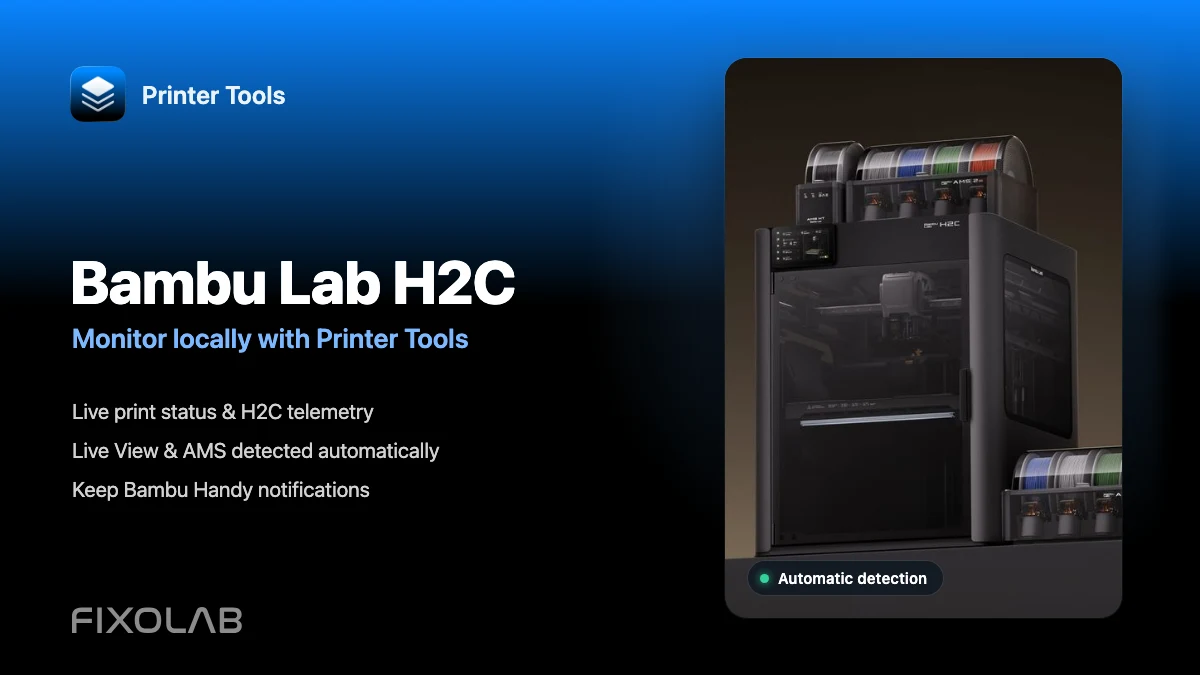
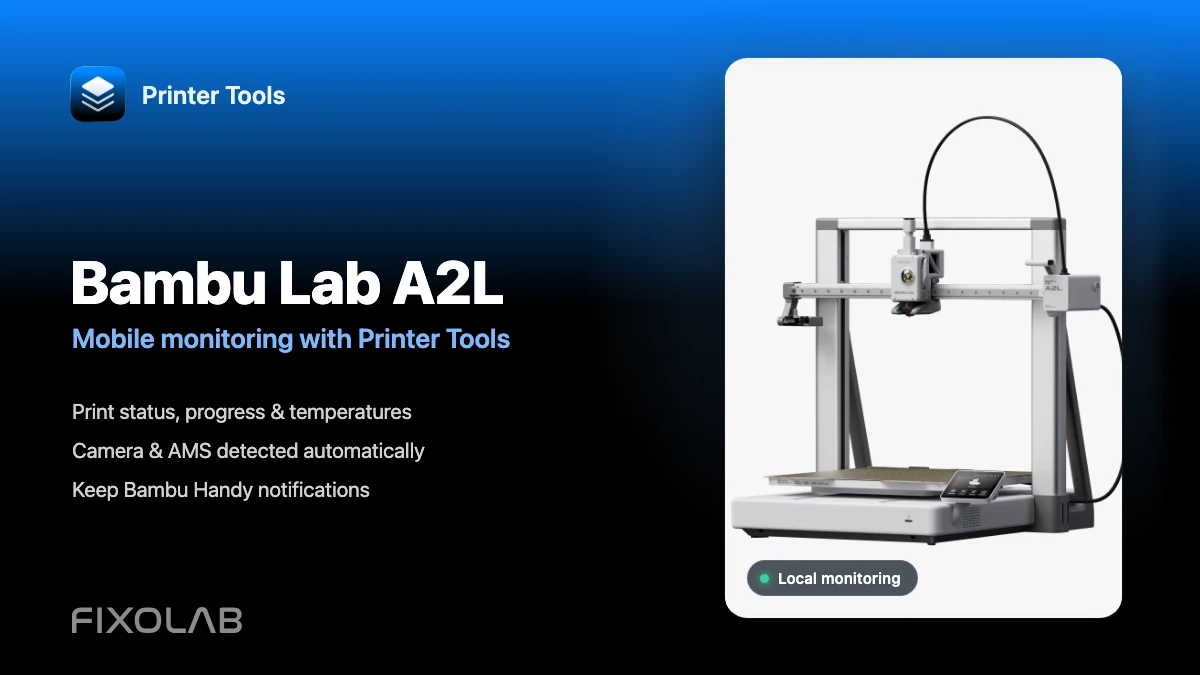
Check everything supported on Bambu Lab
Review compatible models, verified features, known limitations and remote-access options before adding more printers.
All your 3D printers in one dashboard
Monitor Bambu Lab, Klipper, OctoPrint, Creality, Snapmaker, Anycubic, Flashforge, Elegoo, and Prusa printers from one app
Available on Android, iPhone, iPad and Mac, with Apple Watch and Wear OS companion apps plus optional remote access through VPN, OctoEverywhere or Obico
