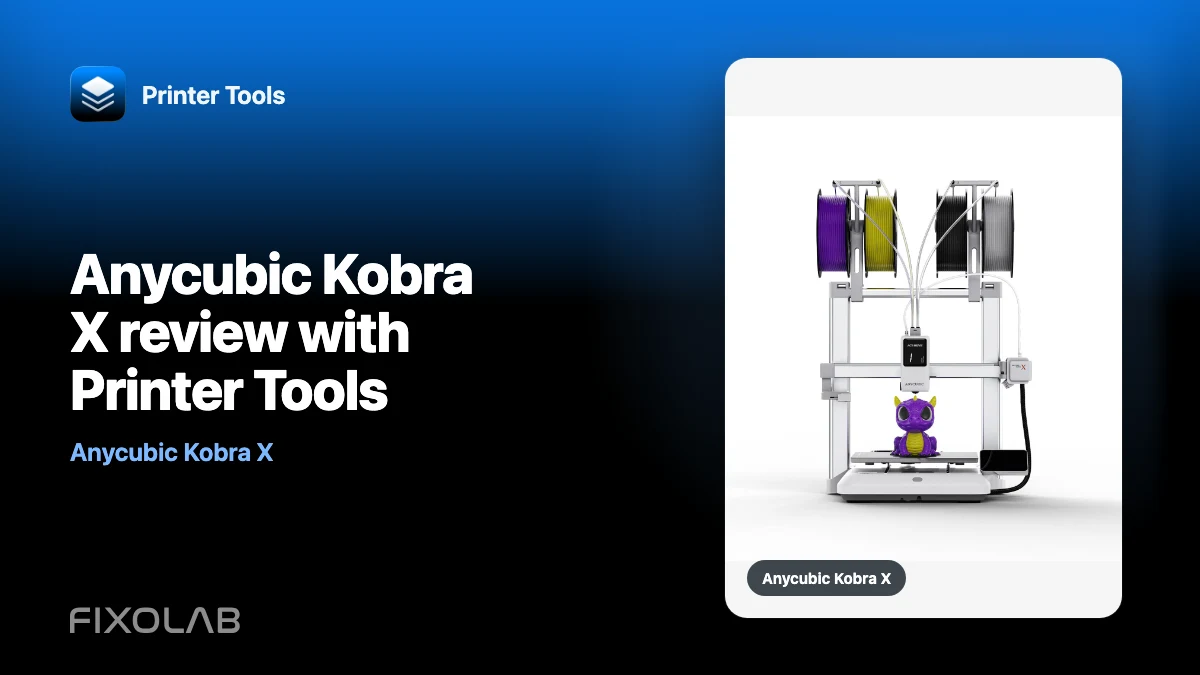
Anycubic Kobra X review with Printer Tools
The Anycubic Kobra X is one of the most complete Anycubic models to monitor locally with Printer Tools. It combines the Kobra local MQTT connection with an RTSP camera and support for the information exposed by its built-in multicolor system and connected ACE 2 hardware.
This is a review from the perspective of local monitoring and day-to-day printer management. It is not a print-quality benchmark and does not replace a mechanical, slicer or material review. The question here is simpler: what can you see and control from Printer Tools after adding a Kobra X?
All your 3D printers in one dashboard
Monitor Bambu Lab, Klipper, OctoPrint, Creality, Snapmaker, Anycubic, Flashforge, Elegoo, and Prusa printers from one app
Available on Android, iPhone, iPad and Mac, with Apple Watch and Wear OS companion apps plus optional remote access through VPN, OctoEverywhere or Obico

Kobra X at a glance
Anycubic positions the Kobra X as a fast, multi-material printer with four-color capability built into the machine and expansion through ACE 2 Pro units. The manufacturer also includes a monitoring camera. You can review the current hardware specifications on the official Anycubic Kobra X page.
For Printer Tools, three characteristics matter most:
- the printer exposes a local MQTT broker after LAN mode is enabled;
- the Kobra X reports an RTSP camera instead of the HTTP-FLV stream used by the Kobra 3 and S1 families;
- ACE status, drying and feed information can be shown when the connected hardware reports it.
That combination makes Kobra X more useful in a local dashboard than models that do not expose a camera or multicolor information on the LAN.
Local connection without an Anycubic Cloud account
Printer Tools connects to the MQTT broker running on the printer itself. The credentials required by the integration are obtained through the local discovery flow after LAN mode is enabled. Your phone or computer communicates with the Kobra X on the same reachable network; Printer Tools does not need your Anycubic Cloud password.
For the complete setup process, follow how to connect Anycubic Kobra X to Printer Tools. The short version is:
- Enable LAN mode from the Kobra X network settings.
- Keep the printer and your device on the same reachable local network.
- Add or discover the printer in Printer Tools.
- Confirm that MQTT status and the RTSP camera are detected.
Guest Wi-Fi, access-point isolation and strict VLAN rules can stop discovery or camera playback even when both devices appear to use the same internet connection.
What monitoring looks like in Printer Tools
Status, progress and temperatures
The local MQTT connection provides the core dashboard: printer state, job progress and temperatures. Printer Tools updates the view from the payloads sent by the Kobra X and keeps mutable printer state on the device.
This is the most important part of the integration because it remains useful even if you do not enable the camera or attach an external ACE unit.
RTSP camera instead of FLV
Kobra X is different from the Kobra 3 and S1 families. Those models use a local HTTP-FLV endpoint, while Kobra X reports an RTSP stream URL. Printer Tools routes it to the appropriate player instead of constructing the FLV fallback used by the other models.
The result is a normal camera panel inside the printer dashboard. If status works but video does not, troubleshoot network reachability and the URL reported by the printer rather than trying the Kobra 3 FLV port.
Multicolor and ACE 2 information
Kobra X has built-in multicolor handling and can expand with ACE 2 Pro hardware. Printer Tools can show the state provided by compatible ACE units, including drying and automatic-feed information where the firmware exposes it.
The app does not choose the colors of a model, prepare purge strategy or slice a multi-material plate. Those decisions remain in the slicer and the printer’s own workflow. Printer Tools is useful once the printer is running and you want a consolidated view of machine and material state.
Job and light controls
The current Anycubic integration supports compatible pause, resume and stop actions through the local connection, together with light control on models that expose it. Actions should only be available when the Kobra X reports a state in which they make sense.
Current limitations
No Anycubic file browser yet
Printer Tools does not currently offer file management for Anycubic printers. You cannot treat the Kobra X integration like the file browser available for some other ecosystems. Prepare and send print files through the supported Anycubic or slicer workflow, then use Printer Tools for monitoring and compatible job control.
Local by default
The Kobra X connection is designed for the local network. OctoEverywhere is not currently offered for Anycubic printers in Printer Tools. If you need access away from home, connect through a VPN back to your network instead of exposing MQTT or the camera directly to the internet.
Firmware still defines the available data
Printer Tools can only display values and functions exposed by the installed Kobra firmware. A firmware update may change a payload, camera URL or field. If a section disappears after an update, confirm the current app and firmware versions before resetting the entire printer configuration.
Kobra X compared with other supported Kobra families
| Family | Local camera in Printer Tools | File management | Multicolor information |
|---|---|---|---|
| Kobra 2 Pro, Plus and Max | Not exposed locally | Not available | Model dependent |
| Kobra 3 and S1 families | HTTP-FLV | Not available | ACE Pro or ACE 2 where reported |
| Kobra X | RTSP | Not available | Built-in system and ACE 2 where reported |
This table describes the Printer Tools integration, not every capability in the Anycubic mobile app or slicer.
Who benefits most from this integration?
Kobra X is a particularly good fit if you want to:
- see an Anycubic printer beside Bambu Lab, Creality, Klipper or OctoPrint machines in one dashboard;
- keep routine monitoring on the local network;
- open the Kobra X camera without switching to a separate printer app;
- follow compatible multicolor and ACE state while a job is running;
- pause, resume or stop the active job from the same interface used for your other printers.
It is a weaker fit if your priority is browsing, uploading and organizing files from Printer Tools, because that part of the Anycubic integration is not available today.
Verdict
From a Printer Tools perspective, Kobra X is the strongest-supported shape of the current Anycubic integration: local telemetry, a model-specific RTSP camera path, compatible job controls and useful multicolor information. Its main gap is file management, followed by the local-only nature of remote access.
If those limits match your workflow, Kobra X adds cleanly to a mixed-brand Printer Tools dashboard without requiring an Anycubic Cloud account for the local connection. Check the live Anycubic compatibility matrix before relying on a specific field or action.
Frequently asked questions
Does Printer Tools need my Anycubic Cloud account?
No. After LAN mode is enabled, Printer Tools connects to the local services exposed by the printer.
Why does the Kobra X camera use RTSP instead of the Kobra 3 FLV address?
That is the transport exposed by Kobra X. Printer Tools treats the model separately so it does not send the FLV player to an endpoint that does not exist.
Can Printer Tools manage the built-in four-color system?
Printer Tools shows the material and ACE state made available by the printer and supports the compatible controls implemented by the integration. Slicing, color assignment and purge strategy remain outside Printer Tools.
Can I reach the Kobra X from outside my home?
Use a VPN back to the printer’s network. Do not publish the MQTT broker or camera port directly on the internet.
All your 3D printers in one dashboard
Monitor Bambu Lab, Klipper, OctoPrint, Creality, Snapmaker, Anycubic, Flashforge, Elegoo, and Prusa printers from one app
Available on Android, iPhone, iPad and Mac, with Apple Watch and Wear OS companion apps plus optional remote access through VPN, OctoEverywhere or Obico