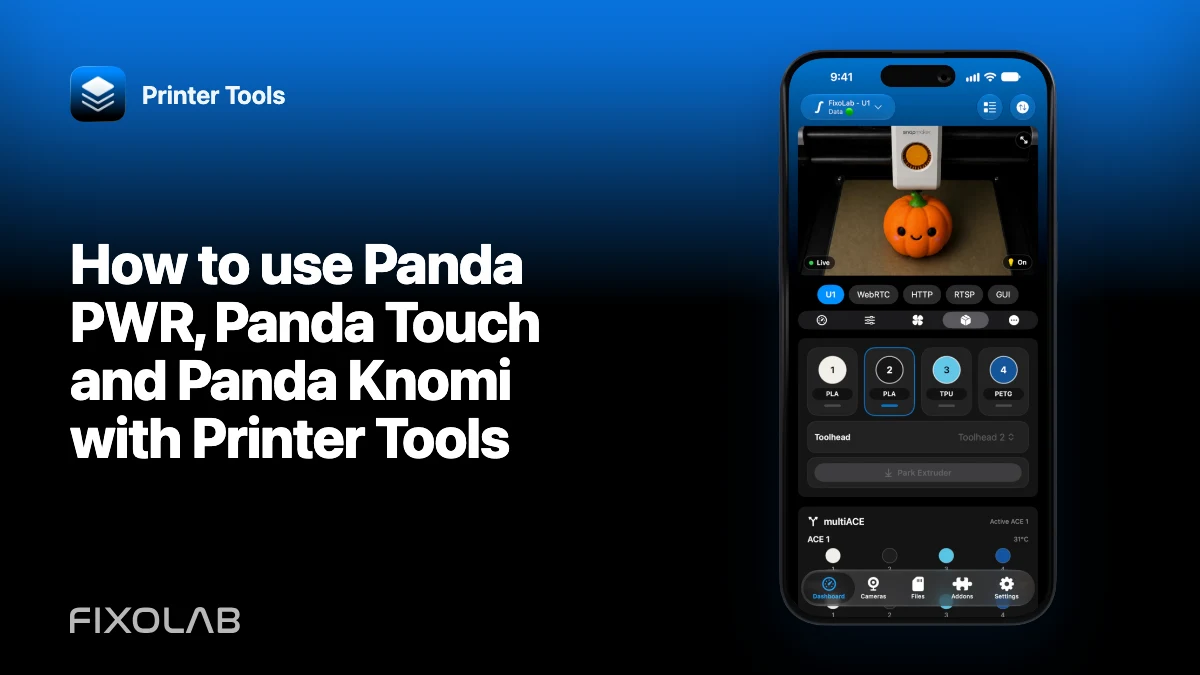
How to use Panda PWR, Panda Touch and Panda Knomi with Printer Tools
Printer Tools can place BIGTREETECH Panda accessories next to your printers on the local dashboard, but the three products do not expose the same functions. Panda PWR provides power telemetry and controls. Panda Touch and Panda Knomi currently provide connection presence only.
Adding them as one accessory family makes status visible without pretending that every Panda device has PWR’s control API.

All your 3D printers in one dashboard
Monitor Bambu Lab, Klipper, OctoPrint, Creality, Snapmaker, Anycubic, Flashforge, Elegoo, and Prusa printers from one app
Available on Android, iPhone, iPad and Mac, with Apple Watch and Wear OS companion apps plus optional remote access through VPN, OctoEverywhere or Obico
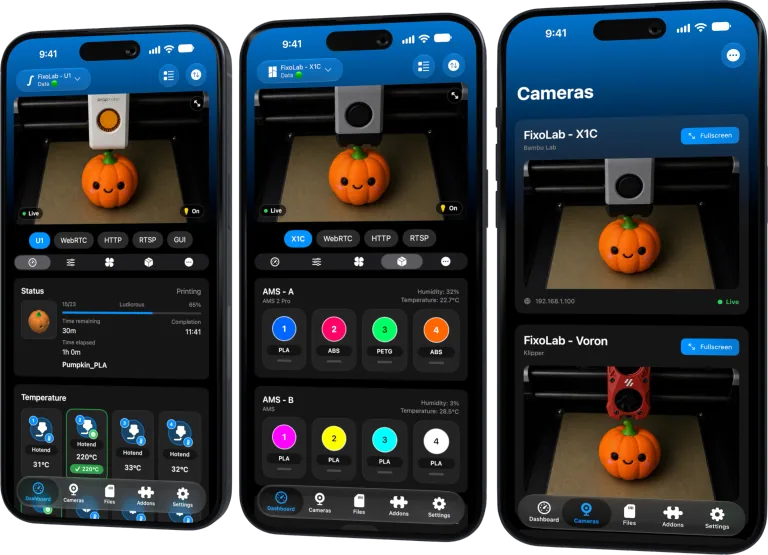
Put each device on the local network
Complete the manufacturer’s installation and connect the Panda device to the intended LAN. Find its current private IP address in the device interface or router.
The phone and accessory need a permitted route between them. Guest isolation or a restrictive IoT VLAN can make a device appear offline even while it reaches the internet.
Add the device by IP address
Open Printer Tools’ addons area, choose the BIGTREETECH Panda family and enter the address of the exact device. Add separate entries when you own several units.
Create a DHCP reservation after the first successful connection so the dashboard does not point to another device after a router restart.
Panda PWR telemetry and control
Printer Tools reads Panda PWR through its local HTTP interface. The dashboard can show voltage, current, power and energy consumption.
Supported controls include the main power and USB outputs, the countdown timer with start, pause and stop actions, and the automatic power-off setting. After a command, the app reads status again rather than assuming it succeeded.
Power control affects real hardware. Verify what is connected before switching an output, and do not cut power to a printer during motion, heating, firmware update or another unsafe state.
Panda Touch and Panda Knomi presence
Printer Tools performs a lightweight local TCP check for Panda Touch and Panda Knomi. Today, these entries show whether the accessory can be reached. They do not provide telemetry or control for those two devices.
An online card is therefore not evidence that Printer Tools can operate the Touch or Knomi screen. Use the manufacturer’s own interface for their functions.
Access away from home
Panda accessories are local devices in this integration. Use a trusted VPN back to the network if you need to reach them remotely. Do not publish the HTTP or TCP service through router port forwarding.
Troubleshoot an offline card
Compare the saved and current address, test from the main LAN and confirm the device’s own interface works. For Panda PWR, separate read failures from a command that was rejected. For Touch or Knomi, remember that only presence is checked.
If several local accessories change address, fix DHCP rather than re-adding them repeatedly.
The complete current matrix is on Printer Tools addons.
Frequently asked questions
Do I need a BIGTREETECH cloud account?
No. Printer Tools reaches these Panda devices directly by local IP.
Can Printer Tools control Panda Touch or Panda Knomi?
Not currently. It shows their connection status only.
What can it control on Panda PWR?
Power, USB output, countdown timer and automatic power-off, alongside the supported electrical readings.
Can I add several Panda devices?
Yes. Add each device with its own stable local address.
Official sources: BIGTREETECH Wiki — Panda Touch · BIGTREETECH Wiki — Panda Knomi
All your 3D printers in one dashboard
Monitor Bambu Lab, Klipper, OctoPrint, Creality, Snapmaker, Anycubic, Flashforge, Elegoo, and Prusa printers from one app
Available on Android, iPhone, iPad and Mac, with Apple Watch and Wear OS companion apps plus optional remote access through VPN, OctoEverywhere or Obico
| FixoLab
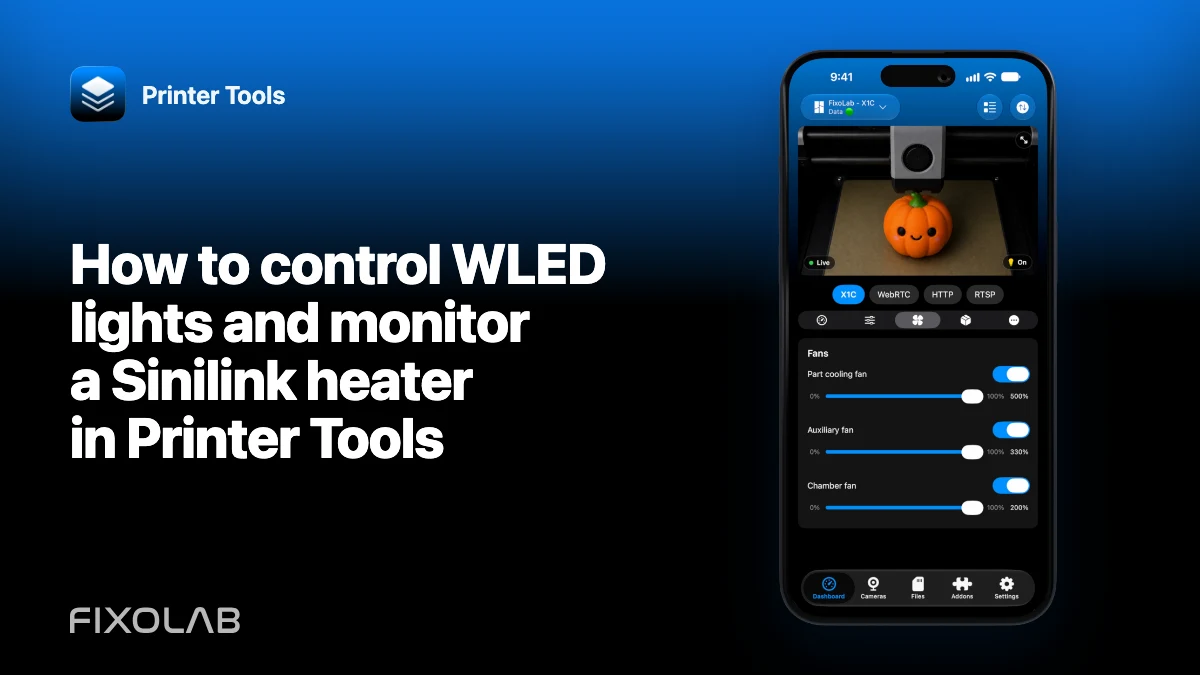
How to control WLED lights and monitor a Sinilink heater in Printer Tools
Add local WLED and Sinilink accessories, use the supported power and brightness controls and understand the read-only heater limits.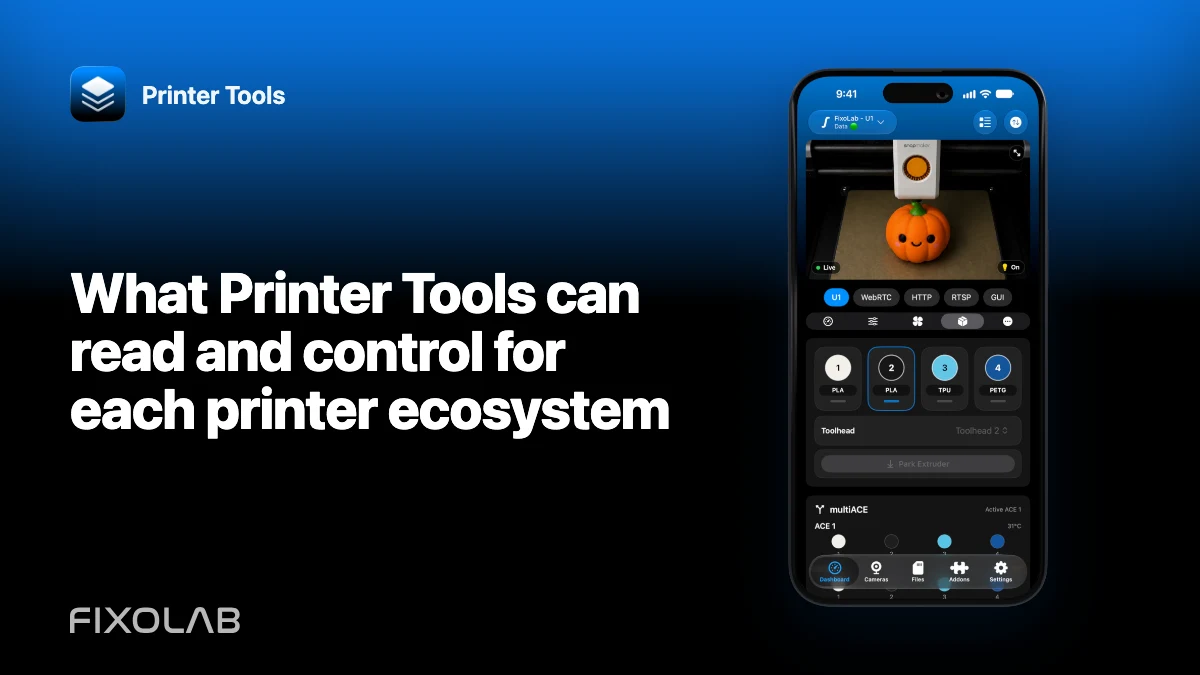
| FixoLab
What Printer Tools can read and control for each printer ecosystem
Compare monitoring, camera, files, filament and job controls across Bambu Lab, Klipper, OctoPrint, Creality and other supported systems.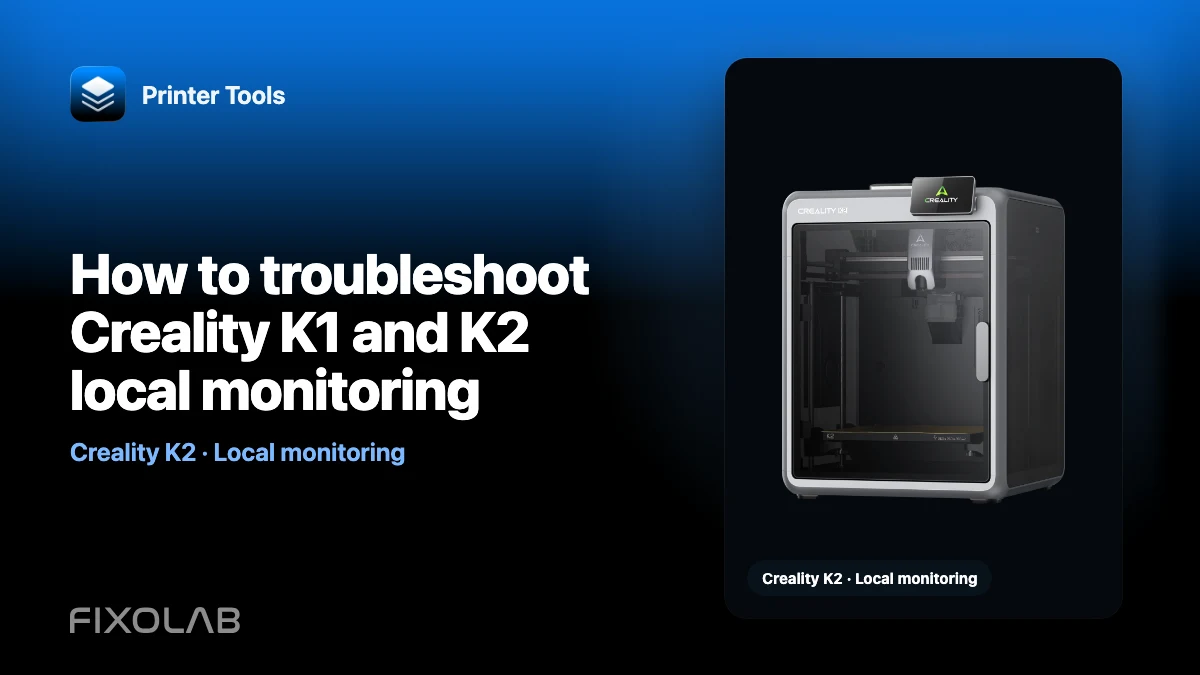
| FixoLab
How to troubleshoot Creality K1 and K2 local monitoring
Diagnose the Creality local WebSocket API on port 9999 and the different MJPEG and WebRTC cameras used by K1 and K2 printers.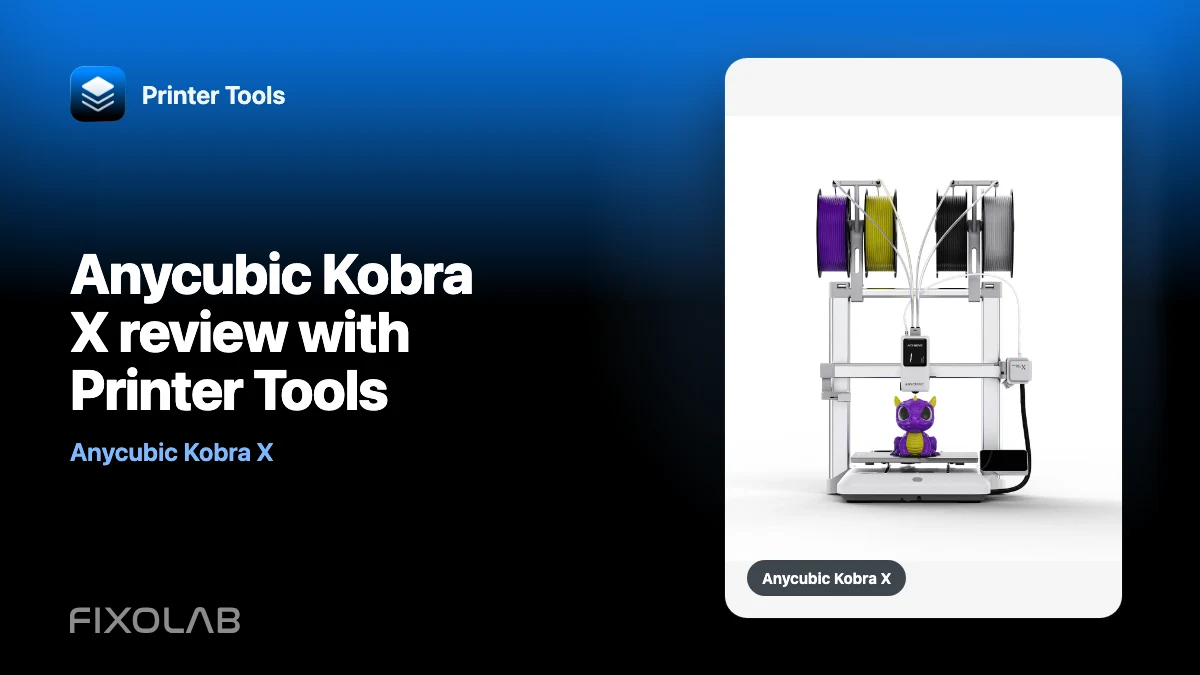
| FixoLab
Anycubic Kobra X review with Printer Tools
A monitoring-focused Anycubic Kobra X review covering local MQTT, RTSP camera, ACE 2 status, job controls and current Printer Tools limits.