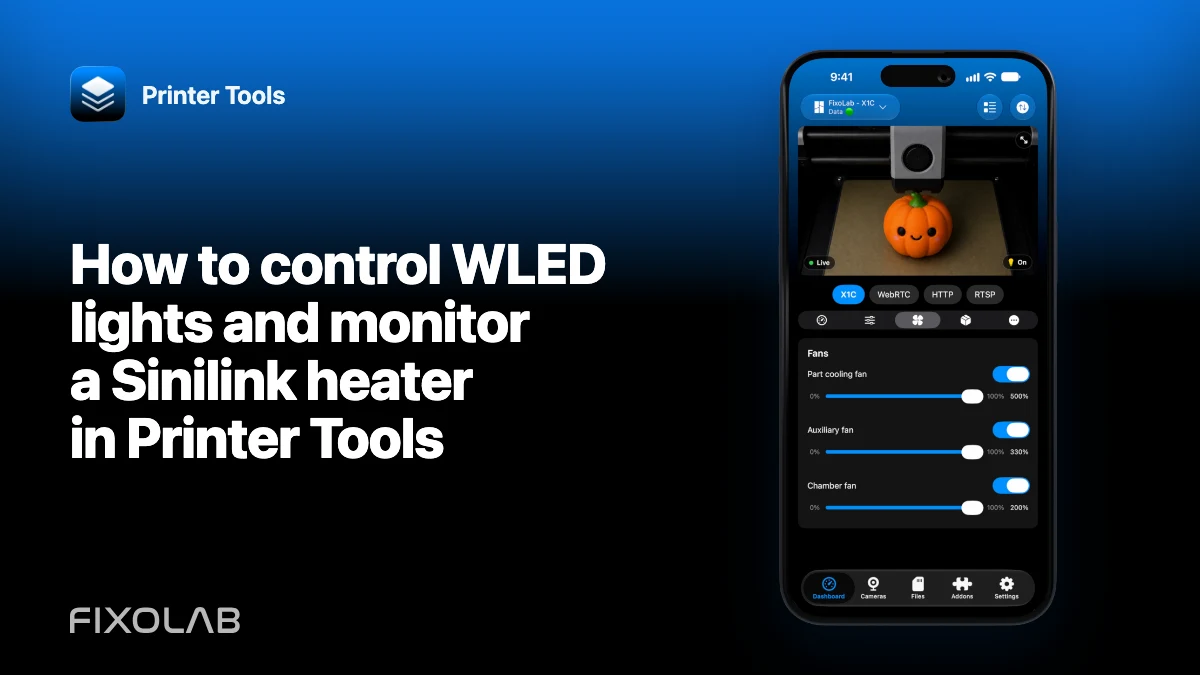
How to control WLED lights and monitor a Sinilink heater in Printer Tools
WLED and Sinilink solve different jobs around a printer. WLED controls LED lighting through its local JSON API. The supported Sinilink integration reads temperature and relay state from a bed or chamber heater controller through its local SINILINK521 UDP protocol.
Printer Tools groups them as local addons while keeping their control boundaries explicit.

All your 3D printers in one dashboard
Monitor Bambu Lab, Klipper, OctoPrint, Creality, Snapmaker, Anycubic, Flashforge, Elegoo, and Prusa printers from one app
Available on Android, iPhone, iPad and Mac, with Apple Watch and Wear OS companion apps plus optional remote access through VPN, OctoEverywhere or Obico
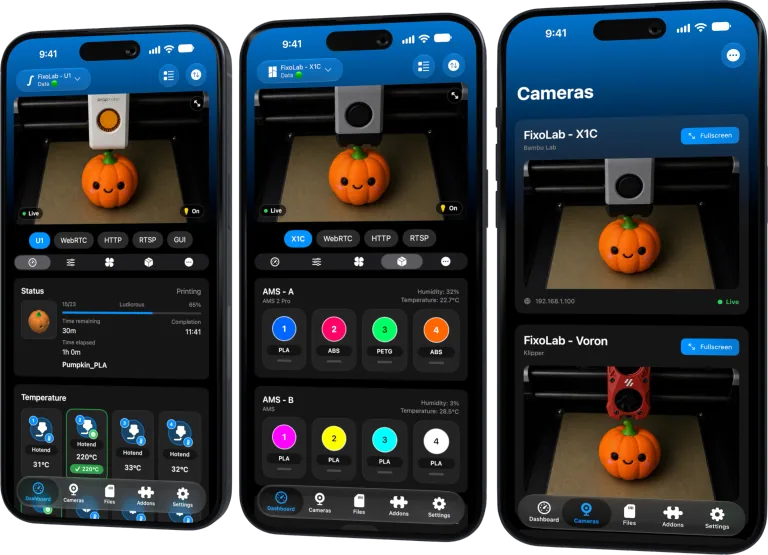
Add a WLED controller
Connect a supported ESP8266 or ESP32 controller running WLED to the same reachable network. Find its private IP address and add a WLED card in Printer Tools.
The app polls WLED’s JSON API over HTTP. Reserve the address in the router so lighting control does not break after a lease change.
Use the WLED controls in Printer Tools
Printer Tools can switch the WLED output on or off and adjust brightness. A shortcut opens the complete WLED web interface when you need colors, effects, palettes or presets.
Those advanced choices are not currently built into Printer Tools. A state changed in the WLED interface may take a few seconds to appear because the addon polls periodically.
Use lighting without creating heat or glare
Mount strips and wiring according to their electrical rating and the printer enclosure temperature. Avoid a reflection that hides the first layer from the camera. More brightness is not always more usable detail.
Do not power a strip from a printer circuit unless the manufacturer and power budget explicitly allow it.
Add a Sinilink heater controller
Connect the supported Sinilink bed or chamber heater relay to the local network. Printer Tools discovers and queries it through UDP, with a response timeout of about five seconds.
The dashboard can show temperature and relay information reported by the controller. This integration is read-only today.
Respect the Sinilink control boundary
Printer Tools does not switch the Sinilink relay or change its heating target. Use the approved controller interface and safety procedure for configuration and control.
A read-only temperature display is not a certified safety cutoff. Keep the heater’s independent limits, sensors and protective hardware in place.
Troubleshoot local reachability
For WLED, verify HTTP access to the current IP. For Sinilink, allow the UDP query and response across the local path. A strict VLAN can permit one protocol and block the other.
If Sinilink appears offline intermittently, check Wi-Fi quality and congestion before assuming the sensor failed. The five-second timeout can expose a weak path.
Use a VPN for remote LAN access and never expose either accessory service directly to the internet. See the current addons matrix for limits.
Frequently asked questions
Can Printer Tools change WLED colors and effects?
Not directly. It controls power and brightness and links to WLED’s full web interface.
Can Printer Tools switch the Sinilink heater?
No. The current integration is read-only for temperature and relay status.
Do these addons need cloud accounts?
No. Both integrations communicate on the local network.
Why does Sinilink sometimes appear offline?
Its UDP response times out after about five seconds, so weak or blocked networking can cause intermittent status.
Official sources: WLED — JSON API
All your 3D printers in one dashboard
Monitor Bambu Lab, Klipper, OctoPrint, Creality, Snapmaker, Anycubic, Flashforge, Elegoo, and Prusa printers from one app
Available on Android, iPhone, iPad and Mac, with Apple Watch and Wear OS companion apps plus optional remote access through VPN, OctoEverywhere or Obico
| FixoLab
How to monitor a 3D printer camera locally from a phone
Connect a supported printer or external camera to Printer Tools on iPhone or Android without exposing it to the public internet.
| FixoLab
Why a camera works in a browser but not in Printer Tools
Separate a camera web interface from its real media endpoint and diagnose authentication, codec, TLS and network differences.
| FixoLab
Common ports for RTSP MJPEG ONVIF and WebRTC cameras
Use common camera ports as diagnostic clues while verifying the actual stream and discovery settings for each device.
| FixoLab
How to encode a camera username and password in a stream URL
Build a valid authenticated camera URL by percent-encoding credential components without leaking the secret.