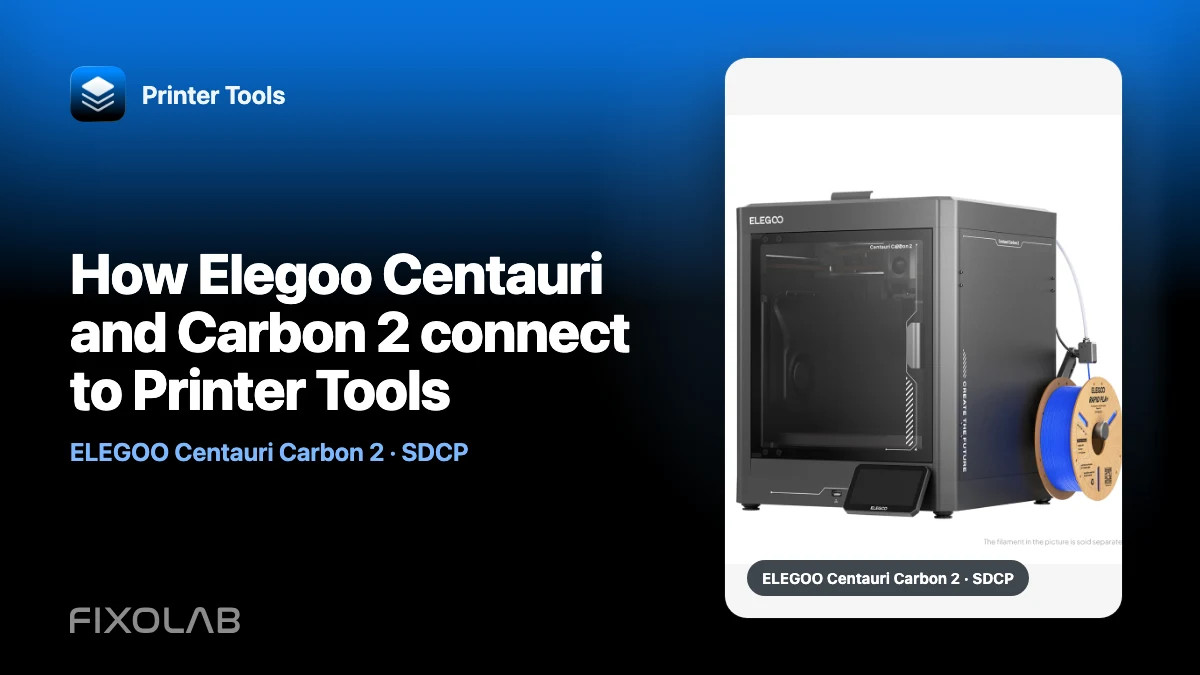
How Elegoo Centauri and Carbon 2 connect to Printer Tools
Elegoo Centauri models do not all use the same local connection. Centauri and the first Centauri Carbon use SDCP over a local WebSocket, while Centauri Carbon 2 uses its own local MQTT protocol. Printer Tools detects the supported path during setup.
This distinction prevents a common mistake: treating Carbon 2 as though it were only a renamed first-generation Carbon and manually forcing the older protocol.
All your 3D printers in one dashboard
Monitor Bambu Lab, Klipper, OctoPrint, Creality, Snapmaker, Anycubic, Flashforge, Elegoo, and Prusa printers from one app
Available on Android, iPhone, iPad and Mac, with Apple Watch and Wear OS companion apps plus optional remote access through VPN, OctoEverywhere or Obico

Identify the exact model
Read the model shown by the printer rather than relying on the purchase listing or a similar enclosure. Printer Tools supports the relevant Centauri FDM families and also covers supported Neptune 4 models, but this integration does not cover Elegoo resin printers.
Use the current Elegoo compatibility matrix to confirm the model and available features.
Centauri and first-generation Carbon use SDCP
These printers communicate with Printer Tools through SDCP on a local WebSocket. Current SDCP firmware does not require the Carbon 2 access-code flow.
If discovery fails, confirm the printer and phone can reach each other on the LAN. Guest isolation, blocked client traffic or a stale IP address can prevent the WebSocket even when both devices have internet access.
Centauri Carbon 2 uses local MQTT
Carbon 2 has a dedicated CC2 MQTT connection. Printer Tools recognizes the model and chooses that client automatically. Do not switch it to SDCP in an attempt to mimic the earlier Carbon.
An Access Code can be optional depending on the Carbon 2 configuration and firmware. Enter the value requested by the app and shown by the printer, but do not publish it.
Camera and Canvas AI behavior
Printer Tools provides automatic local camera preview for supported Centauri generations, with a live-video toggle where the firmware offers it. Canvas AI camera and material tray status appear when a Canvas unit is installed and reports them.
A missing Canvas panel on a printer without that hardware is not a connection error. Likewise, file management is not currently available through the Elegoo integration.
Troubleshoot the right transport
For an SDCP printer, focus on WebSocket reachability and the current local address. For Carbon 2, focus on model detection, MQTT reachability and the optional access code. Do not copy ports or credentials between generations.
After a firmware or router change, reopen setup, confirm the exact model and update the saved address. Add a DHCP reservation when the connection is stable.
Keep the connection local
No Elegoo cloud account is required for Printer Tools. The app communicates directly with the printer over the local network. For access away from home, use a VPN instead of forwarding WebSocket, MQTT or camera ports.
The comparison guide using Elegoo Centauri Carbon and Carbon 2 with Printer Tools covers the feature differences in more detail.
Frequently asked questions
Does Carbon 2 use the same protocol as Carbon?
No. Carbon 2 uses its dedicated local MQTT protocol, while the first generation uses SDCP over WebSocket.
Do I choose the protocol manually?
No. Select the correct model and let Printer Tools choose the supported path.
Are Elegoo resin printers supported?
No. This compatibility family covers supported Elegoo FDM printers.
Why do I not see file management?
It is not yet available for the Elegoo integration and is not evidence of a failed connection.
All your 3D printers in one dashboard
Monitor Bambu Lab, Klipper, OctoPrint, Creality, Snapmaker, Anycubic, Flashforge, Elegoo, and Prusa printers from one app
Available on Android, iPhone, iPad and Mac, with Apple Watch and Wear OS companion apps plus optional remote access through VPN, OctoEverywhere or Obico
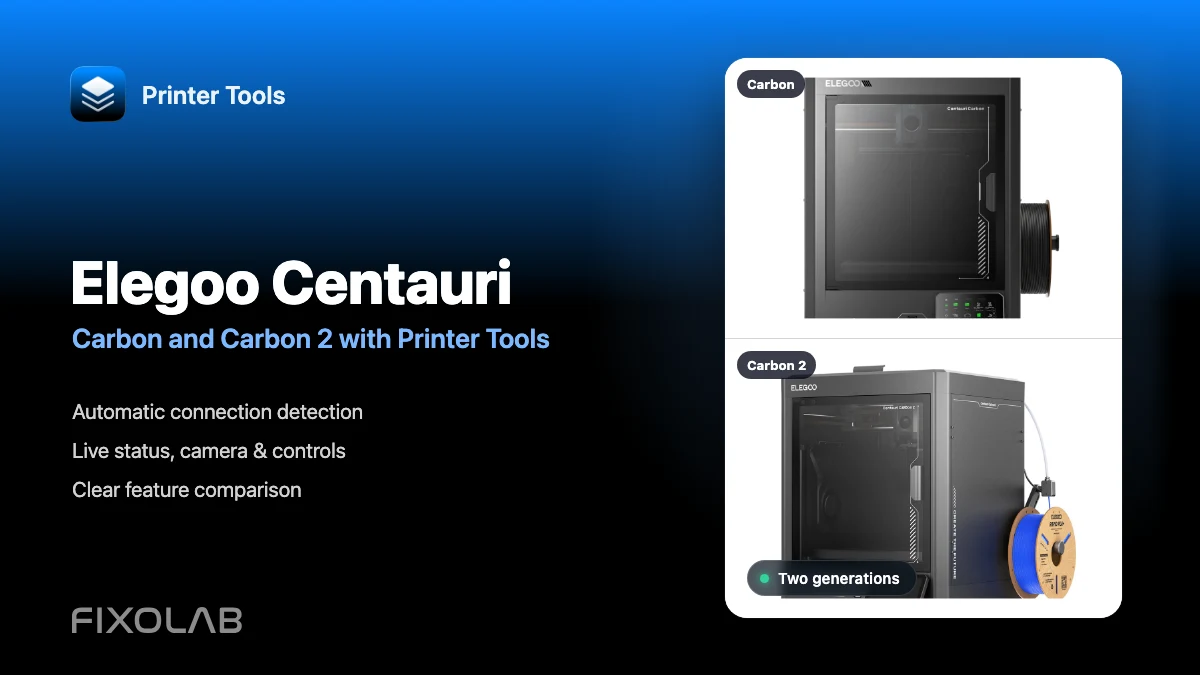
| FixoLab
Using Elegoo Centauri Carbon and Centauri Carbon 2 with Printer Tools
See how Printer Tools connects to Elegoo Centauri Carbon and Carbon 2, what both models support and which current limitations they share.
| FixoLab
Which Elegoo Printers Does Printer Tools Support?
Printer Tools supports the full Elegoo Centauri lineup, Centauri, Centauri Carbon and Centauri Carbon 2, each connected automatically over its own local protocol.
| FixoLab
Printer Tools Is Now Compatible With Anycubic, Flashforge, Elegoo and Obico
Printer Tools now supports Anycubic, Flashforge, Elegoo and Obico, with live monitoring, camera streaming, ACE and material-station tracking, and remote access via Obico.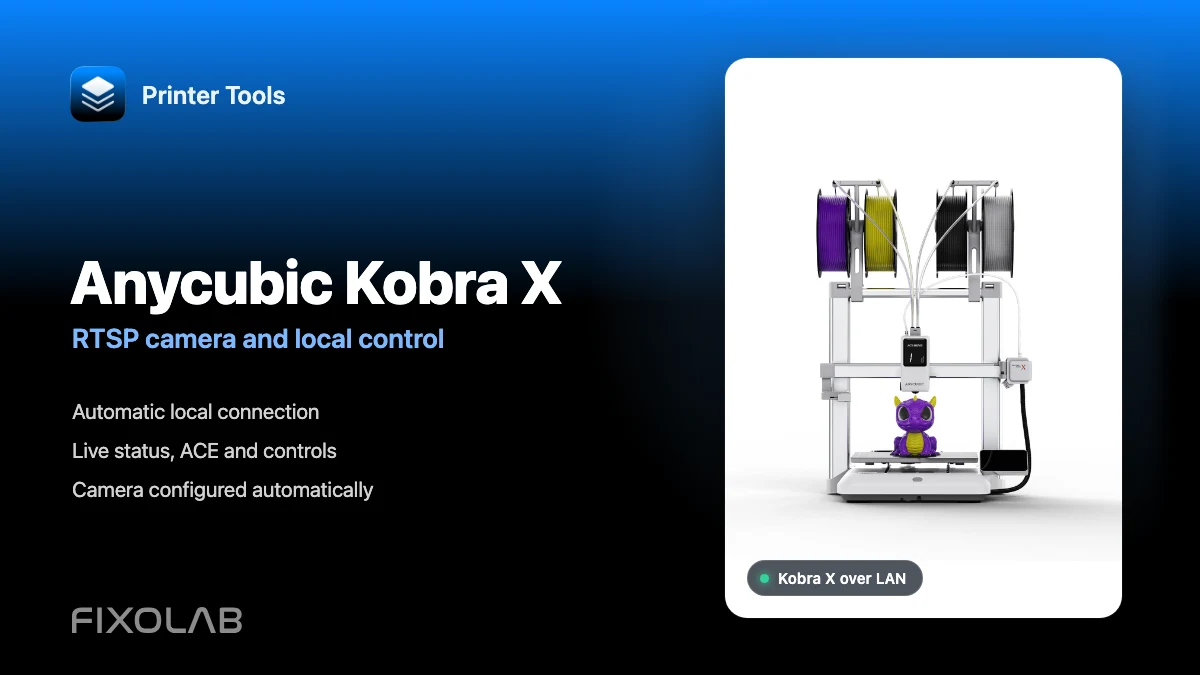
| FixoLab
How to connect Anycubic Kobra X to Printer Tools with RTSP camera and local control
Connect Anycubic Kobra X to Printer Tools over LAN and use live monitoring, its automatic RTSP camera, ACE information and compatible local controls.