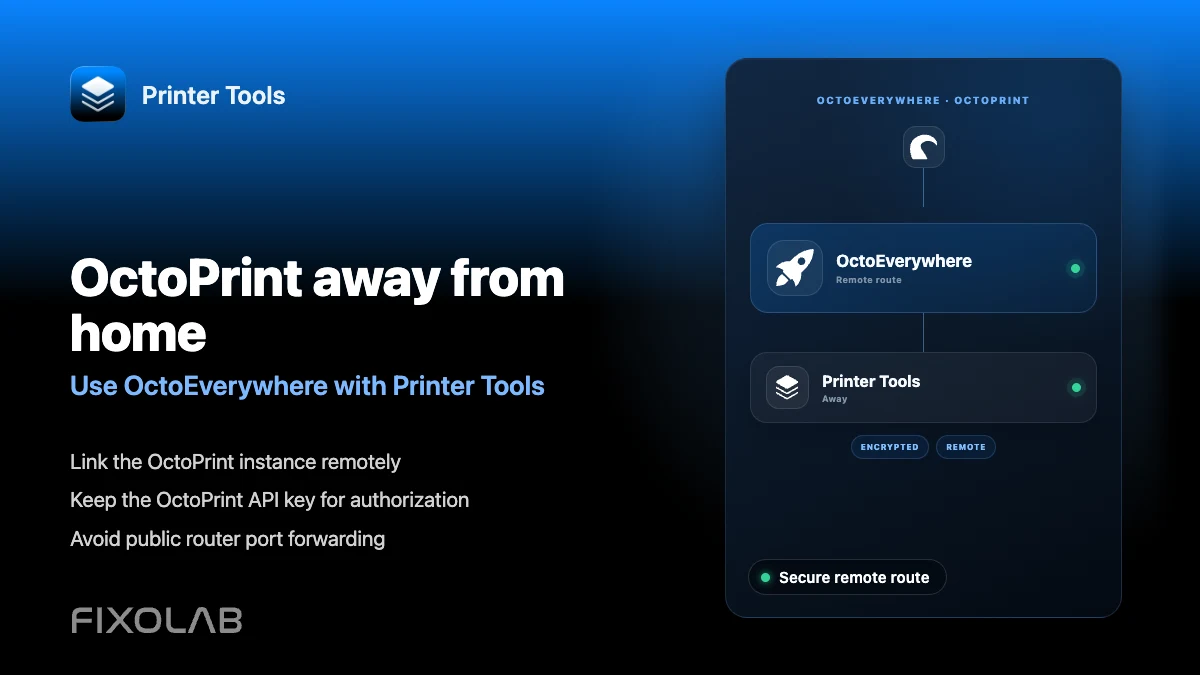
How to use OctoEverywhere with Printer Tools for remote OctoPrint access
OctoEverywhere for OctoPrint
The short answer
Add OctoEverywhere to an OctoPrint printer already connected in Printer Tools to check status, view the camera and control the current job from outside your home network, without forwarding any ports on your router. The local connection keeps working at the same time for when you are on the same network.
What you need
- An OctoPrint printer already connected locally in Printer Tools
- The OctoEverywhere plugin installed and linked on the same OctoPrint server
- An OctoEverywhere account
- Printer Tools installed on the device you want to use away from home
Set up remote OctoPrint access
- 1
Install the OctoEverywhere plugin
From OctoPrint's plugin manager, install OctoEverywhere and follow its own linking steps to connect it to an OctoEverywhere account.
- 2
Confirm the printer appears in your OctoEverywhere account
Check the OctoEverywhere dashboard in a browser to confirm the printer shows as online before adding it in Printer Tools.
- 3
Add OctoEverywhere to the printer in Printer Tools
Open the OctoPrint printer's settings in Printer Tools and sign in to your OctoEverywhere account to enable remote access for it.
- 4
Test it away from your local network
Switch to mobile data or another network and confirm status, camera and job controls still load through OctoEverywhere's connection.
- 5
Keep using the local connection at home
Printer Tools continues to use the direct local connection whenever you are on the same network as the printer, keeping remote access as a fallback rather than the default path.
Remote OctoPrint access in Printer Tools
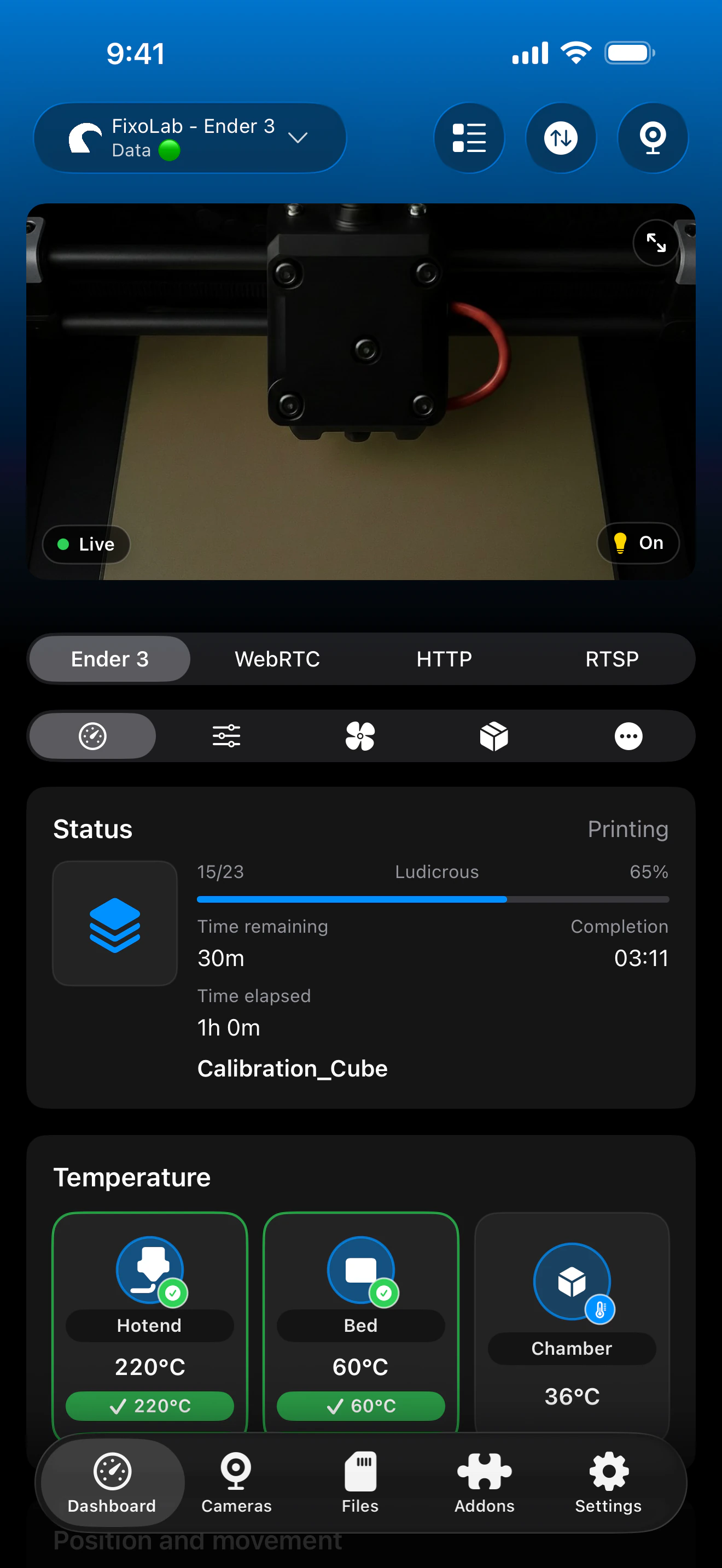
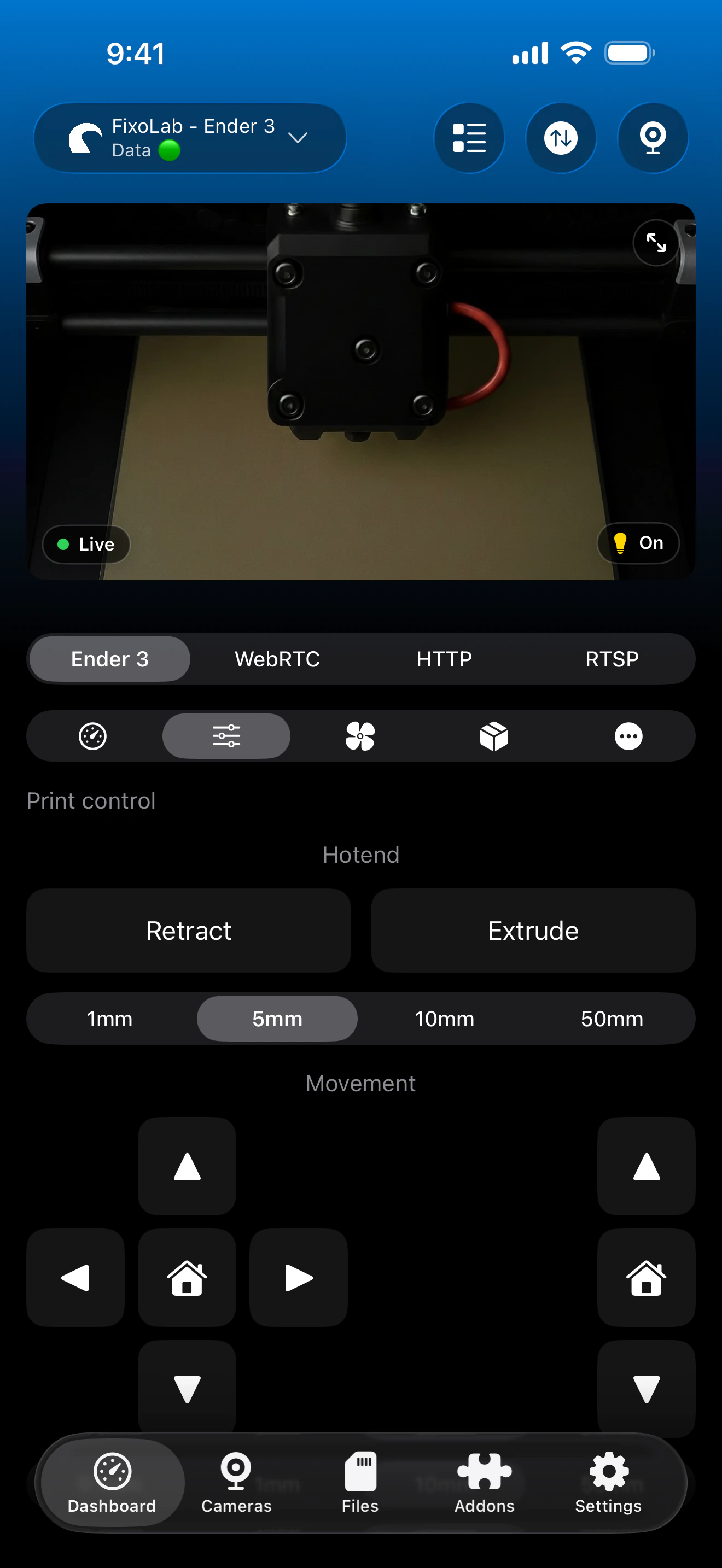
The same OctoPrint dashboard is available locally and remotely, with OctoEverywhere handling the connection when you are away from home.
What works remotely
- Live status, progress and temperatures from outside your local network
- Camera viewing through OctoEverywhere's secure tunnel
- Pause, resume and stop for the job currently printing
- Automatic use of the local connection again once you are back on the same network
What to keep in mind
- OctoEverywhere requires its own plugin installed and linked on the OctoPrint server
- Uploading files or starting a new print remains unsupported in Printer Tools, locally or remotely
- Remote video quality depends on your home network's upload speed
Common remote access issues
The printer shows offline in OctoEverywhere
Confirm the OctoEverywhere plugin is active in OctoPrint and that OctoPrint itself is running. A printer already offline locally will also show offline in OctoEverywhere.
Remote access works but is slower than local
This is expected, since remote traffic travels through OctoEverywhere's tunnel instead of your local network. Camera quality is most affected by a slow home upload speed.
Printer Tools still tries to use the local address away from home
Confirm OctoEverywhere is actually linked to that specific printer in Printer Tools, not only installed in OctoPrint.
Choosing between OctoEverywhere and a VPN
OctoEverywhere is built specifically for this use case and needs no router configuration. A VPN back to your home network is a valid alternative if you already use one, but it requires your own setup and maintenance.
Frequently asked questions
Do I need to open any ports on my router?
No. OctoEverywhere establishes the connection without requiring port forwarding on your router.
Does this replace my local OctoPrint connection?
No. Printer Tools keeps using the local connection when you are on the same network and only relies on OctoEverywhere when you are away.
Can I start a print remotely through OctoEverywhere?
No. Starting a new print is not supported in Printer Tools yet, whether you are connected locally or through OctoEverywhere.
Is OctoEverywhere free?
OctoEverywhere offers its own plans directly; check their current terms, since Printer Tools only integrates with the service and does not set its pricing.
Related guides
See full OctoPrint compatibility
Review the supported OctoPrint features, camera setup, authentication and current limitations in Printer Tools.
All your 3D printers in one dashboard
Monitor Bambu Lab, Klipper, OctoPrint, Creality, Snapmaker, Anycubic, Flashforge, Elegoo, and Prusa printers from one app
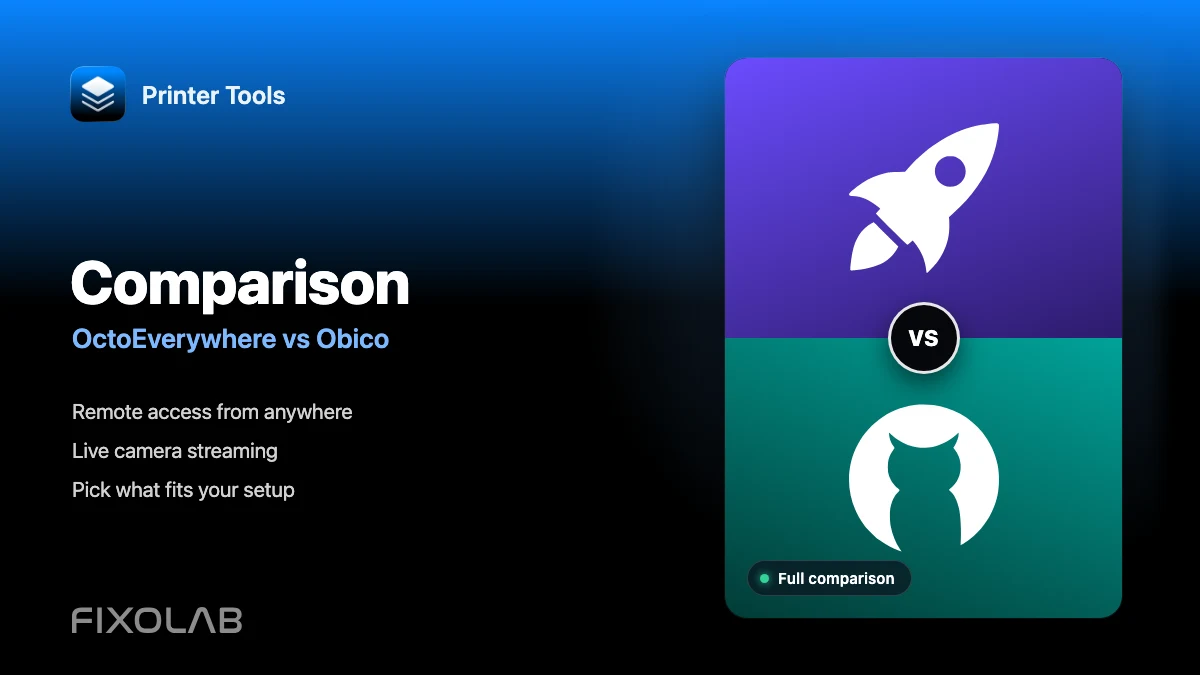
Available on Android, iPhone, iPad and Mac, with Apple Watch and Wear OS companion apps plus optional remote access through VPN, OctoEverywhere or Obico
