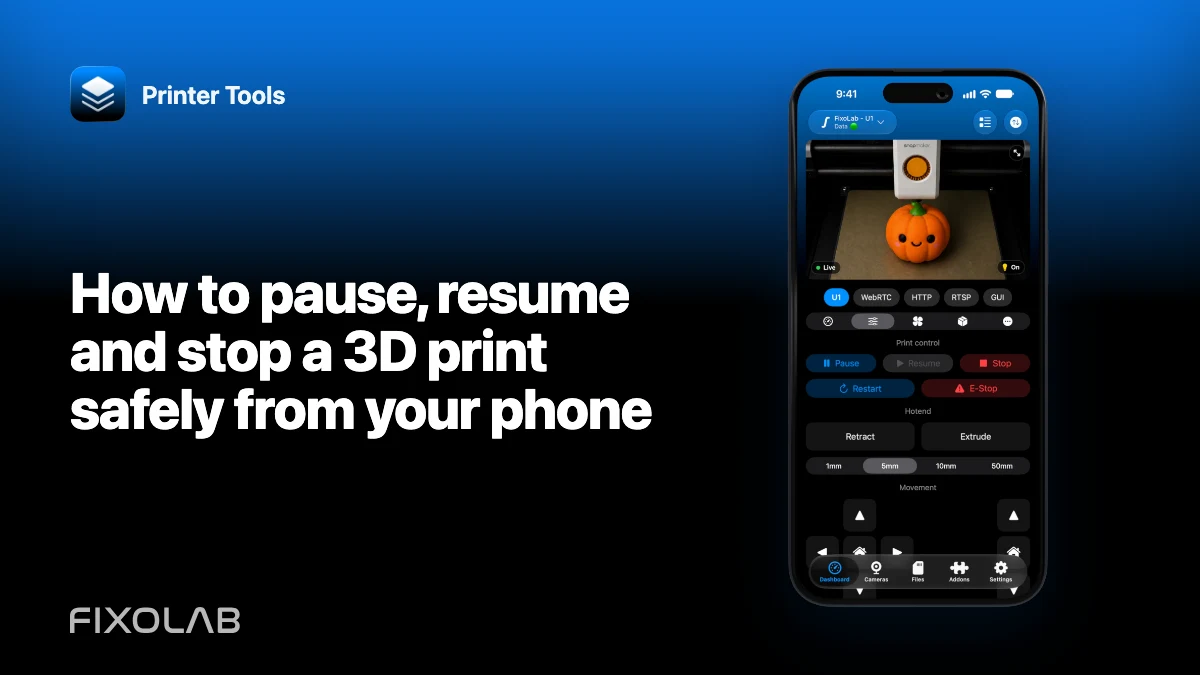
How to pause, resume and stop a 3D print safely from your phone
Pause, resume and stop are not interchangeable controls. A pause intends to preserve the job, resume continues from a printer-managed state and stop ends the job. The exact behavior is determined by the printer firmware and the connected integration.
Before sending any remote action, confirm that Printer Tools is showing fresh data from the intended printer.

All your 3D printers in one dashboard
Monitor Bambu Lab, Klipper, OctoPrint, Creality, Snapmaker, Anycubic, Flashforge, Elegoo, and Prusa printers from one app
Available on Android, iPhone, iPad and Mac, with Apple Watch and Wear OS companion apps plus optional remote access through VPN, OctoEverywhere or Obico
Confirm the active printer and job
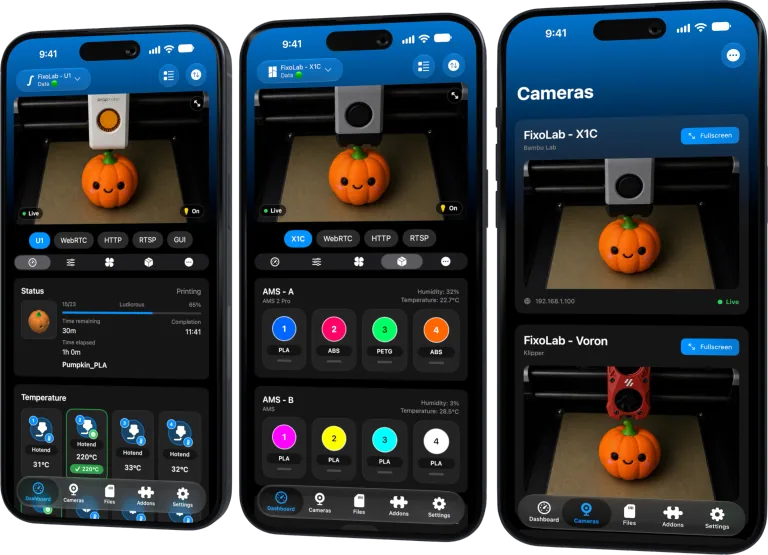
In a multi-printer dashboard, read the printer name, model, file and current state. A stale card or similarly named machine can make a correct command dangerous on the wrong target.
Open the printer detail and wait for a current status update. If the connection is uncertain, check the printer physically or through an independent camera before acting.
Use pause for a recoverable interruption
Pause is appropriate only when the printer and firmware support a safe paused state. The printer may park, keep heaters active or follow its own pause macro. Printer Tools sends the supported action but does not redefine that firmware behavior.
After pausing, inspect why the interruption was needed. Do not resume into a detached part, collision, jam, smoke or damaged wiring.
Resume only after the cause is resolved
Resume continues the existing job. Confirm temperatures, tool position, filament path and the printer’s own paused-state instructions.
If the printer rebooted, lost position or marked the job failed, a resume button in stale UI must not be treated as authority. Refresh the state first.
Stop when continuing is unsafe or pointless
Stop or cancel ends the active job according to the integration. Use it for an unrecoverable print failure or a condition where continued motion or heating is not appropriate.
Stopping remotely is not an emergency disconnect. If there is fire, electrical damage or immediate physical danger, follow emergency and manufacturer procedures rather than relying on an app command.
Wait for confirmed state
A tap and a successful network send do not by themselves prove that the printer acted. Printer Tools should receive an updated printer state after the command. Watch for the transition and verify physically when the consequence matters.
Avoid rapid repeated taps. Duplicate commands can make the resulting sequence harder to understand.
Understand feature differences
Bambu, Klipper, OctoPrint, Creality, Snapmaker, Anycubic, FlashForge and Elegoo expose job controls through different protocols. PrusaLink and other integrations can have different action sets.
Use the live compatibility page for the printer rather than assuming every dashboard has identical controls.
Remote access adds another failure point
A VPN or managed relay can deliver commands away from home, but latency and loss are possible. Do not perform movement or extrusion actions when you cannot verify the printer area is clear.
For safety context, review monitoring an overnight print more safely.
Frequently asked questions
Does pause turn heaters off?
It depends on the printer firmware or pause macro. Check the exact printer behavior.
Can I resume after a printer reboot?
Only if the printer itself explicitly supports and reports a recoverable job. Refresh state first.
Is stop an emergency power cutoff?
No. It is a job command and depends on a working connection and firmware response.
Why wait after tapping a control?
The updated printer state confirms that the command was received and applied.
Official sources: Klipper — PAUSE, RESUME and CANCEL_PRINT · OctoPrint — Job operations API
All your 3D printers in one dashboard
Monitor Bambu Lab, Klipper, OctoPrint, Creality, Snapmaker, Anycubic, Flashforge, Elegoo, and Prusa printers from one app
Available on Android, iPhone, iPad and Mac, with Apple Watch and Wear OS companion apps plus optional remote access through VPN, OctoEverywhere or Obico
| FixoLab
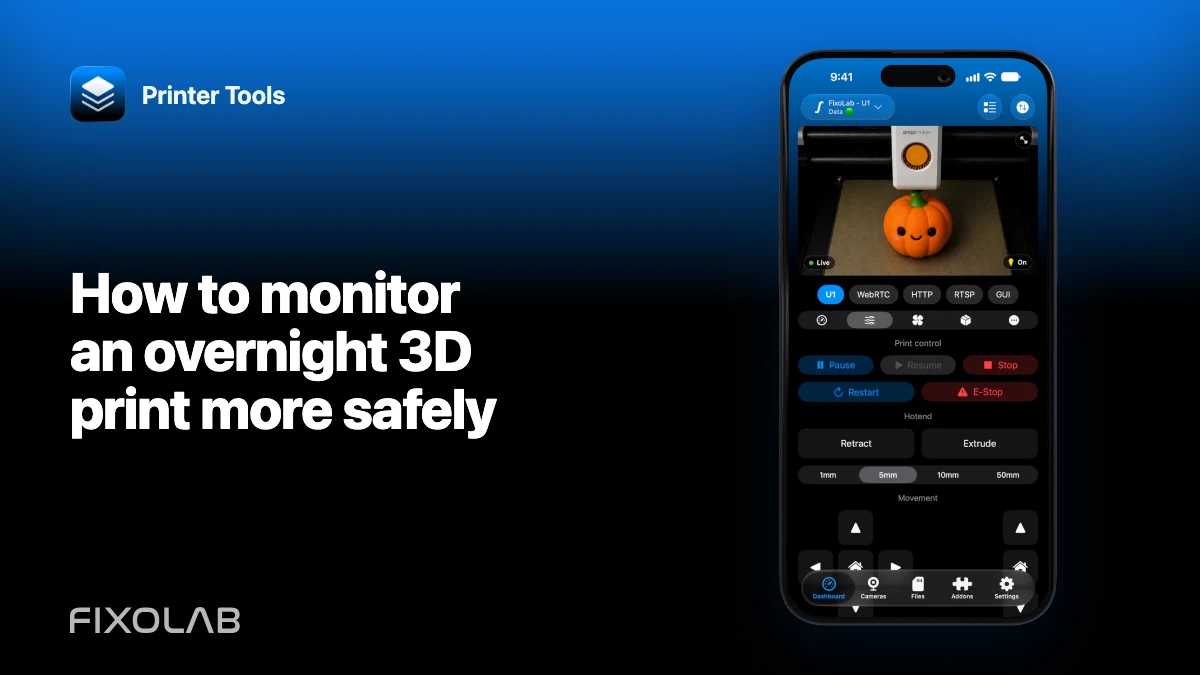
How to monitor an overnight 3D print more safely
Use printer safeguards, physical inspection, camera placement and alerts as layers without treating remote monitoring as a safety guarantee.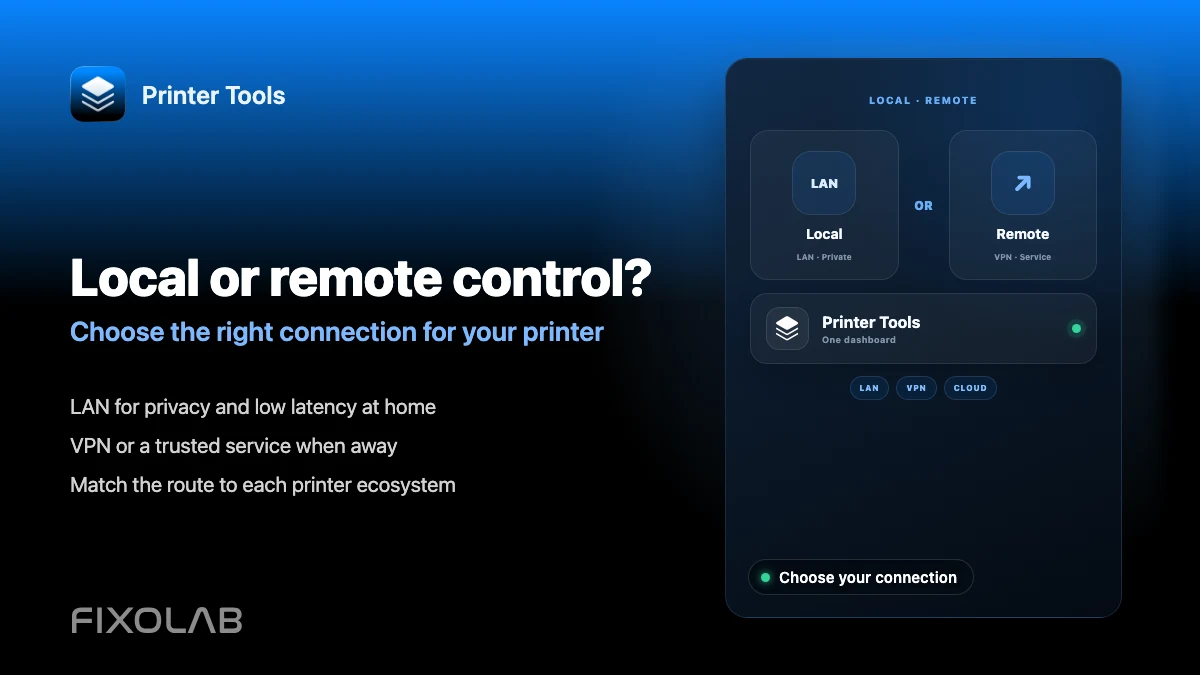
| FixoLab
Choosing local 3D printer control or remote access with VPN, OctoEverywhere, Obico and cloud
Compare local-only control, a VPN, OctoEverywhere, Obico and a manufacturer cloud app for reaching your 3D printer remotely.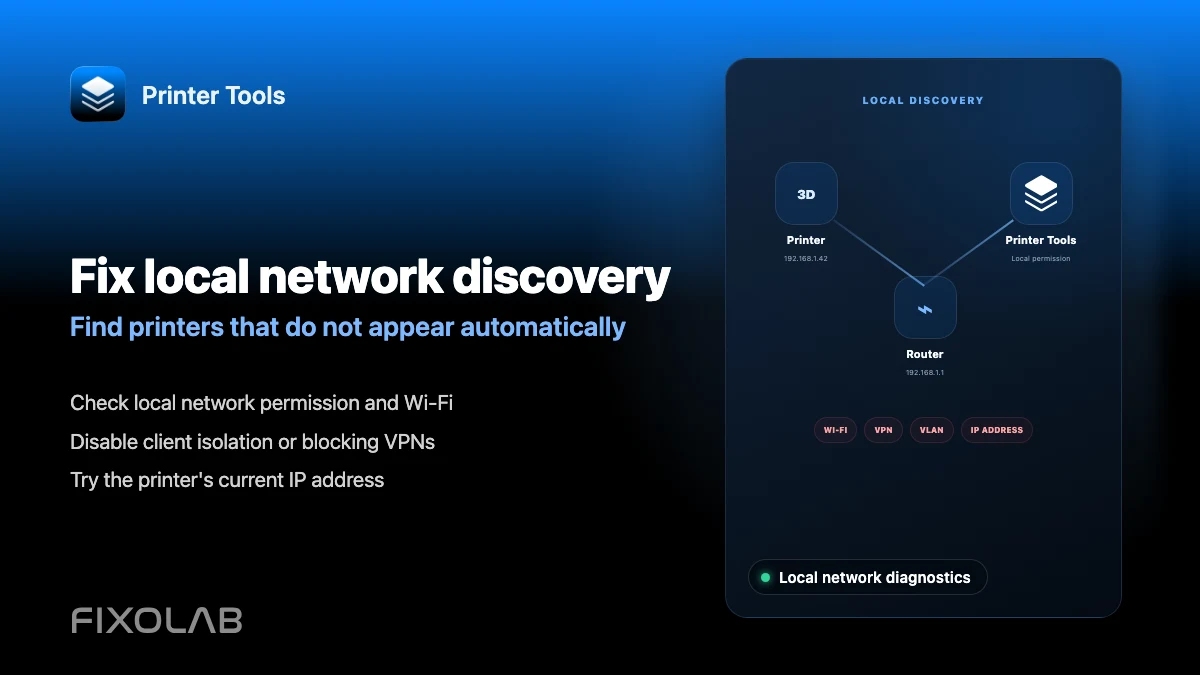
| FixoLab
How to fix local network discovery problems in Printer Tools
Fix printer connection failures caused by client isolation, VLANs, VPNs and the iOS local network permission in Printer Tools.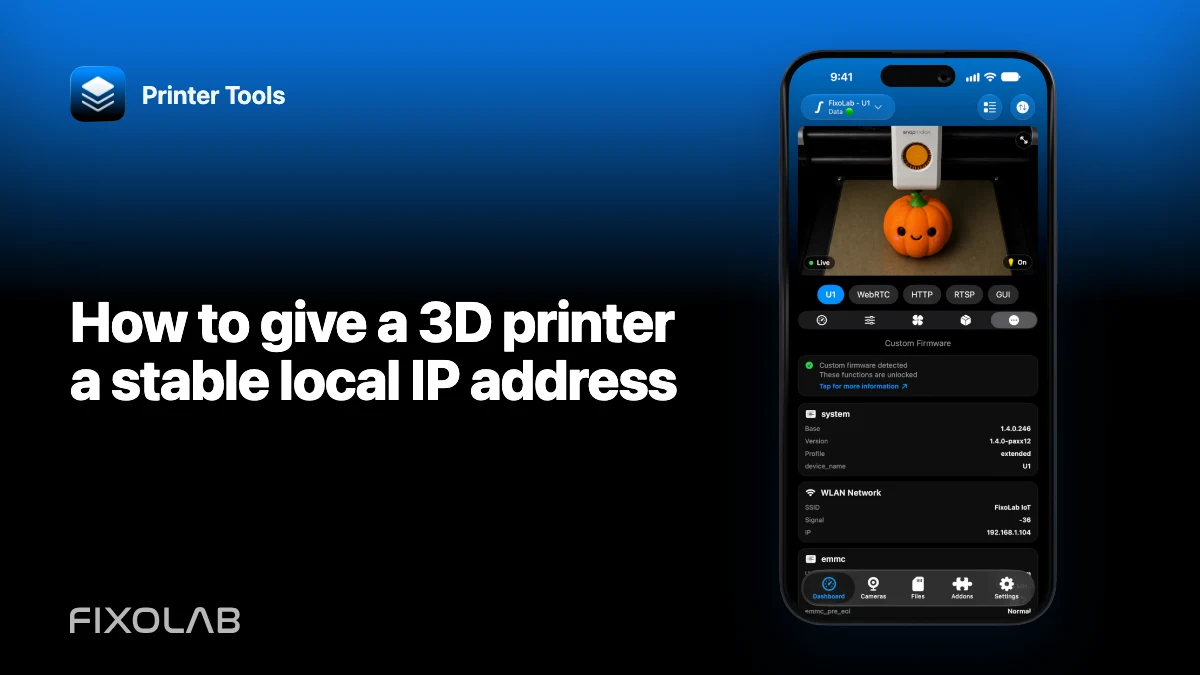
| FixoLab
How to give a 3D printer a stable local IP address
Use a router DHCP reservation to keep a printer connection stable without exposing ports or guessing an unsupported static network configuration.