How to monitor a 3D printer from Apple Watch and Wear OS
Printer Tools on your wrist
The short answer
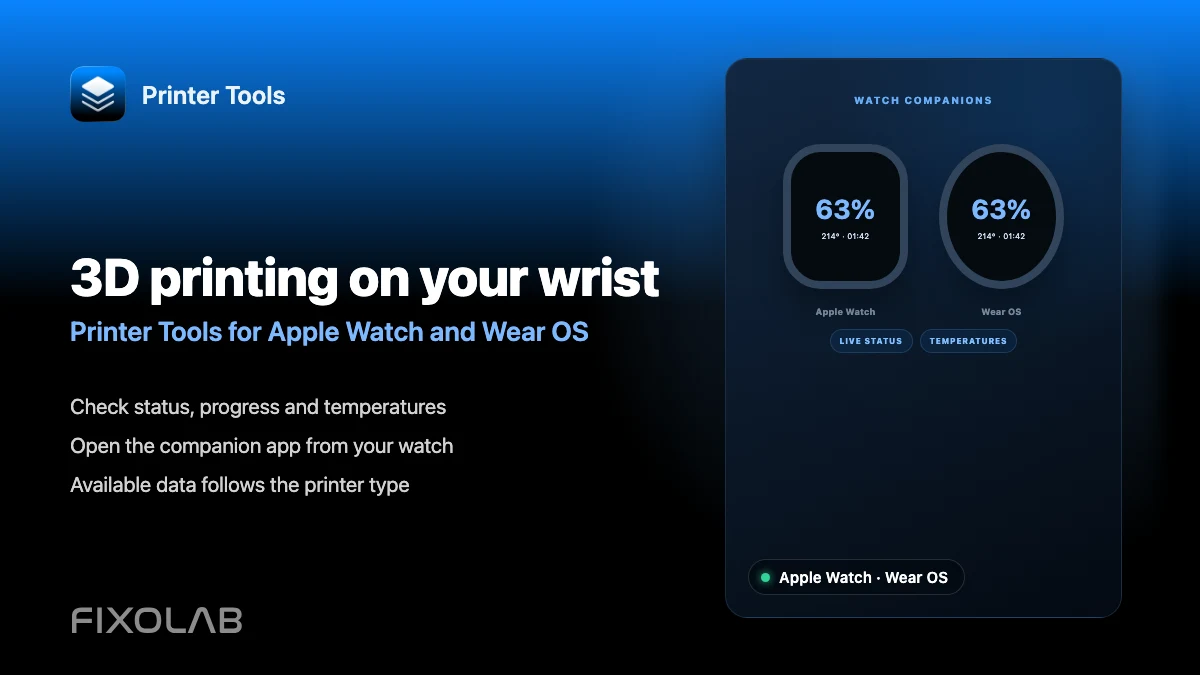
The Printer Tools watchOS app shows live print status, progress and temperatures on Apple Watch, while the Wear OS app adds the same monitoring plus a light on/off toggle. Both are Premium features and both relay data through your phone rather than connecting to the printer's network directly from the watch.
What you need
- The Printer Tools app installed and connected to a printer on your iPhone or Android phone
- The companion watchOS or Wear OS app installed on your watch
- A Printer Tools Premium subscription
- Your watch paired and within range of the phone for data to relay through
Set up printer monitoring on your watch
- 1
Connect your printer on your phone first
Make sure the printer is already added and connected in the main Printer Tools app on your iPhone or Android phone.
- 2
Install the watch companion app
Install the Printer Tools watchOS app from the Watch app on iPhone, or the Wear OS app from the Play Store on your Android phone.
- 3
Confirm your Premium subscription
Both watch apps require a Premium subscription, so confirm yours is active if the watch shows demo data instead of your real printer.
- 4
Select your printer on the watch
Open the app on your watch and choose which connected printer to monitor, if you have more than one.
- 5
Check status and temperature pages
Move between the status page, showing print progress, and the temperature page, showing current and target values, directly from your wrist.
- 6
Toggle the light from Wear OS, if supported
On Wear OS, use the light toggle on the status page for printers whose integration supports remote light control. This control is not currently part of the watchOS app.
Apple Watch and Wear OS monitoring
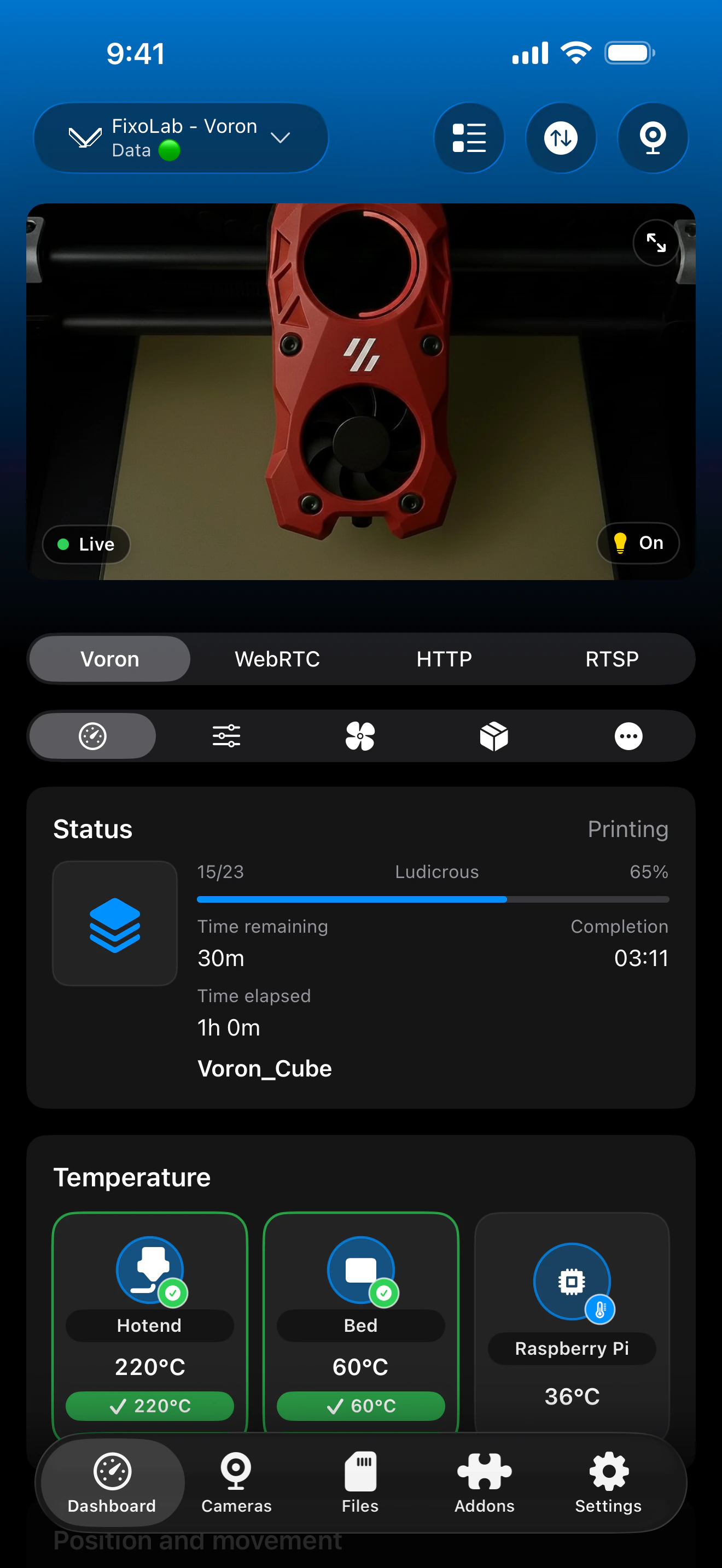
Both watch apps show live status and temperatures, relayed from the printer already connected on your phone.
What each watch platform supports
- Live print status, progress and elapsed time on both Apple Watch and Wear OS
- Hotend, bed and chamber temperature, current versus target, on both platforms
- A printer selector for switching between connected printers
- A light on/off toggle on Wear OS, for printers whose integration supports it
What is not available on the watch
- Pause, resume or stop controls are not available from either watch app today
- The watchOS app does not include a light toggle; that control is Wear OS only for now
- Both apps require your phone to be nearby and connected, since neither talks to the printer's network directly
- Both apps are Premium features, not available without an active subscription
Common watch issues
The watch shows demo data instead of my printer
Confirm your Premium subscription is active and that the phone app is actually connected to a real printer, since demo mode appears when either condition is not met.
Data on the watch feels delayed
Check that your watch is paired and in range of the phone, since updates relay from the phone rather than connecting to the printer independently.
The light toggle is missing on Apple Watch
This is expected. The light toggle is currently available on Wear OS only and is not part of the watchOS app.
Using your watch away from home
Your watch reflects whatever connection the phone app is using, whether local, OctoEverywhere, Obico or a VPN, since it relays through the phone rather than connecting on its own.
Frequently asked questions
Can I control my printer from Apple Watch?
Not currently for pause, resume or stop. The watchOS app is focused on monitoring status, progress and temperatures.
Can I turn the light on or off from my watch?
Yes, on Wear OS, for printers whose integration supports remote light control. This is not available on watchOS today.
Do I need Premium for the watch apps?
Yes. Both the watchOS and Wear OS apps require an active Printer Tools Premium subscription.
Does my watch need its own Wi-Fi connection?
No. Both watch apps relay data through your paired phone rather than connecting to your printer's network independently.
Can I monitor more than one printer from my watch?
Yes. Both watch apps let you select which connected printer to view if you have several set up on your phone.
Related guides
See widgets and watches support
Review what Apple Watch, Wear OS and home screen widgets each show for your connected printers.
All your 3D printers in one dashboard
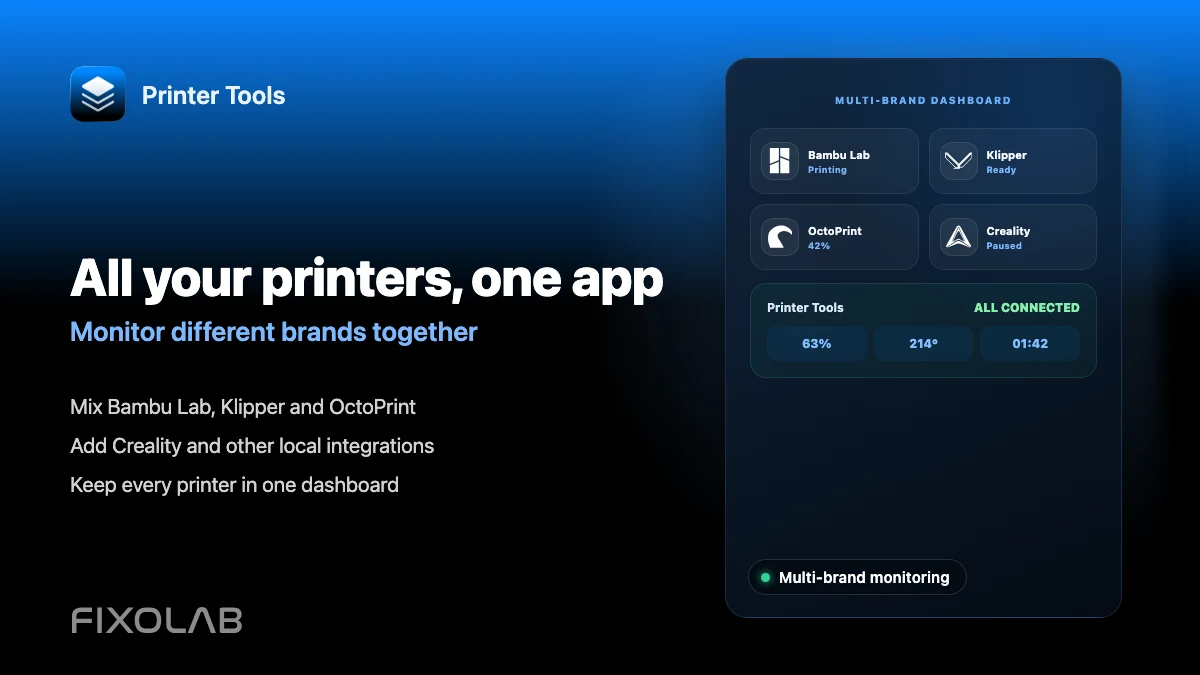
Monitor Bambu Lab, Klipper, OctoPrint, Creality, Snapmaker, Anycubic, Flashforge, Elegoo, and Prusa printers from one app
Available on Android, iPhone, iPad and Mac, with Apple Watch and Wear OS companion apps plus optional remote access through VPN, OctoEverywhere or Obico
