How to troubleshoot Snapmaker U1 camera and telemetry
Printer Tools supports Snapmaker U1 on its official firmware and on the independent paxx12 community firmware. Both paths can provide local telemetry and camera preview, but they are not the same firmware and should not be mixed during diagnosis.
Start by recording which firmware is installed, the current printer address and whether data, camera and multiACE information fail together or separately.
All your 3D printers in one dashboard
Monitor Bambu Lab, Klipper, OctoPrint, Creality, Snapmaker, Anycubic, Flashforge, Elegoo, and Prusa printers from one app
Available on Android, iPhone, iPad and Mac, with Apple Watch and Wear OS companion apps plus optional remote access through VPN, OctoEverywhere or Obico

Confirm that the printer is a U1
The Snapmaker compatibility family in Printer Tools is specific to U1. It does not imply support for Artisan, J1 or every printer sold under the Snapmaker brand.
Check the Snapmaker U1 compatibility page for current functions and limits before applying U1 instructions to another model.
Record the installed firmware path
Official firmware is maintained by Snapmaker. paxx12 is an independent community project and is not affiliated with or endorsed by Snapmaker. Printer Tools supports both, but a setting, endpoint or update instruction for one may not apply to the other.
Do not change firmware merely to solve a stale IP address. Firmware replacement has its own risks and should be a deliberate choice based on the project’s documentation.
Test telemetry before the camera
Open the U1 dashboard and confirm status, progress, temperatures and print-head information. If all data is stale, compare the saved address with the printer and test both devices on the same reachable LAN.
Guest isolation and VLAN policy can block a local connection even when the printer and phone each have internet access. A DHCP reservation reduces later address changes.
Diagnose camera preview separately
If telemetry works but the camera does not, reopen Live View and capture a fresh log. Verify that the installed firmware exposes its camera locally and that the router allows the corresponding traffic.
Do not replace the built-in U1 camera with a guessed external-camera URL. Printer Tools’ U1 integration is responsible for the supported native preview.
Understand multiACE data
multiACE status appears when connected units and the installed firmware report it. Missing tray detail can be a firmware or reporting limitation rather than a total connection failure.
Compare the physical unit state with the data shown by the printer itself. Do not send material changes or print-head commands while investigating an uncertain connection.
After an update or network change
Wait for the U1 to restart fully, confirm its address and reopen Printer Tools. Update the app before reporting a regression so the current protocol fixes are present.
If only one section fails, preserve that distinction in the support report. Include firmware path and version, Printer Tools version, platform and an encrypted log created immediately after reproduction.
The initial setup is covered in how to connect Snapmaker U1 with official firmware. The separate official firmware and paxx12 comparison explains the two paths.
Frequently asked questions
Is paxx12 official Snapmaker firmware?
No. It is an independent community project. Follow its own documentation and risk guidance.
Does Printer Tools support other Snapmaker models?
This integration and its compatibility page are specific to Snapmaker U1.
Why can telemetry work while the camera fails?
They use separate local services. Test camera reachability without discarding a working printer connection.
Does missing multiACE detail mean the printer is offline?
Not necessarily. Printer Tools can only show the tray data reported by the connected firmware and hardware.
All your 3D printers in one dashboard
Monitor Bambu Lab, Klipper, OctoPrint, Creality, Snapmaker, Anycubic, Flashforge, Elegoo, and Prusa printers from one app
Available on Android, iPhone, iPad and Mac, with Apple Watch and Wear OS companion apps plus optional remote access through VPN, OctoEverywhere or Obico
| FixoLab
Snapmaker U1 vs FlashForge Creator 5 with Printer Tools
Comparing the Snapmaker U1 and FlashForge Creator 5 in Printer Tools, toolhead and multi-material control, camera streaming, and what each integration covers.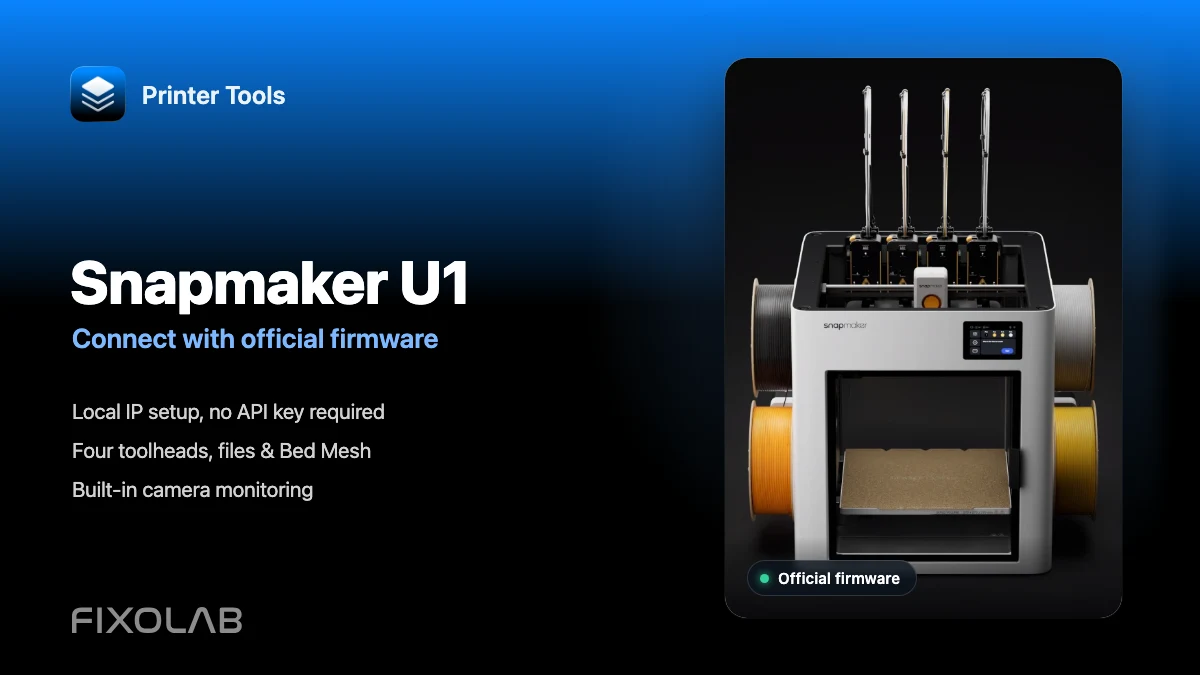
| FixoLab
How to connect Snapmaker U1 to Printer Tools with official firmware
Connect Snapmaker U1 to Printer Tools over your local network with official firmware. Set up its camera, four toolheads, files and controls step by step.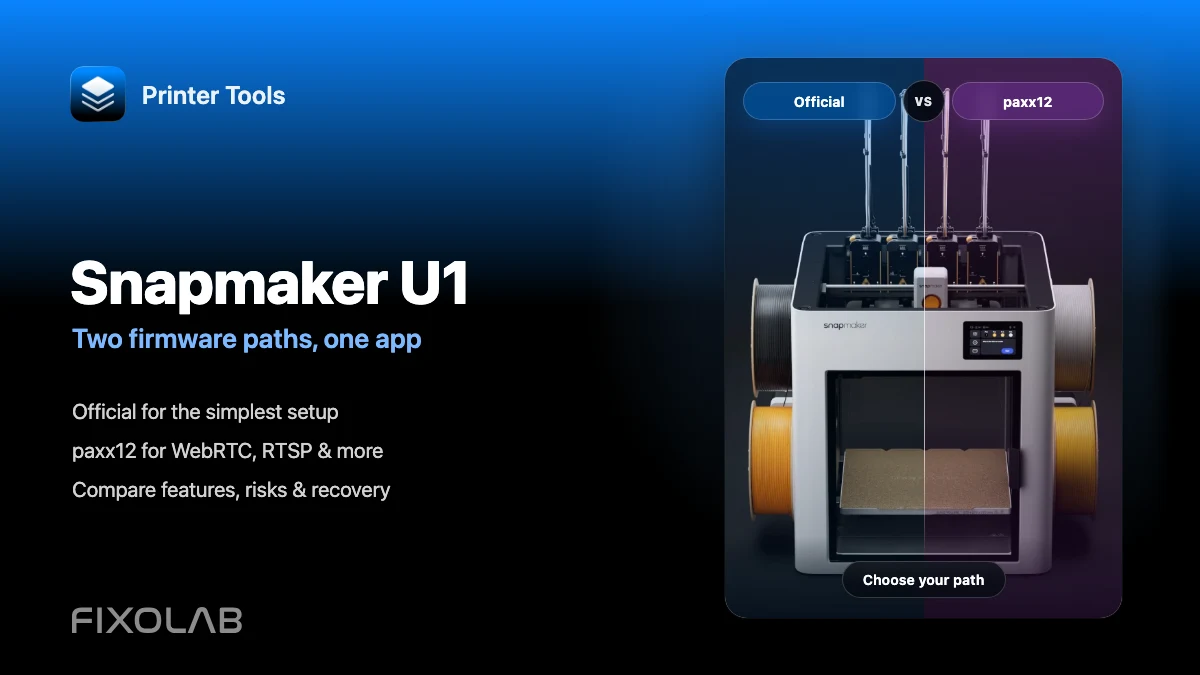
| FixoLab
Snapmaker U1 official firmware vs paxx12 with Printer Tools
Compare official and paxx12 firmware for Snapmaker U1: cameras, WebRTC, RTSP, setup, risks, recovery and Printer Tools compatibility.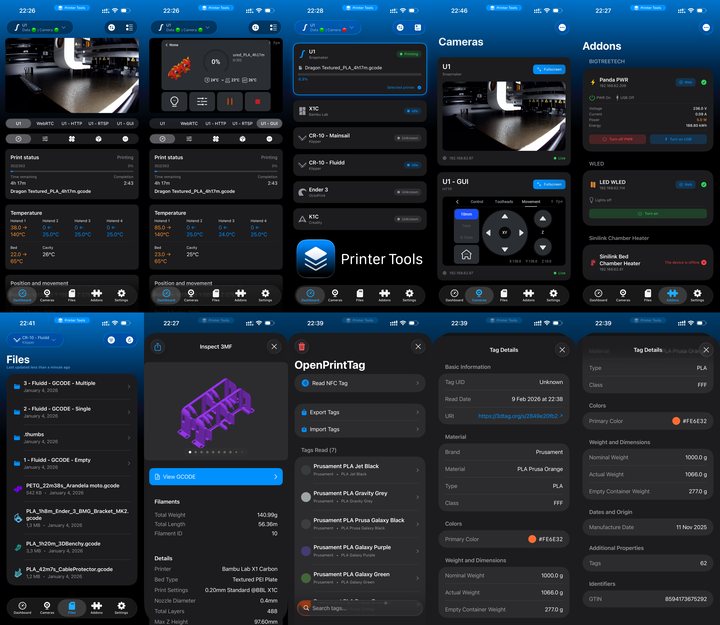
| FixoLab
Printer Tools 1.4 Adds Snapmaker U1 and OpenPrintTag
Printer Tools App 1.4 brings Snapmaker U1 compatibility, OpenPrintTag support, complete migration to Swift Package Manager, and major performance improvements